
ComfyUI-ResizeToCanvasSize
A ComfyUI custom node pack that resizes images to an exact target canvas size with full control over scaling, cropping, and placement.
Nodes (3)
ComfyUI-ResizeToCanvasSize
A ComfyUI custom node pack that resizes images to an exact target canvas size with full control over scaling, cropping, and placement.


Nodes
| Node | Description | |---|---| | Resize To Canvas Size | Resize an image to a canvas using a 9-point anchor grid (flush edge/corner placement) | | Resize To Canvas Size (COI) | Resize with mask-driven Centre of Interest placement — a 7×7 target grid controls where the detected subject lands on the canvas | | Load Image To Canvas | Load an image from disk and interactively composite it onto a canvas — live preview, rotary zoom dials, drag-to-reposition, flip controls, and a context-aware mask |
Resize To Canvas Size
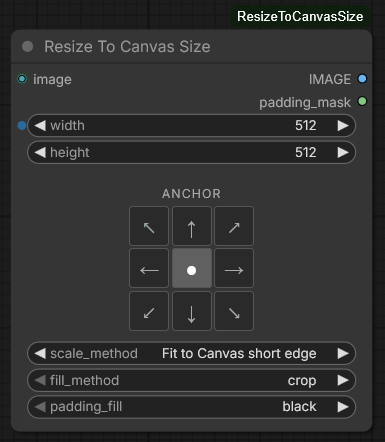
Features
- Photoshop-style anchor grid — 3×3 button grid at the top of the node; click any cell to set the anchor point. The selected cell shows a dot, directly adjacent cells show arrows pointing away from the anchor, and non-adjacent cells are blank
- 5 scale methods — choose how the image is scaled before the final fit step
- 2 fill methods — crop (trim overflow, optionally pad gaps) or stretch (distort to fill)
- 6 padding fill options — black, white, 50% gray, transparent, custom colour (native colour picker), or random noise with a seed
- Outputs RGBA image + padding mask — the
padding_maskoutput is1where padding was added and0where original image pixels are, making it easy to pipe into an inpainting workflow
Inputs
| Input | Type | Description |
|---|---|---|
| image | IMAGE | Source image (batch supported) |
| width | INT | Target canvas width in pixels |
| height | INT | Target canvas height in pixels |
| anchor | Anchor Grid | 3×3 click grid — sets the anchor point for crop/pad positioning |
| scale_method | Dropdown | How to scale the image before filling (see below) |
| fill_method | Dropdown | crop or stretch |
| padding_fill | Dropdown | How to fill any gaps (see below) |
| custom_color_hex | Colour picker | Only shown when padding_fill is custom |
| custom_color_hex_input | STRING (optional connector) | Only visible when padding_fill is custom. Connect any node that outputs a #RRGGBB / #RRGGBBAA string to override the colour picker. Invalid values fall back to the picker value. |
| noise_seed | INT | Seed for noise generation — only shown when padding_fill is noise |
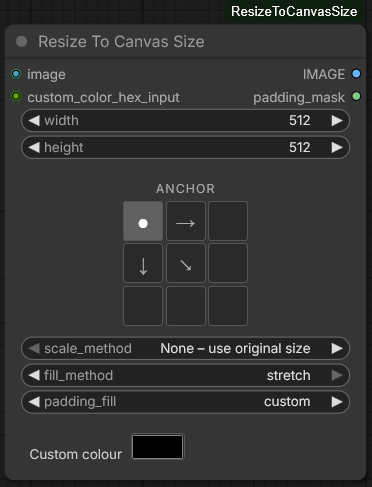
Outputs
| Output | Type | Description |
|---|---|---|
| IMAGE | IMAGE (RGBA) | The resized image |
| padding_mask | MASK | 1.0 where padding was added, 0.0 where original image pixels are. All zeros when no padding occurred. |
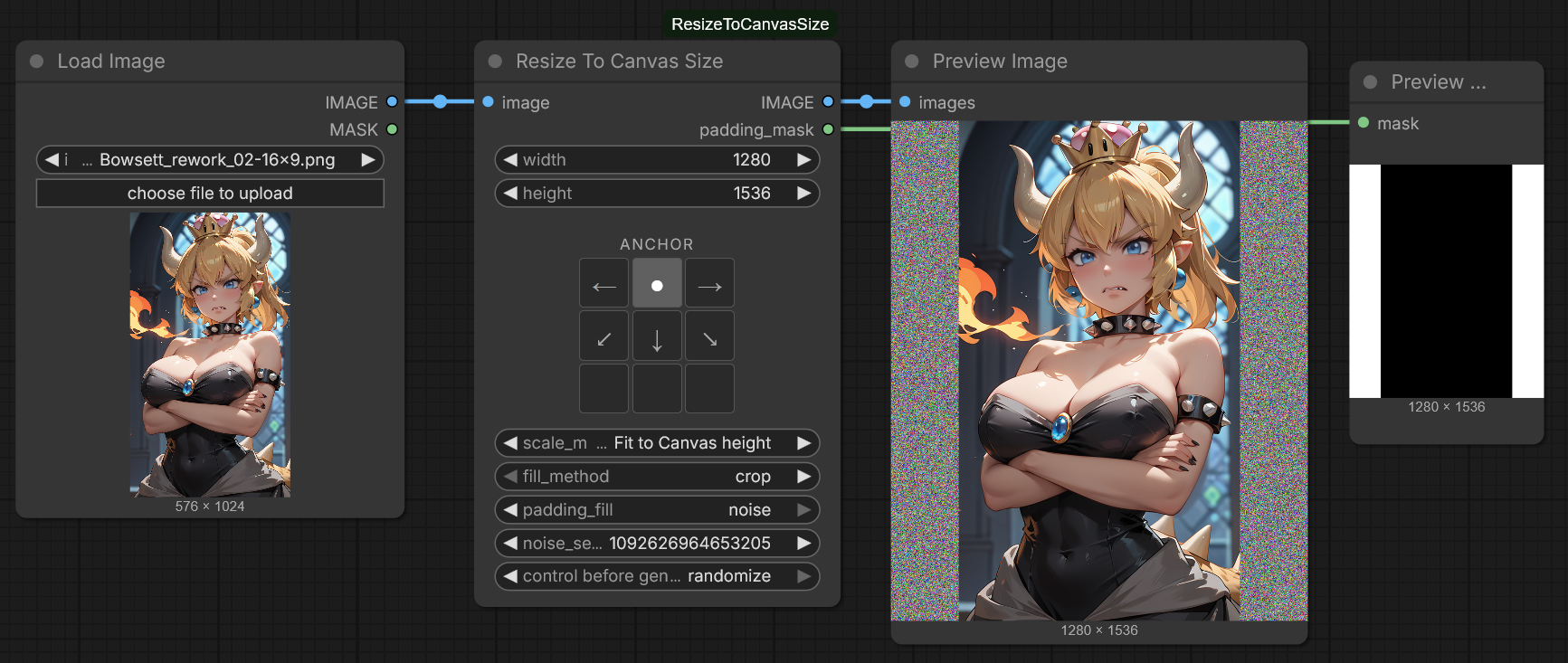
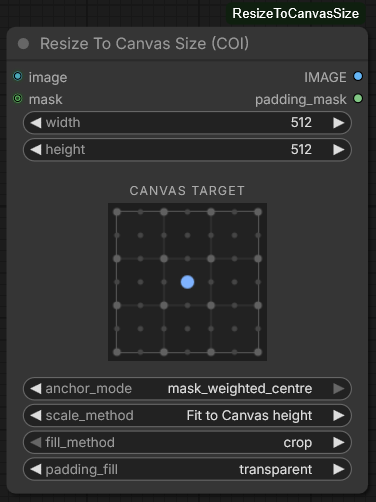
Resize To Canvas Size (COI)
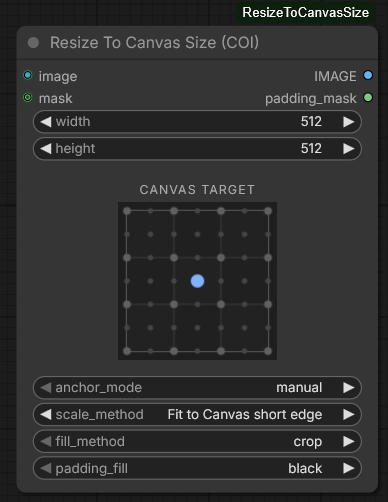
| Manual mode | Mask mode (mask_weighted_centre) |
|---|---|
|  |
|  |
|
Places the image on the canvas by first computing a Centre of Interest (COI) from an optional mask, then using a 7×7 target grid to control exactly where that COI lands on the canvas.
Core concept
The anchor grid in this node always means: "place the COI at this point on the canvas."
| Mode | COI used for placement |
|---|---|
| manual | Image centre (src_w/2, src_h/2) |
| mask_bbox_centre | Centre of the bounding box of non-zero mask pixels |
| mask_weighted_centre | Weighted centroid (centre of mass) — large contiguous masked areas dominate; stray pixels have negligible pull |
If no mask is connected, or anchor_mode is manual, the image centre is used regardless of mode.
The 7×7 grid
A 7×7 lattice of 49 selectable target points is drawn over a 3×3 nonant background. The 7 positions per axis sit at multiples of 1/6 of the canvas dimension:
- Even indices (0, 2, 4, 6) — nonant boundaries (0, W/3, 2W/3, W)
- Odd indices (1, 3, 5) — nonant midpoints and centres (W/6, W/2, 5W/6)
Click any dot to set the canvas target for the COI. The default (3,3) places the COI at canvas centre. Boundary dots are displayed slightly larger; the selected dot is highlighted in blue.
Inputs
| Input | Type | Description |
|---|---|---|
| image | IMAGE | Source image (batch supported) |
| width | INT | Target canvas width in pixels |
| height | INT | Target canvas height in pixels |
| anchor_grid | 7×7 COI Grid | Click grid — selects where on the canvas the Centre of Interest is placed |
| anchor_mode | Dropdown | manual, mask_bbox_centre, or mask_weighted_centre |
| scale_method | Dropdown | How to scale the image before filling |
| fill_method | Dropdown | crop or stretch |
| padding_fill | Dropdown | How to fill any gaps |
| custom_color_hex | Colour picker | Only shown when padding_fill is custom |
| custom_color_hex_input | STRING (optional connector) | Overrides the colour picker when connected |
| noise_seed | INT | Only shown when padding_fill is noise |
| mask | MASK (optional) | Mask used to compute the COI when anchor_mode is not manual. If the mask size differs from the image, it is resized automatically. |
Outputs
| Output | Type | Description |
|---|---|---|
| IMAGE | IMAGE (RGBA) | The resized image |
| padding_mask | MASK | 1.0 where padding was added, 0.0 where original image pixels are |
Scale Methods
| Method | Behaviour |
|---|---|
| None – use original size | No scaling — use the image at its original resolution |
| Fit to Canvas short edge | Scale so the image's shortest edge matches the canvas's shortest edge |
| Fit to Canvas long edge | Scale so the image's longest edge matches the canvas's longest edge |
| Fit to Canvas height | Scale to match the canvas height exactly |
| Fit to Canvas width | Scale to match the canvas width exactly |
After scaling, the image may be larger than the canvas (overflow → crop) or smaller (gap → filled with padding_fill).
Padding Fill Options
| Option | Behaviour |
|---|---|
| black | Fill gaps with solid black |
| white | Fill gaps with solid white |
| gray_50 | Fill gaps with 50% gray |
| transparent | Fill gaps with transparency (alpha = 0) |
| custom | Fill gaps with a colour chosen via the colour picker |
| noise | Fill gaps with random per-pixel noise — a noise_seed field appears to control reproducibility |
Fill Methods
| Method | Behaviour |
|---|---|
| crop | Place the scaled image using the anchor position, trim any overflow, fill any gaps with the padding colour. Anchor determines which part of the image is kept. |
| stretch | Distort/resize the scaled image to exactly fill the canvas. Anchor is not used. |
Common Recipes
Crop to square, keep the centre:
scale_method:Fit to Canvas short edge·fill_method:crop·anchor: center
Letterbox / pillarbox (fit within canvas, pad the rest):
scale_method:Fit to Canvas long edge·fill_method:crop·padding_fill: black
Distort to fill (ignore aspect ratio):
scale_method:None – use original size·fill_method:stretch
Cookie-cutter crop at original resolution:
scale_method:None – use original size·fill_method:crop— canvas dimensions act as a crop window at the anchor position
Inpaint the padded region:
- Connect
padding_maskto a KSampler inpainting setup to fill padding areas with generated content
Face-centred portrait crop (COI node):
- Feed a face detection mask (e.g.
UltralyticsDetectorProvider→BboxDetectorSEGS→SAMDetectorCombined) into themaskinput - Set
anchor_mode:mask_bbox_centre· grid:(3,3)(canvas centre) - Set
scale_method:Fit to Canvas width— the detected face will be centred on the canvas regardless of where it appears in the source image
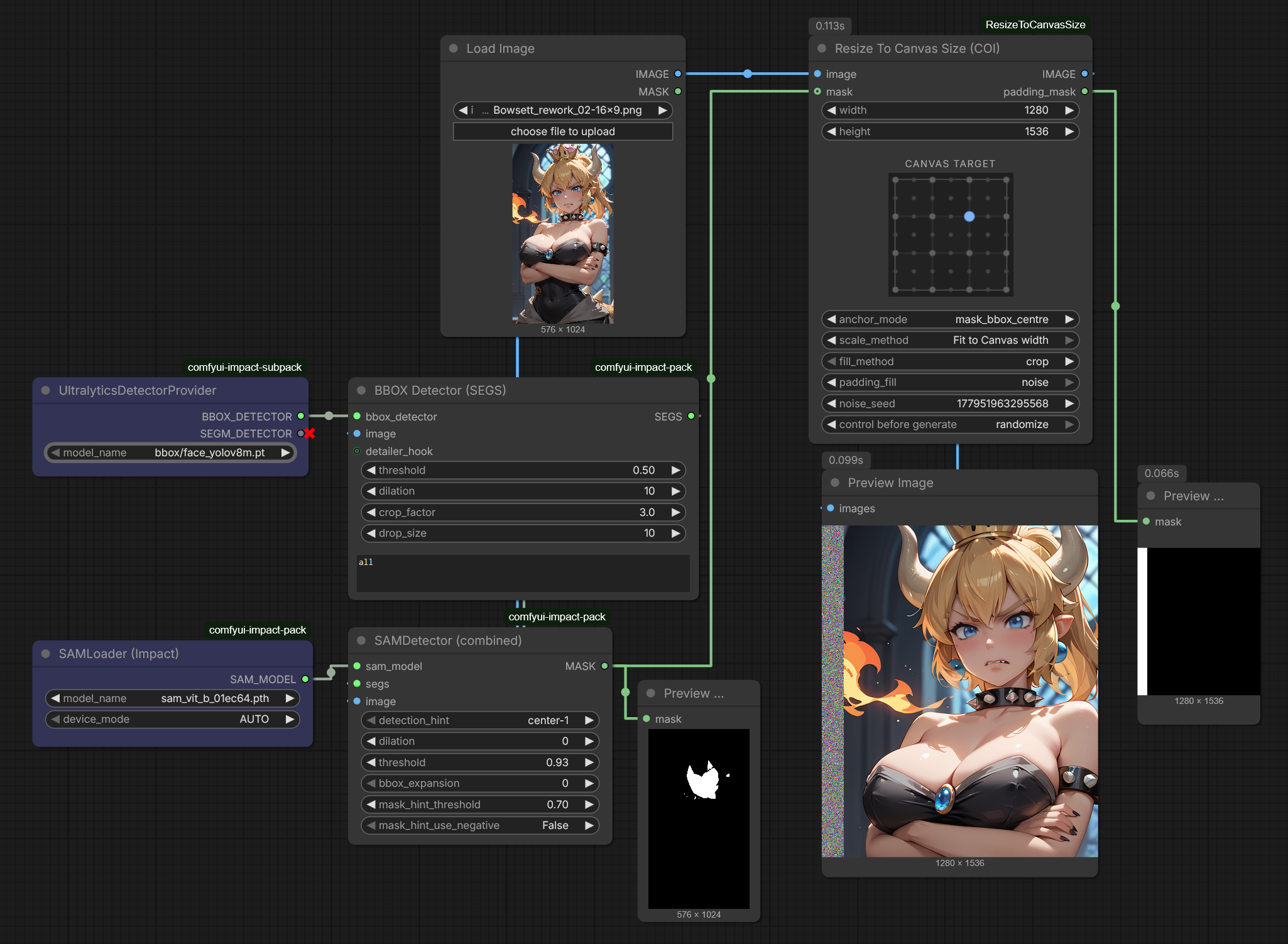
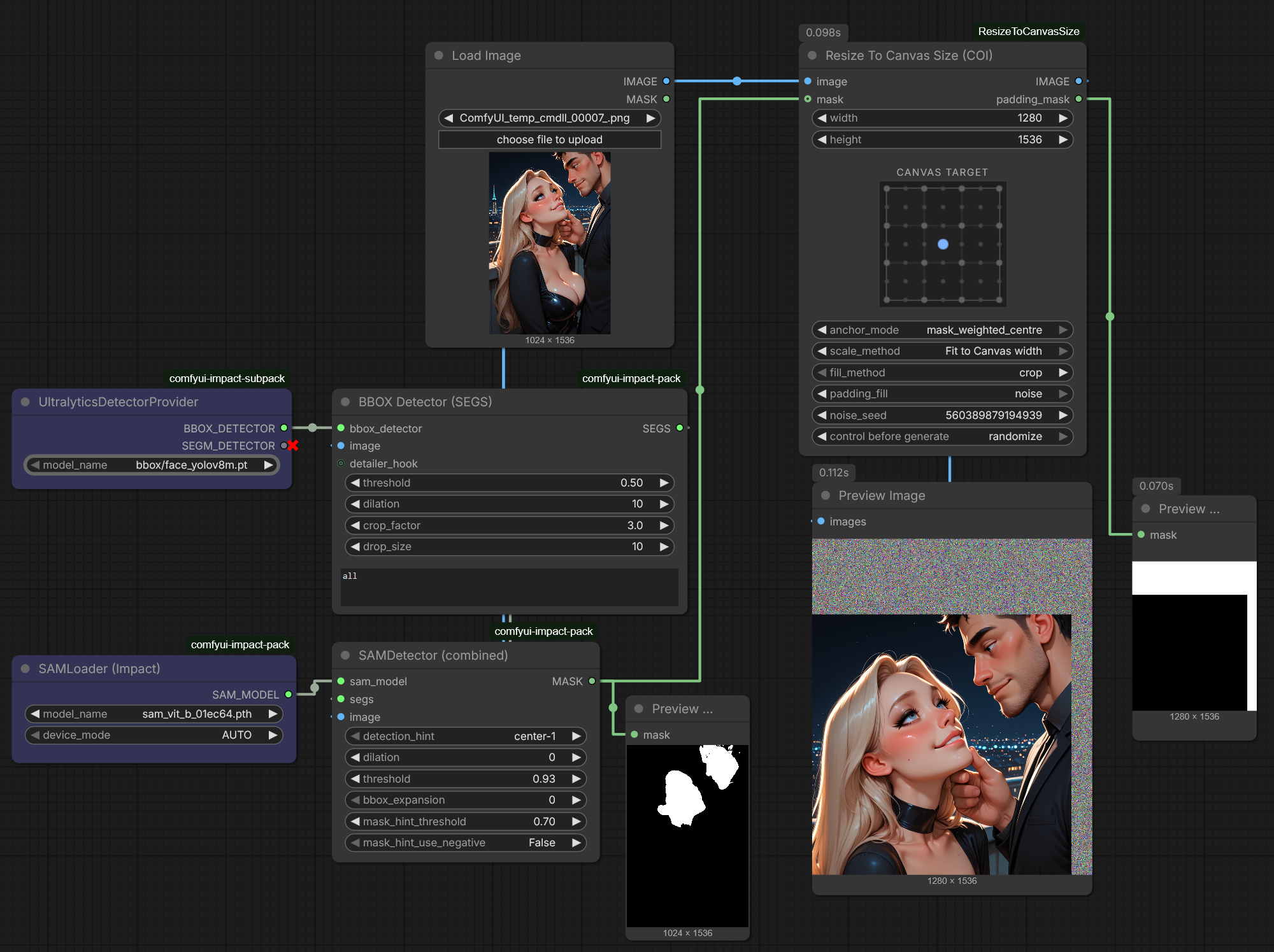
With multiple subjects, mask_weighted_centre finds the centre of gravity across all detected regions, automatically framing everyone together:
Load Image To Canvas
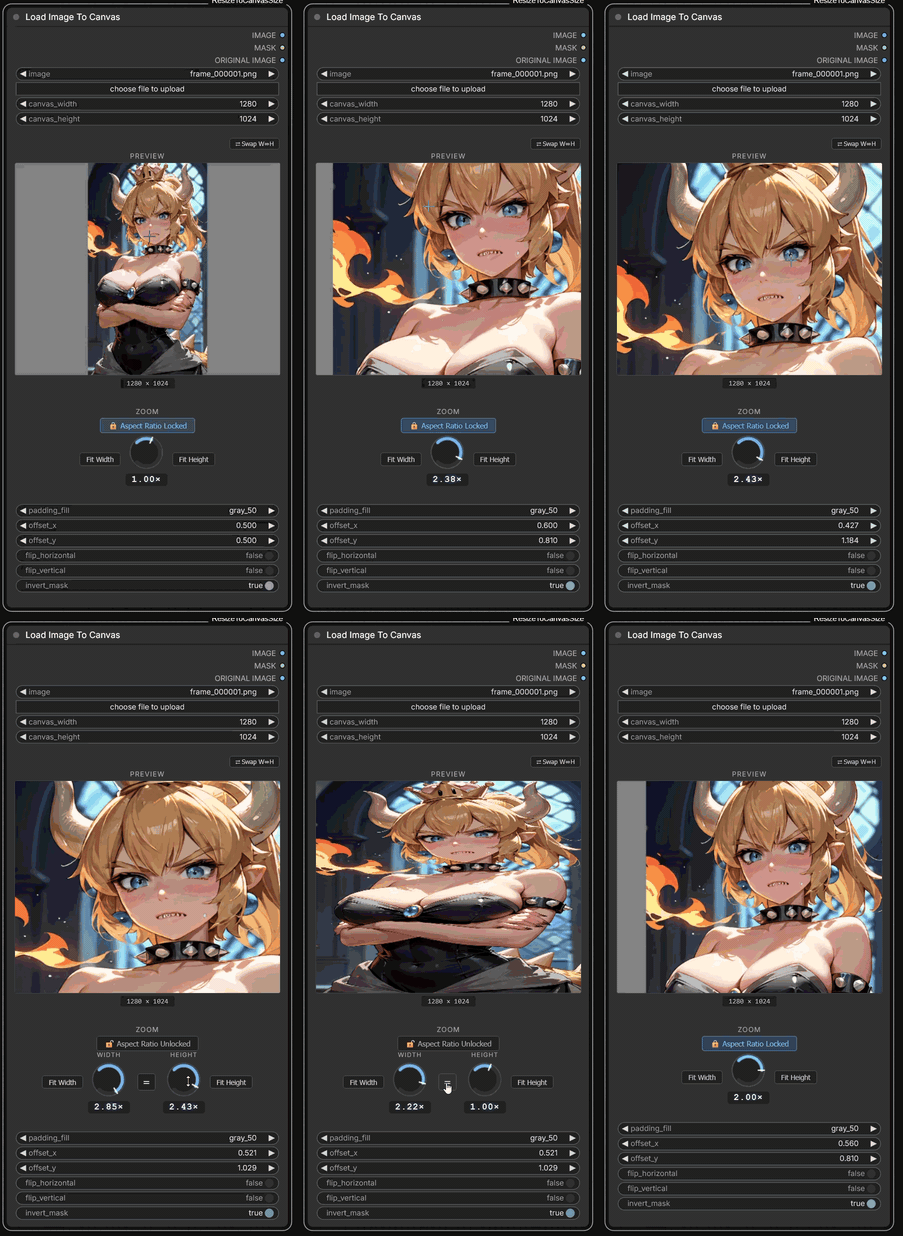
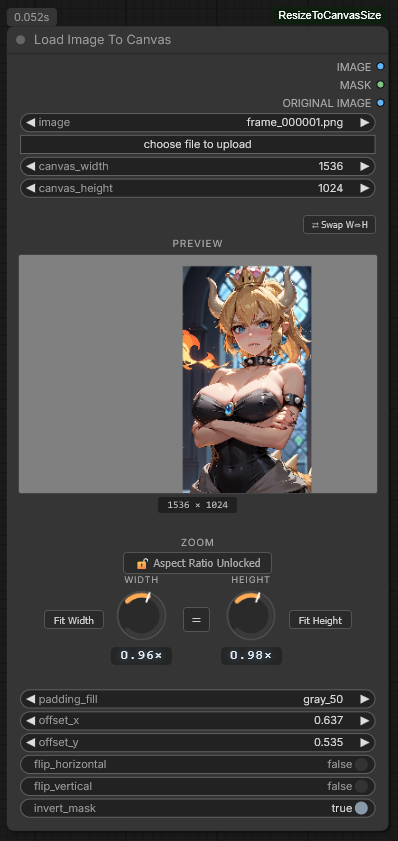
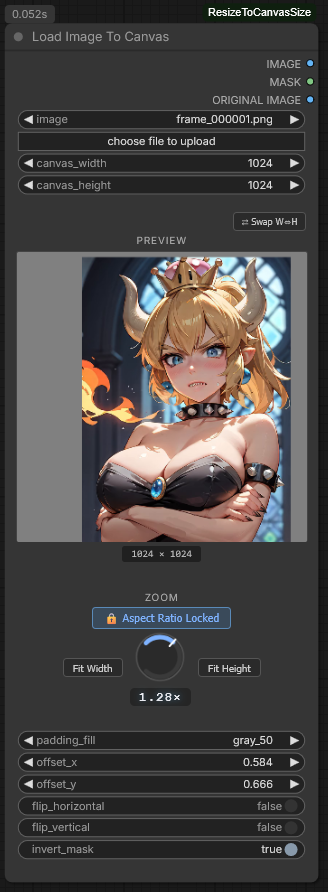
| Locked aspect ratio | Unlocked aspect ratio |
|---|---|
|  |
|  |
|
Loads an image from disk and composites it onto a user-defined canvas with full interactive control over scaling, zoom, positioning, and padding. Designed as a manual, intentional starting node — user interaction is the point.
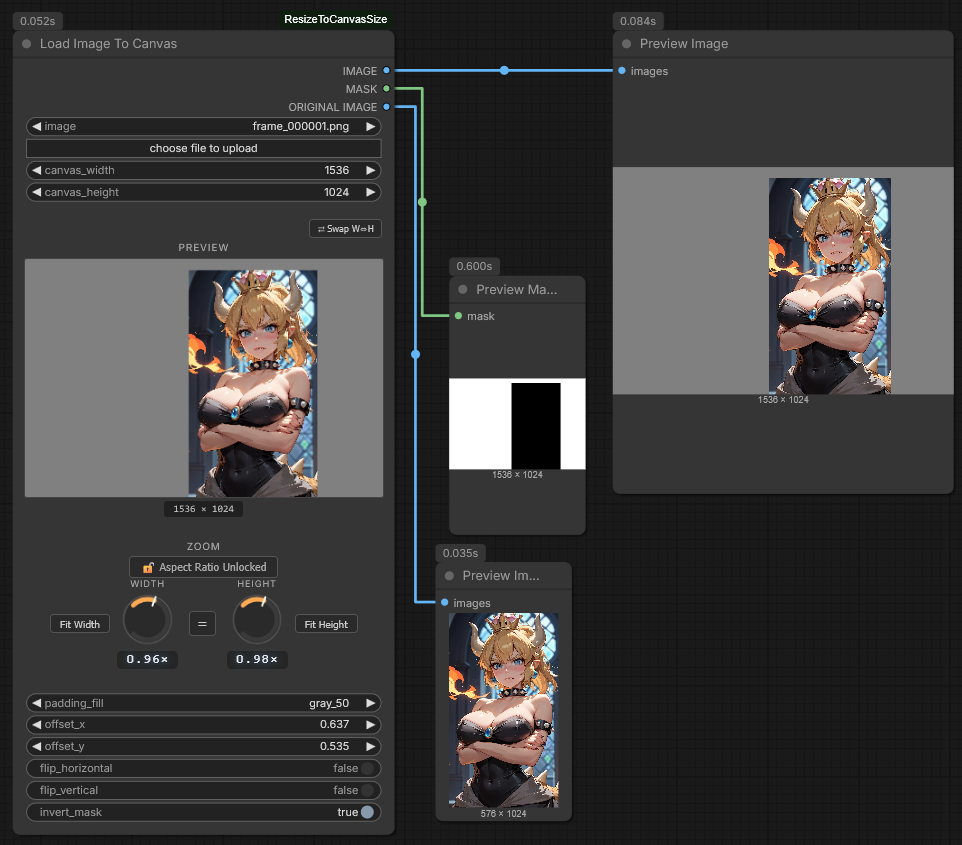
Features
- Live preview — canvas-aspect-ratio preview embedded in the node, updates reactively as every parameter changes. A resolution label (
W × H) sits just below the preview and stays accurate when canvas dimensions change - Drag to reposition — click and drag anywhere on the preview to move the image; the
offset_x/offset_yvalues update live - Scroll to zoom — scroll the mouse wheel over the preview or the dials; velocity-sensitive steps (rapid scroll = coarser, slow = finer). Shift+scroll for large jumps
- Shift+drag crop box — draw an aspect-ratio-locked region on the preview; releasing snaps zoom and offset so that region fills the canvas exactly
- Rotary zoom dials — canvas-based knobs for zoom. Drag diagonally to change value; click the numeric readout to type an exact value
- Aspect ratio lock (
🔒 Aspect Ratio Locked / 🔓 Aspect Ratio Unlocked) — single unified dial when locked; independent Width and Height dials when unlocked. Locking preserves the x:y ratio you set while unlocked - Fit Width / Fit Height buttons — one-shot snap buttons flanking the dial(s); scale the image to fill the chosen canvas axis and centre the offset on that axis
- = (Equalize) button — appears between the Width and Height dials in unlocked mode; copies the Width zoom value to Height, restoring the image's natural (undistorted) aspect ratio
- ⇄ Swap W↔H button — swaps
canvas_widthandcanvas_heightwith each other; useful for quickly toggling between portrait and landscape canvas orientations - Flip controls — horizontal and vertical flip
- 6 padding fill options — black, white, 50% gray, transparent, custom colour, or noise (same options as the rest of the pack)
- Context-aware mask output — canvas-space (white = image, black = padding) when padding is present; source-image-space (white = sampled pixels) when fully covered
- Original image passthrough —
ORIGINAL IMAGEoutput carries the raw unmodified loaded image with no transforms applied
Inputs
| Input | Type | Description |
|---|---|---|
| image | File picker | Source image loaded from ComfyUI's input/ folder |
| canvas_width | INT | Target canvas width in pixels |
| canvas_height | INT | Target canvas height in pixels |
| padding_fill | Dropdown | How to fill any uncovered canvas area |
| custom_color_hex | Colour picker | Only shown when padding_fill is custom |
| custom_color_hex_input | STRING (optional connector) | Overrides the picker when connected |
| noise_seed | INT | Only shown when padding_fill is noise |
| lock_aspect_ratio | BOOLEAN | Controlled via the lock toggle button in the Zoom section |
| zoom_x | FLOAT | Horizontal zoom multiplier (1.0 = 100%) — set via dial or readout |
| zoom_y | FLOAT | Vertical zoom multiplier — independent when unlocked |
| offset_x | FLOAT | Horizontal position (0.5 = centred) — set via drag or manual input |
| offset_y | FLOAT | Vertical position (0.5 = centred) |
| flip_horizontal | BOOLEAN | Mirror left/right |
| flip_vertical | BOOLEAN | Mirror top/bottom |
| invert_mask | BOOLEAN | Flip white/black on the mask output |
Outputs
| Output | Type | Description |
|---|---|---|
| IMAGE | IMAGE (RGBA) | Composited canvas result |
| MASK | MASK | Context-aware mask — canvas-space when padding present; source-image-space when no padding |
| ORIGINAL IMAGE | IMAGE (RGBA) | Raw unmodified loaded image, no transforms applied |
Mask detail
| State | Mask space | Mask content | |---|---|---| | Image has padding | Canvas space (canvas W × H) | White = where image sits, black = padding | | No padding (fully covered/cropped) | Source image space (original W × H) | White = which source pixels were sampled |
invert_mask flips this in all cases.
Transform order
- Load image
- Apply
flip_horizontal/flip_vertical - Apply
zoom_x/zoom_y - Apply
offset_x/offset_y(image centre placed atoffset × canvas) - Composite onto canvas with
padding_fill - Compute mask
Installation
Clone this repository into your ComfyUI custom_nodes folder:
cd ComfyUI/custom_nodes
git clone https://github.com/Carasibana/ComfyUI-ResizeToCanvasSize.git
Then restart ComfyUI.
No additional Python packages are required beyond those already included with ComfyUI (Pillow, NumPy, PyTorch).
File Structure
ComfyUI-ResizeToCanvasSize/
├── __init__.py               # Registers nodes and web directory
├── nodes.py                  # Python node logic
├── js/
│   └── anchor_widget.js      # Custom anchor grid and COI grid UI widgets
└── examples/
    └── ResizeToCanvasSize_Example_Workflow.json
                              # Example workflow: basic resize (top) + face-COI resize (bottom)