
PhotoCraft Image Editor
Edit ComfyUI images in PhotoCraft from the image context menu, or pause a workflow for layered manual editing.
ComfyUI-PhotoCraft
<img src="icon.svg" width="112" height="112" alt="PhotoCraft Image Editor icon">PhotoCraft Image Editor for ComfyUI · Publisher: bigesila · Version: 0.1.1
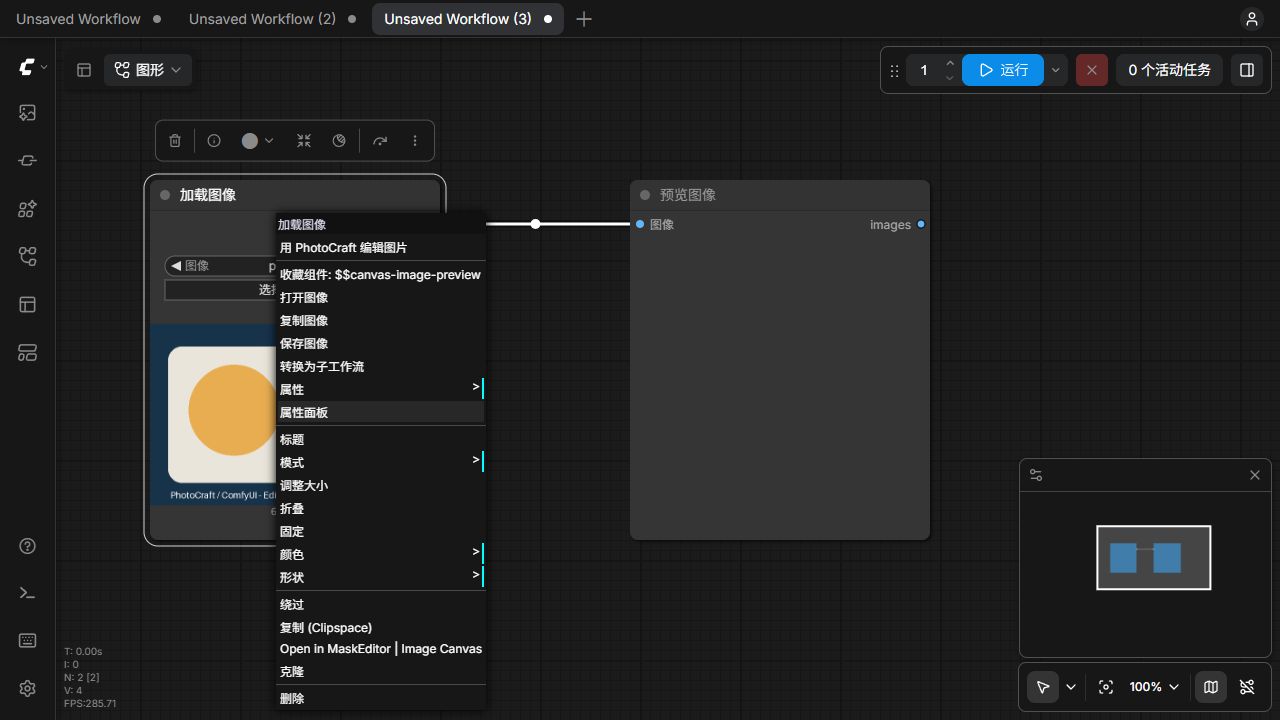
在 ComfyUI 中右键图片,选择「用 PhotoCraft 编辑图片」,打开完整的 PhotoCraft 桌面编辑器。也可以通过专用节点暂停工作流,手动编辑后回传并自动继续。
这是独立的社区集成,使用 PhotoCraft 的本机控制接口;不代表 PhotoCraft 官方项目。
通过 ComfyUI Manager 安装
搜索 PhotoCraft Image Editor 或节点 ID photocraft-editor,安装后重启 ComfyUI,并按 Ctrl+F5 刷新网页。
安装钩子 install.py 会在 Windows x64 上下载固定的官方 PhotoCraft v0.16.0 免安装版并核对 SHA256(约 86 MiB)。节点导入和正常使用不会下载软件或安装 Python 包。未执行安装钩子或下载失败时,可用 ComfyUI 的 Python 手动运行节点目录内的 install_runtime.py。
此版本实测环境:Windows x64、Python 3.11、ComfyUI 0.42.3、前端 1.55.18。PhotoCraft 仍处于 Alpha,本集成固定使用已验证的版本。
通过 GitHub 安装
在 ComfyUI/custom_nodes 内运行:
git clone https://github.com/Bigesila-B/ComfyUI-PhotoCraft.git
使用 ComfyUI 自己的 Python 安装依赖和运行时:
python -m pip install -r ComfyUI-PhotoCraft/requirements.txt
python ComfyUI-PhotoCraft/install_runtime.py
ComfyUI 便携版需使用它自带的 Python,而不是系统的 Python。完成后重启并刷新网页。
独立目录安装(Windows x64)
在 PowerShell 中运行:
.\install.ps1 -ComfyUIPath '你的 ComfyUI 目录'
安装器下载并校验官方 PhotoCraft v0.16.0 免安装版,将本目录链接到 custom_nodes/ComfyUI-PhotoCraft。无需安装额外 Python 包或 Rust。安装后保留本目录,重启 ComfyUI 并刷新网页。
也可以将整个目录复制到 custom_nodes。已安装其他版本时,可在启动 ComfyUI 前设置环境变量 PHOTOCRAFT_EXE 为 PhotoCraft 程序的完整路径。其他桌面系统可采用此方式,但本版本仅实测 Windows。
右键编辑图片(推荐)
重启 ComfyUI 并刷新网页后,在 Load Image、Preview Image、Save Image 或其他带图片预览的节点上右键,选择 用 PhotoCraft 编辑图片。不用先添加专用编辑节点,也不用先运行整条工作流。
兼容新版 Vue 节点界面和旧版画布。新版菜单会把此入口放在 Extensions 区域。更新前端脚本后按 Ctrl+F5 刷新即可。
在 PhotoCraft 窗口编辑后,回到 ComfyUI,点击右下角面板的 回传到 ComfyUI:
- 加载图片节点直接切换到编辑后的图片,重新运行即可用于下游。原文件保留。
- 预览、保存等节点会在旁边新增 PhotoCraft 编辑结果(Load Image)节点,可把 IMAGE 和 MASK 输出接到后续工作流。不会覆盖生成节点的输出文件。
- 面板关闭后,可在原图片的右键菜单选择 回传 PhotoCraft 编辑结果,重新打开回传面板。
- 多图预览优先编辑鼠标指向/当前选中的图片。
examples/PhotoCraft-RightClick.json 是仅含加载和预览图片的右键编辑示例。编辑器仍是本机独立窗口。
专用节点使用
可直接把 examples/PhotoCraft-Editor.json 拖入 ComfyUI。安装器已将示例图片复制到 input;手动安装时需自行复制 examples/photocraft-demo.png,或在 Load Image 中选择自己的图片。
- 连接
Load Image → PhotoCraft 图片编辑器 → Preview Image / Save Image。 - 运行工作流。PhotoCraft 自动打开,工作流等待手动编辑。
- 在 PhotoCraft 中使用图层、文字、笔刷、裁剪或调色等工具。
- 保持 PhotoCraft 窗口打开,回到 ComfyUI,点击节点上的「回传并继续」。无需另存为或手动选文件。
- 节点保存可继续编辑的
project.pcraft,回传当前活动文档的合成 PNG,下游继续。
两个输出:image 为 RGB 图片,mask 为 1−Alpha(透明区域为 1,符合 ComfyUI 的蒙版约定)。可连接输入 mask 带入透明度。图片通过 8 位 PNG 交换,不适用于保留 HDR/16 位数据的流程。
模式:
- 有结果时复用:默认。首次等待编辑;同一输入后续运行复用已回传图片。要修改时点击「打开完整 PhotoCraft」,编辑后再次回传。
- 每次手动编辑:每次运行都等待点击「回传并继续」。
- 仅准备图片:立即输出当前图片,用于先准备节点再手动打开编辑器。
批量图片通过 image_index 选择一张,输出单张图片。输入变化会创建独立编辑记录,旧工程保留;旧窗口尚未关闭时会提示先关闭,避免把旧编辑套到新图片。
保存位置和限制
图片、图层工程、运行日志位于 ComfyUI/input/photocraft/<会话>/<输入摘要>/。保存工作流会保留会话编号;重启后可重开已回传的工程。复制节点会创建独立会话。删除工作流节点不会删除工程文件;分享工作流时需一并提供工程目录。
编辑发生在 ComfyUI 服务器所在电脑的独立 PhotoCraft 窗口。此版本用于本机桌面,按钮仅接受本机请求;不支持远程浏览器、Comfy Cloud 或网页内嵌编辑。远程/内嵌方式需要额外集成 PhotoCraft 的 WebAssembly 版。
等待期间可用 ComfyUI 的停止按钮中断工作流,编辑窗口保留。窗口关闭前未回传的修改由 PhotoCraft 自己的保存/恢复机制负责;本节点只保证已回传的工程。PhotoCraft 仍处于 Alpha,PSD 兼容性和工具行为由上游决定。
开发验证
使用 ComfyUI 的 Python:
python -m unittest discover -s tests -p 'test_*.py' -v
python tests/smoke_native.py
node --test tests/test_frontend.mjs
第二条会打开真实 PhotoCraft 窗口,验证图片/透明度和图层工程往返,并保存编辑器截图。
上游:storytold/photocraft,MIT OR Apache-2.0。本节点使用其本机认证控制通道,未修改上游程序。官方程序和随附字体保留各自许可证。
English quick start
Install PhotoCraft Image Editor (photocraft-editor) from ComfyUI-Manager, restart ComfyUI and refresh the frontend. Right-click an image and select 用 PhotoCraft 编辑图片 (Edit image in PhotoCraft). The desktop editor opens on the ComfyUI host. Click 回传到 ComfyUI (Return to ComfyUI) in the floating panel when finished.
Load Image nodes switch to the edited input; output/preview nodes create a new Load Image node containing the result. A dedicated PhotoCraftEditor node can instead pause a workflow until you return the edit. Layered .pcraft projects are preserved alongside the flattened 8-bit PNG exchange files.
Windows x64 is tested. The installation hook downloads the pinned official PhotoCraft 0.16.0 archive and verifies its SHA256. If your node manager does not run installation hooks, run python install_runtime.py with ComfyUI's Python. On other desktop systems, install PhotoCraft separately and set PHOTOCRAFT_EXE; those systems are not yet tested. This is a local desktop integration, with a separate editor window, and does not support Comfy Cloud or remote browser editing.