
ComfyUI-SBTools
Workflow toolkit for ComfyUI. Includes BiRefNet background removal, dynamic prompt/image variable system for batch generation, chroma key tools, and more utilities.
Nodes (12)
Stop hand-picking green screen colors — this node finds one your subject never uses
The background remover that finally gets hair right — five BiRefNet variants in one node
Make one image wear another's color palette — Match Color is the secret to batch consistency
Fix a green cast without touching the mood — Match Color Balance does temperature and tint
Hand one image's brightness to another
A Save Text node that won't lose your file — sequential numbering, overwrite, or append
The output node of the variable system — assemble prompts from tags and wire in up to four images
When your prompt has 7 variables, this is how you keep them organized
Variable Debug (SBTools)
Swap whole image folders based on your prompt variables — the node that makes references context-aware
Load every image in a folder, one at a time — the batch loader that plays nice with variables
The heart of SBTools' variable system — one variable node that cycles, randomizes, or branches
ComfyUI-SBTools
Latest Version: 2.0.1
Custom node collection for ComfyUI. Background removal, color analysis, and dynamic prompt generation tools.
Nodes
| Node | Category | Description | | -------------------------------- | -------------- | ------------------------------------------------------------------------ | | BiRefNet RemoveBG (SBTools) | SBTools/Image | Advanced background removal with 5 model variants | | Alpha to Chroma Key (SBTools) | SBTools/Image | Find safe chroma key colors and fill transparent areas automatically | | Variable Prompt (SBTools) | SBTools/Prompt | Define variables with sequential/random/conditional selection modes | | Variable Folder (SBTools) | SBTools/Image | Define conditional image folder mappings based on variable context | | Variable Image Loader (SBTools) | SBTools/Image | Load images from folder with pattern matching and flexible control | | Variable Combiner (SBTools) | SBTools/Prompt | Combine multiple variable lists for unlimited expansion | | Variable Builder (SBTools) | SBTools/Prompt | Generate prompts and load images from a variable list | | Variable Debug (SBTools) | SBTools/Prompt | Inspect a variable list: first N combinations and total count | | Match Color (SBTools) * | SBTools/Image | Match color distribution between images (Lab/RGB/Adaptive) | | Match Color Balance (SBTools) * | SBTools/Image | Match color temperature and tint (MKL/Shift methods) | | Match Luminance (SBTools) * | SBTools/Image | Match brightness levels between images | | Save Text (SBTools) | SBTools/Text | Save text to file with sequential numbering, overwrite, or append modes |
* In development
Installation
Method 1: ComfyUI Manager (Recommended)
The easiest way to install is via ComfyUI Manager.
- Open ComfyUI Manager in your ComfyUI interface.
- Click on "Custom Nodes Manager".
- Search for "ComfyUI-SBTools".
- Click "Install".
- Restart ComfyUI.
Method 2: Manual Installation
Step 1: Open your ComfyUI custom nodes folder
- Windows Portable:
ComfyUI_windows_portable\ComfyUI\custom_nodes - Standard:
ComfyUI\custom_nodes
Step 2: Open terminal in this folder and clone the repository
git clone https://github.com/Amatsukast/ComfyUI-SBTools.git
Step 3: Install dependencies
For Windows Portable:
cd ComfyUI-SBTools
..\..\..\python_embeded\python.exe -m pip install -r requirements.txt
For Standard Installation (venv/conda):
cd ComfyUI-SBTools
pip install -r requirements.txt
Step 4: Restart ComfyUI
To update: Navigate to the ComfyUI-SBTools folder and run git pull, then update dependencies with pip install -r requirements.txt and restart ComfyUI.
Variable System
Workflows (Variable System)
Example Workflow 1: Basic Variable Prompt
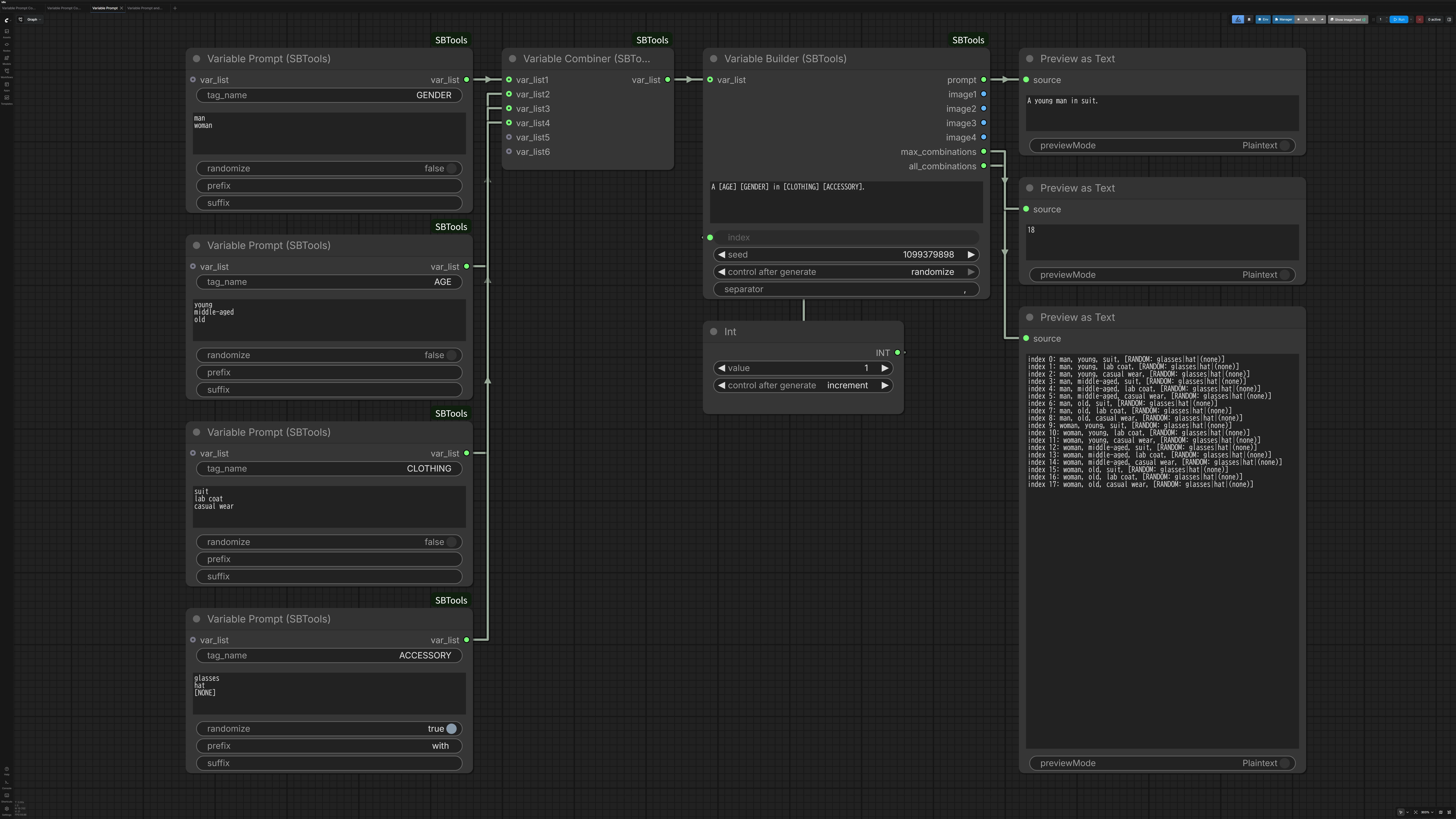
This example demonstrates the complete prompt generation workflow:
Variables defined:
GENDER: man, woman (Sequential)AGE: young, middle-aged, old (Sequential)CLOTHING: suit, lab coat, casual wear (Sequential)ACCESSORY: glasses, hat, [NONE] (Random with prefix " and ")
Setup:
- 4 variables combined with Variable Combiner
- Template:
"A [AGE] [GENDER] in [CLOTHING][ACCESSORY]." - Primitive node with
incrementcontrols the index for batch processing
Result:
- 18 sequential combinations (2 × 3 × 3 from Sequential variables)
- Random accessory selected each execution (3 choices including [NONE])
- Example output:
"A young man in suit and glasses."
Download: Variable Prompt.json
Example Workflow 2: Variable Prompt with Images
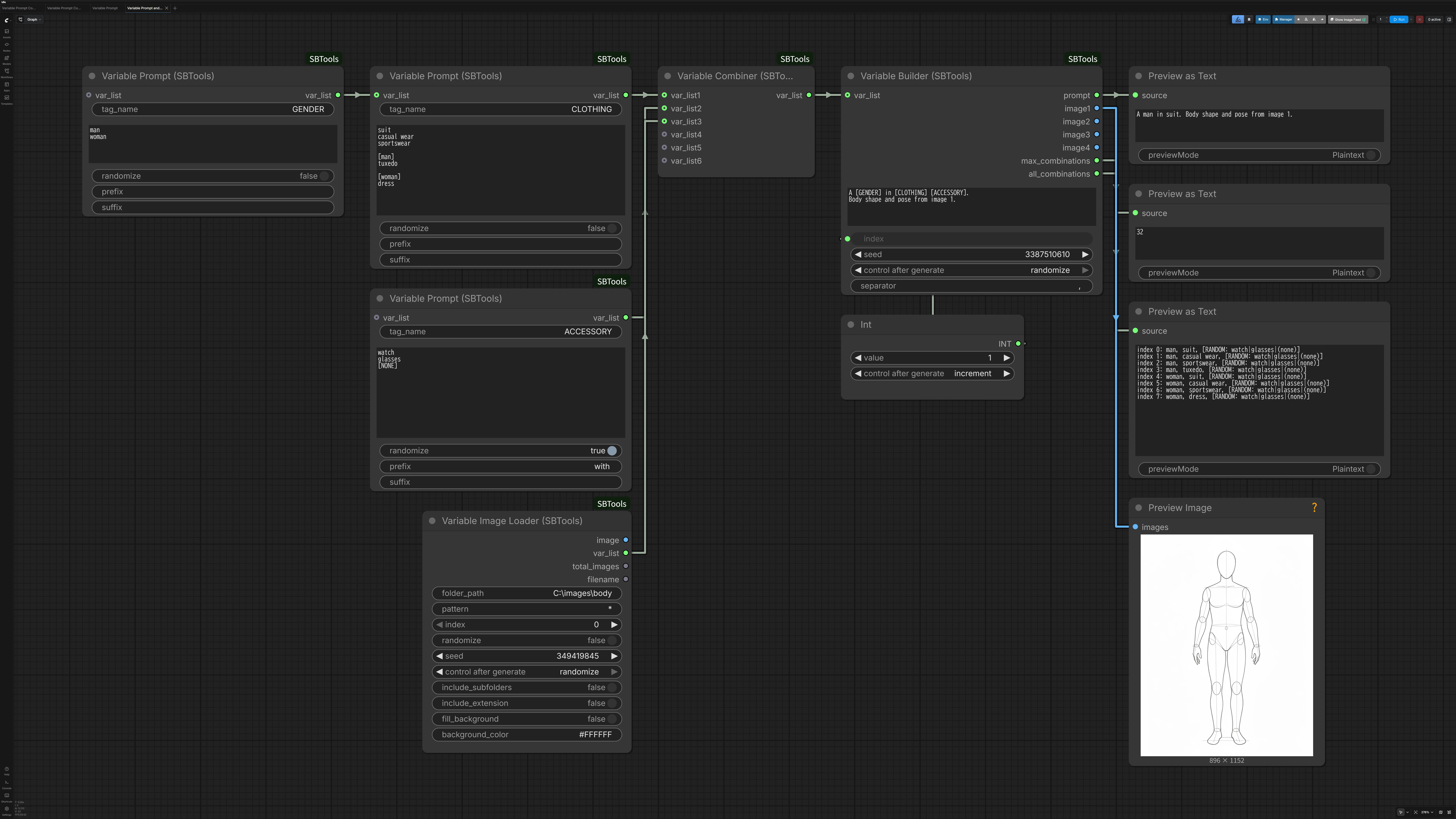
This example demonstrates the combined text + image workflow:
Variables defined:
GENDER: man, woman (Sequential)AGE: young, middle-aged, old (Sequential)CLOTHING: suit, lab coat, casual wear (Random)ACCESSORY: glasses, hat, [NONE] (Random with prefix " and ")- Image Variable: body reference images from folder (Sequential)
Setup:
- 4 text variables + 1 image variable combined with Variable Combiner
- Variable Builder generates prompts and loads images
- Primitive node with
incrementcontrols the index for batch processing
Result:
- Full combinations of text variables × image files
- Example: 2 (gender) × 3 (age) × 3 (body images) = 18 combinations
- Clothing and accessory are randomized for each execution
- Each index outputs corresponding prompt + image
Download: Variable Prompt and Image_1.json
Example Workflow 3: Conditional Variables (Basic)
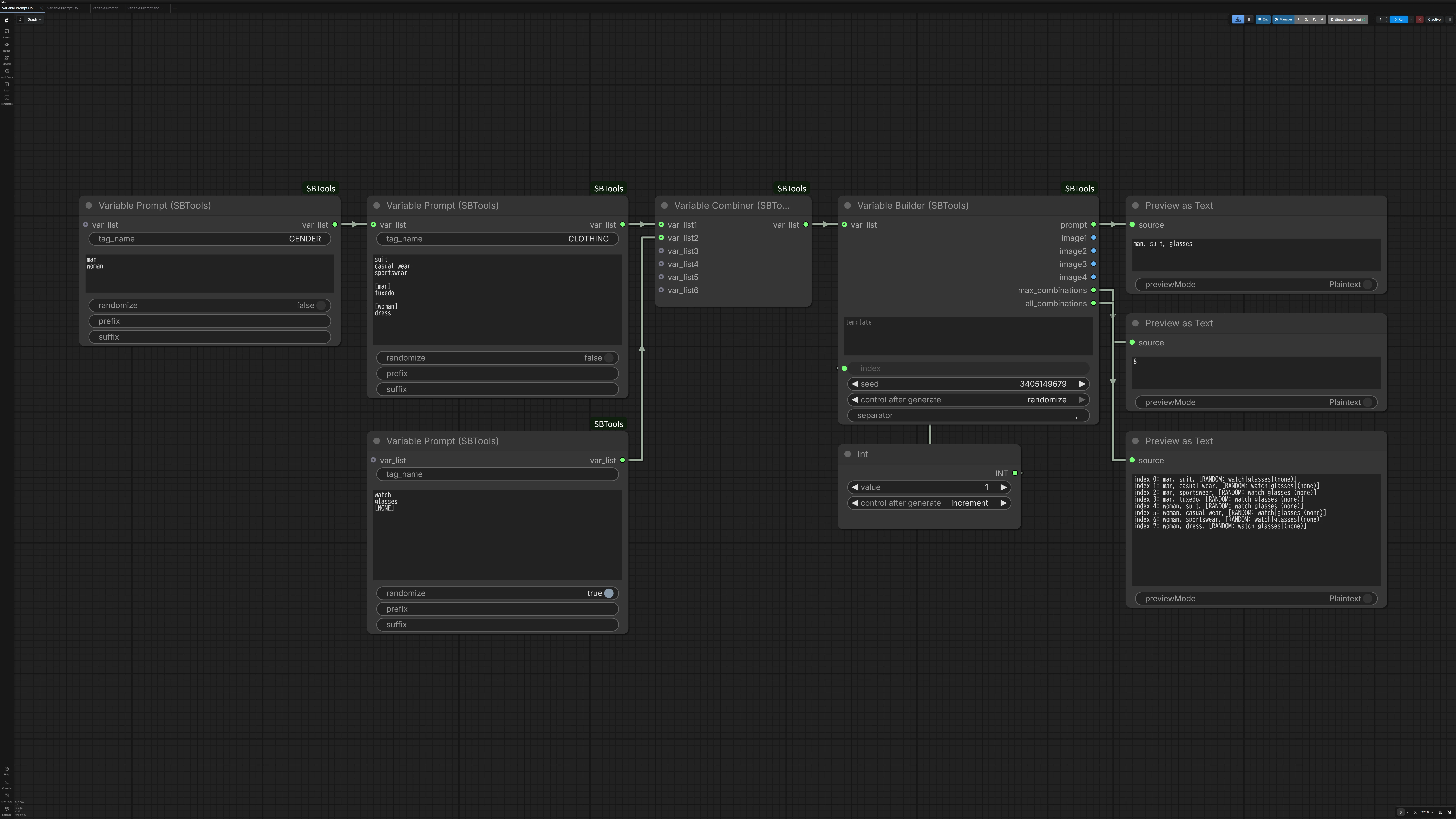
This example demonstrates the conditional variable system:
Variables defined:
GENDER: man, woman (Sequential)AGE: young, middle-aged, old (Sequential)CLOTHING: suit, casual (Sequential, with conditional values)- Common: suit, casual
[man]: business suit[woman]: dress, skirt[*]: sportswear (back to common)
ACCESSORY: glasses, watch, [NONE] (Random)
Setup:
- Variables connected sequentially: GENDER → AGE → CLOTHING → ACCESSORY
- Each variable's
var_listoutput connects to the next variable'svar_listinput - Variable Builder generates prompts based on conditional logic
Result:
- Clothing options change based on GENDER value
- For "man": suit, casual, business suit, sportswear
- For "woman": suit, casual, dress, skirt, sportswear
- Total combinations automatically calculated
Download: Variable Prompt Conditional_1.json
Example Workflow 4: Conditional Variables (Advanced)
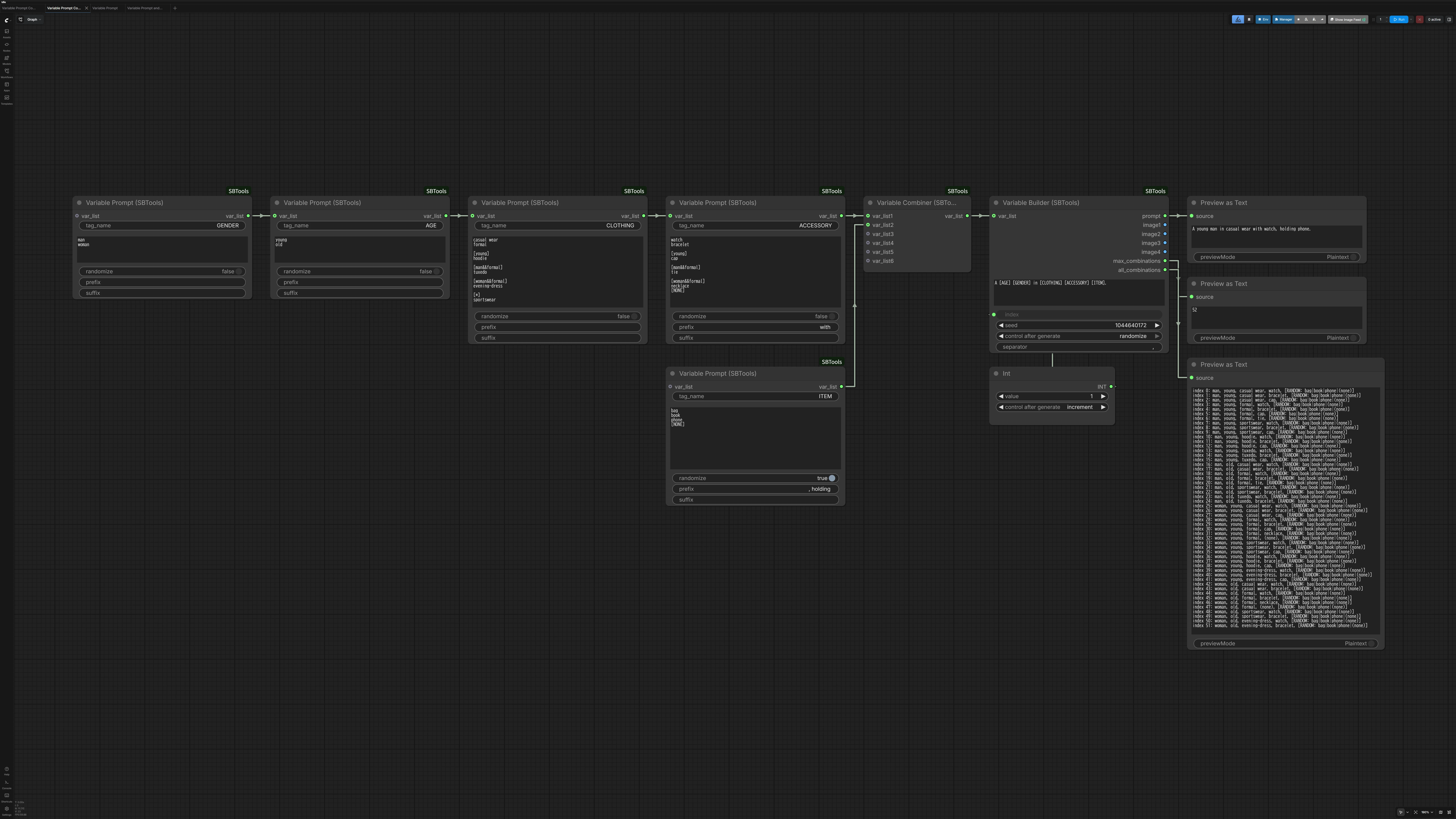
This example demonstrates complex conditional logic with multiple conditions:
Variables defined:
GENDER: man, woman (Sequential)AGE: young, old (Sequential)CLOTHING: Multiple conditional sections- Common values
[man]: men's clothing[woman]: women's clothing[young&&man]: young men's casual wear[old||woman]: elegant clothing for old people OR women[*]: universal clothing items
ACCESSORY: Context-aware accessories with ConditionalRandom mode
Setup:
- Complex condition syntax:
&&(AND),||(OR),[*](wildcard) - ConditionalRandom mode: Random selection within available conditional values
- Variable Debug lists the combinations for checking
Result:
- Clothing dynamically filters based on GENDER and AGE
- Example: young man → includes young men's casual wear
- Example: woman (any age) → includes elegant clothing (OR condition matches)
- Accessory randomly selected from context-appropriate options
Download: Variable Prompt Conditional_2.json
Example Workflow 5: Advanced Conditional Syntax
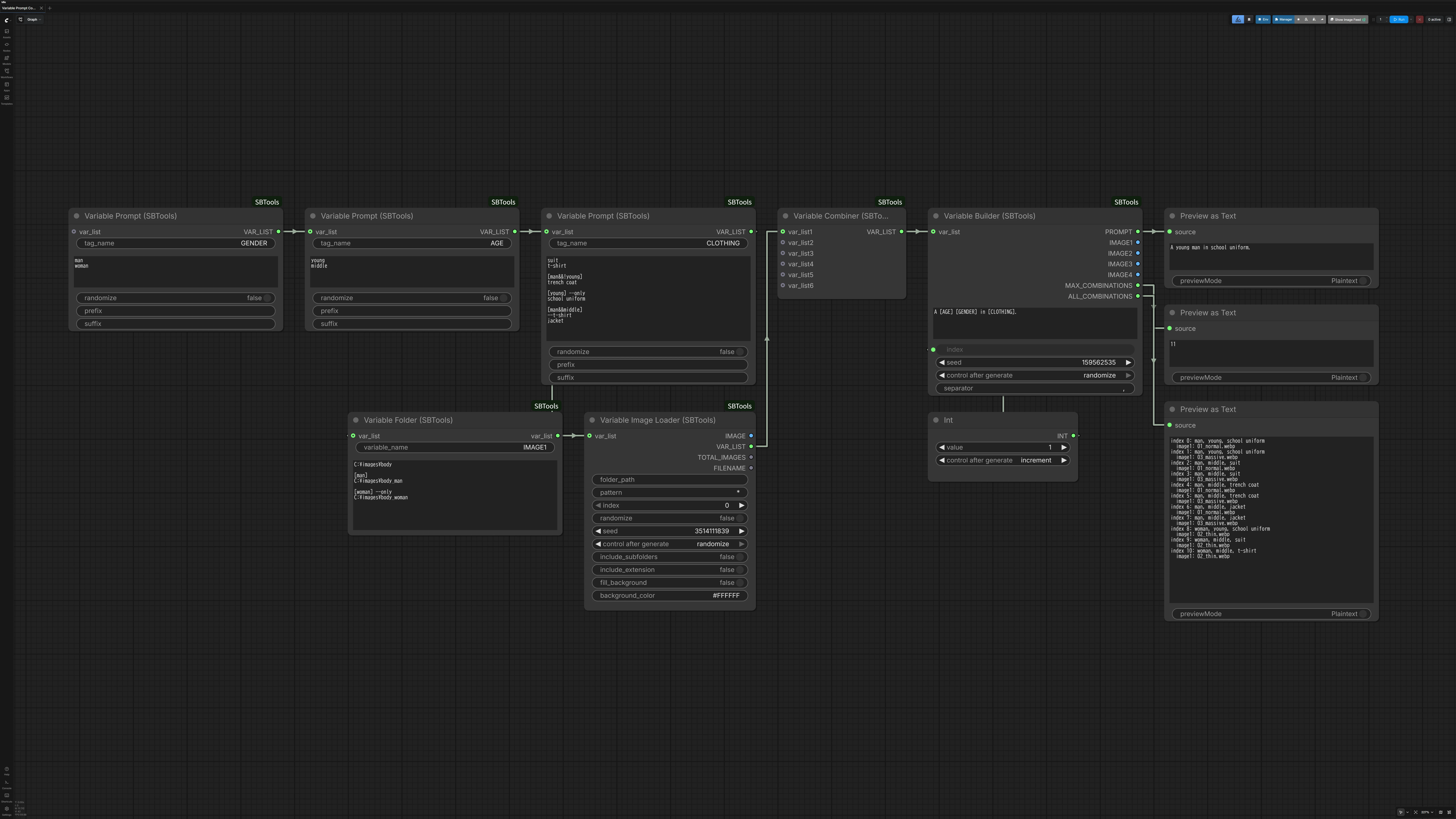
This example demonstrates the three advanced conditional syntax features:
Variables defined:
GENDER: man, woman (Sequential)AGE: young, middle, old (Sequential)CLOTHING: Advanced conditional logic- Common: suit, t-shirt
[man&&!young]: trench coat (NOT condition - excludes young)[man&&young] --only: school uniform (Exclusive mode - ignores common values)[man&&middle]:--t-shirt(Exclusion syntax), jacket
Setup:
- Three advanced syntax features demonstrated:
- NOT condition (
!):[man&&!young]adds trench coat only for non-young men - Exclusion (
--value):--t-shirtremoves t-shirt from middle-aged men - Exclusive mode (
--only):[man&&young] --onlyreplaces all common values
- NOT condition (
Result:
man + young: school uniform only (--only overrides common values)man + middle: suit, ~~t-shirt~~ (excluded), jacket, trench coat (NOT young = true)man + old: suit, t-shirt, trench coat (NOT young = true)woman + *: suit, t-shirt (common values only)
Key Points:
- NOT condition allows "everything except" logic
- Exclusion removes specific items from inherited values
- Exclusive mode creates completely separate value sets for specific conditions
Download: Variable Prompt Conditional_3.json
Example Workflow 6: Conditional Image Loading
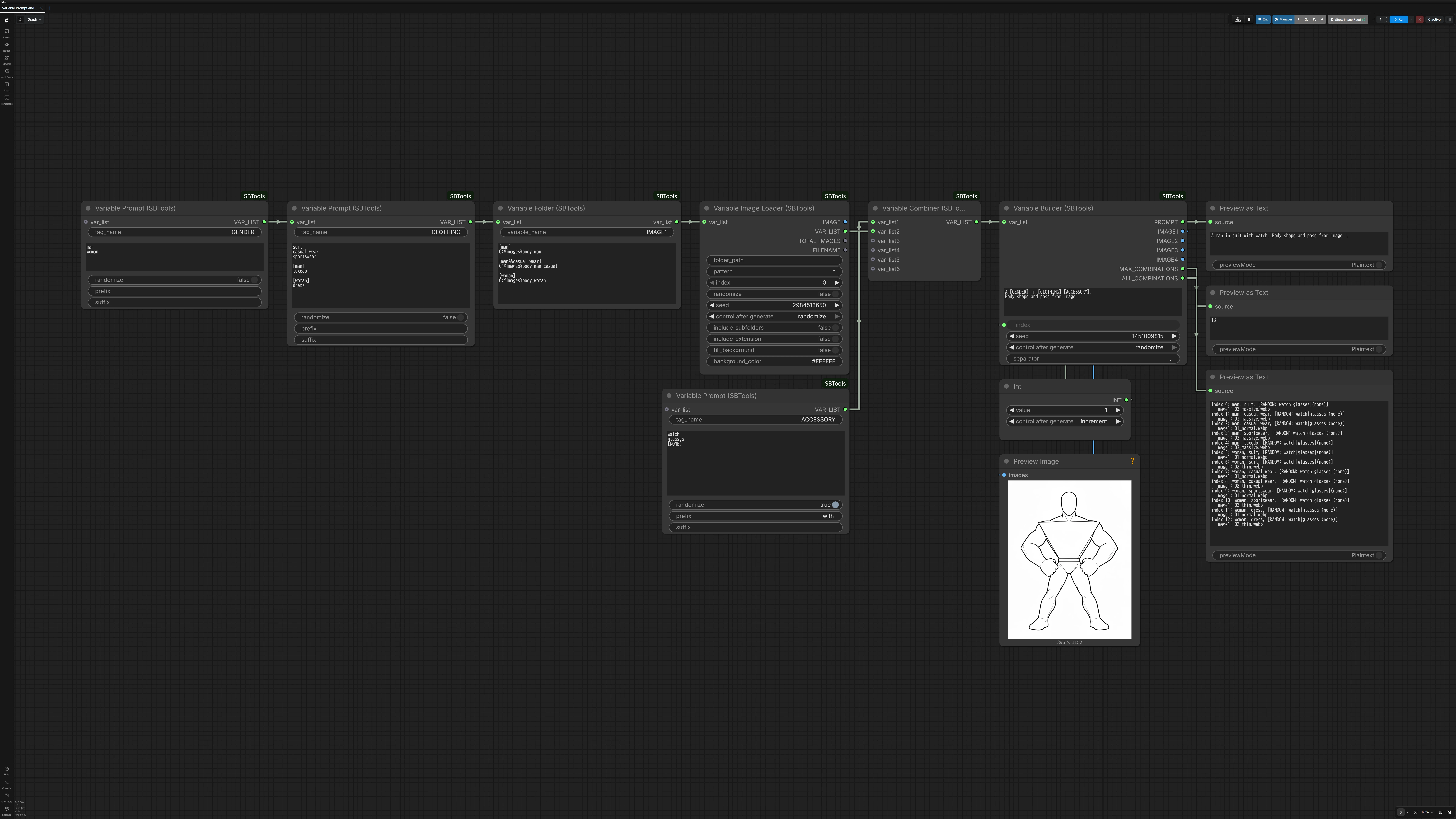
This example demonstrates conditional image loading with Variable Folder:
Variables defined:
GENDER: man, woman (Sequential)CLOTHING: Multiple conditional sections- Common: suit, casual wear, sportswear
[man]: tuxedo[woman]: dress
ACCESSORY: watch, glasses, [NONE] (Random with prefix "with ")- Variable Folder (IMAGE1): Context-aware image folder mappings
[man]: C:\images\body_man[man&&casual wear]: C:\images\body_man_casual[woman]: C:\images\body_woman
Setup:
- Variable Folder connected after CLOTHING variable
- Variable Image Loader receives folder mappings from Variable Folder
- Variable Builder generates prompts and loads images based on conditions
Result:
- Images automatically switch based on GENDER and CLOTHING context
- Example: "man" + "casual wear" → loads from body_man_casual folder
- Example: "woman" + "suit" → loads from body_woman folder
- Template: "A [GENDER] in [CLOTHING] [ACCESSORY]. Body shape and pose from image 1."
Download: Variable Prompt and Image_2.json
Example Workflow 7: Image Load from Folder
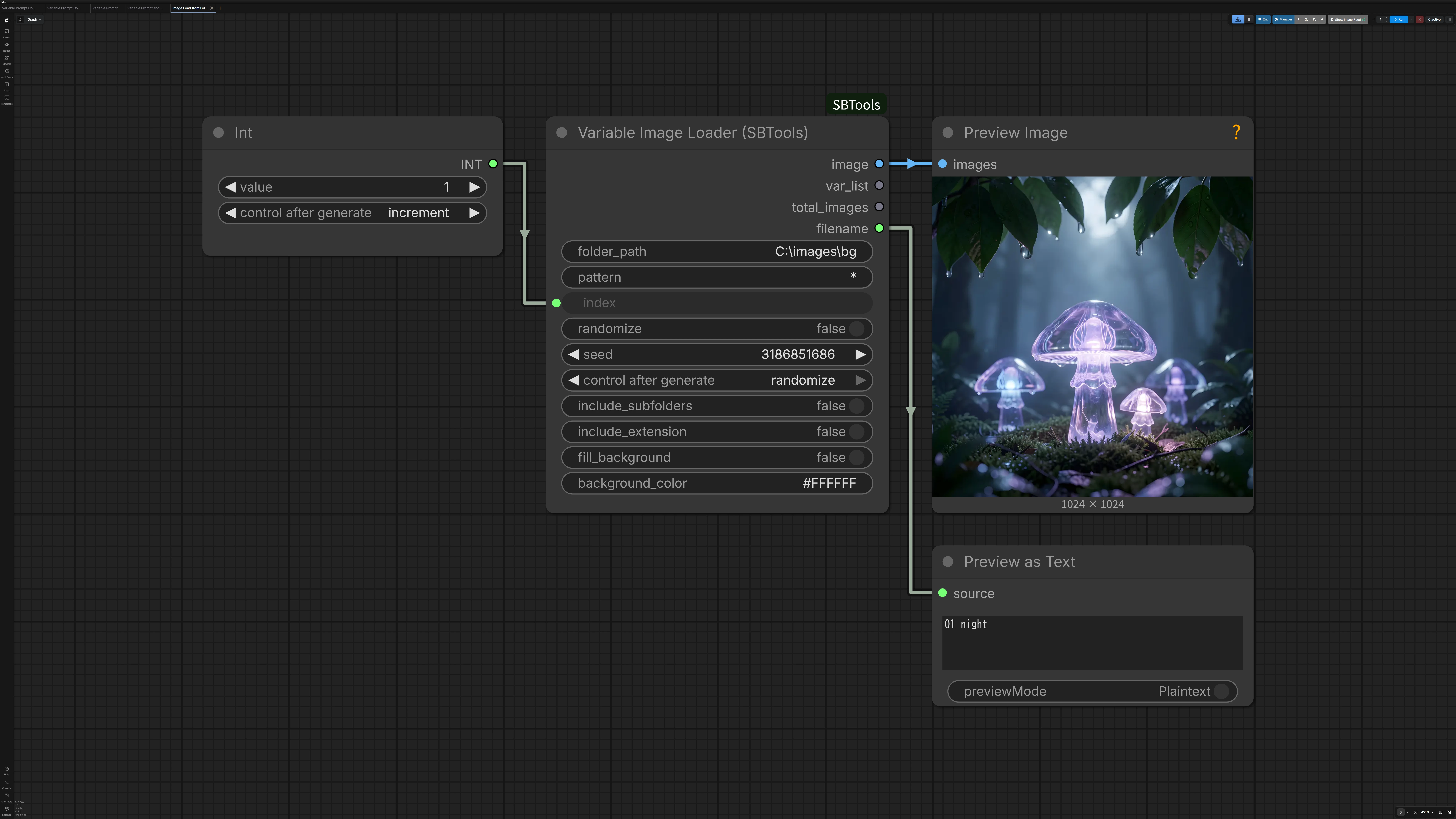
This example demonstrates the Variable Image Loader used as a standalone image loader:
Features:
- Load images from folder with glob pattern matching
- Sequential and Random modes with index/seed control
- Natural sort order (file1, file2, ..., file10)
- Subfolder search with recursive option
- RGBA preservation or background fill with custom color
- Filename output with optional extension toggle
Setup:
- Variable Image Loader with folder path and pattern (e.g.,
*.png) imageoutput connects directly to image processing nodes- Primitive node with
incrementcontrols the index for sequential loading total_imagesandfilenameoutputs for debugging
Result:
- Simple image batch processing without text variables
- Perfect for testing, preprocessing, or sequential image loading
- Can also be used with Variable Combiner for combined workflows
Download: Image Load from Folder.json
Getting Started
System Overview
The prompt and image generation system consists of these nodes:
- Variable Prompt - Define text variables with their values
- Variable Folder - Define conditional image folder mappings (optional, for context-aware images)
- Variable Image Loader - Load images from folder with flexible control
- Variable Combiner - Combine multiple variables into lists (optional, for complex workflows)
- Variable Builder - Generate prompts and load images
- Variable Debug - Inspect a variable list (optional, for checking conditions)
Quick Start
Simple Example (2-3 variables):
Variable Prompt (GENDER: man, woman) → Variable Builder
Variable Prompt (AGE: young, old)    ↗
Complex Example (7+ variables):
Variable Prompts 1-3 → Combiner A ┐
Variable Prompts 4-6 → Combiner B ├→ Variable Builder
Variable Prompt 7    ──────────────┘
With conditional images:
Variable Prompt (GENDER) → Variable Folder (Images) → Variable Image Loader → Variable Builder
Conditional Syntax
Variable Prompt and Variable Folder share the same conditional syntax system. This allows dynamic value/folder selection based on previous variable values.
Basic Syntax
| Syntax | Description | Example | Matches When |
| -------------------- | --------------------------- | ----------------------------- | --------------------------------------- |
| [value] | Simple condition | [man] | GENDER = "man" |
| [value1&&value2] | AND condition (both true) | [man&&young] | GENDER = "man" AND AGE = "young" |
| [value1\|\|value2] | OR condition (any true) | [woman\|\|old] | GENDER = "woman" OR AGE = "old" |
| [value&&!other] | NOT condition (negation) | [man&&!young] | GENDER = "man" AND AGE ≠ "young" |
| [TAG:value] | Tag specification | [GENDER:man&&CLOTHING:suit] | Explicit tag names for duplicate values |
| [*] | Wildcard (return to common) | [*] | End conditional section |
Syntax Variants:
- AND:
&&,AND(uppercase only),&&(full-width) - OR:
||,OR(uppercase only),||(full-width) - Tag separator:
:,:(full-width)
Example:
suit
casual

[man]
tuxedo

[woman]
dress

[young&&man]
hoodie

[old||woman]
elegant coat

[*]
sportswear
Result:
- young man: suit, casual, tuxedo, hoodie, sportswear
- old man: suit, casual, tuxedo, elegant coat, sportswear
- young woman: suit, casual, dress, elegant coat, sportswear
- old woman: suit, casual, dress, elegant coat, sportswear
Advanced Syntax
| Syntax | Placement | Description | Example | Result |
| --------- | -------------------- | -------------------------------------------- | ----------------------------------------------- | --------------------------------------------------------- |
| --only | After condition line | Ignores all common values for this condition | [man&&young] --only<br>school uniform | man+young: "school uniform" only<br>others: common values |
| --value | In value list | Removes specific value/folder from context | [man&&middle]<br>--t-shirt<br>formal vest | man+middle: "suit, ~~t-shirt~~, jacket, formal vest" |
Example for --only:
suit
casual

[man&&young] --only
school uniform
Result: man+young gets only "school uniform", others get "suit, casual"
Example for --value:
suit
t-shirt
jacket

[man&&middle]
--t-shirt
formal vest
Result: man+middle gets "suit, ~~t-shirt~~, jacket, formal vest"
Operator Precedence
&& separates groups, || lists alternatives within a group:
[A||B&&C||D] = (A or B) and (C or D)
A condition is a single bracketed expression. [A]&&[B] is not valid — everything after
the first ] is read as flags, and unrecognised text is ignored with a warning.
This matters when combining an OR with an AND. To express "(breast focus or upper body) and sitting pose":
[COMPOSITION:breast focus||COMPOSITION:upper body&&POSE_CATEGORY:sitting pose]     correct
[COMPOSITION:breast focus&&POSE_CATEGORY:sitting pose||COMPOSITION:upper body&&POSE_CATEGORY:sitting pose]
The second line does not mean what it looks like: it reads as
breast focus and (sitting pose or upper body) and sitting pose, so the "upper body" case
never matches.
Value Weights
Variable Prompt only. Variable Folder uses
--suffixes for path options (--pattern=,--subfolder, …) and does not take weights.
Add --N to the end of a value line to make it more or less likely. --N means
"N copies of this line" — naked --3 is exactly equivalent to writing naked three times:
naked --3
bikini
[NONE] --20
- Default weight is
1. Decimals are allowed (--0.5), though any ratio can also be written with integers — starting from a base like--10lets you adjust one line without touching the others. --0disables a value without deleting it. If every value in the pool is--0, the variable resolves to empty.- Duplicate lines add up, and a value present in both the common list and a matching conditional block contributes both weights.
- Random / ConditionalRandom only. Sequential and Conditional visit every value exactly once, so weights have no meaning there and are ignored.
- Position distinguishes it from exclusion:
--at the start of a line removes a value,--Nat the end weights it.
Usage Notes
- Case sensitivity: Condition values are case-sensitive
- Connection required: Connect
var_listoutput to enable conditional logic - Order matters: Use
[*]to return to common values after conditional sections - Warnings: A
[TAG:value]naming an unknown tag, a value that tag never produces, or a variable connected after this one is reported in the console. Conditions can only reference variables that come earlier in the chain. - Combining features: All syntax features can be combined (NOT + --only, etc.)
- Best practices:
- Use
--onlyfor complete replacement (clearer intent) - Use
--valuefor removing specific items - Use
!for "everything except" logic
- Use
Node Reference (Variable System)
Variable Prompt
Define a single variable with multiple values. Variables can operate in four modes: Sequential, Random, Conditional, and ConditionalRandom.
Parameters:
Required:
tag_name- Variable name for template replacement (e.g.,GENDER,CLOTHING)- Leave empty for auto-naming (
_VAR_xxxxxx) - useful when not using template replacement - Auto-named variables are exempt from duplicate checking
- Leave empty for auto-naming (
values- List of values, one per line- Use empty line or
[NONE]for "no value" option - Use
[condition]syntax for conditional values (see Conditional Syntax section) - Add
--Nat the end of a line to weight it (see Value Weights section)
- Use empty line or
randomize- Toggle between modes:- OFF (Sequential/Conditional): Cycle through all values systematically
- ON (Random/ConditionalRandom): Pick one value randomly each execution
output_to_prompt- Include this variable in the generated prompt (default: ON)- Turn OFF to make a control-only variable: it still resolves a value and other variables can still branch on it, but it never appears in the output
- Suppression is absolute — the value is omitted even if
[TAG]is written in the template - Useful for category selectors that steer other variables but should not be prompt text
Optional:
prefix- Text added before the value (only in template mode)suffix- Text added after the value (only in template mode)var_list- Connect previous variable to enable conditional logic based on its values
Important Notes:
- Tag Name Conflicts: Using the same tag name with different values in Variable Combiner will cause an error. To avoid conflicts, either use unique names or leave tag_name empty for auto-naming.
- Conditional Variable Warnings: If a condition doesn't match any previous variable values, a warning will be displayed.
Output:
var_list- Variable data (connect to Variable Folder, Variable Combiner, or Variable Builder)
Examples:
Basic variable:
tag_name: "GENDER"
values: "man\nwoman"
randomize: OFF
With prefix/suffix:
tag_name: "ACCESSORY"
values: "glasses\nhat\n[NONE]"
prefix: " wearing "
randomize: ON
Conditional Variables:
Variables can change their available values based on previous variable values. Connect the var_list output from a previous variable to enable conditional logic.
Basic Syntax:
common_value1
common_value2
[condition]
conditional_value1
conditional_value2
[*]
back_to_common
Example:
Variable 1 (GENDER):
  man
  woman

Variable 2 (CLOTHING) - var_list connected to Variable 1:
  suit
  casual
  [woman]
  dress
  [*]
  sportswear
Result:
- If GENDER = "man": Available = suit, casual, sportswear
- If GENDER = "woman": Available = suit, casual, dress, sportswear
With Random Mode:
Set randomize: ON on the conditional variable to enable ConditionalRandom mode. The system will:
- Determine available values based on current conditions
- Randomly select one from the available set
For detailed conditional syntax (AND, OR, NOT, --only, exclusion, etc.), see the Conditional Syntax section above.
Variable Folder
Define conditional image folder mappings that change based on variable context. Works like Variable Prompt but for image folders — different conditions load images from different folders.
Parameters:
Required:
variable_name- Variable name for the image (e.g.,IMAGE1,BODY_IMAGE)- Leave empty for auto-naming (
_IMAGE_xxxxxx)
- Leave empty for auto-naming (
folder_map- Conditional folder definitions with syntax (see below)
Optional:
var_list- Connect previous variable to enable conditional logic based on its values
Syntax:
Basic Structure:
[condition] --mode_options
folder_path1 --path_options
folder_path2 --path_options

[another_condition]
folder_path3
For conditional syntax details (AND, OR, NOT, --only, etc.), see the Conditional Syntax section above.
Folder-Specific Options:
Condition Options (placed after ]):
--random- Random selection within this context--sequential- Sequential selection (default)
Path Options (placed after folder path):
--subfolder- Include subfolders in search--pattern=*.png- File pattern (e.g.,*.png,body_*.jpg)--extension- Include file extension in filename output--no-extension- Exclude extension (default)--fill-bg=#FFFFFF- Fill transparent areas with specified color--no-fill-bg- Keep transparency (default)
Basic Example:
[man]
C:\images\body_man

[man&&casual wear]
C:\images\body_man_casual --subfolder

[woman]
C:\images\body_woman --pattern=*.png --fill-bg=#FFFFFF

[*]
C:\images\body_common
Workflow Connection:
Important: Variable Folder must be connected to Variable Image Loader to work.
Variable Prompt (GENDER) ┐
Variable Prompt (CLOTHING) ├→ Variable Folder → Variable Image Loader → Variable Builder
Connection Behavior:
- Variable Folder connected: Folder mappings from Variable Folder are always used, regardless of Variable Image Loader's
folder_pathsetting - Variable Folder disconnected or bypassed: Variable Image Loader's own
folder_pathparameter becomes active - No matching images: If a condition has no matching images, that combination outputs an empty image (64×64 black image)
Tips:
Setting up conditions:
- Conditions must match values from previous variables (case-sensitive)
- Use
var_listconnection to enable conditional logic - Warnings appear if conditions don't match any previous values
Organizing folders:
- Use specific conditions first, then general ones
- Example:
[man&&casual]before[man] - Use
[*]to return to common folders after conditional sections
Path configuration:
- Absolute paths recommended for clarity
- Relative paths work from ComfyUI root
- Use
--subfolderwith--pattern=**/*.pngfor recursive search
For advanced conditional syntax (NOT, --only, exclusion), see the Conditional Syntax section above.
Variable Image Loader
Load images from a folder with flexible control. Can be used standalone or combined with text variables for full workflow generation. When connected with Variable Folder, automatically switches to conditional image loading mode.
Parameters:
Required:
folder_path- Path to folder containing images (absolute or relative)- Note: When Variable Folder is connected, this parameter is ignored and folder mappings from Variable Folder are used instead
pattern- File pattern for glob matching (e.g.,*.png,body_*.jpg)index- Index to select which image in sequential mode (loops automatically)randomize- Toggle between modes:- OFF (Sequential): Cycle through images by index
- ON (Random): Pick one image randomly based on seed
seed- Seed for random selection
Optional:
var_list- Connect from Variable Folder to enable conditional image loadinginclude_subfolders- Search in subfolders (requires**/in pattern, default: OFF)include_extension- Include file extension in filename output (default: OFF)fill_background- Fill transparent areas with solid color (default: OFF, keeps RGBA)background_color- Background color in hex format (e.g.,#FFFFFFfor white)
Outputs:
image- Loaded image (IMAGE type, for standalone use)var_list- Variable list (for Variable Combiner)total_images- Total number of images foundfilename- Current filename (with or without extension)
Features:
- Natural sort order: Files are sorted like Windows Explorer (e.g., file1, file2, ..., file10)
- RGBA preservation: Transparent images keep transparency by default
- Multibyte support: Japanese and other multibyte characters in paths/filenames work correctly
- Dual output: Use as standalone image loader OR as variable for combination workflows
- Variable Folder integration: When Variable Folder is connected, automatically applies conditional folder mappings
Connection Modes:
Standalone Mode (no var_list connected):
- Uses
folder_pathparameter to load images - Simple folder-based image loading
Variable Folder Mode (var_list connected from Variable Folder):
- Folder mappings from Variable Folder are always used
folder_pathparameter is ignored- Images automatically switch based on variable context
- Loader settings (
randomize,seed,fill_background, etc.) are applied to Variable Folder configuration
Examples:
Standalone image loader:
Variable Image Loader (folder: body_refs/, pattern: *.png)
  ├─ image → FLUX2
  └─ index ← Primitive (increment)
Combined with text variables:
Variable Prompt (GENDER) ┐
Variable Prompt (AGE)    ├→ Variable Combiner → Variable Builder
Variable Image Loader    ┘                            ↓
                                              prompt + image
Conditional image loading with Variable Folder:
Variable Prompt (GENDER) → Variable Folder → Variable Image Loader → Variable Builder
                                                     ↓
                                            Context-aware images
Variable Combiner
Combine multiple variable lists into one. Useful for organizing complex prompts with many variables.
Parameters:
Optional:
var_list1tovar_list6- Variable lists from Variable Prompt, Variable Folder, Variable Image Loader, or other Combiners
Output:
var_list- Combined variable list
Usage:
Organize by category:
Character variables (3) → Combiner A ┐
Clothing variables (3)  → Combiner B ├→ Combiner C → Variable Builder
Scene variables (2)     → Combiner C ┘
Chain for unlimited expansion:
- Each Combiner supports 6 inputs
- Connect Combiner outputs to other Combiners
- No limit on total number of variables
Duplicate Detection:
Variable Combiner automatically checks for duplicate variables:
Exact duplicates (same name, values, and mode):
- Automatically skipped with info message
- Second occurrence is ignored
- Example: Same GENDER variable used in multiple branches
Conflicting duplicates (same name, different values):
- Throws error and stops execution
- Must be fixed by renaming or using empty tag names
- Example: Two different definitions of GENDER
Auto-named variables (_VAR_*):
- Always exempt from duplicate checking
- Can appear multiple times without conflict
Variable Builder
Generate prompts and load images. Supports text-only workflows, image workflows, or combined workflows. To inspect what the variables can resolve to, add a Variable Debug node.
Parameters:
Required:
template- Template text with[TAG_NAME]placeholders- Leave empty for simple join mode
- Example:
"A [AGE] [GENDER] wearing [CLOTHING]."
index- Index to select which Sequential combination (loops automatically)seed- Seed for Random TEXT variables (Image Variables have independent seeds)separator- Character(s) to join values (default:", ")
Optional:
var_list- Variable list from Variable Prompt, Variable Folder, Variable Image Loader, or Variable Combiner
Outputs:
prompt- Generated prompt text (STRING)image1-4- Loaded images (IMAGE × 4, empty if no image variables)
Changed in 2.0.0:
max_combinationsandall_combinationsmoved to the Variable Debug node. They were computed on every execution even when nothing was connected to them; as a separate node they are only paid for when used, and ComfyUI can cache the result.
Modes:
Template Mode (template not empty):
- Tags like
[TAG_NAME]are replaced with values - Unused variables are appended at the end
Simple Join Mode (template empty):
- All values are joined with separator
Features:
- Text-only or image workflows: Works with any combination of text and image variables
- Up to 4 images: Perfect for FLUX.2 Reference workflow with multiple reference images
- Independent seed control: Each Image Variable uses its own seed, text variables use Variable Builder's seed
- Full combination calculation: All Sequential text × Sequential images × Random variations
- Empty slot handling: Unused image slots automatically filled with blank images
Example Workflow:
For FLUX.2 Reference with multiple images:
Variable Prompt (STYLE)           ┐
Variable Prompt (POSE)            ├→ Variable Combiner
Variable Image Loader (Body)      ┤       ↓
Variable Image Loader (Face)      ┘  Variable Builder
                                          ↓
                              prompt + image1 + image2
                                          ↓
                                     FLUX2 with
                                  Reference Latent
With conditional images:
Variable Prompt (GENDER) → Variable Folder (Body) → Variable Image Loader ┐
Variable Prompt (POSE)                                                    ├→ Variable Combiner → Variable Builder
Variable Image Loader (Face)                                              ┘
Combination calculation:
STYLE: 3 values (Sequential)
POSE: 4 values (Sequential)
Body images: 5 files (Sequential)
Face images: 3 files (Sequential)

Total: 3 × 4 × 5 × 3 = 180 combinations
Tips:
Batch processing:
- Connect Primitive (INT, increment) to
indexfor sequential patterns - Connect Primitive (INT, increment) to
seedfor random variations - Add a Variable Debug node to see the total count and the first N patterns
For FLUX.2 JSON-style prompts:
{
  "subject": "[SUBJECT]",
  "background": "[BACKGROUND]",
  "lighting": "[LIGHTING]",
  "style": "[STYLE]"
}
For natural language:
"A [AGE] [GENDER] [CLOTHING][ACCESSORY], [BACKGROUND], [LIGHTING]"
Notes:
- Image Variables maintain their own randomize/seed settings
- Empty image slots output blank images when using fewer than 4 Image Variables
- Use same
indexfrom Primitive (increment) for synchronized batch processing
Variable Debug
Inspect a variable list: list the first N combinations, and optionally count the total. Useful for checking that conditions resolve the way you intended before running a batch.
Parameters:
Required:
max_display- How many combinations to list (default: 100)- Enumeration stops there, so the cost does not grow with the size of the graph
- Set to
0to skip the listing and only report the total
show_total- Count the total number of combinations (default: OFF)- Counting is the expensive part. On a large conditional graph the exact number is
unreachable, so counting stops at 100,000 and the result is shown as
100,000+
- Counting is the expensive part. On a large conditional graph the exact number is
unreachable, so counting stops at 100,000 and the result is shown as
Optional:
var_list- Variable list from Variable Prompt, Variable Folder, Variable Image Loader, or Variable Combiner
Outputs:
COMBINATIONS- The listing (STRING). Connect it to a preview node to read itTOTAL- Total combinations (INT), or0whenshow_totalis off
Notes:
- Takes nothing but
var_list, so ComfyUI caches it — changingseedorindexon the Variable Builder does not re-run it. Only editing the variables does. - Can be attached anywhere, including partway through a Combiner tree, to see what is visible at that point in the chain.
- Random / ConditionalRandom variables appear as
[RANDOM: choice1|choice2|...]showing the choices available in that context. They do not expand into separate combinations, so a graph where every variable is Random has exactly one combination.
Variable Prompt ─┬─→ Variable Combiner ─┬─→ Variable Builder → prompt
                 │                      └─→ Variable Debug   → listing
Variable Prompt ─┘
Image Processing
Workflows (Image Processing)
Example Workflow: Background Removal and Chroma Key Fill
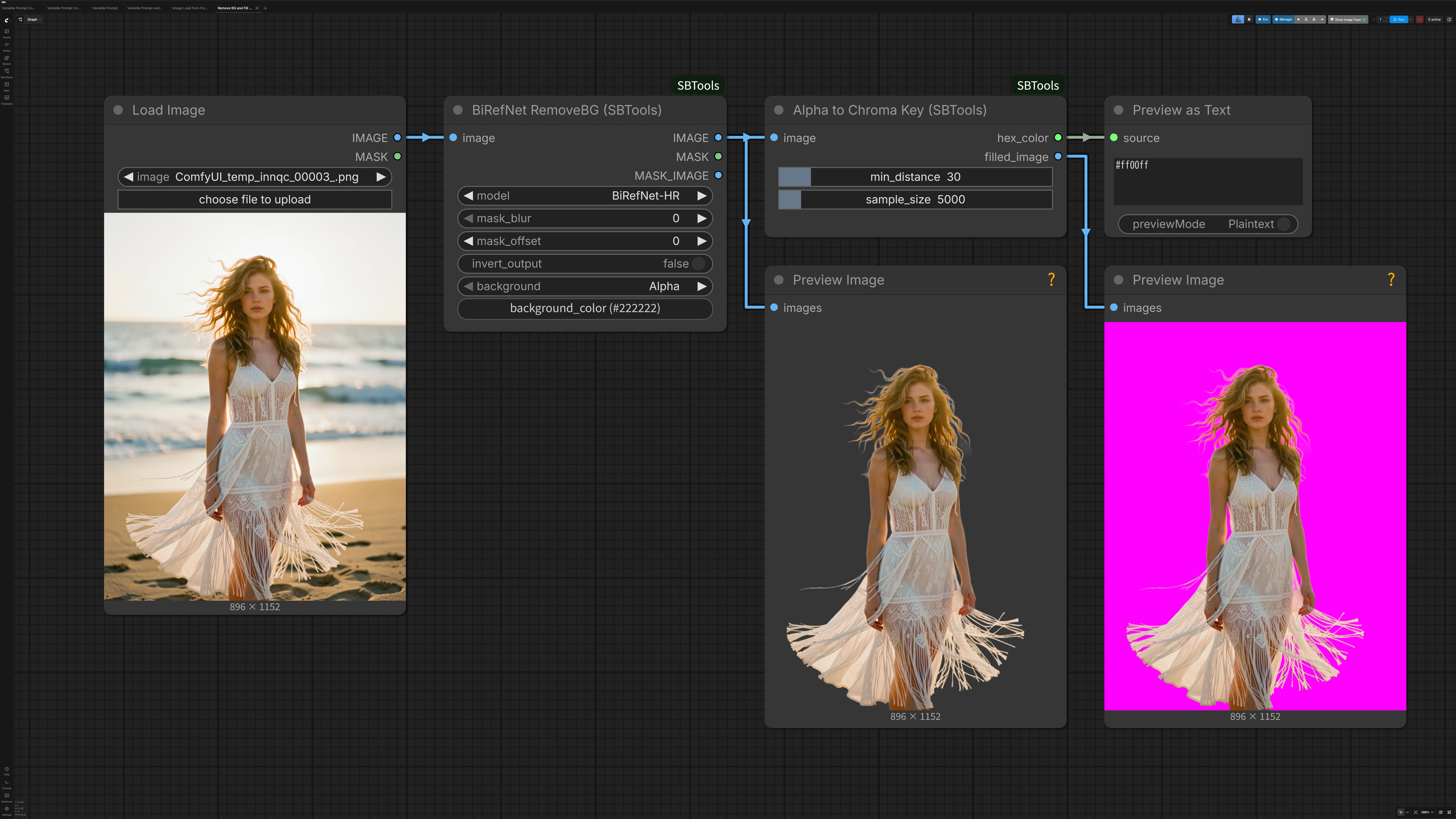
This example demonstrates the complete background removal and chroma key workflow:
Workflow:
- BiRefNet RemoveBG - Removes background and creates transparent PNG
- Alpha to Chroma Key - Finds unused color safe for chroma keying
- Filled image output - Automatically fills transparent areas with the detected color
Features:
- Automatic safe color detection that doesn't conflict with foreground
- One-click background fill for chroma key compositing
- Perfect for video editing software that requires solid backgrounds
- Color visualization output shows the detected color

Use Case:
- Remove background from photos/renders
- Prepare images for video editing (After Effects, Premiere, DaVinci Resolve)
- Create green screen / blue screen equivalents with optimal colors
- Avoid color conflicts with subject colors
Download: Remove BG and Fill BG.json
Node Reference (Image Processing)
BiRefNet (RemoveBG)
Advanced background removal using BiRefNet models. Supports multiple model variants optimized for different use cases.
Available Models:
| Model | Best For | Resolution | Notes | | --------------------- | ------------------------- | --------------------- | --------------------------- | | BiRefNet-general | Everyday use | 1024×1024 | Fast, balanced performance | | BiRefNet-HR | High quality | 2048×2048 | Best detail preservation | | BiRefNet-portrait | People/portraits | 1024×1024 | Trained on human subjects | | BiRefNet_dynamic | Aspect ratio preservation | Variable (256-2304px) | No image distortion | | BiRefNet_toonout | Outline extraction | 1024×1024 | Creates toon-style outlines |
Parameters:
Required:
image- Input imagemodel- Model selection
Optional:
mask_blur(0-64) - Softens mask edges. Use for smoother transitions.mask_offset(-20 to +20) - Expands (+) or shrinks (-) the mask boundaryinvert_output- Swaps foreground/backgroundbackground- Alpha (transparent) or Color (custom color)background_color- Custom background color (hex code, e.g., #222222)
Outputs:
IMAGE- Processed image with transparent or colored backgroundMASK- Black & white mask dataMASK_IMAGE- Visualization of the mask (RGB)
Which Model Should I Use?
For most cases: Use BiRefNet-general
- Fast processing
- Good quality
- Works well for general objects
For high-quality results: Use BiRefNet-HR
- 4x larger processing area
- Better detail preservation
- Ideal for final outputs
For people/portraits: Use BiRefNet-portrait
- Optimized for human subjects
- Better hair/skin detection
- Trained on portrait datasets
For wide/tall images: Use BiRefNet_dynamic
- Preserves aspect ratio (no squashing/stretching)
- Automatically scales to fit
- Best for non-square images
For creative effects: Use BiRefNet_toonout
- Extracts outlines instead of removing background
- Creates line art/edge detection
- Useful for stylized effects
Tips:
Processing Resolution:
- Square models (general, HR, portrait, toonout) resize images to a fixed square
- Dynamic model preserves aspect ratio by resizing the longest side only
Mask Refinement:
- Start with
mask_blur: 0andmask_offset: 0 - Use
mask_blur: 2-5for softer, more natural edges - Use
mask_offset: +2 to +5if edges are too tight - Use
mask_offset: -2 to -5if edges include too much background
Performance:
- Smaller images process faster
- BiRefNet-general is fastest
- BiRefNet-HR takes ~4x longer but produces better results
Alpha to Chroma Key
Finds a color in your image that is maximally different from all existing colors, and automatically fills transparent areas with that color. Perfect for chroma keying workflows in video editing.
Use Cases:
- Chroma key backgrounds - Find a color that won't interfere with your subject and fill transparent areas
- Video editing preparation - Create solid backgrounds for After Effects, Premiere, DaVinci Resolve
- Green screen replacement - Generate optimal chroma key colors automatically
- Mask generation - Create temporary backgrounds for selection tools
Parameters:
Required:
image- Input image to analyze (typically with transparent background)
Optional:
min_distance(0-255, default: 30) - Minimum color distance required- Higher values = more different from existing colors
- Lower values = easier to find but may be similar to image colors
sample_size(1000-50000, default: 5000) - Number of pixels to sample- Higher values = more accurate but slower
- Lower values = faster but may miss similar colors
Outputs:
hex_color- Color in hex format (e.g., #00FF00)filled_image- Image with transparent areas filled with the detected color- Perfect for chroma key workflows - transparent areas are automatically filled
- Output is ready for video editing software
How It Works:
- Samples random pixels from your image
- Tests common pure colors (green, blue, magenta, cyan, yellow, red)
- Returns the color with the maximum distance from all sampled pixels
- Automatically fills transparent areas (alpha channel) with the detected color
- If no candidate meets the criteria, performs a coarse grid search
Typical Workflow:
Load Image → BiRefNet RemoveBG → Alpha to Chroma Key
                                          ↓
                                  filled_image (ready for video editing)
                                  hex_color (for reference)
See the complete workflow in the Example Workflow section above.
Tips:
For chroma keying:
- Use
min_distance: 40-60for safe separation from subject colors - Pure green (0, 255, 0) is usually selected for typical images
- The algorithm automatically avoids colors present in your subject
For quick results:
- Use
sample_size: 5000(default) for most images - Increase to 10000-20000 for images with complex color palettes
For video editing:
- Use
filled_imageoutput directly in your video editor - Reference
hex_coloroutput if you need to adjust keying settings - Works with any video editing software that supports chroma keying
Distance metric:
- Distance is calculated as Euclidean distance in RGB space
- A distance of 30 means the color differs by ~30 units per channel on average
Utilities
Save Text
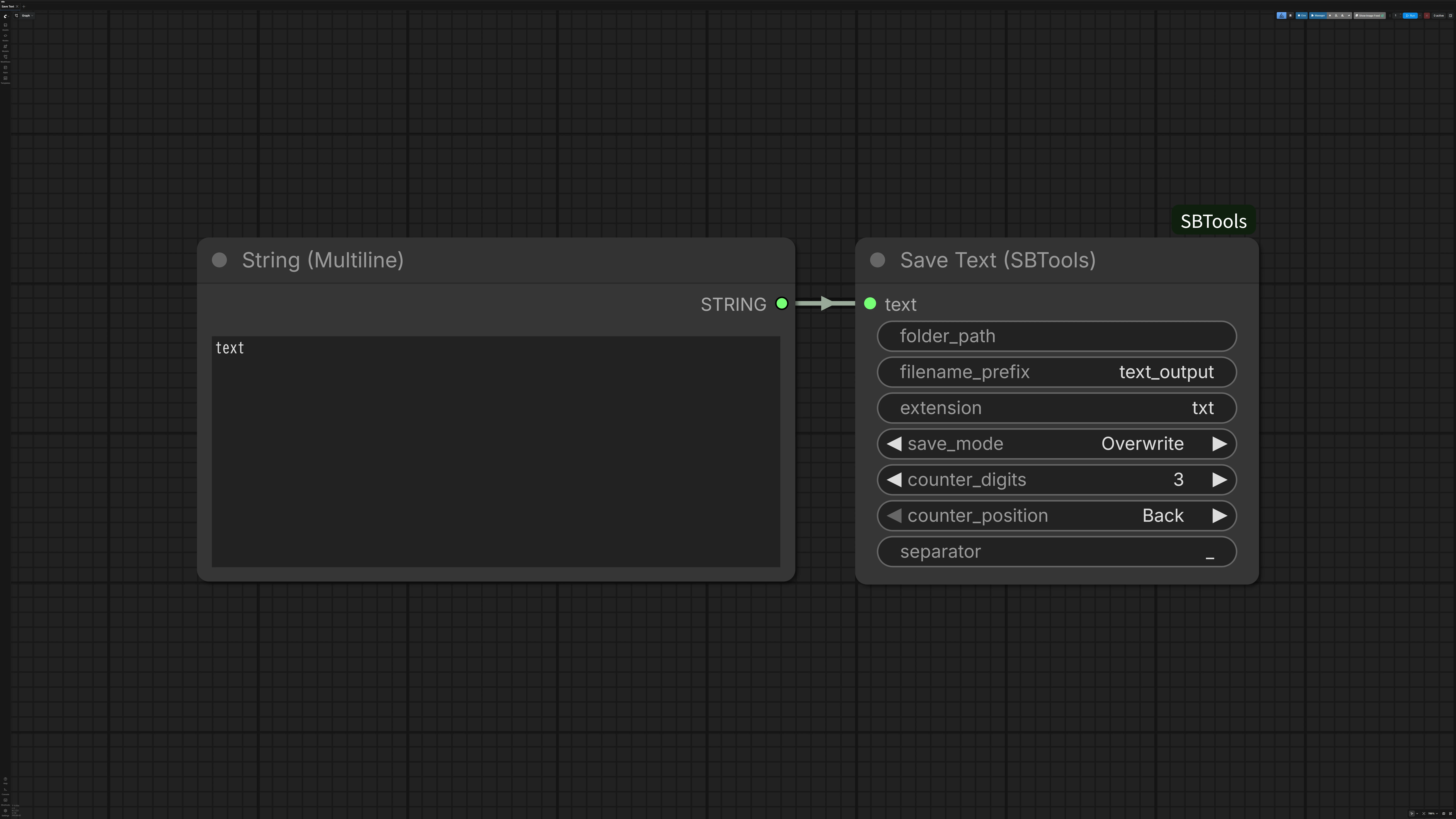
Save any text string from your workflow to a local file. Designed as a terminal node — connect a STRING output from another node and save it with full control over path, filename, and write behavior.
Parameters:
Required:
text- Text to save (connect from another node)folder_path- Subfolder relative to ComfyUI output directory (supports strftime, e.g.%Y/%m/%d)filename_prefix- Base filename (supports strftime, e.g.%Y%m%d_%H%M%S). Default:text_outputextension- File extension without dot. Default:txtsave_mode- Write behavior:Sequential: Append zero-padded counter to filename; always creates a new fileOverwrite: Replace existing file with the same nameAppend: Add text to end of existing file (inserts newline only when file already has content)
counter_digits- Digits for zero-padding (1–9). Only used in Sequential mode. Default:3counter_position- Counter placement:Back→name_001.txt,Front→001_name.txt. Only used in Sequential modeseparator- Character between filename and counter. Default:_
Output: None (terminal node)
Notes:
folder_pathandfilename_prefixboth support PythonstrftimeformattingSequentialalways rises and never overwrites. The counter is the highest number already present in the target folder plus one, so it does not depend onfilename_prefix— a timestamped prefix keeps counting instead of restarting at0001every time the clock moves, and two different prefixes saved side by side share one rising sequence. It is scoped to the folder, theextension, and thecounter_position: a new folder (from a time-varyingfolder_path), a different extension, or a switch betweenFrontandBackstarts a fresh sequence- Path traversal (
../) is blocked; all files are saved inside the ComfyUI output directory. Characters Windows forbids in a filename (< > : " / \ | ? *) are stripped fromfolder_path,filename_prefix,extension, andseparator counter_digits,counter_position, andseparatorare only active inSequentialmode- Files are always saved with UTF-8 encoding
Download: Save Text.json
Technical Details
Model Storage
BiRefNet models are automatically downloaded and stored in:
ComfyUI/models/sbtools/BiRefNet/
Models are downloaded on first use and cached for future sessions.
Credits & License
Credits
BiRefNet Node is based on ComfyUI-RMBG by AILab-AI
BiRefNet Models by ZhengPeng7 - HuggingFace | GitHub
License
Code License
This project is licensed under GNU General Public License v3.0 (GPL-3.0).
- BiRefNet node is based on ComfyUI-RMBG by AILab-AI (GPL-3.0)
- Find Unused Color node is original work by Amatsukast
See LICENSE for details.
Model License
BiRefNet models by ZhengPeng7 are licensed under Apache License 2.0.
- Model repository: ZhengPeng7/BiRefNet
- You can use the models freely for commercial and non-commercial purposes
Summary
- ✅ You can use, modify, and distribute this code
- ✅ You can use the models commercially
- ⚠️ Modifications must also be GPL-3.0
- ⚠️ You must provide source code when distributing
Changelog
See CHANGELOG.md for detailed version history.
Version History
v2.0.1 (2026-08-11) - Save Text fixes
Sequentialrestarted at0001on every execution whenfilename_prefixcontained a timestampSequentialcould silently overwrite an existing fileseparatorwas never sanitized, allowing writes outside the output directory- Numbering now continues across different prefixes in the same folder
v2.0.0 (2026-07-30) - Variable System overhaul
- Breaking:
MAX_COMBINATIONS/ALL_COMBINATIONSmoved from Variable Builder to the new Variable Debug node - Breaking: results change for the same seed — conditions that were silently dropped now apply
- New Variable Debug node with configurable listing size and opt-in total count
- Value weights (
--N) for Random / ConditionalRandom variables output_to_prompttoggle for control-only variables- Fixed: conditions could hold only one constraint per tag, so
[!A:x&&!A:y]lost one - Fixed: logically identical conditions behaved differently depending on the order written
- Fixed: combination counting exhausted memory; counting is now capped and memoised
- Fixed: a variable with no values dead-ended enumeration and looked like a hang
- Fixed: console warnings crashed on non-UTF-8 terminals (cp932 and similar)
- New warnings for conditions that can never match
v1.6.0 (2026-05-27) - Utilities
- Save Text node for saving workflow text output to file
- Sequential numbering, Overwrite, and Append write modes
- strftime format support for folder and filename
- Path traversal protection
v1.5.1 (2026-04-27) - Advanced Conditional Syntax
- NOT condition (
!) for negation logic - Exclusion syntax (
--value) to remove specific values - Exclusive mode (
--only) to override common values - All three features work in both Variable Prompt and Variable Folder
- New example workflow: Variable Prompt Conditional_3
v1.5.0 (2026-04-24) - Conditional Image Folders
- Variable Folder node for context-aware image loading
- Enhanced combination calculation algorithm
- Variable order control
v1.4.1 (2026-04-21) - Code Refactoring
- File/class name alignment with node IDs
- Improved maintainability
v1.4.0 (2026-04-20) - Conditional Variables
- Conditional variable system with AND/OR logic
- Variable Builder with debug output
- ConditionalRandom mode
v1.3.0 (2026-04-17) - Image Variables
- Variable Image Loader node
- Variable Builder for text + image workflows
- Support for up to 4 images
v1.2.0 (2026-04-17) - Variable System
- Variable Prompt, Variable Combiner nodes
- Template-based prompt generation
v1.1.0 (2026-04-13) - Node Updates
- Unique node names with SBTools prefix
- Alpha to Chroma Key filled_image output
v1.0.0 (2026-04-13) - Initial Release
- BiRefNet background removal (5 models)
- Alpha to Chroma Key node
Example workflows included in examples/ folder:
Prompt Generation:
- Variable Prompt.json - Basic text-only prompt generation
- Variable Prompt and Image_1.json - Combined text + image workflow
- Variable Prompt and Image_2.json - Conditional image loading with Variable Folder
- Variable Prompt Conditional_1.json - Basic conditional variables
- Variable Prompt Conditional_2.json - Advanced conditional logic (AND, OR, wildcard)
- Variable Prompt Conditional_3.json - Advanced conditional syntax (NOT, Exclusion, --only)
- Image Load from Folder.json - Standalone image loader
Image Processing:
- Remove BG and Fill BG.json - Background removal with chroma key fill
Utilities:
- Save Text.json - Save text output to file
Note: This is a personal custom node collection. Use at your own discretion.