
Suno by Ace Data Cloud
Generate Suno music through your Ace Data Cloud account, query the same task ID, and load completed audio into ComfyUI. Requires an Ace Data Cloud API key; generation consumes Credits. Cloud API only, with no local model or GPU needed.
Nodes (24)
Suno Load Audio doesn't call the Suno API — and needs no key at all
Suno Submit Music is a checkout counter, not a generator
Suno Generate Lyrics sometimes answers instantly and sometimes hands you a job number
The free half of the pack, and the one to lean on
Suno Retrieve Lyrics is free — run it like a refresh button
The handle that makes a voice come back
Suno Create Voice turns one audio clip into a singer you can reuse
Pull the singer out of the mix
Suno Custom Models is three nodes in a trench coat
Read the confirm box before you click Run
The cheapest node in the pack, and the one beginners forget
21 operations and 39 fields behind one dropdown
Same lyrics, more places to put them
Turning a generated song back into something you can edit
Getting a real audio file out of a task ID
When you need the song as video, not as audio
Beat and lyric timing, for when cuts have to land on the music
The lossless option, with the download size to match
The quiet read-only call that keeps you out of the console
Two sets of words walk into a node
The 10-Action Node That Turns a Song Into Something You Keep Editing
The Node That Stops You Paying Twice for the Same Song
Feed This Batch Node a JSON Array
Suno Upload Reference Audio Wants a URL, Not Your File
Suno for ComfyUI by Ace Data Cloud
Generate Suno music with your Ace Data Cloud account, retrieve the same task ID, and preview or save the finished audio in ComfyUI. These nodes call a hosted API; no local model or GPU is needed. API calls follow current Suno pricing, separate from ComfyUI credits.
简体中文 · Ace Data Cloud · Issues
| Node | Purpose | Cost |
| --- | --- | --- |
| Suno Submit Music (Ace Data Cloud) | Submit one music generation and display its task ID | Paid generation |
| Suno Retrieve Task (Ace Data Cloud) | Query or wait for an existing task ID | Query only |
| Suno Load Audio (Ace Data Cloud) | Decode the completed media link into ComfyUI AUDIO | Media download only |
| Suno Generate Lyrics (Ace Data Cloud) | Submit a lyrics request with default or remi-v1 | Check current lyrics price |
| Suno Retrieve Lyrics (Ace Data Cloud) | Read an existing lyrics task ID | Query only |
The AUDIO output connects to ComfyUI's Preview Audio and Save Audio nodes. The starter workflow uses the first track if a task returns multiple tracks. The music node offers all ten music model IDs in the current Suno Dify plugin; the lyrics node offers its other two model IDs. Nineteen additional schema-backed nodes expose all Dify tool definitions and their actions. Their media_urls_json output preserves every returned media link. Model availability and price can vary.
Current version and install source
This source version is 0.3.2. Check GitHub Releases for its versioned ZIP. The Registry section below retains the last verified Active 0.3.0 on 2026-10-19; that older ZIP does not contain this release's updated guide, examples or fixes. To use this version, install its GitHub Release ZIP, or select the exact 0.3.2 Registry release once it becomes Active. Do not substitute the initial nightly selection for a verified stable release.
To install the GitHub ZIP, stop ComfyUI and back up any existing node directory. Extract the ZIP contents into ComfyUI/custom_nodes/ace-suno/ without adding an extra nested directory, run python -m pip install -r requirements.txt there, then restart and refresh. Keep the API Token in the actual launch-process environment. A GitHub ZIP install is separate from a verified Registry/Manager stable installation.
1. Install
Open the official Suno by Ace Data Cloud Registry page, or open Manager → Custom Nodes Manager and search Suno. Use Ace Data Cloud as a fallback to find this publisher’s packages. Select Suno by Ace Data Cloud, confirm publisher acedatacloud and source repository AceDataCloud/SunoComfyUI, then click Install. In Select Version, explicitly select the approved Registry stable release 0.3.0. The normal dialog may initially highlight nightly; do not accept it for this stable-release tutorial. Keep dependency installation enabled. After Restart Required, restart ComfyUI and refresh the browser. Registry ID: ace-suno.
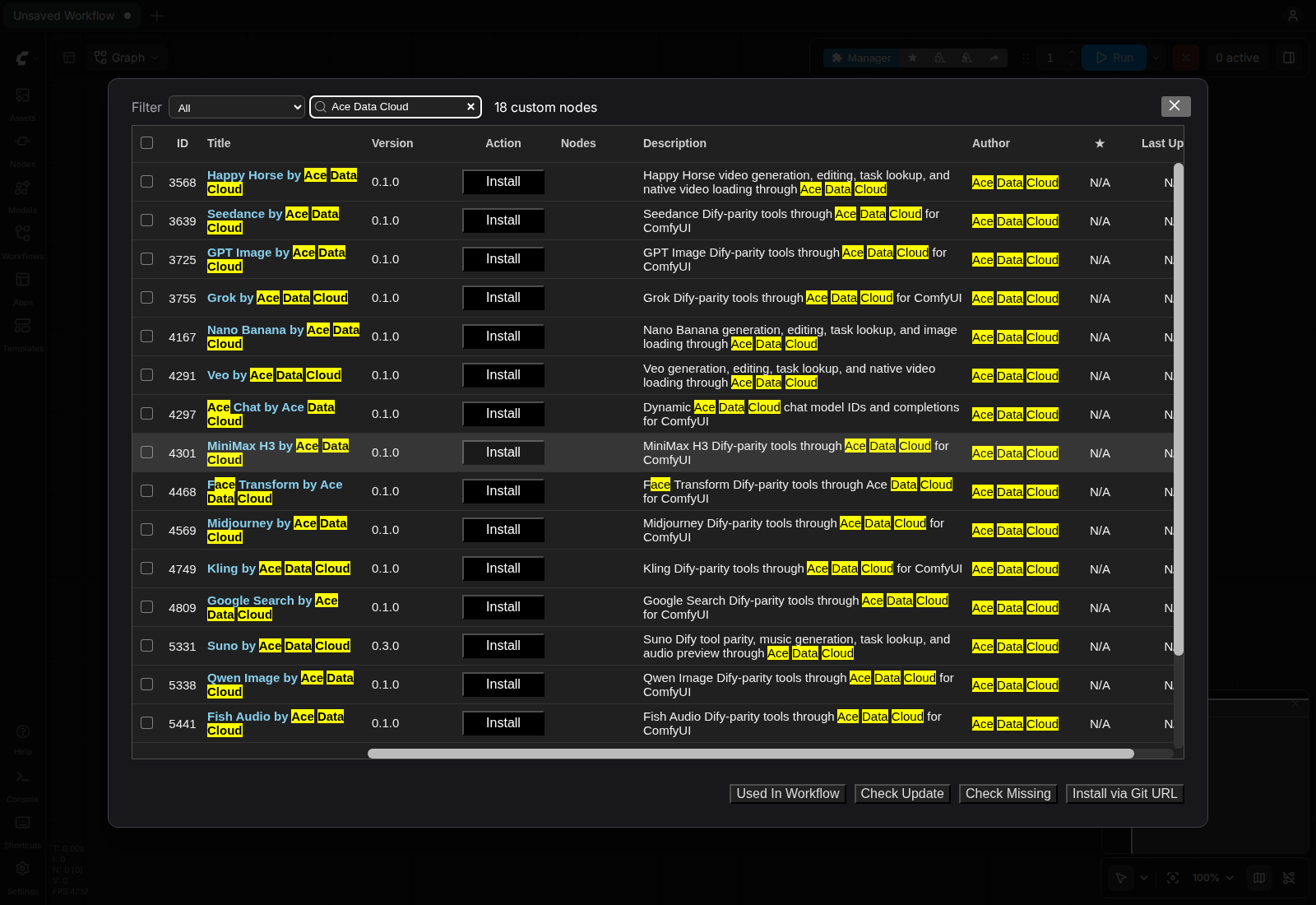
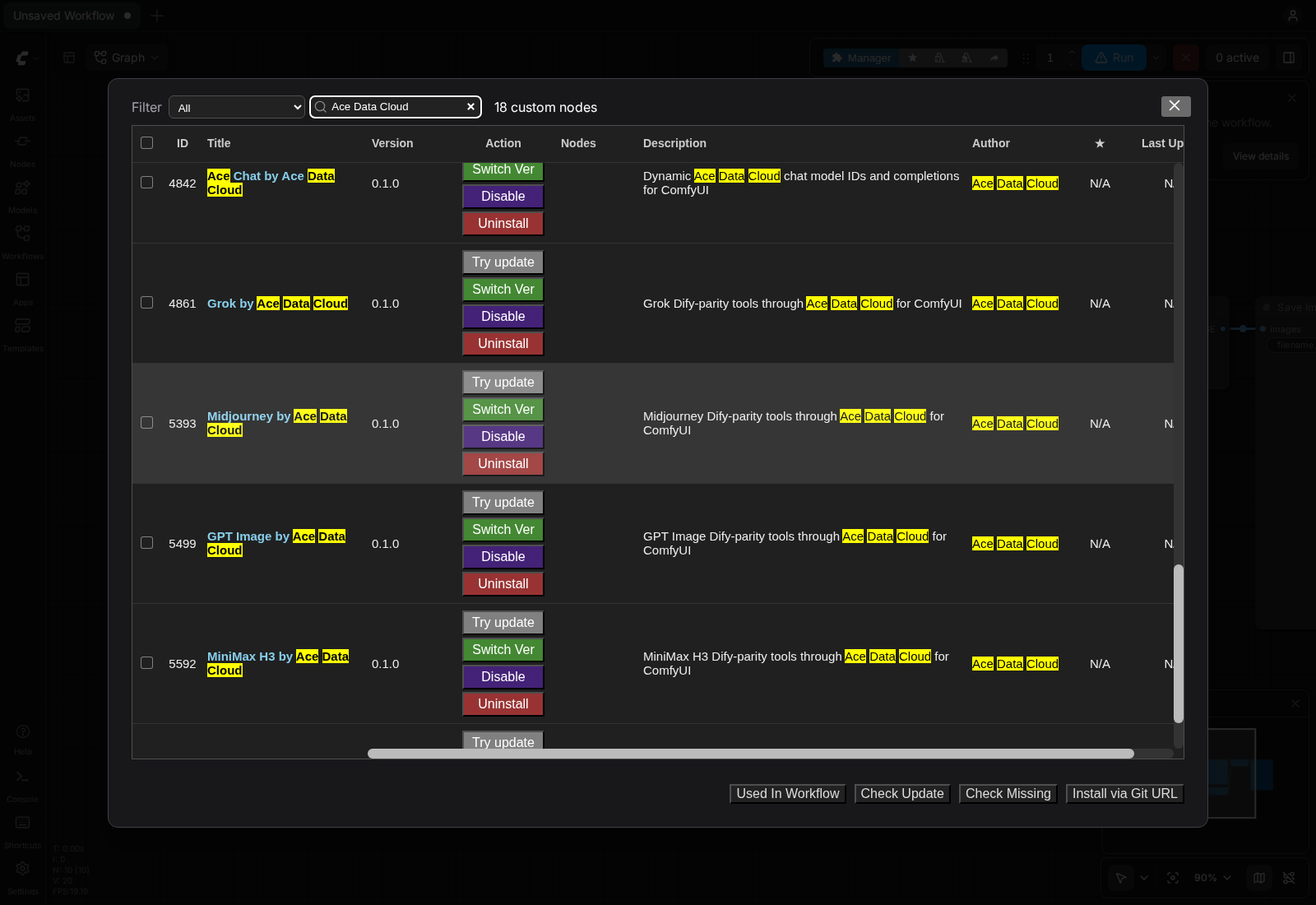
These are real 2026-10-16, ComfyUI 0.41.0 Linux screenshots from the publisher-brand installation test, not a new paid request or a screenshot of service-only search. See image sources and limits.
This Registry stable installation was verified on 2026-10-16 with original ComfyUI 0.41.0 on Linux CPU. That test did not submit a generation or chat request. Newer host versions and each paid action require their own checks; model availability and price remain subject to the current service rules.
For optional local source testing:
cd /path/to/ComfyUI/custom_nodes
git clone https://github.com/AceDataCloud/SunoComfyUI.git
cd SunoComfyUI
python -m pip install -r requirements.txt
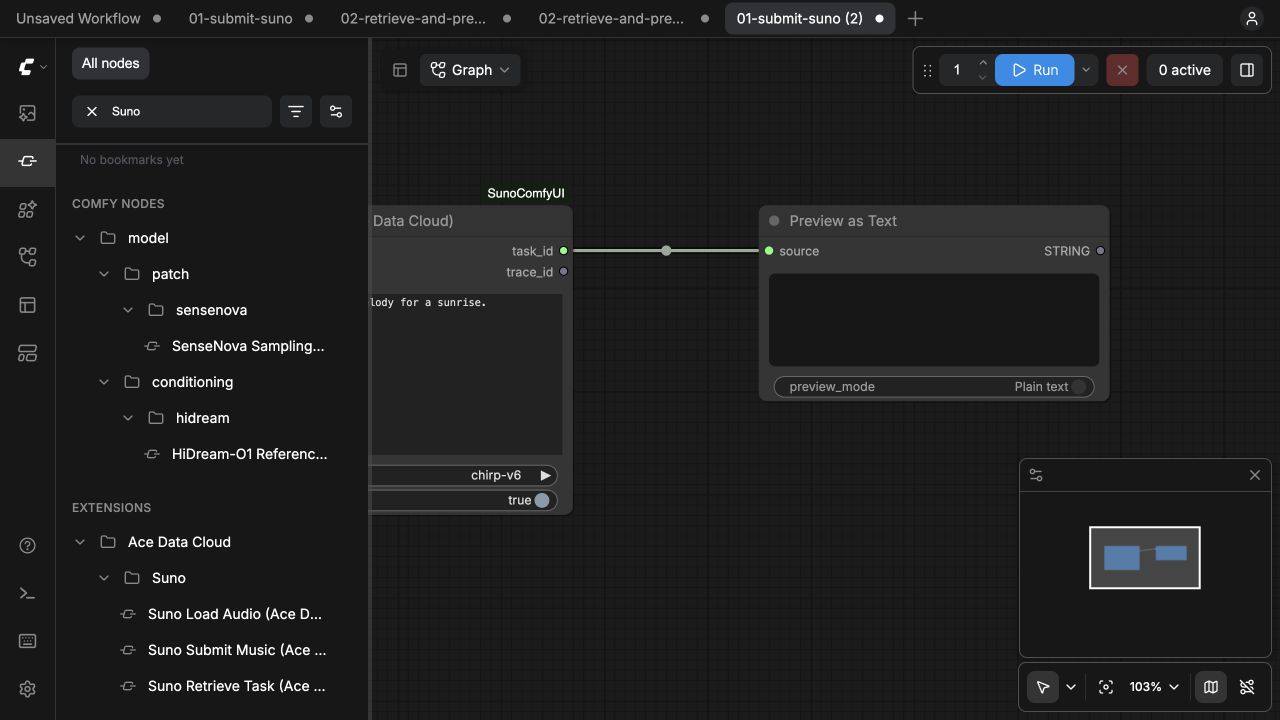
Restart ComfyUI and search the node picker for Suno. Confirm the five guided nodes and 19 Dify tool nodes load without errors. Source availability alone does not prove Registry or Manager discovery.
Official Manager legacy entry
The optional legacy index entry was accepted in ComfyUI-Manager #3365 on 2026-10-19. Updated official Manager versions containing this entry can list Suno by Ace Data Cloud in the documented Local DB. Confirm the exact repository and select Registry stable 0.3.0 for the verified stable path. The entry's git-clone source/SunoComfyUI handle is distinct from the explicit stable [email protected] selection; choosing nightly/Git does not install that Registry artifact.
On 2026-10-20 Asia/Shanghai, unmodified official Manager a74929c6 with original Linux ComfyUI 0.41.0 passed Local DB CLI discovery, explicit [email protected] installation with dependencies, enabled readback and 24-node host loading without a Key or upstream call. This is CLI/host evidence, not a new Manager UI screenshot, a paid result, the GitHub 0.3.2 ZIP's ordinary installation, default Partner inclusion or featured placement. The Registry route already worked independently of this optional legacy entry.
2. Get a key with Suno access
Copy or create your own API Token
The Applications screen is shared across Ace integrations. 1 copies the existing token; 2 opens Manage Keys, then Create. A new account signs in/registers and initializes General application first. Verify this service's access, current price, balance and any expiry/Allowed APIs restrictions.
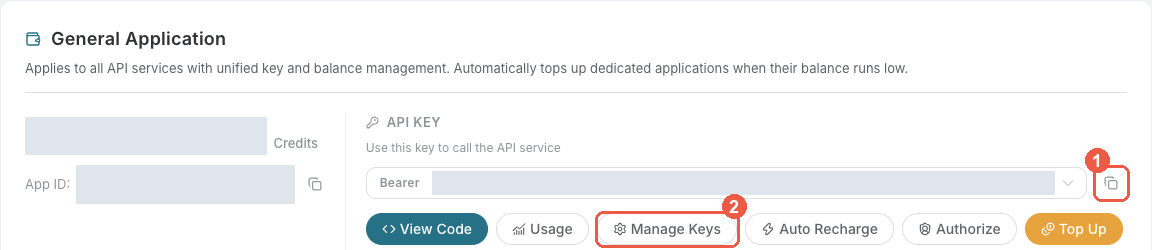
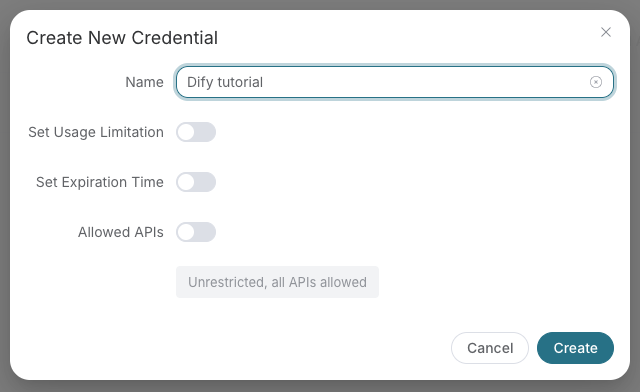
These masked 2026-10-08 Ace Console screenshots are reused from SunoDify. The example credential name in the second image is Dify tutorial; name yours ComfyUI. No credential was created by this guide update. Paste only the token into the environment of the process that launches ComfyUI (ACEDATACLOUD_API_KEY), then restart. There is no ComfyUI API Key textbox in these nodes; do not paste it into prompt/JSON widgets or the workflow file. An unrelated terminal export does not configure an already-running Desktop process.
- Sign in to Ace Data Cloud → Applications. If your account has no General application, choose Initialize General Application.
- Open General application and check access to the service used by this package. A service-specific application key is limited to that service. Copy an existing API key, or choose Manage Keys → Create for a separate key named
ComfyUI. - Copy only the token string, without
Beareror quotation marks. A platform management token is not the API key these nodes use. If you enable Allowed APIs, include every submission and task-query path used by your workflow. Check current pricing and available Credits before a paid action.
If you restrict API paths for these Suno nodes, allow /suno/audios, /suno/lyrics, and /suno/tasks. Set the key in the ComfyUI process environment, then restart. For a terminal installation:
export ACEDATACLOUD_API_KEY='paste-your-key-here'
python main.py --cpu
Keep the key in a private shell or process manager. Never put it in a workflow JSON, repository, screenshot, or issue. ACEDATACLOUD_API_TOKEN is also accepted. ComfyUI Desktop needs the environment configured for its own process; an export in an unrelated terminal will not reach it.
3. Submit one task
Download 01-submit-suno.json and drag it onto the ComfyUI canvas, or use File → Open. It connects Suno Submit Music → Preview as Text so the task ID is visible on the canvas. The submit node uses this starter configuration:
- Prompt:
A gentle instrumental piano melody for a sunrise. - Model:
chirp-v6(change it only after checking price and availability). - Instrumental: enabled.
Music models: chirp-v6, chirp-v6-wild, chirp-v6-mini, chirp-v5-5, chirp-v5, chirp-v4-5-plus, chirp-v4-5, chirp-v4, chirp-v3-5, and chirp-v3-0. Check current availability and pricing before choosing a legacy model.
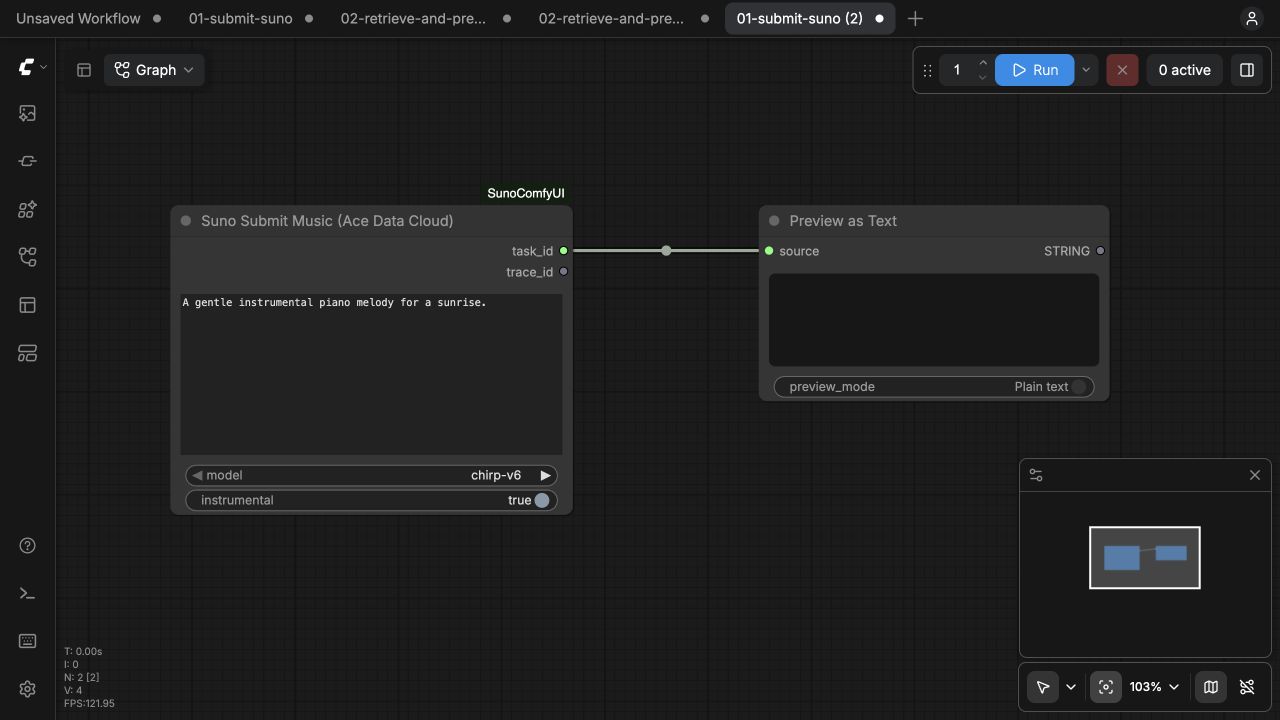
Click Run once. Preview as Text displays the Suno task ID. Copy it. An accepted async submission is not a completed song. If submission times out or yields no task ID, inspect Ace request history before trying again. The plugin never retries a paid submission automatically.
4. Query the same task and preview audio
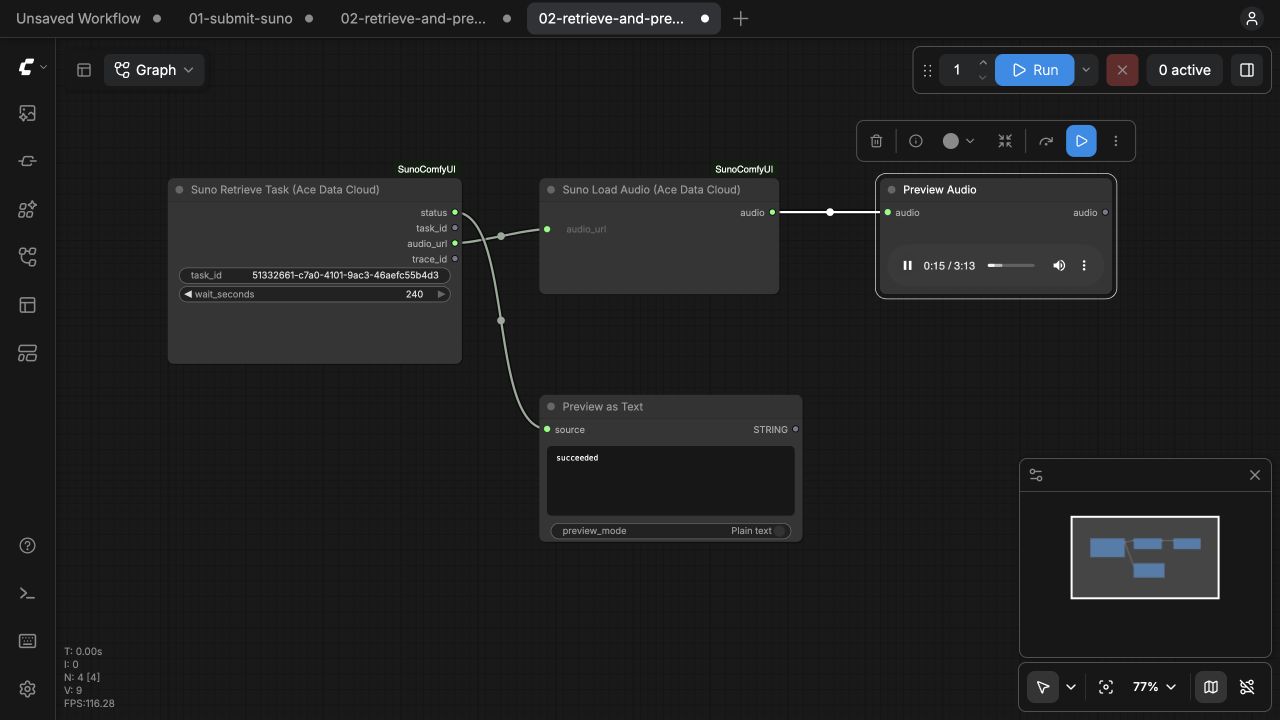
Download 02-retrieve-and-preview.json and load it in ComfyUI. Replace PASTE_YOUR_TASK_ID_HERE with the ID from step 3. Its graph is Suno Retrieve Task → Suno Load Audio → Preview Audio, plus Preview as Text on the status output.
Click Run. Retrieve waits up to 240 seconds, querying the same task ID every five seconds. A completed task returns a media URL; the next node decodes it into ComfyUI AUDIO. Play it in Preview Audio. Connect Save Audio instead if you need a file in ComfyUI's output directory.
If the task is still pending after 240 seconds, Load Audio shows a pending error. Run only this retrieve workflow again with the same task ID. Do not rerun the submit workflow to poll. A green ComfyUI queue entry alone does not prove the service task completed; the status must be succeeded and the audio must play.
5. Generate lyrics
Import 03-submit-lyrics.json, choose default or remi-v1, and run once. The node returns lyrics JSON immediately or a task ID. If it returns a task ID, import 04-retrieve-lyrics.json, paste that same ID, and query until succeeded. The lyrics node does not rerun automatically after a timeout.
6. Use the remaining Dify tools
Search Suno in the node picker for the 19 additional nodes named after every formal tool in SunoDify, including extend, cover, stems, style, formats, personas, voices, custom models, projects, and batch task lookup. Each exposes the Dify model/action choices and named fields. Leave a field empty to omit it, or supply advanced fields in parameters_json as a JSON object. Nonempty named fields override JSON. The copied published Dify API contract validates the payload before the request. Destructive delete/archive actions require confirm: true in JSON or the confirmation widget. Paid requests are sent once; only read-only queries may retry after a connection failure.
Use the returned task_id with the corresponding task lookup node. The advanced nodes expose media_urls_json and result_json, so additional tracks and non-audio results remain accessible to downstream string/JSON nodes. The five guided nodes above keep the common music-to-AUDIO path simple.
7. Check usage and troubleshoot
In Ace Data Cloud Console, find the submission by task or trace ID and check its Credits deduction. Read-only task queries should not create another music generation.
| Symptom | Action |
| --- | --- |
| Key missing | Set ACEDATACLOUD_API_KEY in the actual ComfyUI process, then restart. |
| HTTP 401/403 | Check key validity, Suno service access, path restrictions, and content policy. |
| HTTP 429 | Wait for the service limit. If submission was accepted, keep the same task ID. |
| Pending | Rerun the retrieve workflow with the same task ID. |
| HTTP 5xx or submit timeout | Check Ace request history before resubmitting; the task may have been accepted. |
| Audio download error | Confirm the task succeeded and its Ace media URL is available. Query again without generating. |
The plugin sends your prompt to api.acedata.cloud and downloads finished audio from an Ace CDN. It reads your key from the local process environment and does not save it in workflows. Only submit content you have permission to process. See privacy notes.
Development
The nodes use conventional NODE_CLASS_MAPPINGS. requirements.txt adds requests and jsonschema; ComfyUI supplies PyAV and PyTorch for MP3 decoding. There is no GPU inference, model download, browser login, or runtime package installation.
python -m unittest discover -s tests -v
python -m py_compile __init__.py client.py nodes.py
pyproject.toml declares source version 0.3.2, existing ID ace-suno, and publisher acedatacloud. The separately published Active Registry version is still 0.3.0 as last checked on 2026-10-20; do not upload over that version or interpret the source declaration as Registry activation. Its 400×400 icon is a proportional resize of the canonical Ace logo to meet the Registry size limit.

Task lookup nodes refresh the same task on every queued execution rather than reusing a cached pending result. Paid submissions retain stable caching when inputs are unchanged, so refreshing a query does not resubmit generation. Disable auto-queue/auto-run before importing or running these workflows, and explicitly submit once.