
PixText
Efficient Scene-Text Refinement via Pixel-Space Grouped Image Generation
Nodes (5)
You Know a Word in That Caption Is Wrong. Detect Words Finds All of Them.
The Node You'll Still Have Loaded Next Month
Two Packages, One Obvious Default, One Folder Everyone Gets Wrong
Rewrite a Word Exactly
The Region Editor Is the Whole Workflow, Boxes and All
PixText: Efficient Scene-Text Refinement via Pixel-Space Grouped Image Generation





English | 简体中文
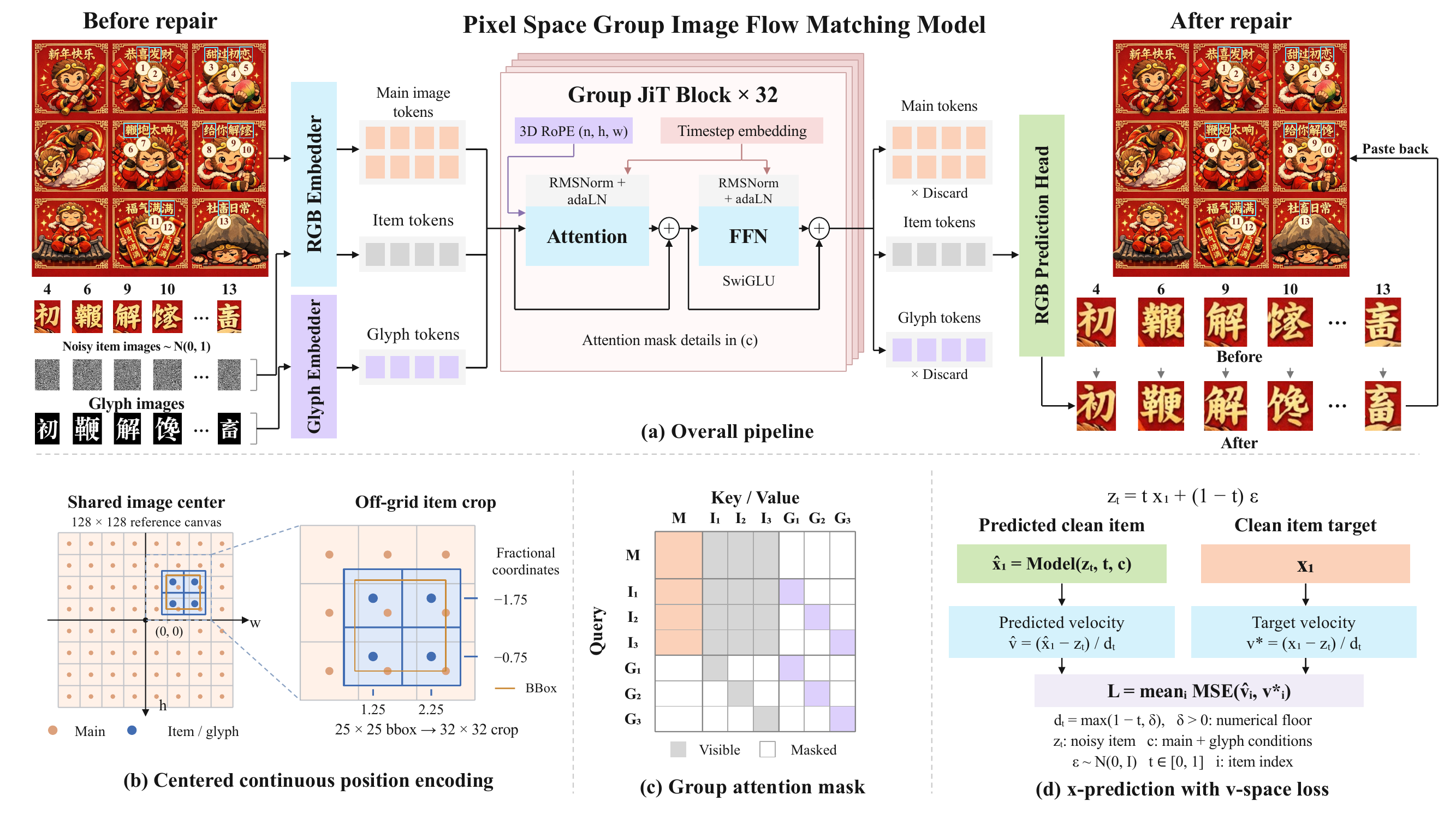
PixText refines local text in pixel space. Provide an image, the regions to edit, and the target text. The model generates those regions using the image as context and preserves pixels outside the actual edited footprints. Multiple targets are generated jointly.
| Model | Default sampling | Glyph guidance | | --- | --- | --- | | PixText-Teacher | 25-step Euler | 3.3 | | PixText-MeanFlow | 4-step interval Euler | 3.3 |
MeanFlow is the default quick-start choice. Each model package contains its weights, configuration, fonts and SHA-256 checksums. MeanFlow needs no additional text encoder, OCR model, VAE, or teacher.
Example
Two input images and their targets are bundled in examples/. Cyan boxes mark the edited regions. Click an image to enlarge it.
| Input | MeanFlow · 4 steps | Teacher · 25 steps | | --- | --- | --- | | <img src="examples/pipeline_case/input_boxed.png" width="220" alt="Input with edit regions"> | <img src="examples/pipeline_case/meanflow_output_boxed.png" width="220" alt="MeanFlow output with edit regions"> | <img src="examples/pipeline_case/teacher_output_boxed.png" width="220" alt="Teacher output with edit regions"> |


Each row pairs two targets; every target shows input, MeanFlow output and Teacher output.
| # | Input | MeanFlow · 4 steps | Teacher · 25 steps | # | Input | MeanFlow · 4 steps | Teacher · 25 steps | | --- | --- | --- | --- | --- | --- | --- | --- | | 1 喜 | <img src="examples/pipeline_case/details/p01_input.png" width="82" alt="喜 input"> | <img src="examples/pipeline_case/details/p01_meanflow.png" width="82" alt="喜 meanflow"> | <img src="examples/pipeline_case/details/p01_teacher.png" width="82" alt="喜 teacher"> | 8 给 | <img src="examples/pipeline_case/details/p08_input.png" width="82" alt="给 input"> | <img src="examples/pipeline_case/details/p08_meanflow.png" width="82" alt="给 meanflow"> | <img src="examples/pipeline_case/details/p08_teacher.png" width="82" alt="给 teacher"> | | 2 发 | <img src="examples/pipeline_case/details/p02_input.png" width="82" alt="发 input"> | <img src="examples/pipeline_case/details/p02_meanflow.png" width="82" alt="发 meanflow"> | <img src="examples/pipeline_case/details/p02_teacher.png" width="82" alt="发 teacher"> | 9 解 | <img src="examples/pipeline_case/details/p09_input.png" width="82" alt="解 input"> | <img src="examples/pipeline_case/details/p09_meanflow.png" width="82" alt="解 meanflow"> | <img src="examples/pipeline_case/details/p09_teacher.png" width="82" alt="解 teacher"> | | 3 甜 | <img src="examples/pipeline_case/details/p03_input.png" width="82" alt="甜 input"> | <img src="examples/pipeline_case/details/p03_meanflow.png" width="82" alt="甜 meanflow"> | <img src="examples/pipeline_case/details/p03_teacher.png" width="82" alt="甜 teacher"> | 10 馋 | <img src="examples/pipeline_case/details/p10_input.png" width="82" alt="馋 input"> | <img src="examples/pipeline_case/details/p10_meanflow.png" width="82" alt="馋 meanflow"> | <img src="examples/pipeline_case/details/p10_teacher.png" width="82" alt="馋 teacher"> | | 4 初 | <img src="examples/pipeline_case/details/p04_input.png" width="82" alt="初 input"> | <img src="examples/pipeline_case/details/p04_meanflow.png" width="82" alt="初 meanflow"> | <img src="examples/pipeline_case/details/p04_teacher.png" width="82" alt="初 teacher"> | 11 满 | <img src="examples/pipeline_case/details/p11_input.png" width="82" alt="满 input"> | <img src="examples/pipeline_case/details/p11_meanflow.png" width="82" alt="满 meanflow"> | <img src="examples/pipeline_case/details/p11_teacher.png" width="82" alt="满 teacher"> | | 5 恋 | <img src="examples/pipeline_case/details/p05_input.png" width="82" alt="恋 input"> | <img src="examples/pipeline_case/details/p05_meanflow.png" width="82" alt="恋 meanflow"> | <img src="examples/pipeline_case/details/p05_teacher.png" width="82" alt="恋 teacher"> | 12 满 | <img src="examples/pipeline_case/details/p12_input.png" width="82" alt="满 input"> | <img src="examples/pipeline_case/details/p12_meanflow.png" width="82" alt="满 meanflow"> | <img src="examples/pipeline_case/details/p12_teacher.png" width="82" alt="满 teacher"> | | 6 鞭 | <img src="examples/pipeline_case/details/p06_input.png" width="82" alt="鞭 input"> | <img src="examples/pipeline_case/details/p06_meanflow.png" width="82" alt="鞭 meanflow"> | <img src="examples/pipeline_case/details/p06_teacher.png" width="82" alt="鞭 teacher"> | 13 畜 | <img src="examples/pipeline_case/details/p13_input.png" width="82" alt="畜 input"> | <img src="examples/pipeline_case/details/p13_meanflow.png" width="82" alt="畜 meanflow"> | <img src="examples/pipeline_case/details/p13_teacher.png" width="82" alt="畜 teacher"> | | 7 炮 | <img src="examples/pipeline_case/details/p07_input.png" width="82" alt="炮 input"> | <img src="examples/pipeline_case/details/p07_meanflow.png" width="82" alt="炮 meanflow"> | <img src="examples/pipeline_case/details/p07_teacher.png" width="82" alt="炮 teacher"> | | | | |
English caption repair. examples/english_case repairs four damaged words in a printed caption, including a misspelled name.
| Input | MeanFlow · 4 steps | Teacher · 25 steps | | --- | --- | --- | | <img src="examples/english_case/input_boxed.png" width="220" alt="Caption input with edit regions"> | <img src="examples/english_case/meanflow_output_boxed.png" width="220" alt="Caption MeanFlow output with edit regions"> | <img src="examples/english_case/teacher_output_boxed.png" width="220" alt="Caption Teacher output with edit regions"> |


Each row shows one repaired word: input, MeanFlow output and Teacher output.
| Word | Input | MeanFlow · 4 steps | Teacher · 25 steps | | --- | --- | --- | --- | | Nayeen → Nayeon | <img src="examples/english_case/details/nayeon_input.png" width="180" alt="Nayeen input"> | <img src="examples/english_case/details/nayeon_meanflow.png" width="180" alt="Nayeon MeanFlow"> | <img src="examples/english_case/details/nayeon_teacher.png" width="180" alt="Nayeon Teacher"> | | Nicola | <img src="examples/english_case/details/nicola_input.png" width="180" alt="Nicola input"> | <img src="examples/english_case/details/nicola_meanflow.png" width="180" alt="Nicola MeanFlow"> | <img src="examples/english_case/details/nicola_teacher.png" width="180" alt="Nicola Teacher"> | | crossbody | <img src="examples/english_case/details/crossbody_input.png" width="180" alt="crossbody input"> | <img src="examples/english_case/details/crossbody_meanflow.png" width="180" alt="crossbody MeanFlow"> | <img src="examples/english_case/details/crossbody_teacher.png" width="180" alt="crossbody Teacher"> | | fashionable | <img src="examples/english_case/details/fashionable_input.png" width="180" alt="fashionable input"> | <img src="examples/english_case/details/fashionable_meanflow.png" width="180" alt="fashionable MeanFlow"> | <img src="examples/english_case/details/fashionable_teacher.png" width="180" alt="fashionable Teacher"> |
After installation, place the complete MeanFlow model package in models/PixText-MeanFlow as described in Model packages, then run:
python examples/run_pipeline.py                  # pipeline_case
python examples/run_pipeline.py --case english   # english_case
Results are saved to outputs/<case>/meanflow.png, with reproduction metadata in the adjacent JSON file. To run Teacher, prepare models/PixText-Teacher and add --variant teacher. Use --model PATH for a package stored elsewhere and --output-dir PATH to choose the output directory. All cases use seed 42.
Full-resolution images: pipeline input, MeanFlow, Teacher; caption input, MeanFlow, Teacher. Run python examples/annotate_pipeline.py --case <pipeline|english> to rebuild the annotated SVG and PNG images.


ComfyUI
Draw text regions, enter the intended words, and compare the repairs directly in ComfyUI.
Install nodes
-
Install the nodes using ComfyUI's Python environment:
cd ComfyUI/custom_nodes git clone https://github.com/ATH-MaaS/PixText.git python -m pip install -r PixText/requirements.txt -
Download a complete model package from Hugging Face into
ComfyUI/models/pixtext/PixText-MeanFlow/orComfyUI/models/pixtext/PixText-Teacher/(see Model packages). Refinement runs on an NVIDIA CUDA GPU. -
Restart ComfyUI, refresh the browser, and open Templates → PixText, or drag a linked workflow below onto the canvas.
Chinese · Draw and refine
Download workflow · MeanFlow · Teacher variant
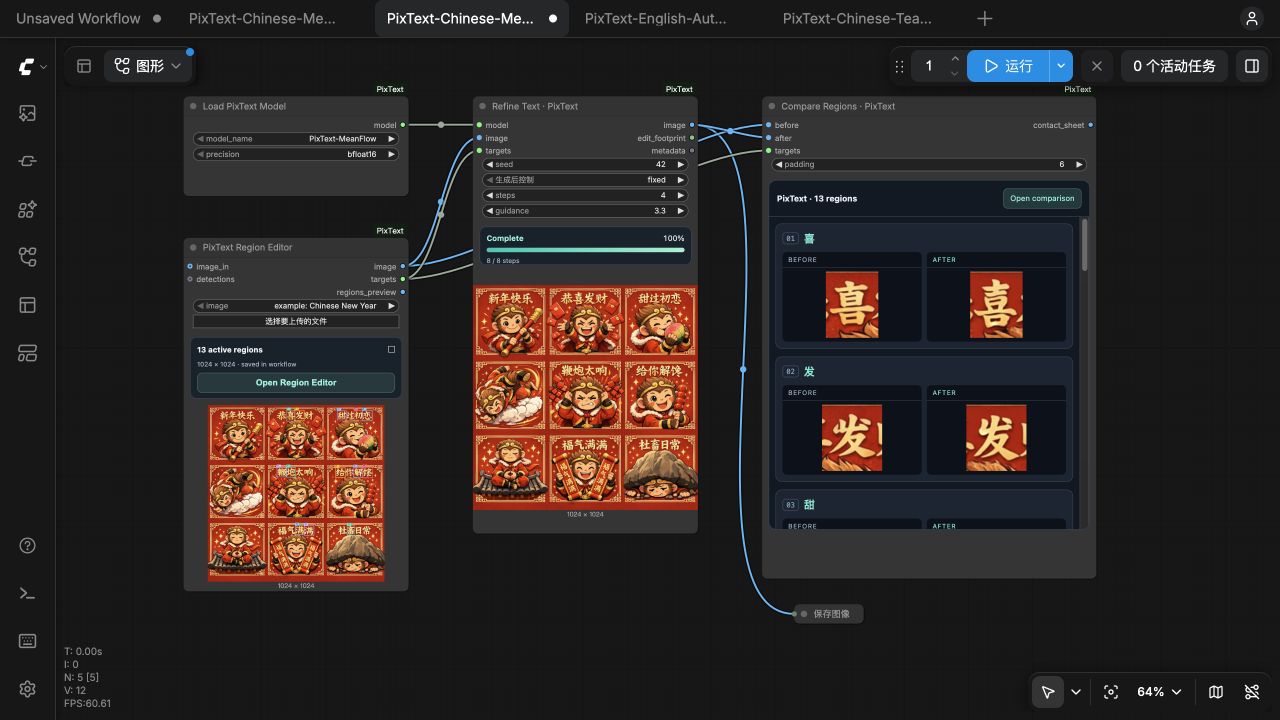
- Select a model in Load PixText Model. The example includes the image and 13 text regions; sampling defaults to 4 steps for MeanFlow or 25 for Teacher.
- Click Open Region Editor, draw or adjust boxes, and enter the target text. Click Apply regions.
- Click Run. Compare Regions displays each repair before and after; Open comparison opens the full gallery. Save the workflow to keep your boxes and text.
English · Detect, adjust and refine
Download workflow · Auto Detect
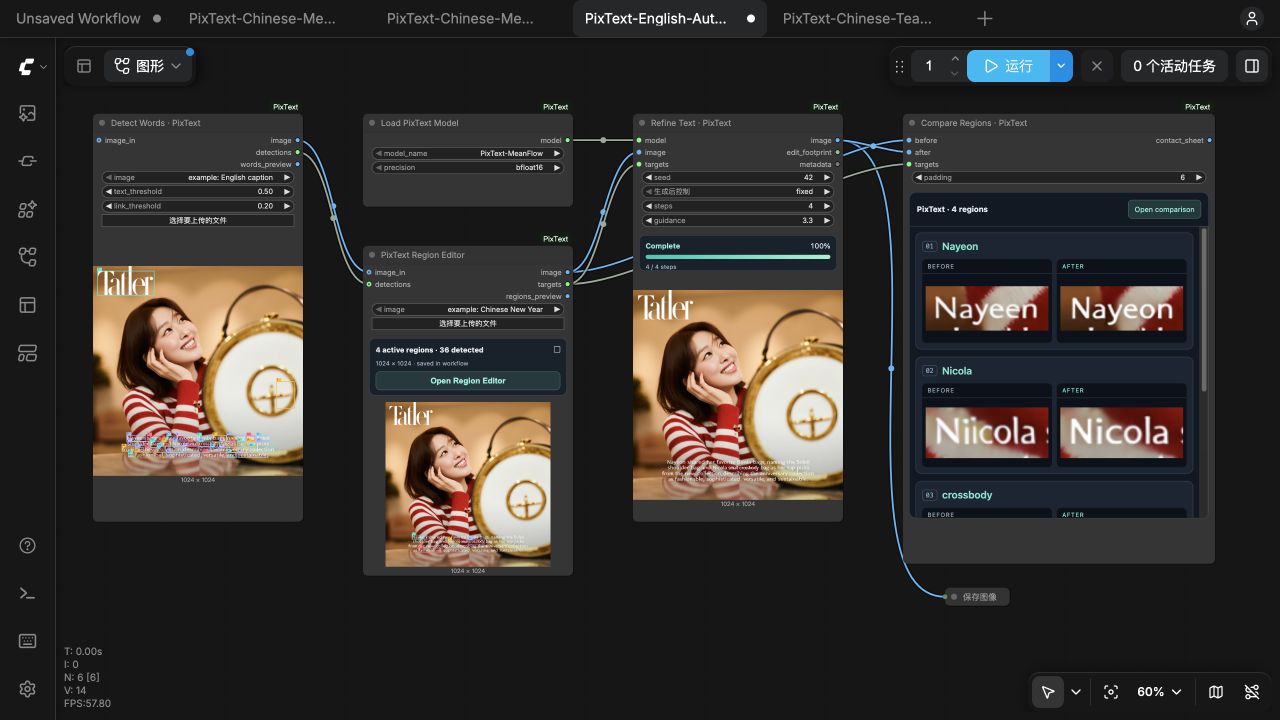
Install the word detector and recognizer once in ComfyUI's Python environment:
cd ComfyUI/custom_nodes/PixText
python -m pip install -r requirements-ocr.txt
python scripts/download_ocr_models.py --output ../../models/pixtext_ocr
Restart ComfyUI and load the English workflow:
- Click Run to detect word boxes and recognize their text.
- Open Region Editor, adjust the boxes and enter the words to repair. For the example, use
Nayeon,Nicola,crossbodyandfashionable. Enable the regions you want to edit, then click Apply regions. - Click Run again to refine and compare the selected words. Upload your own image in Detect Words to start another case.
Installation
Use Python 3.11 or newer and a CUDA GPU. The dependencies are specified in pyproject.toml, including PyTorch 2.8.0, torchvision 0.23.0 and Pillow 13.0.0. Install a CUDA build of PyTorch and torchvision appropriate for your machine, then install PixText:
pip install -e .
Pillow must support RAQM. The system must provide HarfBuzz (libharfbuzz0 on Debian/Ubuntu). Font files are loaded from the model package; no system font installation is required.
Model packages
Download model weights from Hugging Face. The examples require complete local model packages arranged as follows:
models/
  PixText-Teacher/
  PixText-MeanFlow/
    model.safetensors
    config.json
    inference_config.json
    manifest.json
    README.md
    fonts/
      AlibabaPuHuiTi-3-55-Regular.ttf
      GoNotoCJKCore-v7.0.ttf
Teacher uses the same package layout. model_index.json lists the model identifiers and weight checksums. from_pretrained loads a local directory and checks the files listed in its manifest, including the weights, configuration and fonts.
Python
from pixtext import PixTextPipeline, TextEdit

pipeline = PixTextPipeline.from_pretrained("models/PixText-MeanFlow")
result = pipeline.edit(
    "input.png",
    edits=[TextEdit(bbox=(120, 80, 160, 125), text="鹿")],
    seed=42,
)
result.image.save("output.png")
Use models/PixText-Teacher to load Teacher. Both variants can coexist in one process. Results contain image and metadata, including model identity, seed, sample identity, sampling settings, and crop geometry.
Command line
Create edits.json:
[{"bbox": [120, 80, 160, 125], "text": "鹿"}]
pixtext --model models/PixText-MeanFlow \
  --image input.png --edits edits.json --output output.png --seed 42
The CLI saves a PNG and a matching JSON metadata file. python -m pixtext provides the same command. --steps and --guidance-scale override the package defaults.
Batch editing
results = pipeline.edit_batch(
    ["first.png", "second.png"],
    [
        [TextEdit((120, 80, 160, 125), "鹿")],
        [TextEdit((20, 30, 100, 70), "PixText")],
    ],
    seeds=[42, 43],
    sample_ids=["first", "second"],
)
Each image has independent noise and blur streams.
Inputs and pixel preservation
- Inputs are Pillow images or local image paths, converted to upright RGB using EXIF orientation. Coordinates refer to that upright image.
- Boxes use original-image pixel coordinates
(x0, y0, x1, y1)and half-open intervals. - Supply one character or a text line per target.
- Crops align to 16-pixel patches. The edited footprint may extend beyond the requested box. Pixels outside those footprints remain identical to the original RGB image.
- Arbitrary image dimensions are supported.
- Targets are processed in input order, up to 12 per pass.
- The renderer selects the first bundled font covering the entire target string, using PuHuiTi then Go Noto.
Glyph-present and glyph-absent predictions provide guidance on the open interval (0.1, 1.0). At the default guidance setting, four MeanFlow updates use seven model forwards.
Development
pip install -e '.[dev]'
ruff check src tests scripts
ruff format --check src tests scripts
mypy
pytest
python3 scripts/check_secrets.py --tracked
GPU tests require CUDA and local model packages. Set PIXTEXT_TEST_MODELS if packages are stored elsewhere.
License
PixText is released under the Apache License 2.0. See LICENSE.