
Create Bounding Box for Notes 1.0
The core Create Bounding Boxes box editor made usable in the classic UI (Nodes 1.0), on top of the original node; the original core files are not modified. Not standalone: connect its bboxes output to the bboxes input of the core Create Bounding Boxes node and keep using that node's preview, bboxes and elements outputs.
Create Bounding Box for Notes 1.0
中文: 把 ComfyUI 核心节点 Create Bounding Boxes 的画框编辑器,在原节点基础上做成经典界面(Nodes 1.0)也能用的版本;原节点的文件完全不改。
⚠️ 本节点不能单独使用,必须和原版核心节点 Create Bounding Boxes 一起用:把本节点的 bboxes 输出接到 Create Bounding Boxes 的 bboxes 输入,后面继续用 Create Bounding Boxes 的 preview、bboxes、elements 输出。
English: The core ComfyUI Create Bounding Boxes box editor, made usable in the classic UI (Nodes 1.0) on top of the original node. The original node's files are not modified.
⚠️ This node does not work on its own. It must be used together with the original core Create Bounding Boxes node. Connect this node's bboxes output to the bboxes input of Create Bounding Boxes, then keep using that node's preview, bboxes and elements outputs.
仓库 / Repository:
https://github.com/1113800942/comfy-classic-bounding-box
- 显示名 Display name:
Create Bounding Box for Notes 1.0 - 内部 ID Internal node ID:
ClassicCreateBoundingBox - 分类 Category:
utilities
中文
这是什么
核心的 Create Bounding Boxes 节点只在 Nodes 2.0(Vue)界面里能画框。本节点是放在它前面的一个小助手节点:你在经典界面里画框,节点把框转成像素坐标,从 bboxes 输出接到 Create Bounding Boxes 的可选 bboxes 输入。真正生成预览和 elements 的仍然是核心节点。
安装
把整个 Classic Bounding Box 文件夹放进 ComfyUI/custom_nodes/,然后重启 ComfyUI。没有额外依赖。
输入 / 输出
width/height(INT,默认 720 / 1280):像素坐标网格,必须和它接入的 Create Bounding Boxes 节点的 width/height 填同样的数。核心节点会用它自己的 width/height 把像素换算回比例。boxes_json:编辑器保存的框数据(隐藏,随工作流保存),一般不用手动改。background(IMAGE,可选):编辑器里显示在框后面的图,任意图片都可以。- 输出
bboxes(BOUNDING_BOX):[{x, y, width, height, metadata}]列表。
使用
- 在节点上点 编辑框 Edit boxes(或点击节点里的预览图)打开全屏编辑器。节点上的 清空 Clear 会清空这个节点上的所有框。
- 背景图:如果
background接的是 Load Image 这类节点,编辑器会直接显示那张图;否则运行一次后会显示这次运行的背景图。没有背景时显示 width×height 的灰色区域。 - 选颜色:
- 单色:红、蓝、绿、黄、橙、紫、青、粉、白、黑,另有一个自定义取色器。
- 配色:
红/蓝/绿、红/绿/黄。 - 选好后在空白处拖动,就画出这个颜色的框。框线用配色的第一种颜色,框顶会显示配色色条。
- 多个框:
- 可以画任意多个框。拖框内部是移动,拖白色手柄是调大小,按 Delete/Backspace 删除选中的框。
- 右侧列表按“先背景后前景”排列,可以用“上移 / 下移”调整顺序,用“删除”删框,“改用当前颜色”把当前颜色套到选中的框上。
- 每个框可以设置:
- 类型:
物体 obj或文字 text。新框的默认类型在顶部“新框类型”里选。 - 文字:仅 text 类型。
- 描述 desc。
- 类型:
- 点 完成 保存,点 取消 (Esc) 放弃修改,点 清空全部 清除编辑器里的所有框。
- 接线:把本节点的
bboxes输出接到 Create Bounding Boxes 的bboxes输入,两边的 width/height 设成一样。
如果没画框,输出是空列表,核心节点会退回使用它自己编辑器里存的框。
注意
- Flux3LayoutPrompt 生成的布局文字不使用框的颜色,只用每个框的文字和描述。所以请给每个框写上描述,比如“红衣女孩”。
- 框只是构图/布局提示,不是局部重绘(inpainting)遮罩,不能保证框外的内容不变。
English
What it is
The core Create Bounding Boxes node can only draw boxes in the Nodes 2.0 (Vue) UI. This is a small helper node placed in front of it. You draw boxes in the classic UI, and the node converts them to pixel boxes and sends them from its bboxes output into the optional bboxes input of Create Bounding Boxes. The core node still produces the preview and the elements.
Install
Put the whole Classic Bounding Box folder into ComfyUI/custom_nodes/ and restart ComfyUI. There are no extra dependencies.
Inputs / output
width/height(INT, default 720 / 1280): the pixel grid. These must be the same numbers as the width/height of the Create Bounding Boxes node it feeds, because the core node converts the pixels back to fractions using its own width/height.boxes_json: the box data saved by the editor. It's hidden, saved with the workflow, and normally not edited by hand.background(IMAGE, optional): an image shown behind the boxes in the editor. Any image works.- Output
bboxes(BOUNDING_BOX): a list of[{x, y, width, height, metadata}].
Usage
- Click 编辑框 Edit boxes on the node, or click the preview inside the node, to open the full-screen editor. 清空 Clear on the node removes all boxes from that node.
- Background: if
backgroundcomes from a node such as Load Image, the editor shows that image directly. Otherwise it shows the background from the last run. With no background, a gray width×height area is shown. - Pick a color:
- Single colors: red, blue, green, yellow, orange, purple, cyan, pink, white and black, plus a custom color picker.
- Palettes: red/blue/green and red/green/yellow.
- Then drag on an empty area to draw a box in that color. The outline uses the palette's first color, and a palette strip is shown along the top of the box.
- Multiple boxes:
- Draw as many boxes as you need. Drag inside a box to move it, drag the white handles to resize it, and press Delete/Backspace to delete the selected box.
- The side list is ordered background first, then foreground. Use 上移 / 下移 (up/down) to reorder, 删除 (delete) to remove, and 改用当前颜色 to apply the current color to the selected box.
- Per box, you can set:
- Type:
objortext. The type for new boxes is chosen in the top bar. - Text: text type only.
- Description (desc).
- Type:
- Click 完成 (Done) to save, 取消 (Esc) to discard changes, or 清空全部 to clear all boxes in the editor.
- Wiring: connect this node's
bboxesoutput to thebboxesinput of Create Bounding Boxes, and set the same width/height on both nodes.
If no boxes are drawn, the output is an empty list and the core node falls back to the box stored in its own editor.
示例 / Example
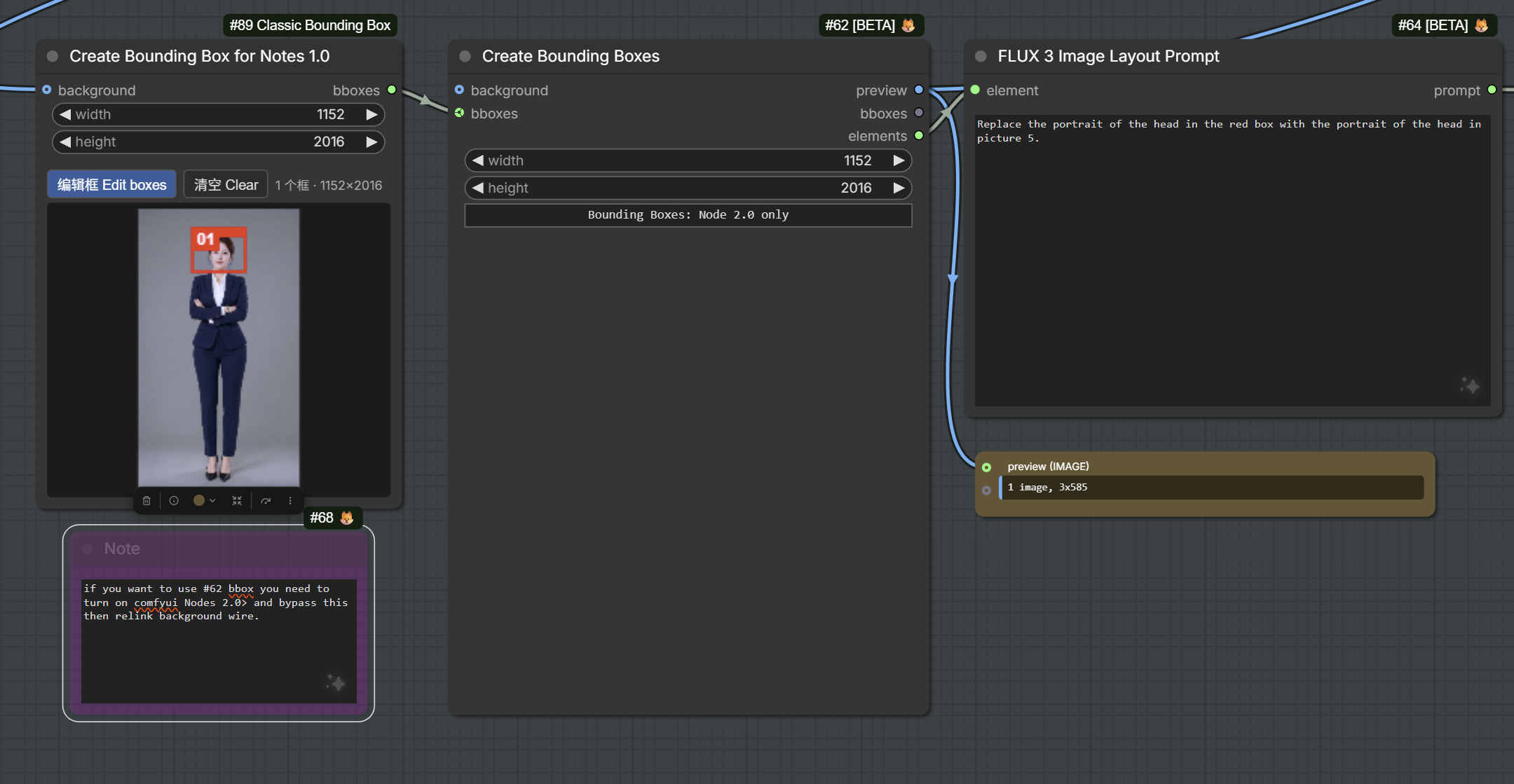
本节点的 bboxes 接到 Create Bounding Boxes 的 bboxes 输入,Create Bounding Boxes 的 elements 再接到 FLUX 3 Image Layout Prompt。
This node's bboxes goes into the bboxes input of Create Bounding Boxes, and Create Bounding Boxes' elements output goes into FLUX 3 Image Layout Prompt.
Notes
- Flux3LayoutPrompt's layout text does not use box colors, only each box's text and description. Write a description for every box, for example "girl in a red dress".
- Boxes are layout hints, not an inpainting mask. They do not guarantee that content outside a box stays unchanged.
License / 许可证
GPL-3.0. See LICENSE. 本项目使用 GPL-3.0 许可证,见 LICENSE。