
SmartNode1000
Pair prompts with their LoRAs on the canvas, then manage the rest from one panel — LoRAs, checkpoints, workflows and wildcards, with Civitai and Hugging Face search, server-side downloads, update checks, and a three-way merge that upgrades a workflow without losing your edits.
Nodes (3)
SmartNode1000
Prompt and LoRA management for ComfyUI, done in the graph.
SmartNode1000 keeps your LoRAs, prompts, wildcards and resolutions where you actually work — on the canvas. Pair a LoRA with the prompt it belongs to, save it once, and reuse it in every workflow. No more copy-pasting trigger words or hunting for the right strength.
It does not stop at the node. A Manage button in the top bar opens the same tools for the rest of your library — LoRAs, checkpoints, workflows and wildcards — with Civitai and Hugging Face search, downloads that survive closing the window, and update checks for everything it can identify.
Available in English, 한국어, 中文 — the UI follows your ComfyUI language setting.
Why
A LoRA is never just a file. It comes with trigger words, a strength that works, and a prompt fragment that makes it sing. ComfyUI stores none of that — you keep it in your head, or in a text file next to the monitor.
SmartNode1000 stores the pair: prompt + LoRA, together, as one preset. Check a box, and both go in. That's the whole idea.
Nodes
| Node | What it does | |---|---| | SN1000 Lora Theme | Theme/preset library shared across every workflow, stored as JSON | | SN1000 Lora Checklist | Multi-select checklist stored inside the node itself | | SN1000 Resolution | Resolution picker with ratio lock and favourites |
Panels
Press Manage in the top bar. Each panel also opens from the node that uses it.
| Panel | What it does | |---|---| | LoRAs | Browse by folder, favourite, read details, swap previews, delete | | Checkpoints | The same window, pointed at your checkpoints | | Workflows | Load, rename, delete — and see which ones need nodes you do not have | | Wildcards | Browse the list, then create, edit or delete wildcard files | | Civitai | Fill in model info, check for updates, find and download |
Features
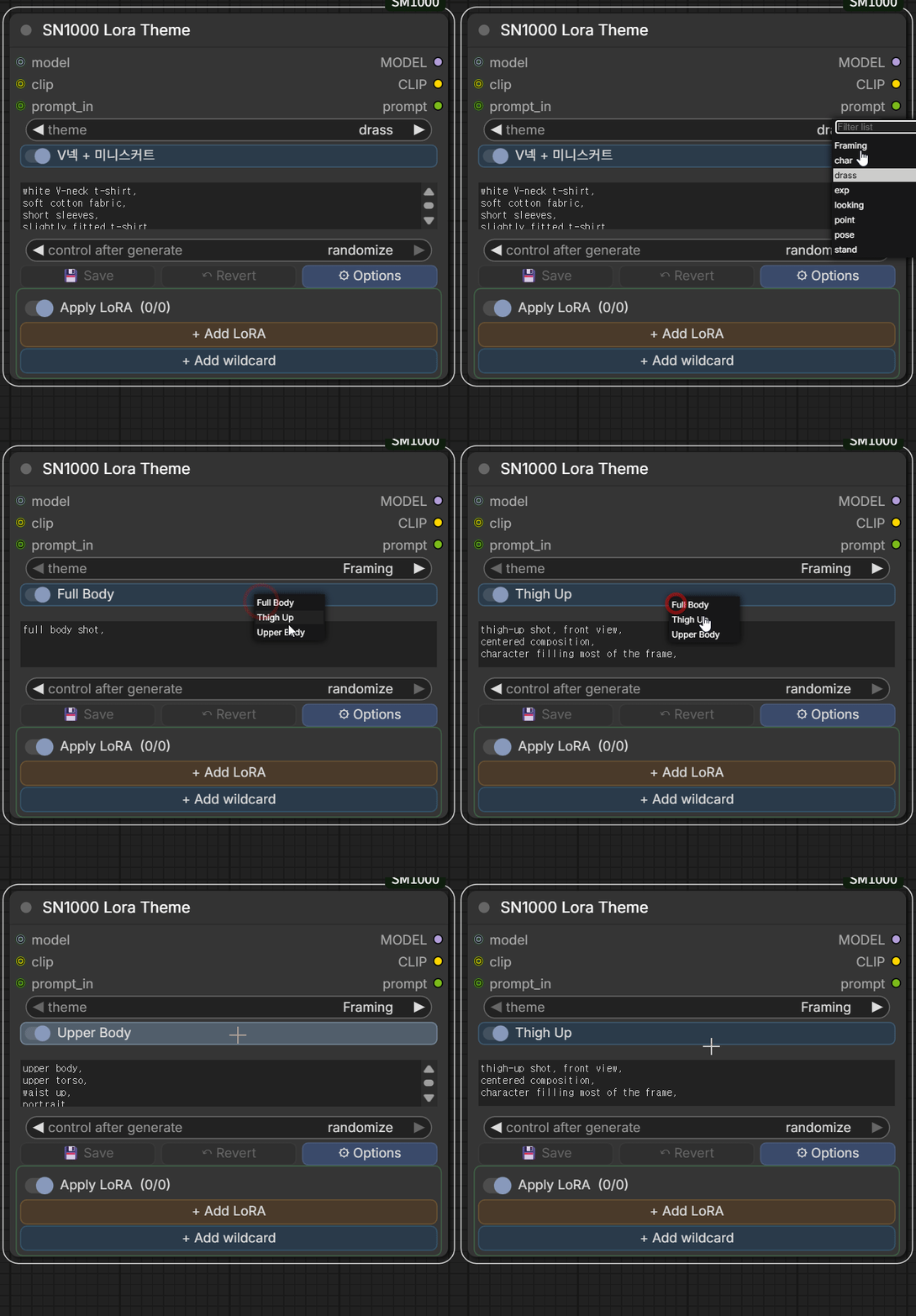
Edit prompts right on the node
Pick a theme, pick a preset, and the prompt is right there — editable in place. Change it, save it, and the change is live everywhere that preset is used.
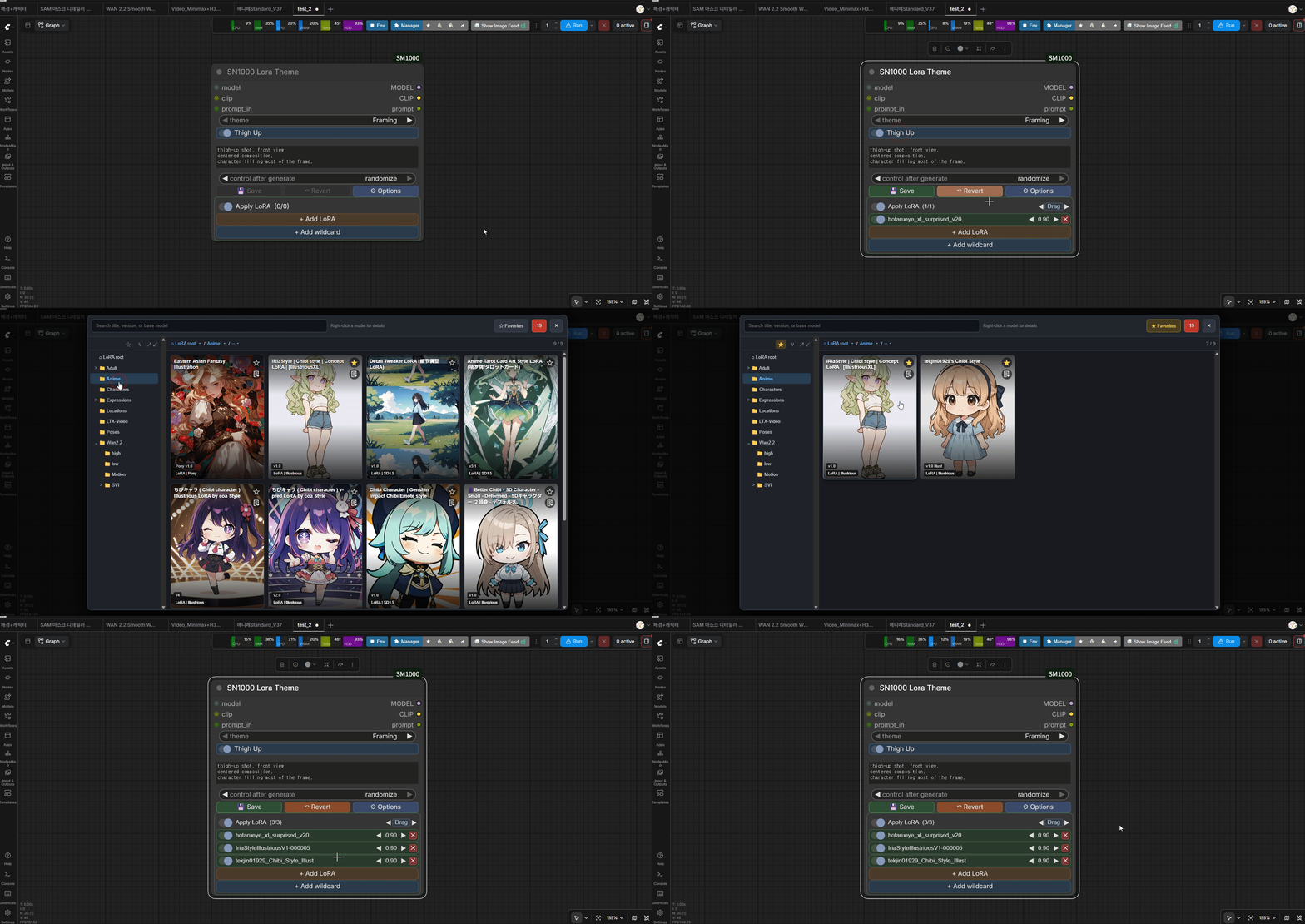
Every preset carries its own LoRAs
This is the core of it. Each preset holds its own prompt and its own LoRA stack, so they always travel together:
- a crying LoRA + a crying prompt
- a smiling LoRA + a smiling prompt
- a specific character's LoRA + that character's prompt
Switch the preset and both swap at once. You never load the wrong LoRA for the wrong prompt again.
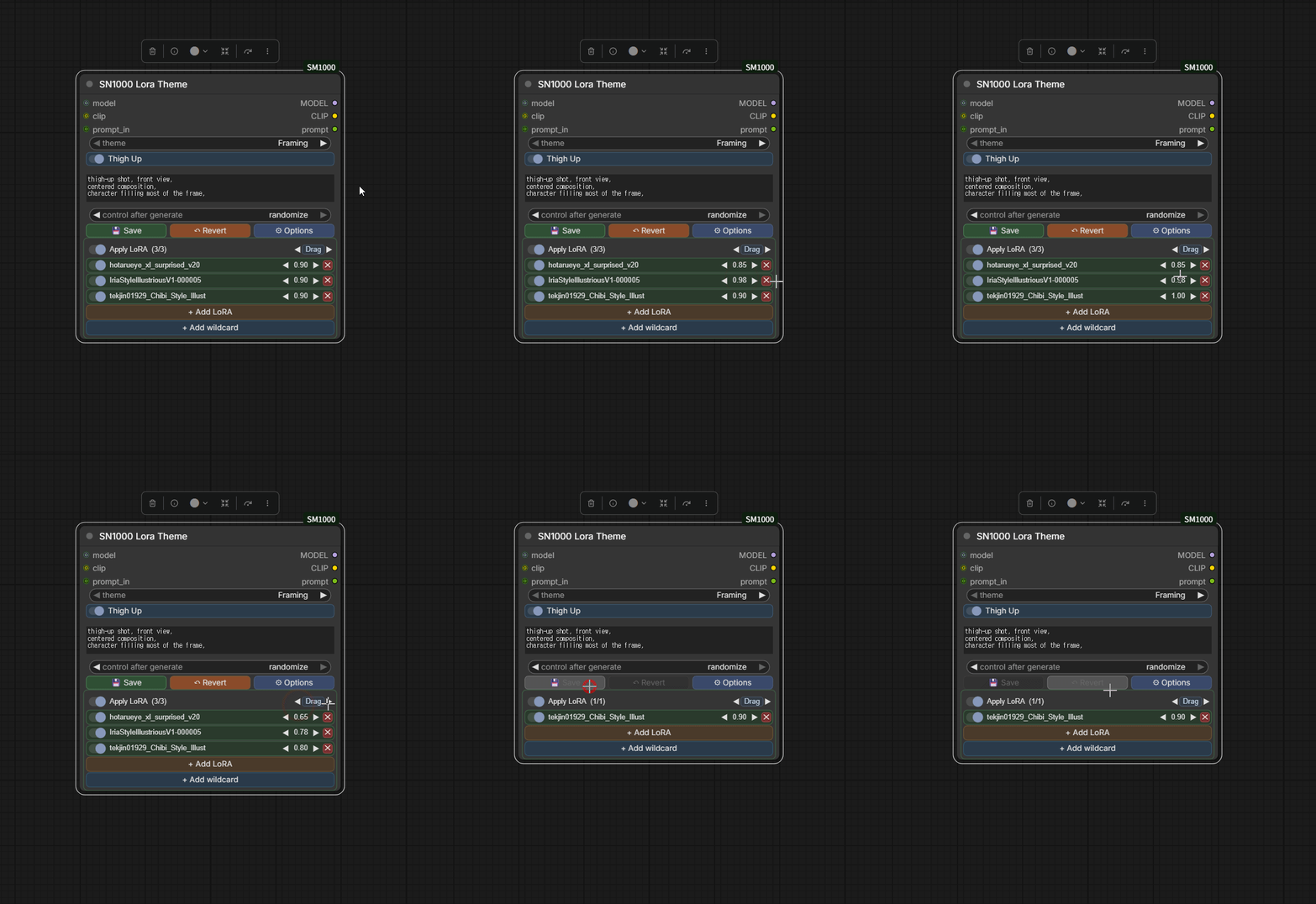
Hover to preview, drag to tune
Hover any LoRA row to see its preview card without leaving the canvas. Set strength however you like — drag, scroll the wheel, or type the number. Save it into the preset and it comes back that way every time.
Where do the previews come from? SmartNode1000 reads the standard sidecar files that sit next to your LoRA —
<lora>.preview.png(also.jpg,.jpeg,.webp,.mp4,.webm) and the<lora>.metadata.jsonfile.No sidecar files yet? Press Civitai in the LoRA picker and SmartNode1000 fetches them for you — see below. You can also drop an image onto a LoRA here to set its preview by hand.
Fetch names, trigger words and previews from Civitai
Press Civitai in the LoRA picker. SmartNode1000 identifies each file by its SHA256 hash — not by its name — so renamed and re-foldered LoRAs still match, and fills in the title, version, base model, trigger words, tags, description, sample images and a preview image.
Do one LoRA at a time from its detail window, or fill the whole library in one pass with a progress bar you can stop at any point. Files that are not on Civitai are marked so the next run skips them.
Anything you set by hand is left alone: favourites, notes, and a preview image you picked yourself are never overwritten unless you tick the box that says so.
An API key is optional — most models resolve without one. If you want it, the panel
walks you through creating a read-only key, and stores it in user_settings.json
on your machine only.
Every version of a model, in one list
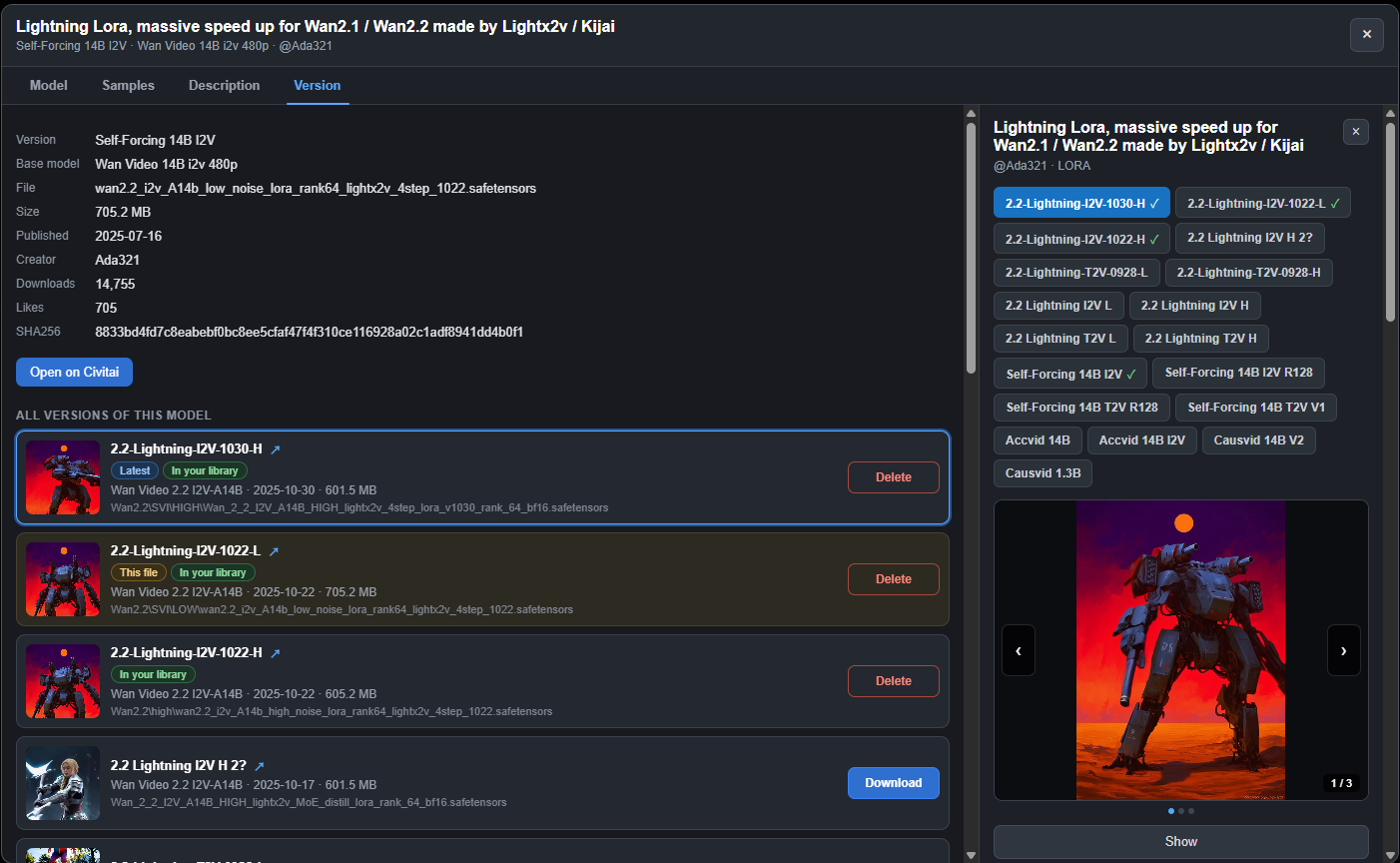
Open a LoRA's detail window and switch to the Version tab. The top half is the file you actually have — version, base model, file name, size, publish date, creator, downloads, likes and the SHA256 it was matched by, with Open on Civitai next to it.
Below that, All versions of this model lists every release on that Civitai page, and each row says where you stand:
- This file — the one you opened
- In your library — a version you already have somewhere else, with its path printed
under the name, so a copy in
Wan2.2/highand a copy inWan2.2/SVI/LOWare told apart at a glance - Latest — the newest release on the page
Rows you already own get a Delete button — the file, its preview and its metadata go together, and it asks first. Rows you don't get a Download button with the file size on it.
Click any row and the model unfolds beside it in the same panel the Find models tab uses: every version as a chip with a ✓ on the ones you have, the image viewer, the details table and the description — ready to download from there.
See which LoRAs have a newer version
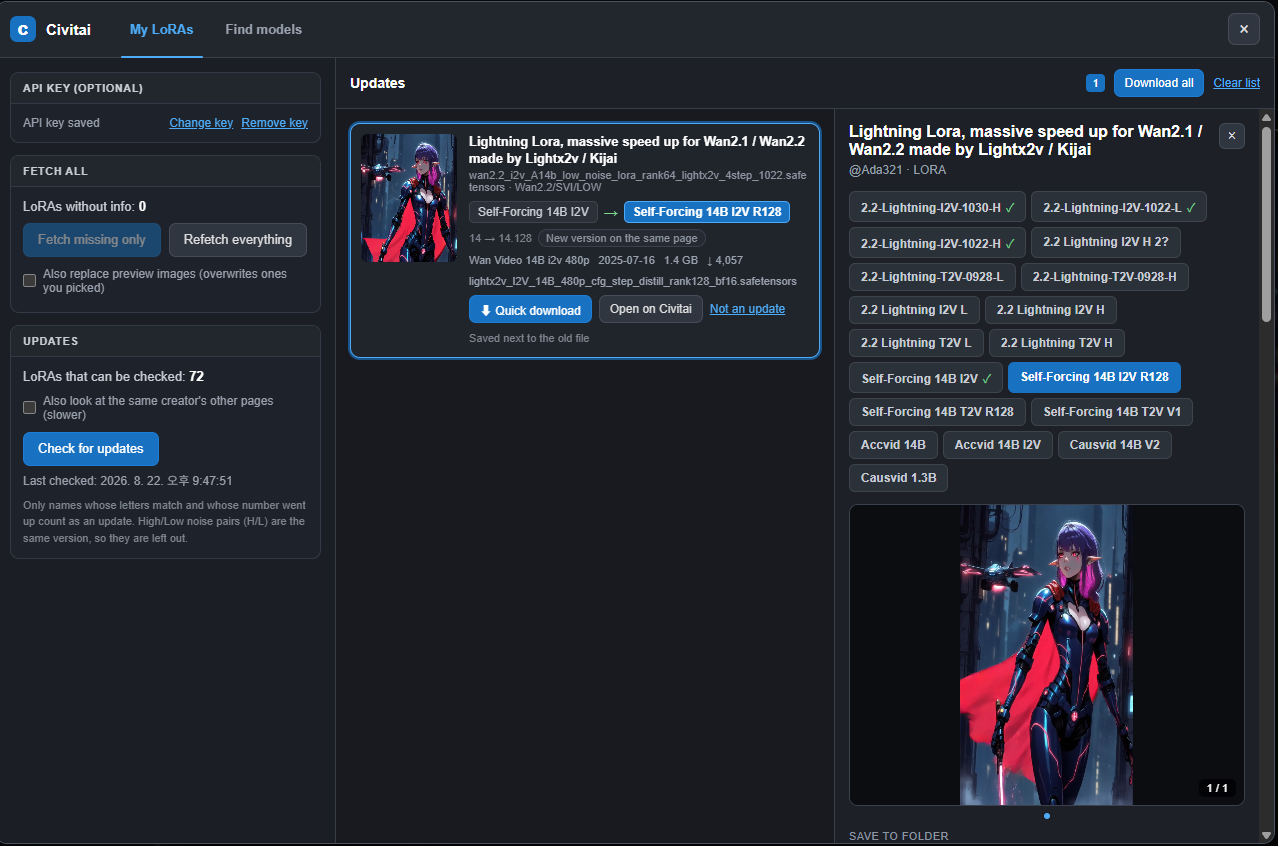
The My LoRAs tab is split in two: the controls on the left, the results on the right. Press Check for updates and SmartNode1000 walks the LoRAs it has Civitai info for and looks for a newer release — first the other versions on the same model page, then (optionally) the same creator's other pages, which is where a "v2" usually gets posted as a separate model.
What counts as an update is deliberately narrow: the letters of the name have to match
and only the number may go up — Neon City v1 → Neon City v2, 1.0 → 1.5.
High/Low noise pairs are not updates. Wan2.2-style models ship as HighNoise and
LowNoise (sometimes just H and L) halves of the same version, and the same goes
for t2v / i2v, so those are matched to their own half and never listed as an upgrade
of each other.
The left column tells you what it is about to do before you press anything: how many LoRAs can be checked at all, how many are still without Civitai info, and when the last check ran.
Every hit shows the old version next to the new one, what changed (version number, base model, publish date, file size, download count), and a Quick download button. Download all queues every hit at once, and the count next to it is how many are waiting. A false positive can be marked Not an update and it stays hidden from then on; Clear list empties the results.
You never have to pick a folder for an update. A quick download is saved next to the file it replaces — the row says so — with its metadata and preview image written alongside, so the new version lands in the same place your workflow already looks.
Next to it sits Older copies — the same idea pointed inwards. It compares the LoRAs you already have against each other and lists the ones a newer file you also have has already replaced, biggest first, with the space you would get back. Nothing is sent to Civitai, so it answers the moment you press it. Each row shows what replaced it and where that file lives; Delete file removes the LoRA with its preview and metadata, Keep this one takes it off the list for good, and Delete all clears the whole list at once. Both ask first — deleting cannot be undone.
Click a result box itself and the model opens on the right in the full detail panel — version chips, image viewer, details table, description — so you can read what actually changed before you take it.
Find and download models without leaving ComfyUI
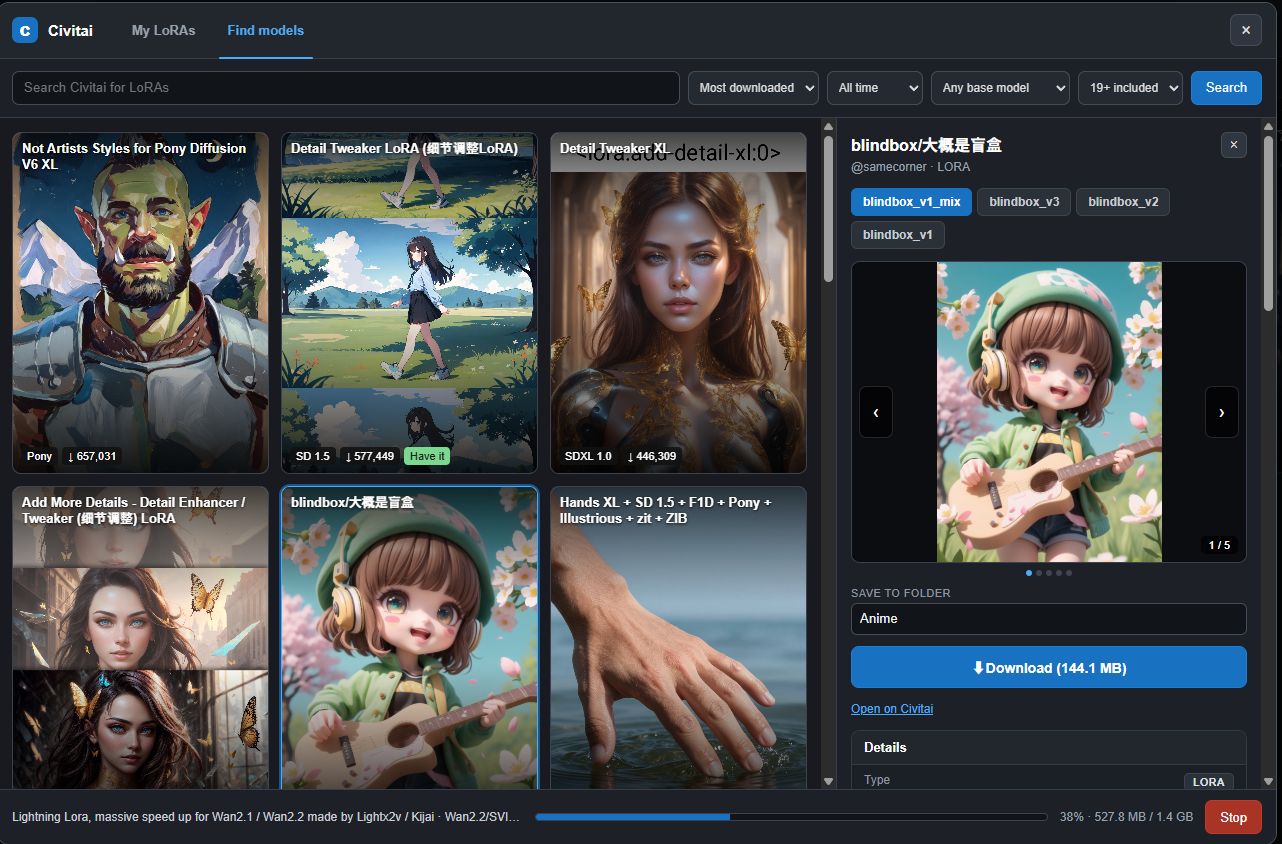
The Find models tab searches Civitai from inside the picker — sort, period, base model and an 18+ filter, with previews on the cards and a Have it badge on anything already in your library (matched by hash, so a renamed copy still counts).
Picking a card opens the model the way its Civitai page reads: every version as a chip you can flip between, an image viewer you page through, a Download button with the file size on it, a details table (downloads, rating, published date, base model, trigger words, hash, AIR — hash and AIR copy on click) and the full description.
Pick a version and press Download. SmartNode1000 streams it to disk with a progress bar, checks the SHA256 against what Civitai published, and writes the metadata and preview image next to it — so a downloaded LoRA shows up complete, with trigger words and samples, the moment it lands.
It also picks the folder for you. The model's tags and base model are matched
against the folders you already use — a character LoRA goes to Characters, a Wan
LoRA to Wan2.2, an anime style to Anime, adult content to Adult — and
Save to folder comes up pre-filled. It is a plain text field with a dropdown, so you
can override it or type a new path. Folders that do not exist in your library are never
suggested, and video models are matched on base model first, because a Wan LoRA is
useless anywhere else.
The download runs at the bottom of the window with a progress bar, a running size and a Stop button, so you can keep searching while it works.
The type filter goes past LoRAs: checkpoints, workflows, wildcards, ControlNets, VAEs, upscalers, embeddings and poses search from the same box, and each lands in the folder ComfyUI keeps that kind in. A type SmartNode1000 has no folder for opens on Civitai instead of pretending to download it.
Downloading needs an API key: Civitai requires one for most files.
Checkpoints get the same window
Checkpoints is the LoRA picker pointed at your checkpoint folder — same folder tree, same search, same favourites, same detail window. Right-click a card to fetch its info from Civitai, replace the preview image, show it in the folder, or delete it together with its sidecar files. Left-click copies the file name, because that is what you usually want from a checkpoint.
The update check covers them too: the My models tab has a LoRAs / Checkpoints switch and both halves work the same way.
Downloads run on the server, not in the window
Every download — Civitai or Hugging Face — is queued on the ComfyUI side. Close the panel, go back to the graph, keep working: the queue carries on, and the Downloads tab shows what is waiting, what is running with a progress bar, and what finished this session.
If a file needs an API key, the tab says so and sends you to the key panel instead of failing quietly. Some Civitai pages are set to signed-in downloads only, and no API key satisfies that — those offer Open on Civitai so you can take the file in your browser, which leads to the next part.
Bring in what you downloaded in the browser
Downloaded in your browser, at the bottom of the Downloads tab, reads your Downloads
folder and lists the model files sitting in it. Pick one: SmartNode1000 hashes it, asks
Civitai what it is, chooses the folder, moves it there — moves, not copies, because a
12 GB file is not worth having twice — and writes the metadata and preview image beside
it. The file name does not matter; model (1).safetensors still finds its own page.
Not on Civitai? Then the file is asked instead. SmartNode1000 reads the header of the safetensors or GGUF — a few tens of KB, however large the file is — and tells from the tensor names whether it is a LoRA, a checkpoint, a UNet, a VAE or a text encoder. When it cannot tell, it says so and lets you pick, rather than guessing wrong.
Your workflows, as cards you can actually read
The Workflows panel lists everything in your ComfyUI workflows folder. A workflow has no preview image, so SmartNode1000 draws one — a minimap of the real node layout, taken straight from the JSON, for every workflow at once and without opening any of them. Drop your own image on a card if you would rather see the picture it makes.
Each card carries the node count, the models it uses and — the one that earns the panel — how many nodes it needs that are not installed here. You learn that from the card instead of from a screen full of red after you load it.
Click a card and it loads the way ComfyUI loads it, with its own tab and title. Right-click to rename, move, show in folder or delete. Tidy up takes the loose files at the top level and files them into folders by what they use.
Workflows have new versions too — take them without losing your edits
A workflow downloaded from Civitai through SmartNode1000 remembers where it came from, so the Workflows section of the My models tab can ask whether a newer version was posted. (Only ones downloaded here can be checked — that is when the source gets recorded.)
Taking the new version does not cost you your changes. The copy you first downloaded is kept, and the upgrade is a three-way merge — original, your file, new release — the way git does it:
- the graph — which nodes exist and how they are wired — comes from the new version, because that is what you are upgrading for
- the values — prompts, LoRA names and strengths, checkpoint, steps, CFG, seed, resolution — stay yours
- the layout — positions, sizes, colours, titles, collapsed nodes — stays yours
- nodes you added yourself are carried across
The result is saved as a new file; the one you have is never overwritten. A report says what was kept, what was taken, what upstream dropped and which links had to be cut.
The model a workflow needs, found for you
Open a workflow's details and the models it uses are listed, with the missing ones marked. Each gets a Find it button: Civitai first, then Hugging Face, which is where most of the current video models, text encoders and VAEs actually live. Pick the file inside the repo, pick where it goes, and it joins the same download queue.
Relink LoRA paths
A LoRA path inside a workflow is the path on the machine that made it. Open someone else's workflow, or move your own LoRAs into other folders, and the node points at a file that is not there — even though you have it.
Right-click an SN1000 node and press Relink LoRA paths. It matches what is written against what you actually own: the same file name in another folder, the same name with a different extension, the same model saved under a differently written name, and — only when the original is nowhere at all — a higher-numbered version of it, which it tells you about afterwards. What it cannot match with confidence it leaves alone: a broken link is better than the wrong LoRA.
Make a new theme in seconds
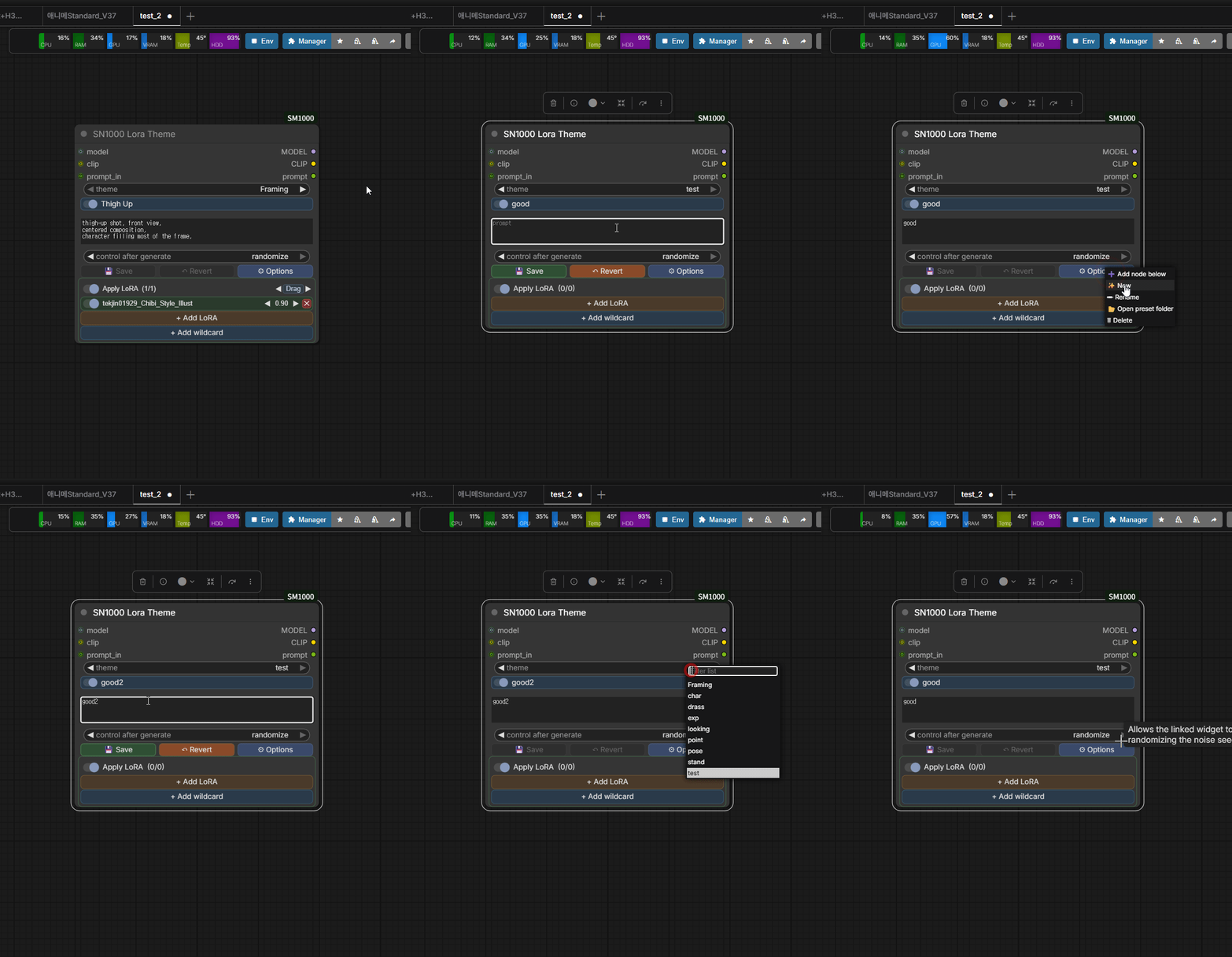
Themes are just folders of presets. Create one, name it, start filling it. Nothing to configure and no file to hand-edit.
Chain themes horizontally
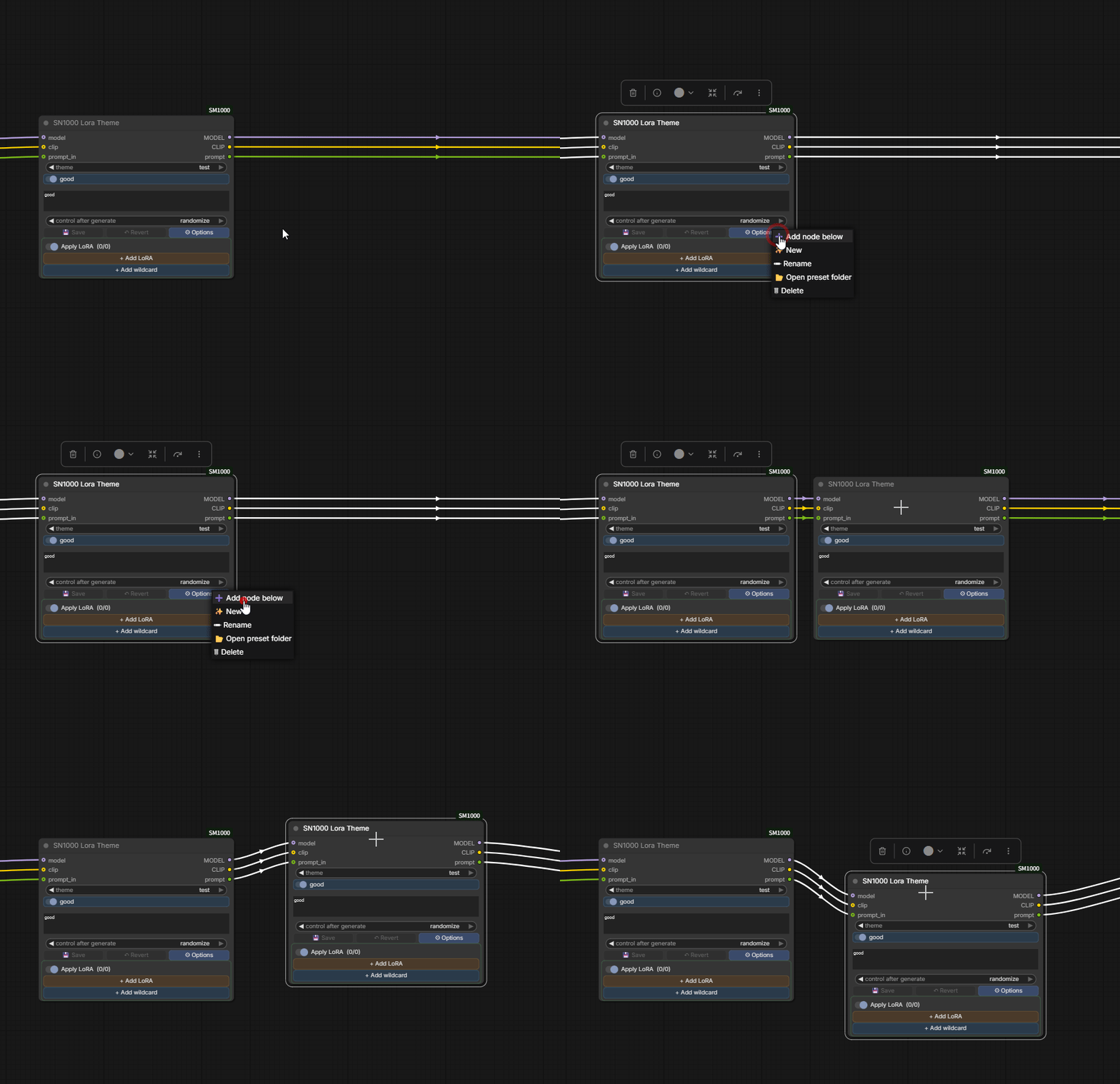
One node handles one theme. Need several at once? Wire them in a row — model, clip and prompt flow through, each node adding its own layer.
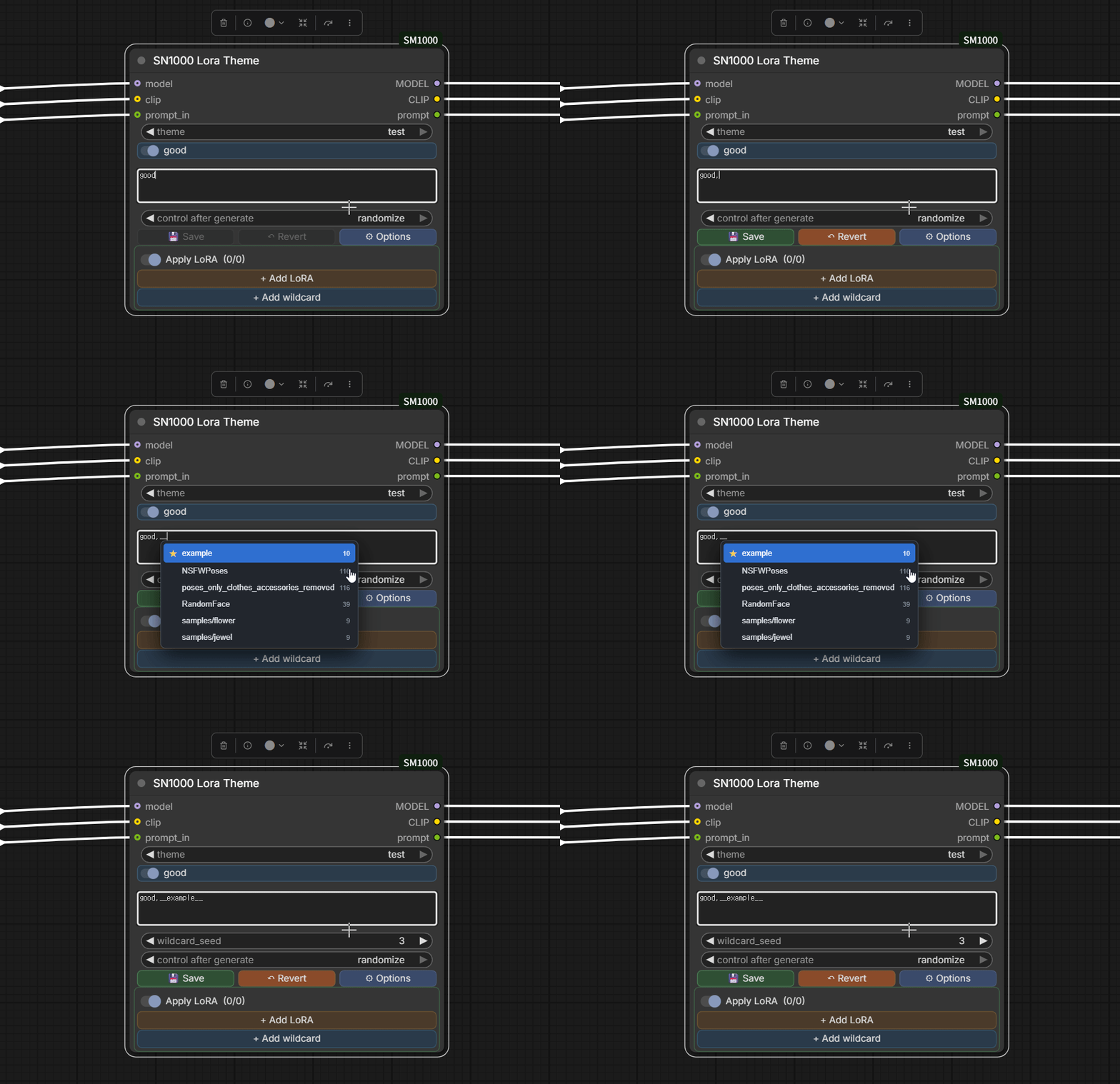
Wildcards with autocomplete
Full wildcard support: __name__ for files and {a|b|c} for inline choices.
Type __ in any prompt box and the list appears — arrow keys to pick, Tab or Enter to
insert, Esc to close. Favourites are pinned to the top with a star.
SmartNode1000 finds your wildcard folders automatically, wherever they live under
ComfyUI — wildcards, wild cards, WildCard, it doesn't care about spelling.
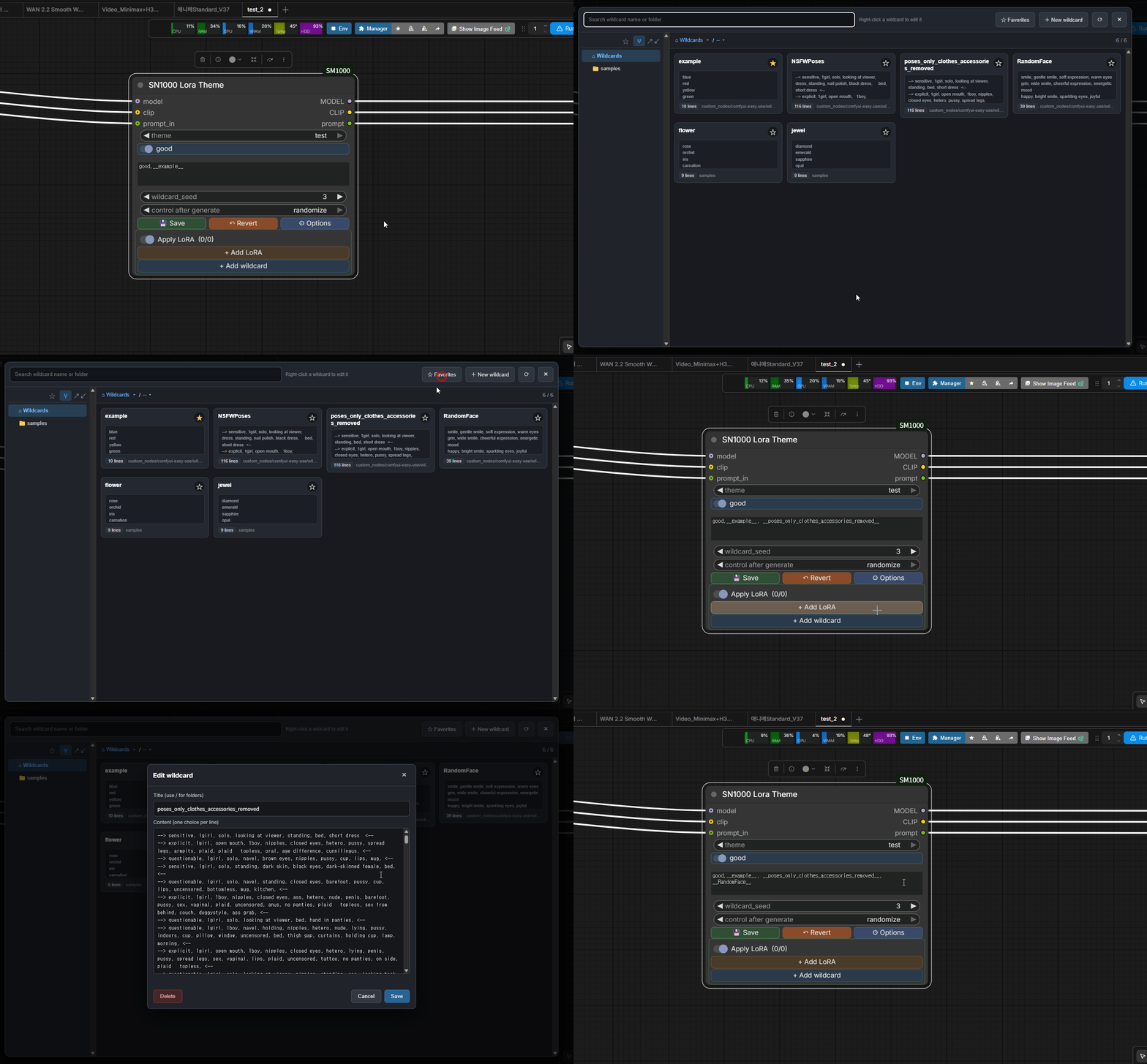
Browse and edit wildcards without leaving ComfyUI
A full picker with a folder tree, search, favourites and a live preview of each file's contents. Read them, pick from the list, edit them on the spot.
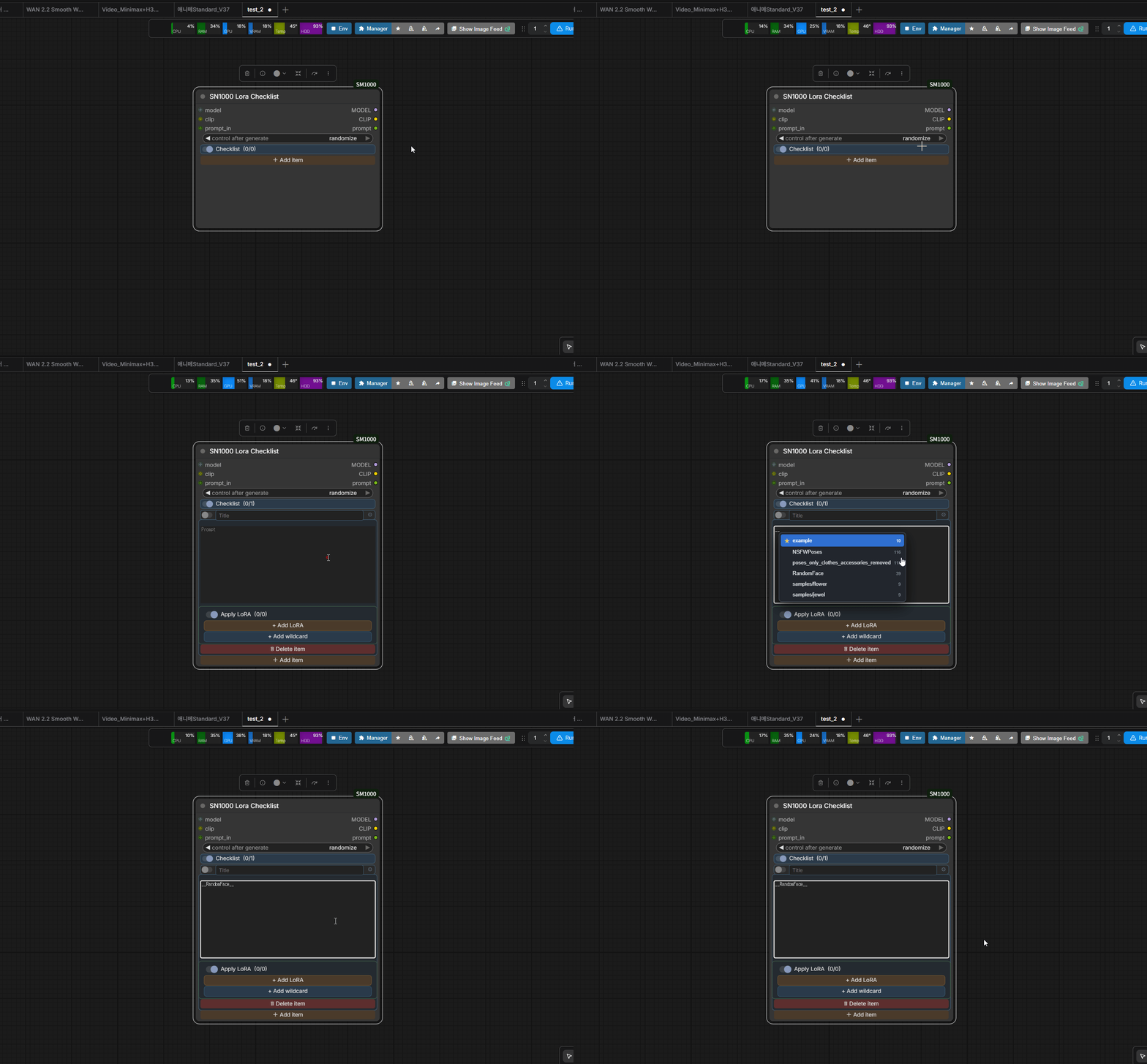
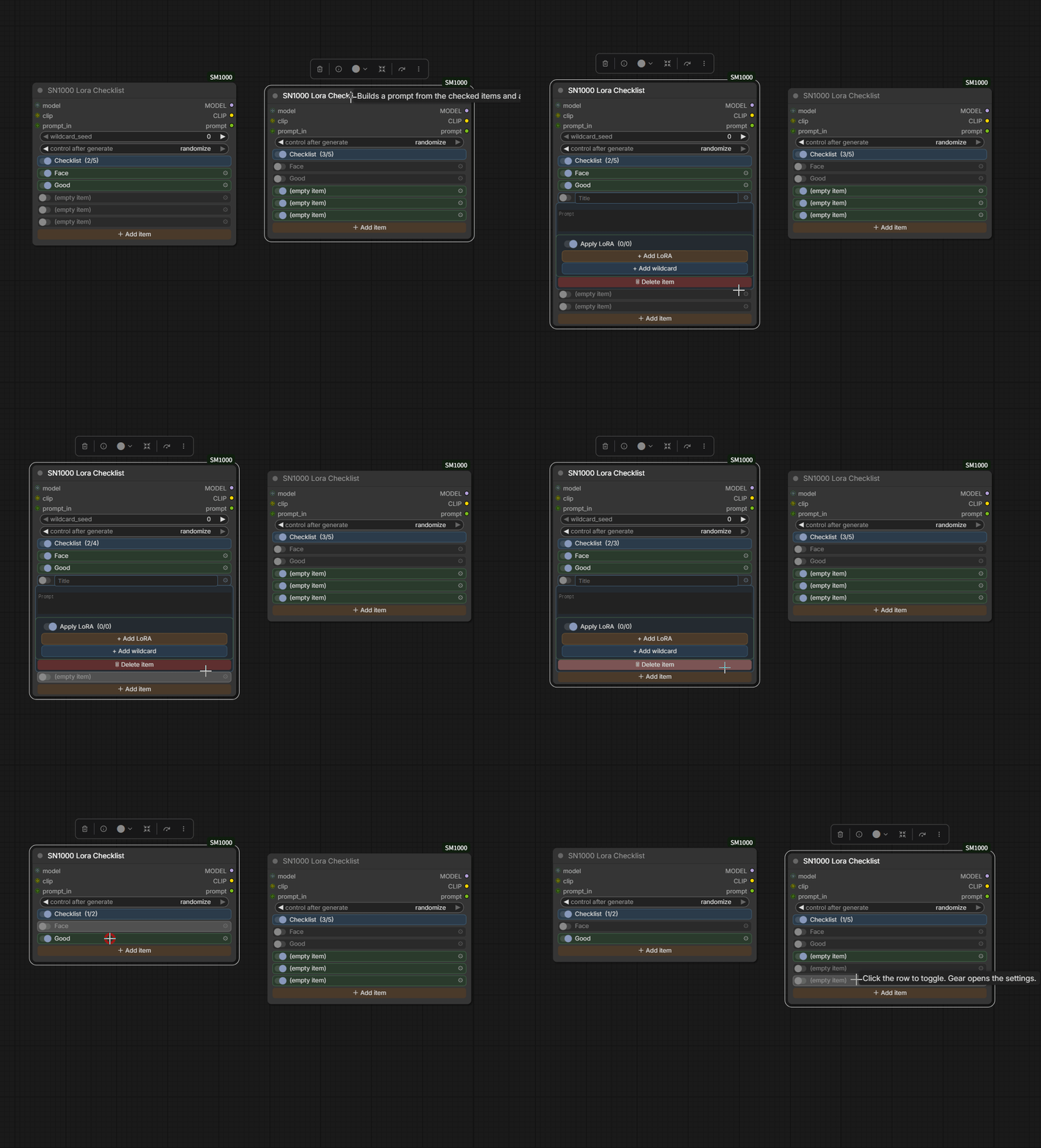
The checklist works the same way
Every checklist item is its own prompt + LoRA pair. Tick the ones you want; the prompts are appended and the LoRAs are applied, in order.
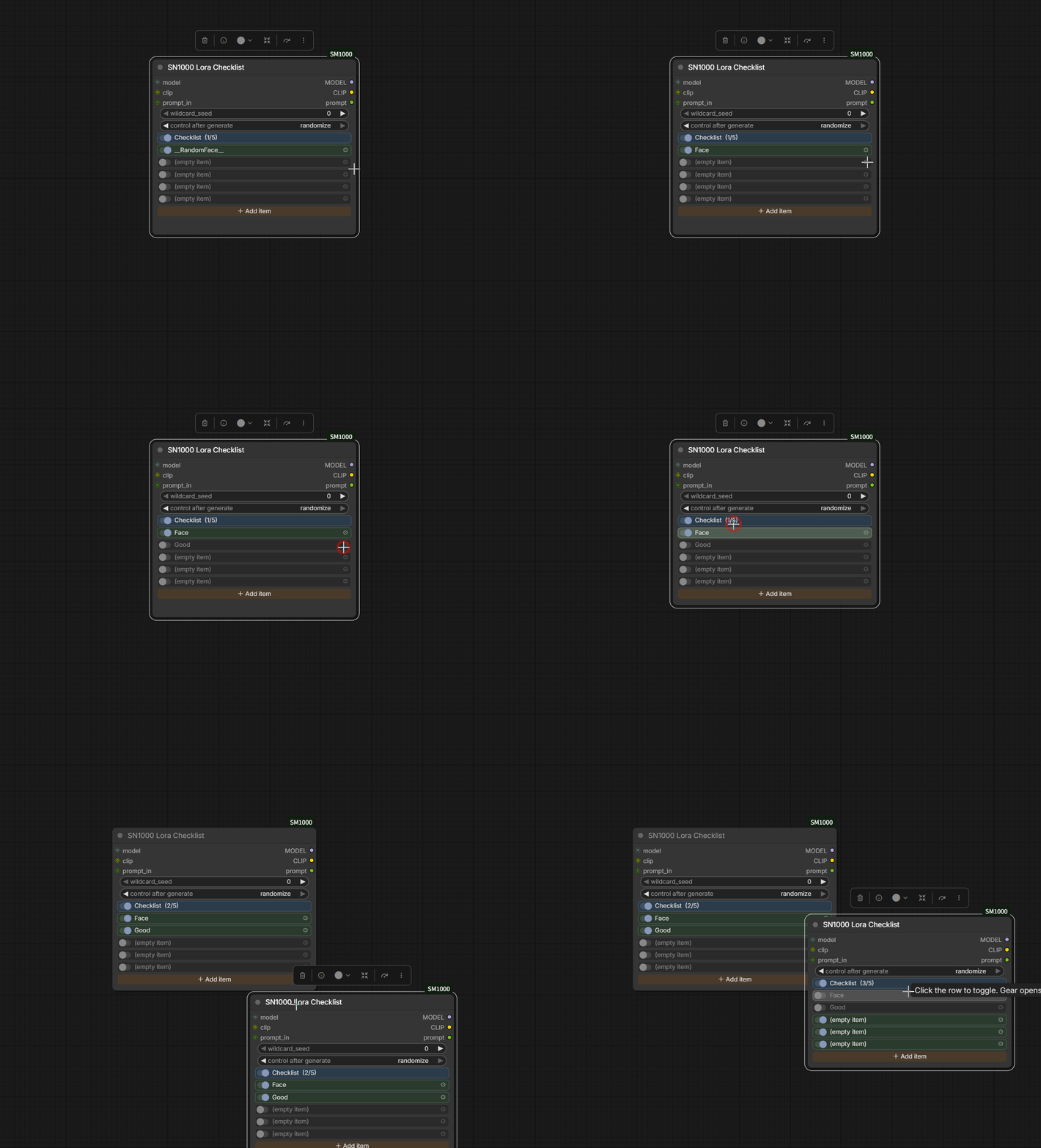
Add and remove checklist items freely
The gear opens a panel: rename the item, edit its prompt, attach or drop LoRAs. An item can carry any number of LoRAs, or none at all — a pure prompt toggle is fine.
Two kinds of storage, on purpose
Themes are saved to JSON files. Shared across everything — edit a preset once and every workflow that uses it is updated. This is your permanent library.
Checklists are saved inside the node. Each node keeps its own items, so two checklists in the same workflow can hold completely different things. This is your per-workflow scratch space.
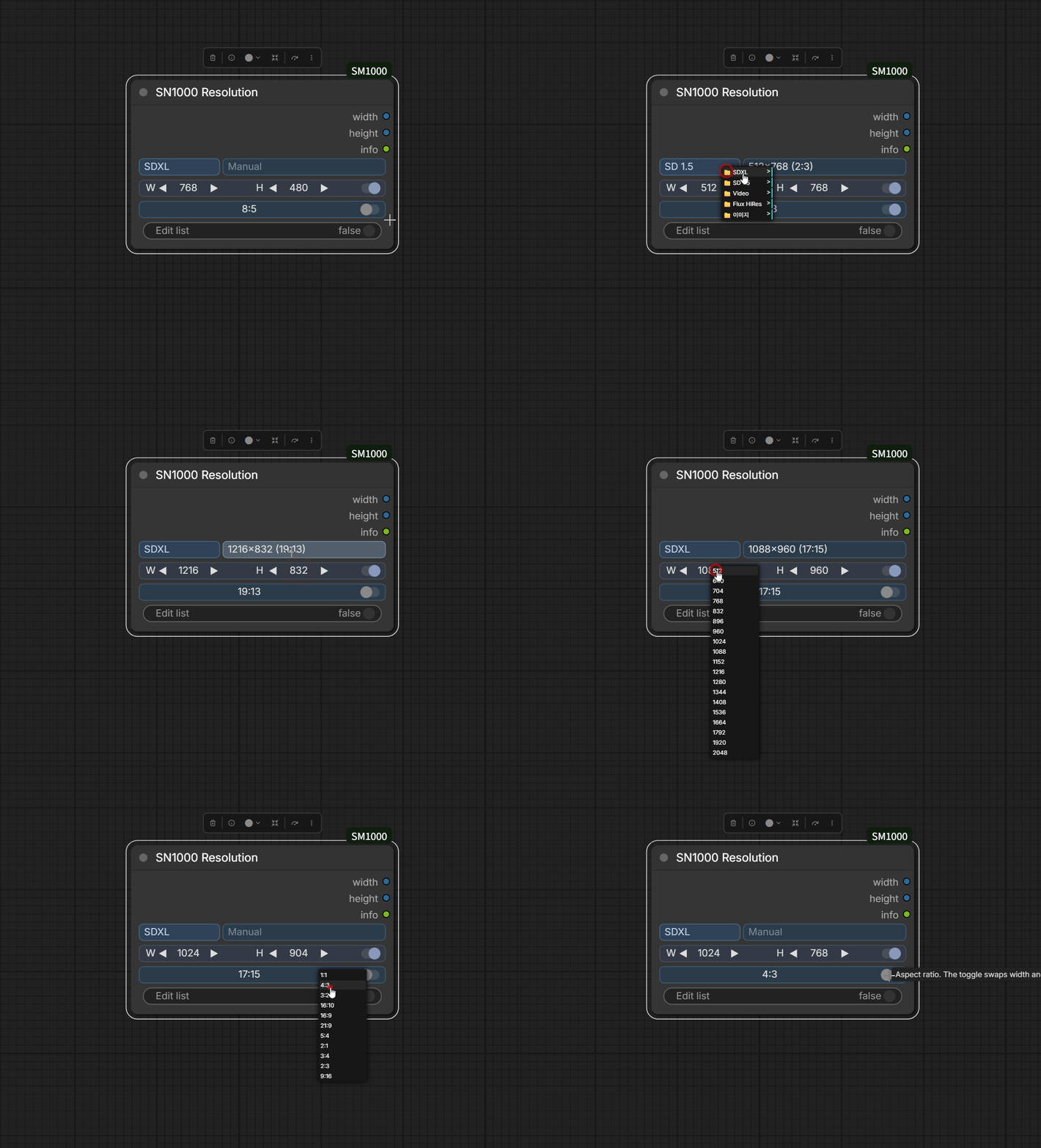
Resolution with a real ratio lock
Set one side and let the other follow the aspect ratio, pick from a grouped list, or just
type both numbers. Outputs plain width / height integers, so it drops into any workflow.
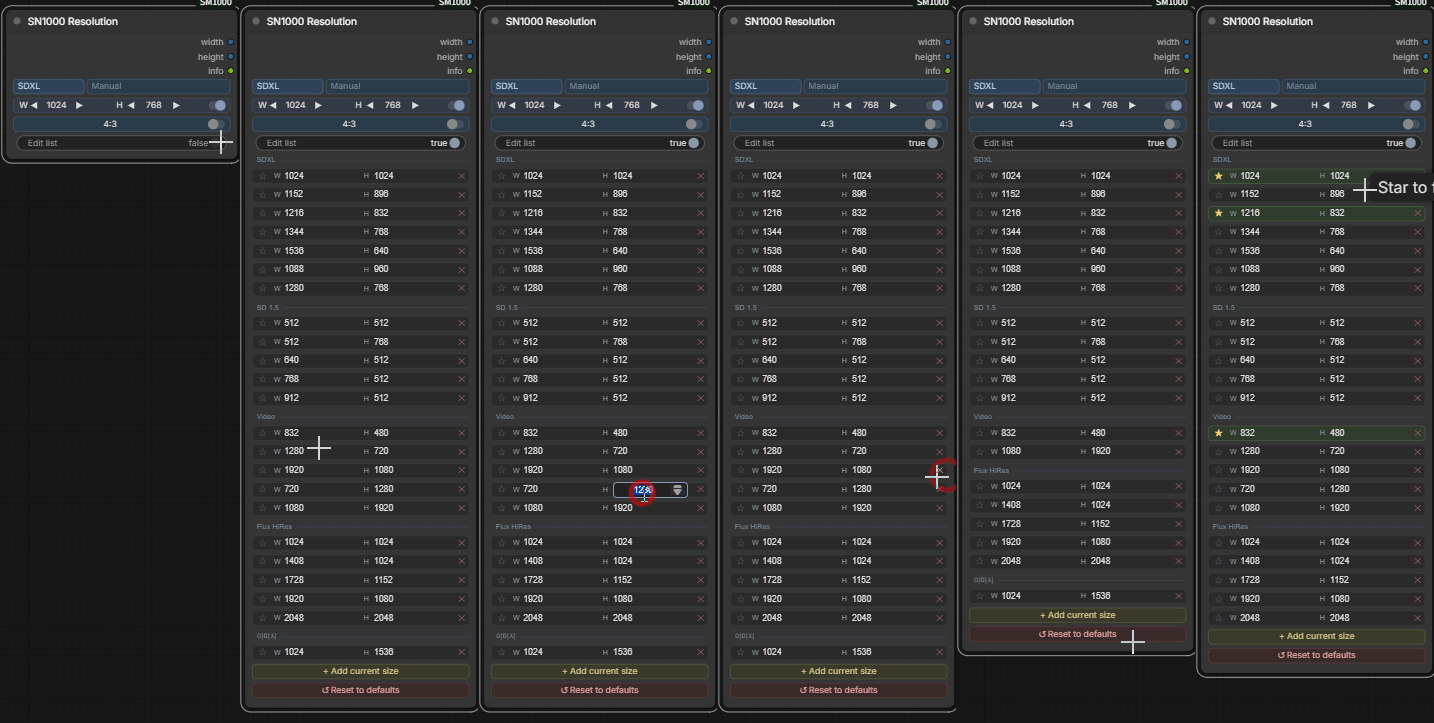
Manage the resolution list yourself
Add the sizes you actually use, delete the ones you don't, star your favourites to pin them at the top. Reset to defaults whenever you want — your list is never overwritten by an update.
Install
ComfyUI Manager
Search for SmartNode1000 in ComfyUI Manager and install.
Manual
cd ComfyUI/custom_nodes
git clone https://github.com/1000Pro-1997/SmartNode1000.git
Restart ComfyUI. No extra dependencies — nothing to pip install.
Nothing else to install
Everything Civitai is built in — fetching info and previews, reading a model's version list, checking for updates, searching and downloading — and Hugging Face search comes with it for the models Civitai does not carry. No separate LoRA manager is needed, and none is assumed.
The files it writes are the ordinary sidecars that sit next to each LoRA
(<lora>.metadata.json, <lora>.preview.*), so a library some other tool filled in
already works on first run, and nothing SmartNode1000 fetches is locked inside it.
Usage
- Add SN1000 Lora Theme (or SN1000 Lora Checklist) to your graph.
- Connect
modelandclipfrom your checkpoint loader. - Wire the
promptoutput into your text encoder. - Pick a theme and preset — or check the items you want.
model and clip are optional. Leave them unconnected and the node becomes a pure
prompt composer.
Both nodes let you bypass the prompt and the LoRAs independently, which makes A/B testing a single change quick.
Where things are stored
| What | Where | Shared across workflows |
|---|---|---|
| Theme presets | presets/<theme>/<name>.json | ✅ Yes |
| Resolution list | resolutions.json | ✅ Yes |
| Wildcard favourites | wildcard_favorites.json | ✅ Yes |
| Workflow favourites | workflow_favorites.json | ✅ Yes |
| Model info from Civitai | <model>.metadata.json, <model>.preview.* | ✅ Yes |
| Civitai API key | user_settings.json (never committed) | ✅ Yes |
| Update results and "not an update" marks | civitai_updates.json, civitai_updates_checkpoints.json | ✅ Yes |
| Where a workflow came from, its original copy and cover image | user/<you>/sm1000_workflows/ | ✅ Yes |
| Checklist items | the workflow file | ❌ No |
| Selected values | the workflow file | ❌ No |
resolutions_default.json ships with the package and is copied to resolutions.json on
first run. Your edits are never overwritten by an update.
Presets start empty — you build the library yourself.
Feedback
Bug reports and feature requests are welcome on the issue tracker.
License
MIT