
ComfyUI Text Processor
The ultimate text processing suite for ComfyUI. Now features Batch Cleaning, LLM Parsing, Dynamic Wildcards, Image and Logic Tools for sophisticated automation.
Nodes (20)
Burn captions onto your images without hand-positioning text
The save node with an aesthetic bouncer at the door
The text-cleaning node that makes messy LLM output actually usable
Fractional math without the node spaghetti
Do math inside ComfyUI without writing a single line of Python
Assemble text with a formula — the string builder nobody sells you
One seed box for the whole workflow — and you never wire it to anything
Stitch a batch into a grid without leaving ComfyUI
The crop node that makes you part of the workflow
Load one image at a time from a folder — without reconnecting wires
The resize node that does everything, including math you didn't know you wanted
A Text Box
Pull live headlines into your workflow — safely
Your saved text, one dropdown away
Save text that outlives the run — the pack's persistent clipboard
Pick a ratio, get aligned pixel dimensions back — the deterministic resolution planner
Turn any PNG into a mask — the easiest way to get mask data in
Save a mask as a PNG — the node that gets your inpaint data out of ComfyUI
One cut, two outputs, and no regex drama
One wildcard node with seven slots — the prompt mixer that scales
ComfyUI Text Processor
An advanced automation toolkit with 20 production nodes for text processing, reusable storage, dynamic prompts, seed orchestration, image and mask workflows, composition, and export.
<details><summary><h2>Latest Updates - Click to expand</h2></summary> <details> <summary><strong>Resolution selection modes and output feedback improved</strong></summary>
- Added
Advanced Resolution Selectorpresets, custom ratios, portrait and landscape direction selection, and four reproducible fixed or seeded-random modes. - Added
randomize_ratioto keep the selected direction while choosing one of six seeded ratio presets;1:1,custom, and legacy21:9are excluded from this mode's output pool. - Removed
21:9from new-workflow menus and random preset sampling while preserving compatible execution for existingfixedandrandomizeworkflows that store it. - Added multiple-aligned megapixel diagnostics and runtime
width: N/height: Nlabels beside the output connections after successful execution.
- Added
Global Random Seed, a zero-wire uint32/uint53 controller with bounded queue actions, distribution modes, precision-safe browser readback, and legacy uint64 workflow compatibility. - Added
Resize Image AdvancedandLoad Image Batchfor advanced resize/mask alignment and validated single, incremental, or seeded-random image loading. - Expanded
Image Concat Advancedwith directional wrapped grids, and madeSave Maskreturn the original mask for downstream chaining.
- Advanced Image Saver now constrains output paths, avoids unsafe external previews, supports privacy-controlled metadata, and exposes aesthetic scores.
- Aesthetic Predictor loading is explicit and safer, with remote-code opt-in, device/precision fallback, clearer diagnostics, and optional model caching.
- Add Text to Image now handles empty/list inputs safely and supports adaptive English/CJK wrapping, font resizing, height limits, and ellipsis truncation.
- Added
Split Stringto split text once at the first literal delimiter and return separateleftandrightoutputs. - Advanced Text Filter now normalizes missing-match routing and preserves correct before/after marker ownership across literal and regex boundaries.
- Hardened LLM parsing with first-valid bounded JSON extraction, complete punctuation-aware code-fence info strings, identifier-safe Markdown cleanup, and input-safe static diagnostics.
- Simple Expression now uses a bounded built-in interpreter for allowlisted math, comparison, boolean, and string operations without dynamic Python execution.
- Text Scraper remains available for workflow compatibility but remote fetching is disabled; Wildcards uses safer source resolution and path handling.
- Text Storage prefers the ComfyUI user directory while retaining legacy reads, delete compatibility, and a clear empty-state placeholder.
- Version 1.8.2 supports Python 3.10+ and ComfyUI Core 0.22.3+, with contracts covering the validated Desktop floor and the current host snapshot.
- Production nodes remain on the compatible V1 API while V3 migration stays deferred until a newer stable ComfyUI node API is available.
- All 155 visible inputs now include tooltips, 10 complex nodes provide Markdown help, and backend plus real-browser regression coverage protects host behavior.
- Registry package validation now checks the exact public file set and source bytes, keeps development-only files out, and blocks known unsafe execution or network capability patterns before publication.
Table of Contents
- Installation
- Compatibility and host support
- Advanced Text Filter Node
- Text Utilities
- Logic & Math Nodes
- Image Utilities
- License
Installation
Method 1: Via ComfyUI Manager (Recommended)
This is the easiest way to install the node pack.
- Open ComfyUI Manager within your ComfyUI interface.
- Click on "Custom Nodes Manager".
- Search for
ComfyUI Text Processor. - Click Install and wait for the process to complete.
- Restart ComfyUI.
Method 2: Manual Installation
If you prefer terminal commands or don't use the Manager:
-
Navigate to your custom nodes directory:
cd ComfyUI/custom_nodes/ -
Clone this repository:
git clone https://github.com/rookiestar28/ComfyUI_Text_Processor.git -
Standard nodes require no additional third-party runtime packages. For optional built-in aesthetic scoring support, install:
pip install aesthetic-predictor-v2-5 -
Restart ComfyUI.
Asset Setup (Optional)
- Fonts: Place your
.ttfor.otffiles inComfyUI/custom_nodes/ComfyUI_Text_Processor/fonts/for the Add Text to Image node. - Wildcards: Place your wildcard text files in
ComfyUI/wildcards/orComfyUI/custom_nodes/ComfyUI_Text_Processor/wildcards/.
Compatibility and host support
- Release requirements: ComfyUI Text Processor 1.8.2 requires Python 3.10+ and ComfyUI Core 0.22.3+.
- Validated Desktop floor: Desktop 0.9.4 with Core 0.22.3 and Frontend 1.43.18 is the oldest host combination covered by the compatibility contract.
- Current host observation: The node pack has also been checked against Core 0.29.0 and Frontend 1.49.1. These versions are a current compatibility snapshot, not a new minimum or maximum.
- Node API posture: Production nodes remain on V1 for compatibility. V3 migration is intentionally deferred until ComfyUI publishes a stable node API newer than the experimental
v0_0_2contract. - In-app guidance: All 155 visible node inputs provide host tooltips, and 10 complex nodes also provide fallback Markdown help in ComfyUI's node-help surface.
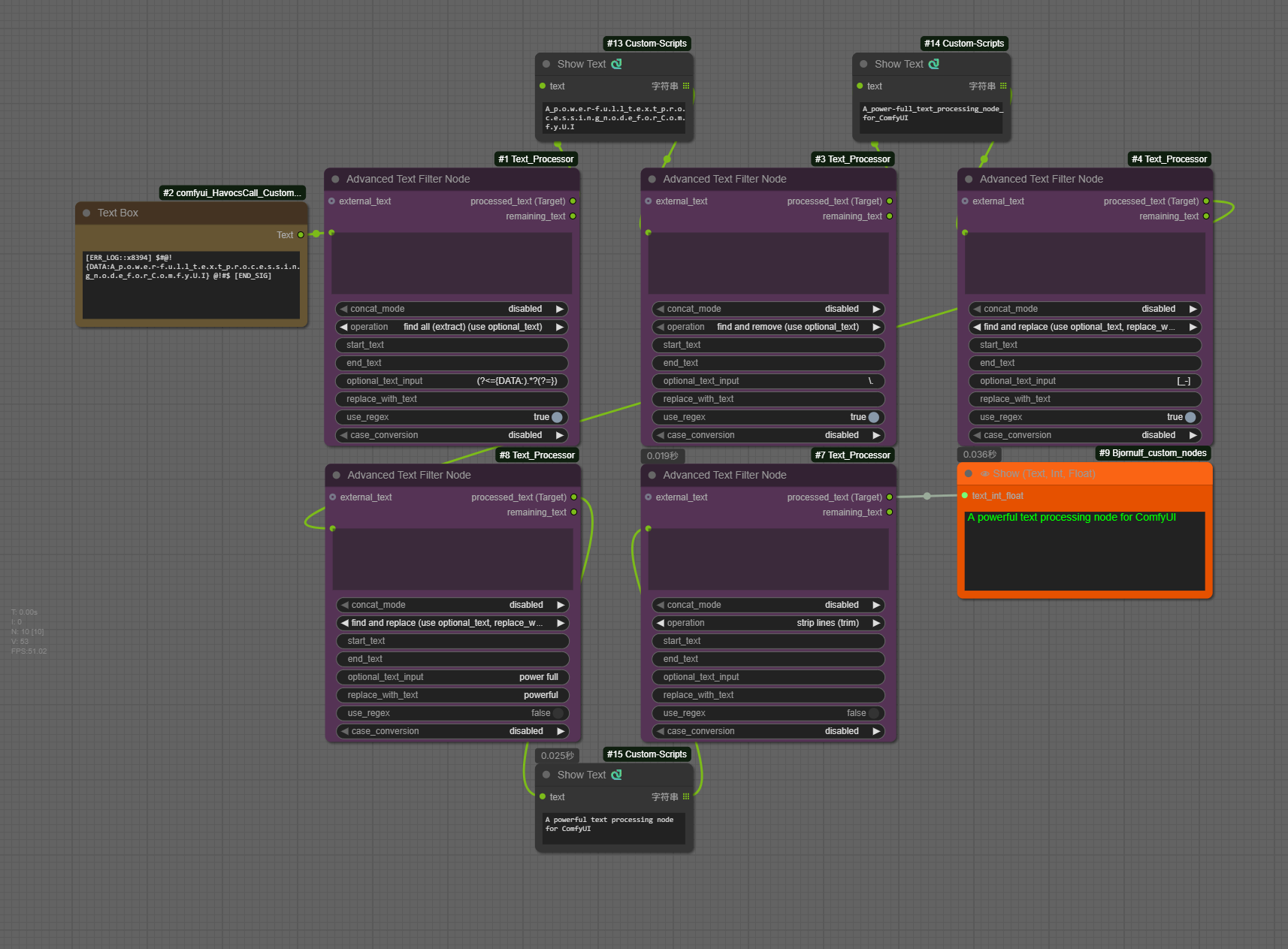
1. Advanced Text Filter Node (Core)
This is a powerful and flexible text processing node for ComfyUI, designed to automate and simplify your dynamic prompt workflows.
Whether you need to precisely extract sections from a large text block, batch replace keywords, or clean up messy text, this node provides robust support. Its dual-output design allows you to create complex node chaining, passing the remaining text from one node to the next for further processing.
Core Features
- Dual Outputs (Node Chaining): Provides
processed_text (Target)andremaining_textoutputs. You can chain theremaining_textto anotherAdvancedTextFilternode for multi-step text parsing. - 17 Operation Modes:
- Global Find/Replace/Extract
- First-Match Split/Between
- Format Cleanup
- LLM Output Parsing (JSON, Code blocks)
- Robust Error Handling: If no match is found,
return original textroutes preprocessed input toprocessed_text (Target)and clearsremaining_text;return empty stringreverses those outputs;trigger errorraises a static node error. - Powerful Regex Support: A
use_regextoggle switches all find and split operations to use Regular Expressions. Now supportsDOTALLmode for multi-line matching.- Regex extract with one capture group returns the captured text; multiple capture groups are joined as
group1 | group2.
- Regex extract with one capture group returns the captured text; multiple capture groups are joined as
- Multi-Keyword Handling:
Find/Replaceoperations support multiple, comma-separated (,) targets in theoptional_text_inputfield. - Input Flexibility: An optional
external_textinput allows you to concatenate two text sources (like B-box data and a prompt) before processing. - Pre-processing: Built-in
to UPPERCASE/to lowercasefunctions to normalize case before any operation.
Operation modes
The node's operations are split into five categories:
A. Find / Replace / Extract (Global Operations)
This group finds and processes all matching instances. It uses the optional_text_input field as the target.
find and remove: Removes all specified keywords.find and replace: Replaces all keywords withreplace_with_text.find all (extract): Extracts all matched keywords; returns original text with matches removed as "remaining".
B. Split & Between (First Match Only)
This group targets only the first matched instance. It uses the start_text and end_text fields.
extract between/remove betweenextract before start text/remove before start textextract after start text/remove after start text
C. Text Cleanup
remove empty lines,remove newlines,strip lines (trim),remove all whitespace.
D. LLM Utilities
Specialized tools for processing raw outputs from Large Language Models (LLMs).
LLM: extract code block (```): Extracts code content strictly within triple backticks.LLM: extract JSON object ({...}): Locates and extracts the first valid JSON object structure, useful for chaining with JSON parsers.LLM: clean markdown formatting: Removes bold (**), italics (*), headers (#), and links to return clean, plain text.
E. Batch Operations
Designed for Img2Text workflows or bulk cleaning.
batch replace (use replacement_rules): Performs multiple find-and-replace operations in a single pass.-
Uses the
replacement_rulesinput box. -
Syntax:
find_text -> replace_text(one rule per line). -
Example:
ugly -> beautiful bad hands -> detailed hands error_tag -> -
Supports Regex if
use_regexis enabled.
-
Advanced Text Filter behavior contract
- Missing-match policy: For every search, extraction, boundary, and LLM parsing operation, "return original text" sends the preprocessed input to processed_text and an empty string to remaining_text; "return empty string" reverses those outputs; "trigger error" raises a node error with a static reason.
- Preprocessing order: external_text concatenation and case conversion happen before matching, so fallback output uses the fully preprocessed input.
- First-match markers: With LEFT<MARK>RIGHT, extracting before returns LEFT / <MARK>RIGHT, removing before returns <MARK>RIGHT / LEFT, extracting after returns RIGHT / LEFT<MARK>, and removing after returns LEFT<MARK> / RIGHT.
- JSON extraction: The node returns the first valid JSON object, skips malformed candidates, rejects arrays, scalars, and non-standard numeric constants, and inspects at most 1,024 candidate opening braces.
- Code fences: Code extraction removes complete opening info strings, including punctuation-bearing language names; unlabeled, CRLF, inline, multiple, and unmatched fences follow the same two-output contract.
- Markdown cleanup: Supported formatting delimiters are removed while literal underscores inside identifiers such as snake_case are preserved.
2. Text Utilities
Text Input Node
A smart text combiner that merges up to 7 text sources into a single string.
- Flexible Inputs: Mix of 3 input slots (for chaining) and 4 text widgets (for manual input).
- Auto-Cleaning: Automatically filters out empty inputs to prevent double separators.
- Fun Fallback: If no input is provided, it returns a cute placeholder prompt.
Split String
Splits text once at the first literal, case-sensitive delimiter and returns two named
string outputs: left contains the text before the match, while right preserves
everything after it, including later delimiters. If the delimiter is absent, the node
returns the original text through left and an empty right. An empty delimiter is
invalid and raises delimiter must not be empty.
Text Scraper Node
Retained as a compatibility placeholder so existing workflows continue to load. Remote fetching is disabled, and the node returns a static explanatory message without making network requests.
- Workflow Compatible: Preserves the existing URL and seed inputs plus the original string output so saved workflows remain loadable.
- No Remote Access: Ignores URL and seed values, performs no fetch, and returns one static disabled message.
- Privacy Preserving: Does not echo the supplied URL or write it to console output.
Text Storage Nodes (Reader & Writer)
A persistent "clipboard" for ComfyUI. These nodes allow you to save and retrieve text data across different workflows or sessions. Current ComfyUI installs store new entries under the ComfyUI user directory when available, while legacy entries in this node's text_storage/ folder remain readable.
Text Storage (Writer)
Saves text content to a file or internal database.
- Inputs:
text_input: The text content to save.filename_prefix: Optional prefix for categorization (e.g.,ProjectA_).save_name: The main filename or key. Supports Time Formatting (e.g.,%Y-%m-%d) and Wildcards (e.g.,***for auto-incrementing 001, 002...).mode:- Add New (Auto Rename): Automatically avoids conflicts by renaming (e.g.,
Log_2024-11-26_001.txt). - Overwrite Existing: Replaces content if the name exists.
- Delete: Removes the specified file/key from both the current user-directory storage and legacy plugin-local storage when both exist.
- Add New (Auto Rename): Automatically avoids conflicts by renaming (e.g.,
storage_format:json: Saves as a key inside the internaltext_storage.jsondatabase.txt: Saves as a standalone.txtfile for easy external editing.
Text Storage (Reader)
Retrieves saved text content.
- Unified List: Automatically scans and lists both JSON keys and
.txtfiles from the storage folder. - Passthrough: Outputs the selected text content string.
- > Important Note: The dropdown list is generated when the node loads. If you have just saved a NEW file using the Writer node, you must Refresh the ComfyUI Page (F5) to see the new file appear in the Reader's list.
Text Storage vs Core SaveText
Newer ComfyUI Core releases include SaveText, a straightforward exporter that writes numbered .txt, .md, or .json files to the ComfyUI output directory and passes the submitted text through. Text Storage is the better fit when workflows need named persistent entries shared across sessions, a separate Reader, JSON/TXT storage, add-with-auto-rename, overwrite, delete, and legacy-entry fallback. SaveText was added after the validated Desktop floor, so it may not be available on older supported hosts.
Wildcards Processor (Dynamic Prompt Mixer)
Generate rich, dynamic prompts using wildcard syntax (e.g., __style__) and random choices (e.g., {cat|dog}) through a flexible 7-slot mixer.
- Unified & Powerful (7-Slot Mixer): Replaces the previous Basic/Advanced split with a single, robust node. It features 7 input slots, allowing you to combine manual text and wildcard files in complex layers.
- Hybrid Inputs:
Each of the 7 slots offers both a Text Box (for manual prompt or
{choice}syntax) and a Dropdown Menu (to select a wildcard file). They work together—you can use one, the other, or both simultaneously. - Smart "Random" Mode: The dropdown menu includes a special "Random" option. When selected, it picks a random wildcard file from your collection for that specific slot, adding an extra layer of surprise.
- Recursive Generation:
Fully supports nested wildcards (e.g., a wildcard file containing other
__wildcards__). - Independent Seeds:
Each input slot uses a unique internal seed offset. This ensures that even if you use the same
{A|B}syntax in multiple slots, they won't rigidly output the same result. - Cross-Platform: Fully supports nested subdirectories and handles Windows/Linux/macOS file paths correctly.
- Wildcard Sources:
Looks in
ComfyUI/wildcards/first, then this plugin'swildcards/; duplicate names are resolved from the ComfyUI root folder first.
3. Logic & Math Nodes
Control workflow seeds or safely process allowlisted expressions for dynamic calculations and logic flow. Expression processing uses the package's bounded, repository-owned AST interpreter and never invokes Python's dynamic execution built-ins.
Simple Expression (Integers / Floats / Strings)
Perform mathematical calculations or string manipulations without writing complex code.
- 3 Variants: Dedicated nodes for
Integers,Floats, andStrings. - Variables: Supports inputs
a,b, andc. You can use them in your expression (e.g.,(a + b) * 2ora + " " + b). - Allowlisted operations: Numeric variants support arithmetic, comparisons, boolean logic, and
int,float, orstrconversion. The string variant supports concatenation, repetition, comparisons, boolean logic,len, andstr. - Safe execution: Exactly one bounded expression is interpreted by the package's own AST allowlist. Imports, attributes, subscripts, comprehensions, arbitrary calls, and dynamic Python execution are rejected.
- Console Logging: Optional toggle to print results to the console for debugging.
Global Random Seed
Global Random Seed, under ComfyUI Text Processor/Logic, is a zero-wire
workflow controller: when it is present in a submitted prompt, the backend
assigns bounded seeds to recognized literal seed inputs without requiring
connections from applied_seed. The output remains available when another node
needs the applied base seed explicitly.
Width and compatibility
| seed_width | Inclusive range | Guidance |
| --- | ---: | --- |
| uint32 (default) | 0..4294967295 | Use for workflows that include uint32-limited samplers or API nodes. |
| uint53 | 0..9007199254740991 | Largest range that remains exact in standard JavaScript numeric widgets. |
The width is selected by the user; the controller does not execute or infer
arbitrary third-party node schemas. uint32 describes a numeric range, not a short
display format, and valid values can contain up to ten decimal digits.
Existing workflows saved with the former uint64 profile remain backend-compatible,
but new node configurations expose only uint32 and uint53 because standard
numeric widgets cannot display unsafe uint64 values exactly.
Queue and target behavior
timing:before_generationadvances the queue action before assigning this prompt;after_generationassigns the current value first and then advances the next controller value.queue_action:fixed,increment,decrement, orrandomizecontrols how the controller advances between submitted prompts.fixedpreserves the value, while increment and decrement wrap within the selected width.distribution:same,increment,decrement, orrandomizecontrols how the applied base is distributed in stable node-ID order.samereuses the base; increment and decrement offset one bounded value per target.randomizegives each eligible target an independent bounded seed, so target values need not equalapplied_seed.- Only literal integer inputs named
seed,noise_seed, orseed_numare changed. Links, booleans, non-integers, and unrelated inputs are preserved. - If a prompt contains multiple controllers, the lowest canonical controller node ID is authoritative.
value and last_seed use exact unsigned decimal text for browser readback.
Assignments above JavaScript's safe-integer range remain exact in the backend, but
an unsafe uint64 target numeric widget is left unchanged rather than displaying
a rounded value. Use uint53 when the target widget itself must show the same
seed. A target node's own non-fixed
control_before_generate/control_after_generate setting may also replace its
visible widget with the next seed after prompt submission; set that target control
to fixed when comparing its widget directly with last_seed.
API prompts work without serialized workflow metadata. When no browser client is
present, callers must resubmit the next controller value; the server deliberately
keeps no per-client continuation state. Backend coverage is defined by eligible
nodes present in the submitted prompt. Root/current-graph widgets receive
best-effort readback, while nested subgraph widget synchronization is not
guaranteed and does not affect the submitted backend assignment.
See Global Random Seed for the compact in-app input reference.
4. Image Utilities
Advanced Resolution Selector
Advanced Resolution Selector (TP_AdvancedResolutionSelector) is a
ComfyUI Text Processor image utility for choosing a deterministic,
multiple-aligned resolution from a ratio preset or a validated custom ratio.
It is a separate V1 node from Core's native Resolution Selector, so existing
Core workflows and node IDs remain unchanged. The node returns dimensions and
diagnostics; it does not create an IMAGE or LATENT tensor.
Presets, direction, and custom ratios
The aspect_ratio menu contains one canonical landscape-oriented entry for
each ratio: 1:1, 9:7, 4:3, 19:13, 3:2, 7:4, and 16:9, plus
custom. Select landscape or portrait separately with direction.
Portrait output is produced by transposing the selected ratio; reciprocal
portrait duplicates are not separate menu entries.
Legacy workflows or API prompts that already store 21:9 remain executable in
fixed and randomize modes, but 21:9 is no longer selectable and is never
sampled by randomize_all or randomize_ratio.
For custom, enter positive integer custom_ratio_width and
custom_ratio_height values from 1 through 10,000. The pair is reduced to its
canonical label (for example, 6:4 is reported as 3:2). Custom components
are validated in every mode, even when randomize_all or randomize_ratio will
not use them.
Output modes and reproducibility
| Mode | Ratio selection | Direction selection | Random draws |
| --- | --- | --- | ---: |
| fixed | selected preset or custom ratio | selected direction | 0 |
| randomize | selected preset or custom ratio | seeded random direction | 1 |
| randomize_all | seeded random canonical preset, including 1:1; custom is excluded | seeded random direction | 2, ratio first |
| randomize_ratio | one of 9:7, 4:3, 19:13, 3:2, 7:4, or 16:9, excluding 1:1, custom, and legacy 21:9 | selected direction | 1 ratio draw |
The seed is an explicit unsigned 32-bit value (0 through 4,294,967,295)
with ComfyUI's normal queue control. Identical serialized inputs produce the
same randomized result, and changing the serialized seed changes randomized
selection. The node uses an isolated deterministic stream; this behavior is
not cryptographic randomness and does not alter Python's process-global random
generator. randomize and randomize_all replace the selected direction;
fixed and randomize_ratio preserve the selected direction. In
randomize_all and randomize_ratio, the selected ratio and custom values are
not authoritative after their validation step.
Megapixels, alignment, and diagnostics
megapixels uses a binary 1024 × 1024 target-area unit and accepts 0.1 to
16.0. multiple aligns both dimensions and accepts values from 8 to 128
in steps of 4. Python ties-to-even rounding is preserved while a bounded
candidate search chooses an aligned pair that balances area and aspect-ratio
error. Alignment can therefore make the realized area or ratio differ from the
requested target.
The seven outputs are returned in this order:
widthheightresolved_aspect_ratioresolved_directionactual_megapixelspixel_error_percentaspect_error_percent
After a successful execution, the optional frontend extension labels the two
existing resolution ports with the final aligned values (width: N and
height: N). The labels show the last successful result, are not persisted into
workflow JSON, and gracefully remain static when the extension is unavailable.
actual_megapixels is the realized binary area. pixel_error_percent is the
signed area difference relative to the target (positive means larger,
negative means smaller). aspect_error_percent is the signed difference
between the realized oriented ratio and the selected ratio (positive means
wider, negative means narrower). Neither diagnostic promises exact target area
or ratio after multiple alignment.
Examples
- Fixed landscape preset:
fixed,16:9,landscape,1.0megapixel, and multiple8returns1368 × 768, with16:9andlandscapereported. - Custom portrait ratio:
fixed,custom,portrait,3:2,1.0megapixel, and multiple8returns840 × 1256; the resolved label is3:2and the direction isportrait. - Randomize:
randomize,4:3, seed0,1.0megapixel, and multiple8preserves4:3and resolves the seeded direction asportrait, yielding888 × 1184. - Randomize all:
randomize_all, seed0,1.0megapixel, and multiple8selects7:4followed byportrait, yielding776 × 1352. - Randomize ratio:
randomize_ratio,portrait, seed0,1.0megapixel, and multiple8selects16:9with the selected direction unchanged, yielding768 × 1368. - Coarse multiple: fixed
7:4,landscape,1.0megapixel, and multiple128yields1408 × 768,1.03125actual megapixels,+3.125%pixel error, and approximately+4.762%aspect error; this illustrates why aligned outputs should be read together with their diagnostics.
See the Advanced Resolution Selector in-app help for the compact input and behavior reference.
Advanced Image Saver
A professional-grade image export node with advanced quality control and aesthetic filtering.
- Aesthetic Score Filtering:
- Optional support for the Aesthetic Predictor V2.5 model; install it with
pip install aesthetic-predictor-v2-5. calculate_aesthetic_scoreenables built-in scoring for each image.- Built-in scoring uses a loader that requires trusted remote code, so
allow_aesthetic_remote_codeis disabled by default and must be explicitly enabled before the model will load. aesthetic_precisionsupportsauto,bf16,fp16,fp32, andcpu_fp32;autouses the best supported device/precision and falls back when needed.keep_aesthetic_model_loadedcontrols whether the scorer remains cached after a run.- The optional
aesthetic_scoreinput lets you supply external scores without loading the built-in predictor. - Images scoring below
aesthetic_thresholdare filtered from the outputs.
- Optional support for the Aesthetic Predictor V2.5 model; install it with
- Flexible Output Path:
- Dynamic path parsing with time formatting (e.g.,
[time(%Y-%m-%d)]→2025-12-25). - Relative paths are kept under ComfyUI output; absolute paths require the explicit
allow_absolute_output_pathopt-in. - Auto-create directories if they don't exist.
- Dynamic path parsing with time formatting (e.g.,
- Smart Filename Generation:
- Customizable
filename_prefix,filename_delimiter, andfilename_number_padding. - Auto-increment counter with conflict detection.
filename_number_startswitches between number-first and number-last formats (0001_prefixvsprefix_0001).overwrite_mode = prefix_as_filenameuses the prefix as a static filename.
- Customizable
- Multi-Format Support:
- PNG: Stores node-controlled metadata through PngInfo.
- JPEG/JPG: Quality control (1-100) with DPI settings.
- WebP: Lossless mode support with EXIF metadata storage.
- BMP/TIFF: Additional fallback formats.
- Metadata Management:
metadata_modecontrolsfull / minimal / none.embed_workflowcontrols whether ComfyUI-restorableprompt/workflowgraph data is written where supported.- When workflow embedding is disabled, saved metadata will not include ComfyUI-restorable
promptorworkflowgraph entries. minimalmode preserves the currentparameterssummary for downstream metadata readers.- JPEG/JPG metadata support is intentionally limited; use PNG or WebP when metadata must be read back.
- WebP: Stores metadata in EXIF tags (Make/ImageDescription).
- Output Control:
- Three Outputs:
filtered_images(IMAGE),files(paths),scores(aesthetic scores). - Optional preview toggle for headless workflows. When saving to an absolute path outside ComfyUI output, the file is still returned in
files, but ComfyUI previews are omitted because/viewonly serves host-managed output paths. - Returns only images that pass aesthetic threshold for downstream nodes.
- Three Outputs:
Image Cropper
A handy utility to crop images directly within your workflow.
- Targeted Cropping: Crop by fixed side length, aspect ratio, alignment, and XY offsets.
- Mask-guided Centering: Can use an optional mask to bias the crop center toward the masked subject.
- Optional Rescaling: Can rescale the cropped result by longest side, shortest side, width, or height.
- Batch Processing: Supports cropping for image batches.
Resize Image Advanced
Resize image batches with direct size controls, aspect-ratio target calculation, and optional mask alignment.
- Node ID: Registered as
ResizeImageAdvancedwith display nameResize Image Advanced. - Resize Modes: Use explicit width/height or automatic aspect-ratio sizing with
original,custom, and common presets. - Scale Targets:
scale_to_sidesupports longest side, shortest side, width, height, and total kilo-pixel targets. - Fit Modes: Supports
fill,stretch,resize,letterbox,pad,pad_edge,pad_edge_pixel,pillarbox_blur,crop, andtotal_pixels. - Methods and Device: Preserves KJ-style
nearest-exact,bilinear,area,bicubic,lanczos, and optionalnvidia_rtx_vsrmethods, plus CPU/GPU device selection. RTX VSR requires a compatible NVIDIA VFX runtime and GPU. - Background Fill:
background_colorcontrols letterbox/pad canvas fill. - Multiple Alignment:
round_to_multiplekeeps the final size divisible by a selected integer, covering the original KJdivisible_bybehavior. - Mask Alignment: Optional
MASKinput is resized, cropped, or padded with the image and returned as an aligned mask. - Workflow Helpers: Returns
IMAGE, finalwidth, finalheight, and alignedMASKoutputs.
Image and Mask IO
Image and mask IO utilities for workflows that need to load batch images or persist mask data.
- Load Image Batch: Loads one static
IMAGEfrom a directory bypath+ relativepattern, with single, incremental, or seeded-random selection. When ComfyUI validation hooks are available, invalid folders, empty matches, unsafe patterns, and out-of-range fixed indexes are reported before execution. Registered asLoadImageBatch. - Save Mask: Writes masks to the ComfyUI output directory as PNG files, reports them to the ComfyUI preview UI, and returns the original
MASKunchanged for downstream chaining. - Load Mask: Loads supported image files from the ComfyUI input directory and converts them to
MASK. - ComfyUI Integration: Uses ComfyUI input/output path helpers when available.
Image Concat Advanced
Concatenate images from a batch (or list) into a directional grid.
- Direction:
left_to_right / right_to_left / top_to_bottom / bottom_to_top. - Wrap Limit:
max_images_per_linecontrols when the layout wraps to the next row or column. - Resize: Each cell uses the first image size; other images are resized to fit while keeping aspect ratio.
- Blank Fill: Incomplete final rows or columns are filled with blank cells.
- Output Channels: Force
rgb(default),rgba, orauto.
Add Text to Image
Renders text onto images with advanced formatting options.
- Adaptive Text Layout:
auto_adaptwraps and shrinks text to fit both width and height; the non-adaptive path truncates with ellipsis. - Flexible Placement: Supports center/corner anchors, margins, text-box or full-width-strip backgrounds, and per-line spacing.
- Batch Support: Can process image batches; text labels loop automatically if fewer than images.
- Font Fallbacks: Handles missing stored font names by resolving compatible fonts from the current environment when possible.
- Compatibility: Always outputs standard RGB images for downstream image/video nodes.
Add Text to Image vs Core TextOverlay
Newer ComfyUI Core releases include TextOverlay, a simpler option for applying the same text across a batch with the default font, image-relative text size, top/bottom placement, horizontal alignment, color, and an optional black outline. Add Text to Image is intended for workflows that need selectable fonts, per-image labels, 7 anchor positions, pixel-level margins and spacing, RGBA box or strip backgrounds, and adaptive wrapping/shrinking or ellipsis truncation. TextOverlay was added after the validated Desktop floor, so it may not be available on older supported hosts.
License
This project is licensed under the MIT License. See LICENSE for details.
🧹 Basic Cleaning
| Goal | Regex Pattern | Description |
| :--- | :--- | :--- |
| Remove Extra Spaces | \s+ | Replaces multiple spaces with a single space. |
| Remove Non-English | [^a-zA-Z0-9,\.\s] | Removes everything except English letters, numbers, commas, and dots. |
| Remove Digits/Numbers | \d+ | Removes all numbers (e.g., weights or unintended seeds). |
| Clean Line Breaks | [\r\n]+ | Replaces new lines with commas (useful for flattening lists). |
🔍 Advanced Extraction & Filtering
| Goal | Regex Pattern | Description |
| :--- | :--- | :--- |
| Remove HTML Tags | <[^>]*> | Cleans up text scraped from websites (removes div, br tags, etc.). |
| Remove Weight Brackets | \(([^)]*:\d+(?:\.\d+)?)\) | Removes standard prompt weights like (word:1.2). |
| Extract Email | [a-zA-Z0-9._%+-]+@[a-zA-Z0-9.-]+\.[a-zA-Z]{2,} | Extracts email addresses from mixed text. |
| Match Wildcards | __\w+__ | Matches typical wildcard syntax like __character__. |