
ComfyUI Lora Manager Web Frame
Embeds the ComfyUI-Lora-Manager web interface directly into your ComfyUI workflow graph, eliminating the need for a separate browser tab.
Nodes (1)
✨ ComfyUI Lora Manager Web Frame
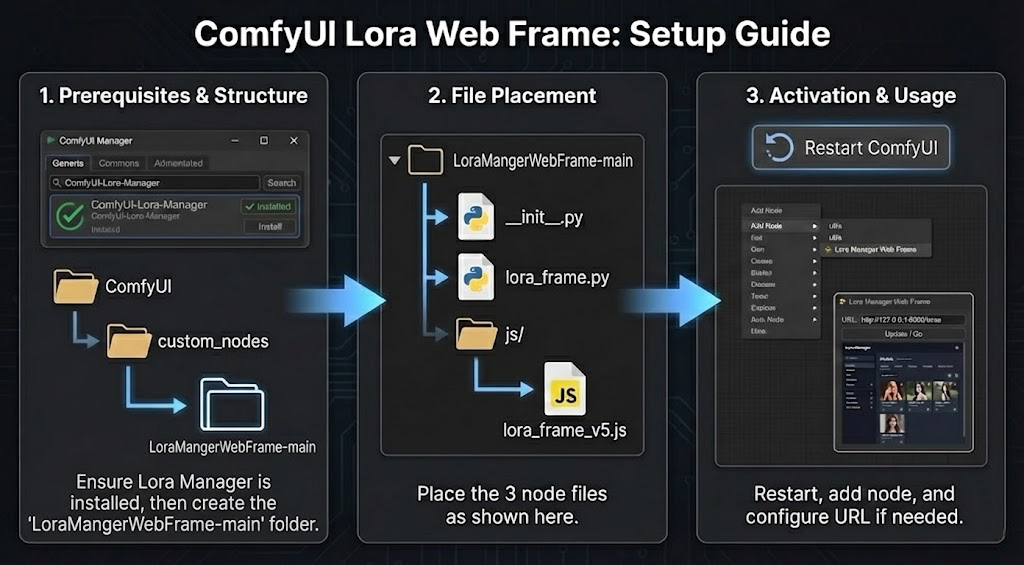
A simple custom node that embeds the full ComfyUI-Lora-Manager web interface directly into your ComfyUI workflow graph. This eliminates the need to have a separate browser tab open for managing your LoRAs and recipes.
Prerequisites
This node is a wrapper and requires the original extension to be installed and active.
- Install ComfyUI-Lora-Manager: Use ComfyUI Manager or install manually from willmiao/ComfyUI-Lora-Manager.
- Verify it works: Ensure you can access the manager in your browser before using this node.
Installation
Option 1: Via ComfyUI Manager (Recommended)
- Open ComfyUI Manager
- Search for "Lora Manager Web Frame"
- Click Install
- Restart ComfyUI
Option 2: Manual Installation from ZIP
- Download the repository as a ZIP file from GitHub
- Extract the ZIP file
- Rename the extracted folder from
LoraMangerWebFrame-maintoLoraMangerWebFrame - Move the renamed folder to your ComfyUI
custom_nodesdirectory:ComfyUI/custom_nodes/LoraMangerWebFrame/ - Restart ComfyUI
Option 3: Git Clone
cd ComfyUI/custom_nodes
git clone https://github.com/revisiontony/LoraMangerWebFrame.git
Usage
- Add the "✨ Lora Manager Web Frame" node to your workflow.
- The node will display the embedded Lora Manager interface.
- Smart Discovery: The node will automatically attempt to find your Lora Manager server on startup.
Smart Port Discovery
The web frame now features a robust, multi-strategy discovery engine to find your Lora Manager, even if its port changes (common in ComfyUI desktop or multi-instance setups):
- Origin Match: It first checks your current ComfyUI address (the same logic as the Lora Manager's own launch button).
- Server-Side Scan: If the first step fails, the backend will scan ports 8000-8005 to find the active service, bypassing browser CORS restrictions.
- Manual Port Scan: Click the Port Scan button at any time to trigger a fresh discovery.
Changing the Address Manually
If you need to point the node to a specific or remote address:
- Edit: Click the text input field at the top of the node and type in your specific address (e.g.,
http://192.168.1.10:8188/loras). - Persistence: The node automatically saves your custom URL within the workflow (Ctrl+S).
Example Workflows
Check out the example workflow files included in the repository to see the node in action.
Contributing
See CONTRIBUTING.md for guidelines.
Changelog
[Unreleased]
Added
- Multi-strategy port discovery:
- Strategy 1: Checks the current window origin (matches Lora Manager launch button behavior).
- Strategy 2: Smarter server-side scanning including active ComfyUI port/host.
- Strategy 3: Enhanced client-side brute force fallback.
- Support for varied hostnames: Compatible with
127.0.0.1,localhost, and custom remote hosts. - Verification logic: Ensures the found port is actually hosting Lora Manager by checking page content.
- Force reload: Implementation of a hard refresh (via
about:blank) when ports are rediscovered. - Port Scan Button: Replaced "Update / Go" with a more powerful discovery trigger.
- Startup Automation: Proactively finds the correct port as soon as the node is created.
Changed
- Improved startup reliability with proactive port discovery.
- Updated UI to reflect new discovery capabilities.