
Comfyui-LatentUtils
Custom ComfyUI node performing selective latent denoising and detail enhancement using Fourier Transform (FFT) to separate and enhance image frequencies while suppressing noise. (Description by CC)
Latent Utils for ComfyUI
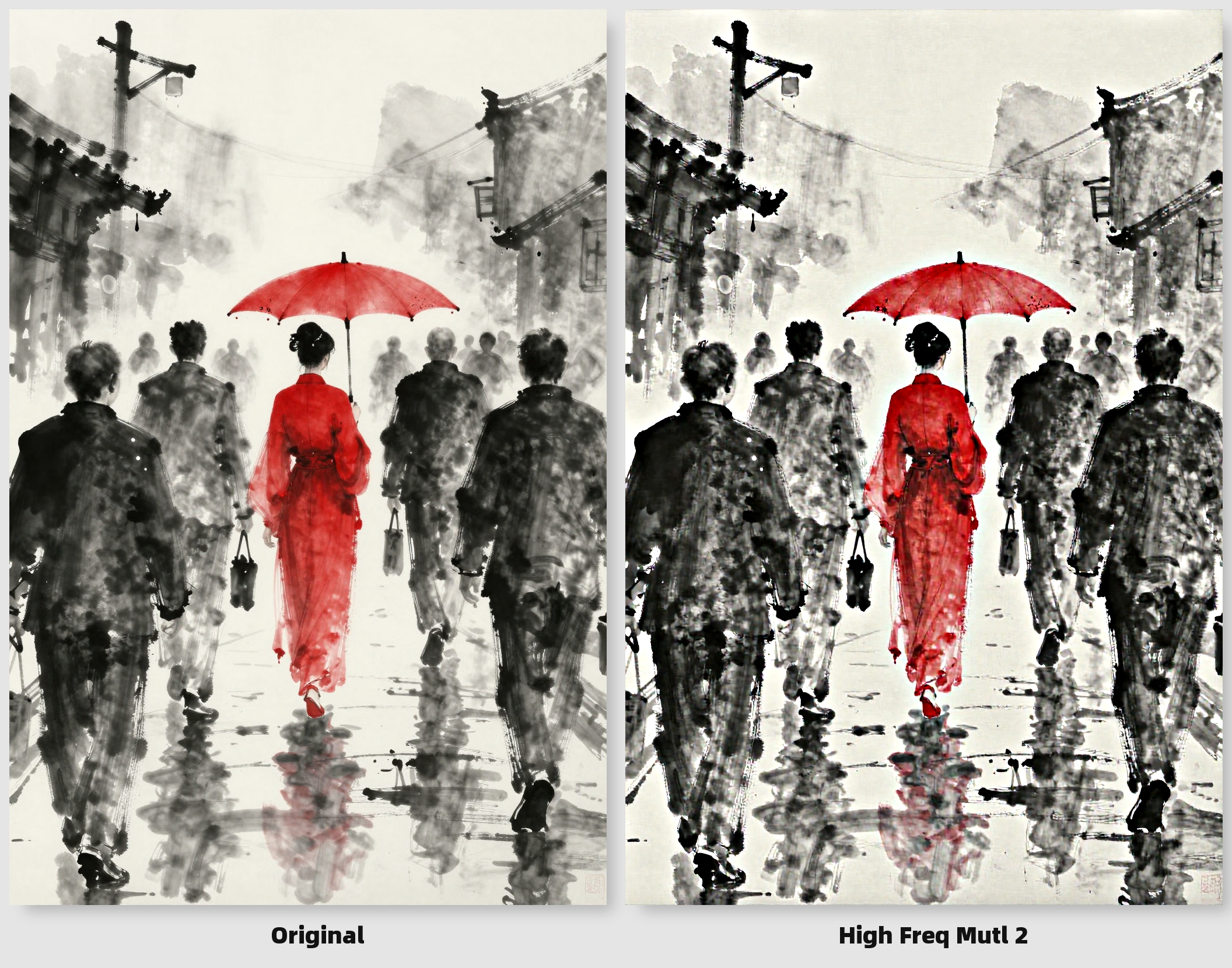
Example output showing original (left) and enhanced image (right)
high_freq_mult: 2 is an extreme value to show the difference (demo only).
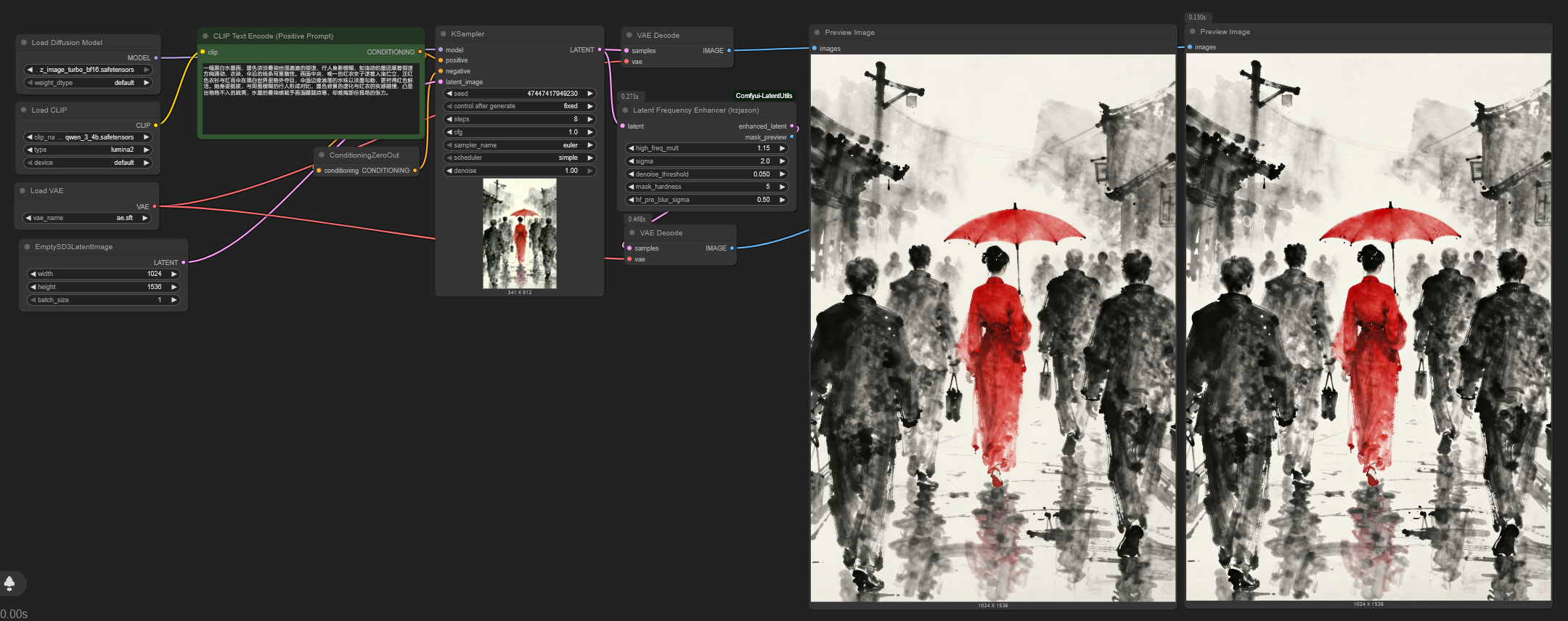
🌟 Overview
This custom ComfyUI node performs selective latent denoising and detail enhancement using Fourier Transform (FFT) techniques. It intelligently separates image frequencies to:
- Preserve and enhance important high-frequency details
- Suppress background noise and artifacts
- Output a visual preview of the processing mask
Ideal for refining AI-generated images while maintaining sharp features and eliminating graininess.
Supports models:
- Wan vae (Qwen, etc)
- Flux vae (ZImageTurbo, Flux1.dev, etc)
- Other models not tested
⚙️ Installation
- Navigate to your ComfyUI custom nodes directory:
cd ComfyUI/custom_nodes - Clone this repository:
git clone https://github.com/lrzjason/comfyui-latent-frequency-enhancer.git - Restart ComfyUI
- Find the nodes under:
latent → enhancement → Latent Frequency Enhancer (lrzjason)sampling → HFEPostProcessor (lrzjason)
🔬 How It Works
-
Frequency Separation Uses FFT to split latent into:
- Low frequencies: Base composition and smooth areas
- High frequencies: Details, textures, and noise
-
Smart Mask Generation Creates a dynamic mask using:
- Sigmoid soft-gating function
- Adjustable noise threshold
- Pre-blur for noise coherence
-
Selective Enhancement
- Boosts important high-frequency details
- Suppresses noise below threshold
- Smoothly blends components using frequency-aware masking
-
Visual Feedback Outputs a mask preview showing:
- White areas: Preserved/enhanced details
- Black areas: Suppressed noise
- Gray transitions: Smooth blending zones
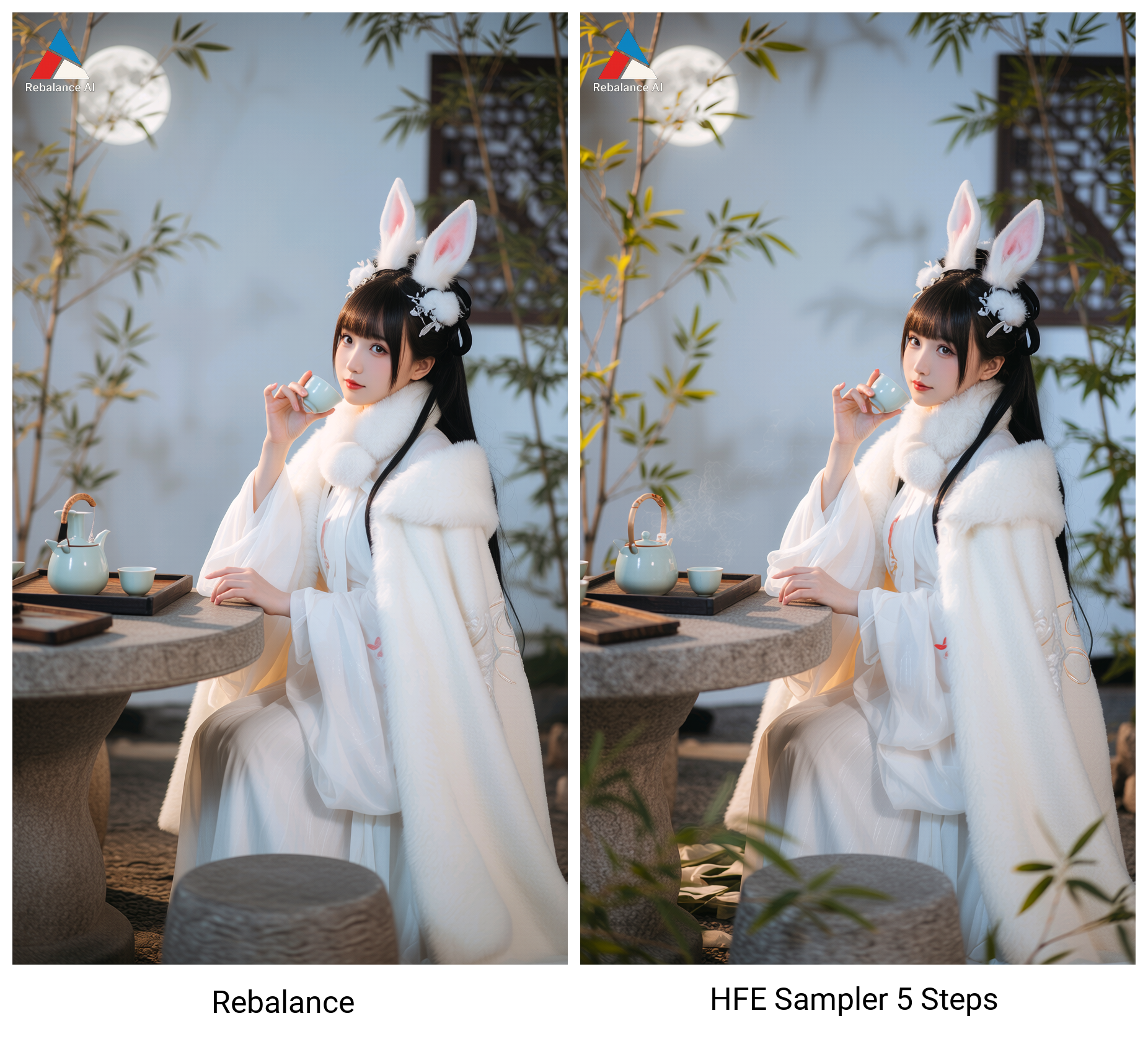
🚀 HFEPostProcessor: In-Process Enhancement
The HFEPostProcessor node applies high-frequency enhancement during the sampling process rather than after it. This approach:
- Applies enhancement at specific sampling steps (after basic sampling)
- Integrates frequency enhancement directly into the generation pipeline
- Allows for more refined control by specifying which steps to enhance
- Works as a sampler replacement that combines sampling with enhancement
🎚️ Parameters Explained
Latent Frequency Enhancer Node
| Parameter | Default | Range | Description | |-----------|---------|-------|-------------| | Detail Strength (HF Mult) | 1.15 | 1.0-2.0 | Multiplier for high-frequency details (values >1 enhance details) | | Frequency Split Sigma | 2.0 | 0.1-20.0 | Controls frequency separation sharpness (higher = more low frequencies preserved) | | Noise Threshold | 0.05 | 0.0-1.0 | Minimum magnitude to preserve details (higher = more aggressive denoising) | | Mask Hardness | 2.0 | 1.0-100.0 | Transition sharpness in noise suppression (higher = sharper cutoff) | | Noise Grouping (Pre-Blur) | 0.5 | 0.0-1.0 | Pre-blur strength for noise coherence (0.0 disables) |
HFEPostProcessor Node
| Parameter | Default | Range | Description | |-----------|---------|-------|-------------| | Model | - | - | The diffusion model to use for sampling | | Steps | 8 | 1-10000 | Total number of sampled steps | | HFE Steps | 2 | 1-100 | Number of steps to apply high-frequency enhancement | | Latent Image | - | - | The latent image to enhance | | Noise Seed | 0 | 0-18446744073709551615 | Random seed for noise generation | | CFG Scale | 1.0 | 0.0-100.0 | Classifier-free guidance scale | | Sampler Name | - | Various | Name of the sampler to use | | Scheduler | - | Various | Scheduler to use for sampling | | Positive | - | - | Positive conditioning | | Negative | - | - | Negative conditioning | | Detail Strength (HF Mult) | 1.05 | 1.0-2.0 | Multiplier for high-frequency details during enhancement | | Frequency Split Sigma | 5.0 | 0.01-20.0 | Controls frequency separation during enhancement | | Noise Threshold | 0.05 | 0.0-1.0 | Minimum magnitude to preserve details during enhancement | | Mask Hardness | 2.0 | 0.01-100.0 | Transition sharpness in noise suppression during enhancement | | Noise Grouping (Pre-Blur) | 0.5 | 0.0-1.0 | Pre-blur strength for noise coherence during enhancement |
🖼️ Output Preview
The Latent Frequency Enhancer node outputs two items:
-
Enhanced Latent (
enhanced_latent) The processed latent ready for decoding -
Mask Preview (
mask_preview) Visual representation of the processing mask
The HFEPostProcessor node outputs one item:
- Enhanced Latent (
LATENT) The final processed latent after both sampling and enhancement
💡 Pro Tips
For Latent Frequency Enhancer Node:
-
Start with defaults for most images, then adjust:
- Increase
Detail Strengthfor sharper outputs - Raise
Noise Thresholdfor noisy generations - Lower
Frequency Split Sigmafor cartoon/anime styles
- Increase
-
Mask interpretation:
- If mask shows important details as black → Lower noise threshold
- If noise remains visible → Increase mask hardness
- For soft-focus effects → Increase pre-blur sigma
-
Combine with other nodes:
- Use after KSampler but before VAEDecode
- Chain with ControlNet for detail preservation
- Follow with Color Correct nodes for final polish
For HFEPostProcessor Node:
-
Integration with sampling:
- The
Stepsparameter should match your basic sampling steps - Use
HFE Stepsto specify how many steps to apply high-frequency enhancement - Start with fewer HFE steps (2-4) and adjust as needed
- The
-
Parameter adjustments:
- Use lower
Detail Strengthvalues (1.05-1.15) compared to post-process mode - Higher
Frequency Split Sigma(5.0+) may work better during sampling - The enhancement happens mid-generation, so parameters may differ from post-processing
- Use lower
-
Workflow integration:
- Replace standard samplers with HFEPostProcessor to combine sampling and enhancement
- The node handles both sampling and enhancement in one step
- Use when you want the enhancement to influence the remaining sampling steps
📜 Technical Notes
For Latent Frequency Enhancer Node:
- WAN Format Compatible: Automatically handles WAN-style latent tensors
- Memory Efficient: Processes entirely on GPU when available
- Deterministic: Uses stable FFT operations with no random elements
For HFEPostProcessor Node:
- Integrated Sampling: Combines sampling and enhancement in one node
- Step Control: Allows specifying when during sampling enhancement begins
- Compatible: Works with all standard ComfyUI samplers and schedulers
- Efficient: Applies enhancement only at specified steps for optimal performance
🙏 Credits
- FFT implementation inspired by academic frequency-domain processing papers
- Sigmoid gating adapted from noise2noise research
- ComfyUI node template by ComfyOrg
Note: This is a research-grade implementation. Results may vary based on model and generation parameters. Always validate outputs visually.

For research and personal use only. Not for commercial deployment without permission.
Contact
- Twitter: @Lrzjason
- Email: [email protected]
- QQ Group: 866612947
- Wechatid: fkdeai
- Civitai: xiaozhijason