
ComfyUI Custom Node Color
A modern GUI-based color picker for ComfyUI nodes. Features visual spectrum, HEX/RGB inputs, eyedropper tool, and favorite colors support.
Nodes (2)
ComfyUI Custom Node Color 🎨
A modern, GUI-based color picker and utility suite for ComfyUI. > Change node colors with style, pick colors from your screen, and handle HEX data efficiently.
[!IMPORTANT] NODES 2.0 ARE NOT TESTED FOR COMPATIBILITY
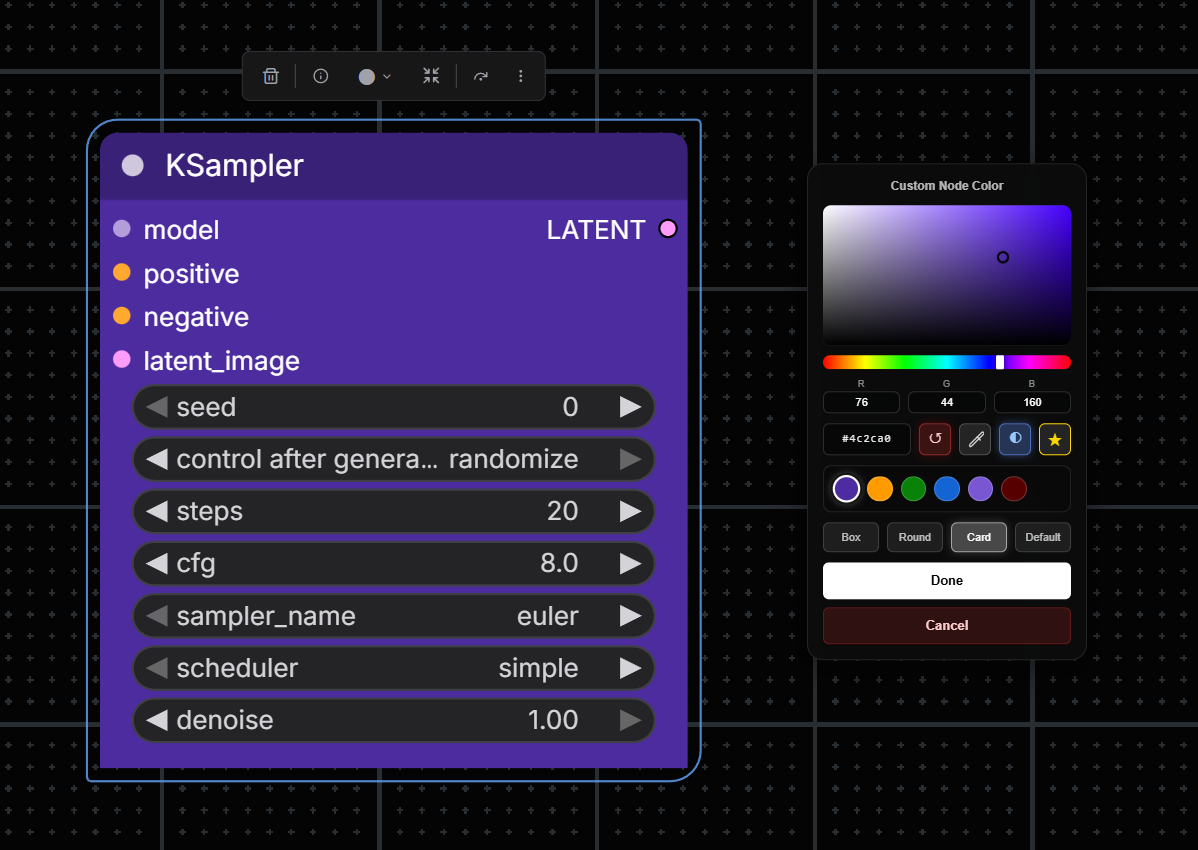
✨ Key Features
- Glassmorphism UI: A modern interface with blur effects and smooth animations.
- Eyedropper Tool 🖊️: Pick any color from your screen (works outside the browser window on Chrome/Edge/Opera).
- Favorites System ⭐: Save up to 14 colors with a smart FIFO queue and overwrite warnings.
- Node Shape Selector: Choose from 4 node shapes (Default, Box, Round, Card).
- Darker Header Option: Apply a darker header style to nodes for better visual hierarchy.
- Keyboard Shortcut: Press
Ckey to quickly open the color picker for selected nodes. - Batch Coloring: Apply color and shape to multiple selected nodes instantly.
- Smart UX: Auto-save on click-away, quick reset options, and helpful tooltips.
🛠️ Context Menu Tools
Custom Node Color
Accessed via Right-Click on any node.
This tool allows you to visually change the background color of any node in your workflow.
🎮 Controls
| Control | Icon | Action | | :--- | :---: | :--- | | Pick Color | 🎨 | Use the Saturation/Value square + Hue slider. | | Eyedropper | 🖊️ | Pick a pixel color from anywhere on your screen. | | Darker Header | ◐ | Toggle darker header style (global setting). | | Favorite | ☆ / ★ | Save current color / Remove from favorites. | | Reset | ↺ | Revert to the node's original color and shape. | | Shape Selector | Buttons | Choose node shape: Default, Box, Round, or Card. |
Keyboard Shortcut: Press
Ckey with nodes selected to quickly open the color picker.
Note: To use Batch Coloring, select multiple nodes, right-click one of them, and select "Custom Node Color". The chosen color and shape will apply to all selected nodes.
Custom Group Color
Accessed via Right-Click → Edit Group.
Change the background color of workflow groups with the same modern color picker interface.
🎮 Features
- Visual Group Styling: Customize group colors to organize your workflow visually.
- Same Picker Interface: Uses the same glassmorphism color picker with all features (eyedropper, favorites, etc.).
- Persistent Colors: Group colors are saved with your workflow.
How to use: Right-click on a group, select "Edit Group", and choose "Custom Group Color" at the bottom of the menu.
📦 Node Library
Includes specialized nodes for handling color data within your workflows.
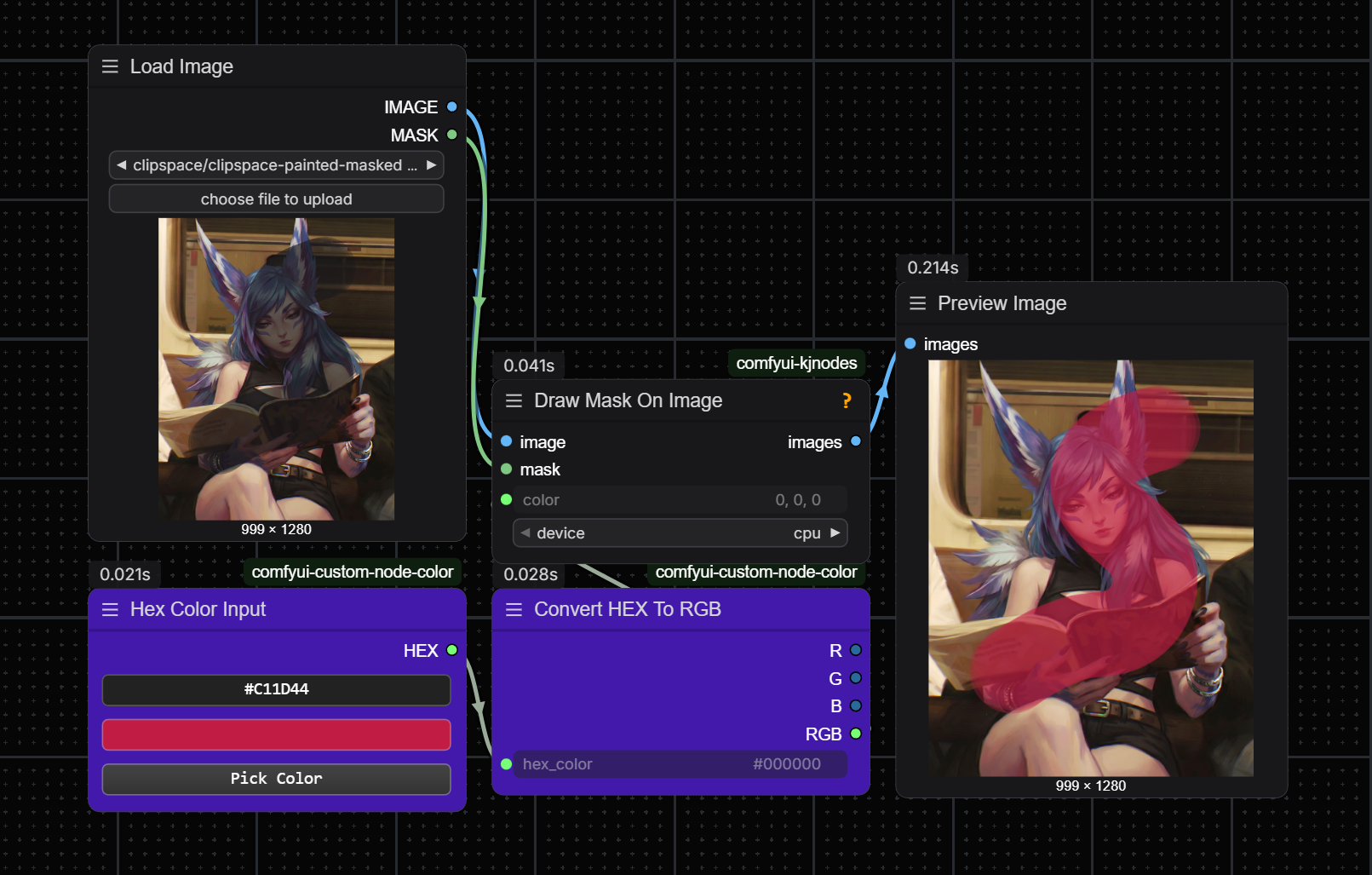
1️⃣ Hex Color Input
An interactive node designed for easy color selection and HEX string generation.
- Output:
HEX(String, e.g.,#FF5733)
Highlights:
- 🖱️ Interactive: Click the field to edit via text prompt.
- 🎨 Visual: Real-time color preview square.
- ✨ Integrated: "Pick Color" button opens the glassmorphism picker.
2️⃣ Convert HEX To RGB
A utility node that parses HEX strings into usable RGB integer channels.
Inputs & Outputs:
| I/O | Name | Type | Description |
| :--- | :--- | :--- | :--- |
| Input | hex_color | STRING | Hex string (e.g., #FF5733 or FF5733). |
| Output | R | INT | Red channel (0-255). |
| Output | G | INT | Green channel (0-255). |
| Output | B | INT | Blue channel (0-255). |
| Output | RGB | STRING | Formatted string (e.g., "255, 87, 51"). |
Robustness:
- ✅ Auto-validates and cleans input.
- 🛡️ Handles invalid HEX gracefully (defaults to black).
📥 Installation
Method 1: ComfyUI Manager (Recommended)
- Open ComfyUI Manager.
- Search for
Custom Node Color. - Click Install.
- Restart ComfyUI.
Method 2: Manual Git Clone
- Navigate to your custom nodes folder:
cd ComfyUI/custom_nodes/ - Clone the repository:
git clone https://github.com/lovelybbq/comfyui-custom-node-color.git - Restart ComfyUI.
🌐 Browser Support
| Browser | Eyedropper API | Note | | :--- | :---: | :--- | | Chrome / Edge / Opera | ✅ | Fully supported. | | Firefox | ❌ | API not supported yet (button hidden). |
🤝 Contributing
Feedback is welcome! Feel free to open issues or submit pull requests if you have suggestions for improvements.
📄 License
MIT License.