
Kraken Discord Bot
All-in-one Discord bot node for AI image generation. Simple setup - just add token, select model, and queue. Includes style presets, rate limiting, and queue management.
Nodes (2)
Kraken Discord Bot
A standalone ComfyUI custom node that turns your ComfyUI instance into a Discord image generation bot. No complex workflows needed - just one node that handles everything!
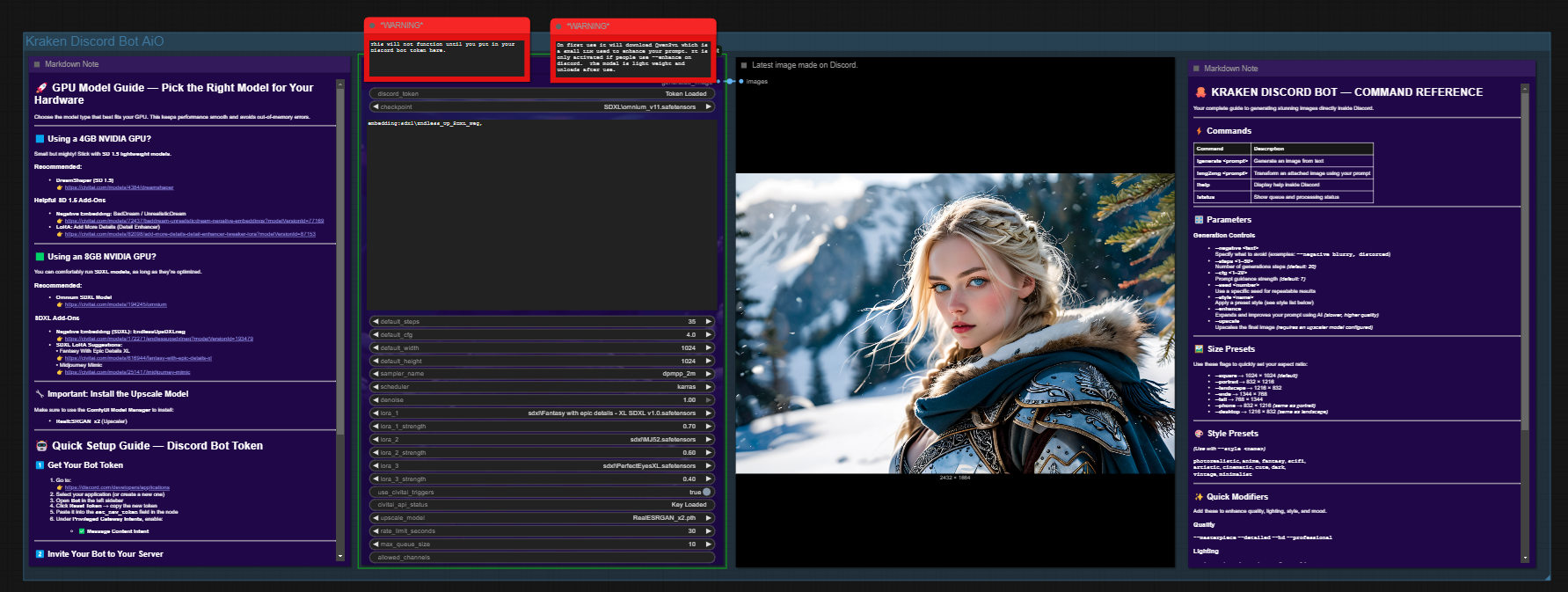
Features
- All-in-One Node: Single node handles Discord bot, image generation, and response
- Simple Setup: Just add your Discord token, select a model, and queue
- Discord Commands: Users can generate images with
!generate <prompt> - LoRA Support: Up to 3 LoRAs with automatic CivitAI trigger word fetching
- Upscale Models: Optional upscaling with RealESRGAN or other models
- AI Prompt Enhancement:
--enhanceflag uses Qwen2-VL to expand simple prompts - Style Presets: Built-in styles (anime, photorealistic, fantasy, etc.)
- Quick Modifiers: Instant quality/lighting/atmosphere tags (
--cinematic,--fog, etc.) - Size Presets: Easy aspect ratios (
--portrait,--landscape,--wide, etc.) - Parameter Control: Users can customize steps, CFG, size, seed via flags
- Rate Limiting: Configurable per-user cooldown to prevent spam
- Queue Management: Handles multiple requests with queue position feedback
- Persistent Config: Settings are saved and restored between sessions
Screenshots
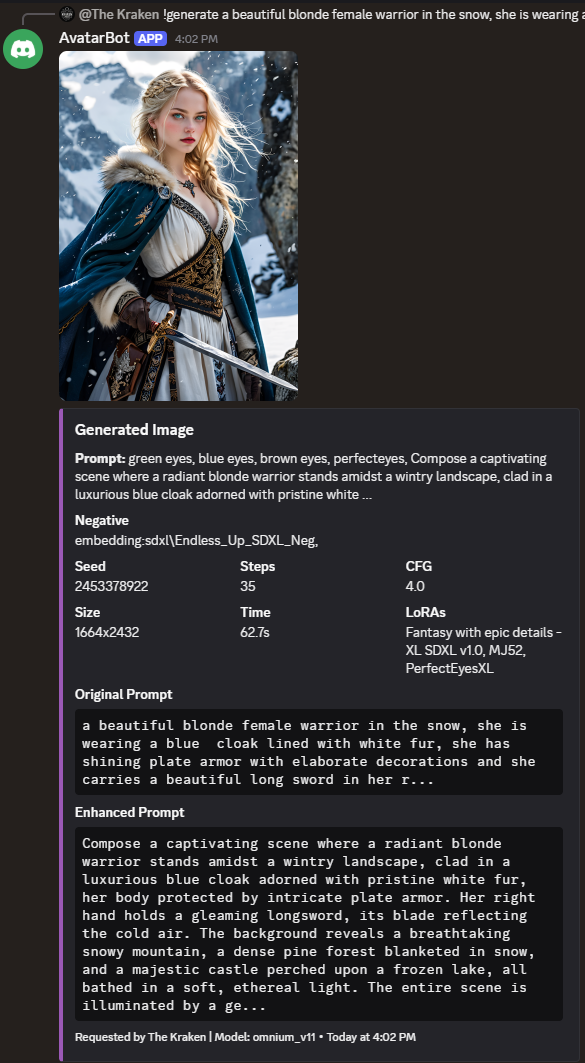
Discord Result
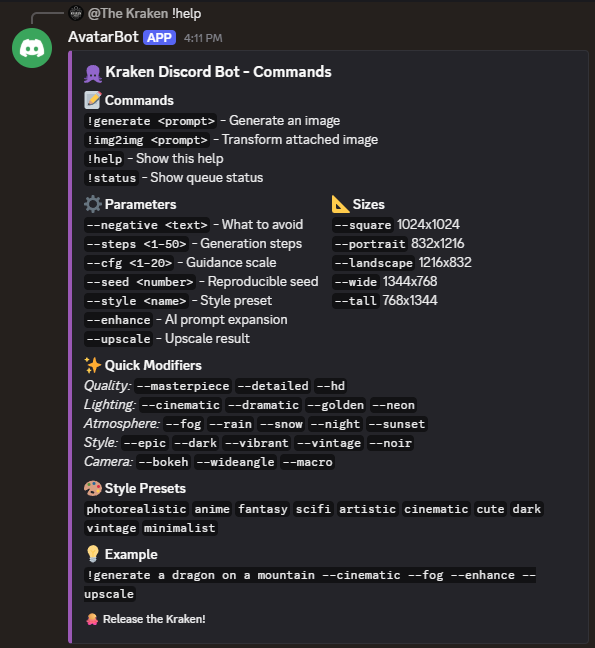
Help Menu
Installation
Method 1: ComfyUI Manager
- Open ComfyUI Manager
- Search for "Kraken Discord Bot"
- Click Install
Method 2: Git Clone
cd ComfyUI/custom_nodes
git clone https://github.com/krakenunbound/kraken-discord-bot.git
cd kraken-discord-bot
pip install -r requirements.txt
Method 3: Download ZIP
- Download this repository as ZIP
- Extract to
ComfyUI/custom_nodes/kraken-discord-bot - Install requirements:
pip install discord.py requests
Setup
1. Create a Discord Bot
- Go to Discord Developer Portal
- Click "New Application" and give it a name
- Go to "Bot" section and click "Add Bot"
- Under "Privileged Gateway Intents", enable Message Content Intent
- Copy the bot token (you'll need this)
2. Invite Bot to Your Server
- Go to "OAuth2" > "URL Generator"
- Select scopes:
bot - Select permissions:
Send Messages,Embed Links,Attach Files,Read Message History - Copy the generated URL and open it to invite the bot
3. Configure the Node
- Add the "Kraken Discord Bot (All-in-One)" node to your workflow
- Paste your Discord token in the
discord_tokenfield (shows "Token Loaded" once saved) - Select a checkpoint model
- (Optional) Select up to 3 LoRAs - triggers are auto-fetched from CivitAI
- (Optional) Select an upscale model for
--upscalesupport - Configure default settings (steps, CFG, size)
- Queue the workflow - the bot will start and wait for commands!
Discord Commands
Generate Images
!generate <prompt>
!gen <prompt>
!g <prompt>
Parameter Flags
--negative <text>     What to avoid in the image
--steps <1-50>        Number of generation steps (default: 20)
--cfg <1-20>          Guidance scale (default: 7)
--seed <number>       Specific seed for reproducibility
--style <name>        Style preset (see below)
--enhance             Use AI to expand your prompt (slower but better)
--upscale             Upscale the result (if model configured)
Size Preset Flags
--square              1024x1024 (default)
--portrait            832x1216
--landscape           1216x832
--wide                1344x768
--tall                768x1344
--phone               832x1216 (same as portrait)
--desktop             1216x832 (same as landscape)
Quick Modifier Flags
Add quality and style enhancements instantly:
| Category | Flags |
|----------|-------|
| Quality | --masterpiece --detailed --hd --professional |
| Lighting | --cinematic --dramatic --soft --golden --neon --backlit |
| Atmosphere | --fog --mist --rain --snow |
| Time | --night --day --sunset --dawn |
| Style | --epic --dark --vibrant --muted --vintage --noir |
| Camera | --bokeh --dof --wideangle --macro |
| Artistic | --painterly --ethereal --gritty --clean |
Style Presets
Use with --style <name>:
photorealistic- Realistic photo styleanime- Anime/manga stylefantasy- Epic fantasy artscifi- Science fictionartistic- Painterly stylecinematic- Movie-like shotscute- Adorable kawaii styledark- Dark and moodyvintage- Retro aestheticminimalist- Clean and simple
Examples
!generate a majestic dragon flying over mountains --cinematic --fog --masterpiece
!gen cyberpunk city at night --style scifi --neon --rain --wide
!g anime girl with sword --style anime --portrait --detailed
!generate cute cat playing --soft --vibrant --bokeh
!generate epic battle scene --enhance --upscale
Other Commands
!help    - Show help message with all options
!status  - Show bot status and queue
Node Settings
| Setting | Description | Default | |---------|-------------|---------| | discord_token | Your Discord bot token | (required) | | checkpoint | Model to use for generation | (required) | | default_negative | Default negative prompt | ugly, blurry... | | default_steps | Default generation steps | 20 | | default_cfg | Default CFG scale | 7.0 | | default_width | Default image width | 1024 | | default_height | Default image height | 1024 | | sampler_name | Sampler to use | euler_ancestral | | scheduler | Scheduler to use | normal | | lora_1/2/3 | Optional LoRA models | None | | lora_X_strength | LoRA strength | 1.0 | | use_civitai_triggers | Auto-fetch trigger words | True | | upscale_model | Upscale model for --upscale | None | | rate_limit_seconds | Cooldown between requests per user | 30 | | max_queue_size | Maximum pending requests | 10 | | allowed_channels | Restrict to specific channel IDs | (all) |
Troubleshooting
Bot not responding
- Make sure "Message Content Intent" is enabled in Discord Developer Portal
- Check that the bot has permissions in the channel
- Verify the token is correct
Generation errors
- Ensure you have a valid checkpoint selected
- Check ComfyUI console for error messages
- Make sure you have enough VRAM
--enhance not working
- Requires
transformersandacceleratelibraries - Standard install:
pip install transformers accelerate - Portable ComfyUI:
.\python_embeded\python.exe -m pip install transformers accelerate - First use downloads Qwen2-VL-2B (~4GB)
- Needs additional VRAM (unloads after enhancement)
--upscale not working
- Select an upscale model in the node settings
- Requires
spandrellibrary - Standard install:
pip install spandrel - Portable ComfyUI:
.\python_embeded\python.exe -m pip install spandrel
Requirements
- ComfyUI (latest version recommended)
- Python 3.10+
- discord.py >= 2.0
- requests
- transformers + accelerate (optional, for --enhance)
- spandrel (optional, for --upscale)
- A Discord bot token
- GPU with sufficient VRAM for your chosen model
Changelog
v1.1.0 (2024-12-09)
- LoRA Support: Added 3 LoRA slots with automatic CivitAI trigger word fetching
- Upscale Models: Added
--upscaleflag for on-demand upscaling - AI Prompt Enhancement: Added
--enhanceflag using Qwen2-VL-2B - Size Preset Flags: Direct flags like
--portrait,--landscape,--wide - Quick Modifiers: 30+ modifier flags for instant quality/style boosts
- Improved Help: Help command now uses Discord embed (prettier + no char limit)
- Bug Fixes: Fixed parser bug where multiple boolean flags wouldn't parse correctly
- Single Token Field: Simplified token input (shows "Token Loaded" when saved)
v1.0.0 (2024-12-08)
- Initial release
- All-in-one Discord bot node
- Basic generation with style presets
- Rate limiting and queue management
License
MIT License - feel free to use, modify, and distribute!
Credits
- Built for ComfyUI
- Uses discord.py for Discord integration
- Qwen2-VL-2B for prompt enhancement
- Kraken theme styling included
Made with love for the AI art community!