
ComfyUI AF - Enhanced-HTML-Note
A ComfyUI Note node with HTML capabilities. Create notes, UI's and ReadMe's directly inside the workflow using rich HTML formatting.
Nodes (1)
AF Enhanced HTML Node - Complete Usage Guide
A ComfyUI Note node with HTML capabilities. Create notes, UI's and ReadMe's directly inside the workflow using rich HTML formatting.
✨ Key Features
- Rich HTML Support - Full HTML formatting with colored sections, lists, tables, code blocks, and more
- Non-Intrusive Design - Doesn't interfere with normal ComfyUI workflow interactions
- Easy Editing - Double-click anywhere on the content to edit HTML
- Smart Links - Ctrl+click to open external links (JavaScript disabled for security)
- Beautiful Styling - Predefined color schemes that match ComfyUI's theme
- Custom HTML Support - Write your own HTML with inline styles or customize the external CSS file
⚠️ Known Limitation: Middle Mouse Button Panning
Issue: Middle mouse button panning does not work when the cursor is over this node.
Workaround: Use the hand tool by pressing Space on your keyboard, or pan from outside the node area.
Technical Context: Since this node renders HTML content, the browser intercepts middle mouse button events before they can reach the ComfyUI canvas. Despite multiple attempts to capture and forward these events to the underlying canvas, browser security and event handling policies prevent a reliable solution.
If you have ideas for resolving this limitation, please open an issue on the repository.
🛠️ Installation
Via ComfyUI Manager (Recommended)
- Open ComfyUI Manager
- Search for "AF - Enhanced HTML Note"
- Install
Manual Installation
- Clone this repository into your
ComfyUI/custom_nodes/directory:git clone https://github.com/alFrame/ComfyUI-AF-Enhanced-HTML-Note.git
🎮 Interaction Guide
Editing Content
- Double-click anywhere on the HTML content to enter edit mode
- Escape key or click outside to exit edit mode and save changes
- Changes are automatically saved when exiting edit mode
Using Links
- Hold Control key + Click on any link to activate it
- External links open in new tabs
- JavaScript execution is disabled for security
Node Management
- Click and drag the node title bar to move
- Drag edges/corners to resize
- Middle mouse button works for canvas panning (like other nodes)
🎨 Custom CSS Styling
The node uses an external CSS file (AF-Enhanced-HTML-Note.css) that you can customize to match your preferences or create your own styling themes.
Editing the CSS
The CSS file is located at:
ComfyUI/custom_nodes/ComfyUI-AF-Enhanced-HTML-Note/web/AF-Enhanced-HTML-Note.css
You can edit this file directly to:
- Change colors of predefined sections (
.af-positive,.af-negative, etc.) - Modify spacing and padding
- Adjust font sizes and typography
- Create new custom section classes
- Change scrollbar styling
- Customize the edit button appearance
- OR completely replace the entire CSS and use your own classes. (Don't forget to change the classes in the HTML node in your ComfyUI workflow !!)
Example: Creating a Custom Section Color
Add this to the CSS file to create a new teal section style:
.af-html-note-content .af-section.af-teal {
    background: rgba(64, 224, 208, 0.1);
    border-left-color: #40E0D0;
}
Then use it in your HTML:
<div class="af-section af-teal">
    <h3>🟢 Teal Section</h3>
    <p>Your custom styled content...</p>
</div>
Note: After editing the CSS file, refresh your browser (Ctrl+F5 or Cmd+Shift+R) to see the changes.
🎨 Predefined Section Colors
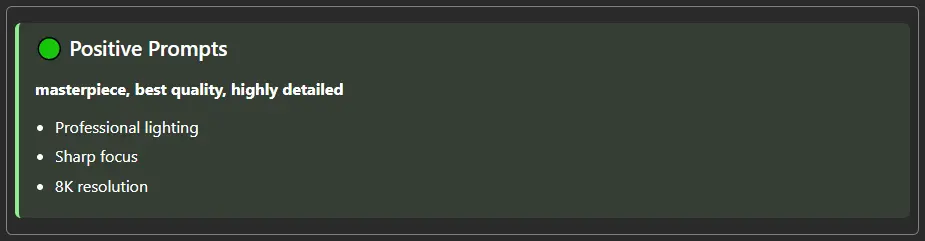
The node comes with several predefined colored section styles. Click each section below to see the code and rendered example.
<details> <summary><b>🟢 Positive Section (Green)</b></summary>Code:
<div class="af-section af-positive">
    <h2>🟢 Positive Prompts</h2>
    <p><strong>masterpiece, best quality, highly detailed</strong></p>
    <ul>
        <li>Professional lighting</li>
        <li>Sharp focus</li>
        <li>8K resolution</li>
    </ul>
</div>
Rendered Result:
Code:
<div class="af-section af-negative">
    <h2>🔴 Negative Prompts</h2>
    <p><em>low quality, blurry, distorted</em></p>
    <p><code>nsfw, watermark, signature, bad anatomy</code></p>
</div>
Rendered Result:

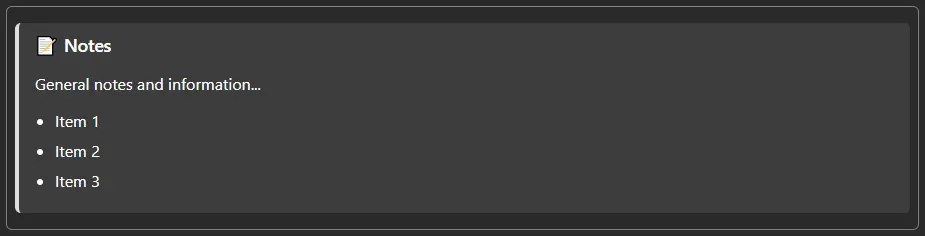
Code:
<div class="af-section af-neutral">
    <h3>📝 Notes</h3>
    <p>General notes and information...</p>
    <ul>
        <li>Item 1</li>
        <li>Item 2</li>
        <li>Item 3</li>
    </ul>
</div>
Rendered Result:
Code:
<div class="af-section af-info">
    <h3>ℹ️ Information</h3>
    <p>Using: <strong>SDXL 1.0</strong></p>
    <p>Steps: <code>25</code> | CFG: <code>7.5</code> | Sampler: <code>DPM++ 2M Karras</code></p>
</div>
Rendered Result:

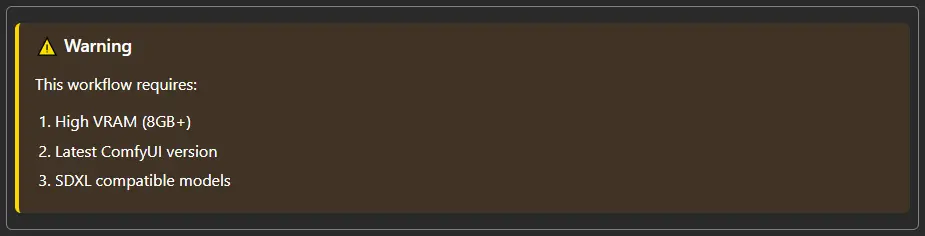
Code:
<div class="af-section af-warning">
    <h3>⚠️ Warning</h3>
    <p>This workflow requires:</p>
    <ol>
        <li>High VRAM (8GB+)</li>
        <li>Latest ComfyUI version</li>
        <li>SDXL compatible models</li>
    </ol>
</div>
Rendered Result:
Code:
<div class="af-section af-yellow">
    <h3>💛 Yellow Section</h3>
    <p>Alternative yellow styled content with different shade...</p>
</div>
Rendered Result:

Code:
<div class="af-section af-blue">
    <h3>🔵 Blue Section</h3>
    <p>Deep blue styled content for technical information...</p>
</div>
Rendered Result:

Code:
<div class="af-section af-custom">
    <h3>🎨 Custom</h3>
    <p>Purple custom styled content for special cases...</p>
</div>
Rendered Result:

📏 Predefined Spacers
Use these spacer classes to control vertical spacing between elements.
<details> <summary><b>All Spacer Sizes</b> - Click to see examples</summary>Code:
<div class="af-section af-positive">Content Block 1</div>

<!-- Top spacer (2px) -->
<div class="af-spacer-top"></div>

<div class="af-section af-negative">Content Block 2</div>

<!-- Mini spacer (4px) -->
<div class="af-spacer-mini"></div>

<div class="af-section af-neutral">Content Block 3</div>

<!-- Small spacer (8px) -->
<div class="af-spacer-small"></div>

<div class="af-section af-info">Content Block 4</div>

<!-- Regular spacer (16px) -->
<div class="af-spacer"></div>

<div class="af-section af-warning">Content Block 5</div>

<!-- Large spacer (32px) -->
<div class="af-spacer-large"></div>

<div class="af-section af-custom">Content Block 6</div>

<!-- Extra large spacer (48px) -->
<div class="af-spacer-xl"></div>

<div class="af-section af-blue">Content Block 7</div>
Rendered Result:
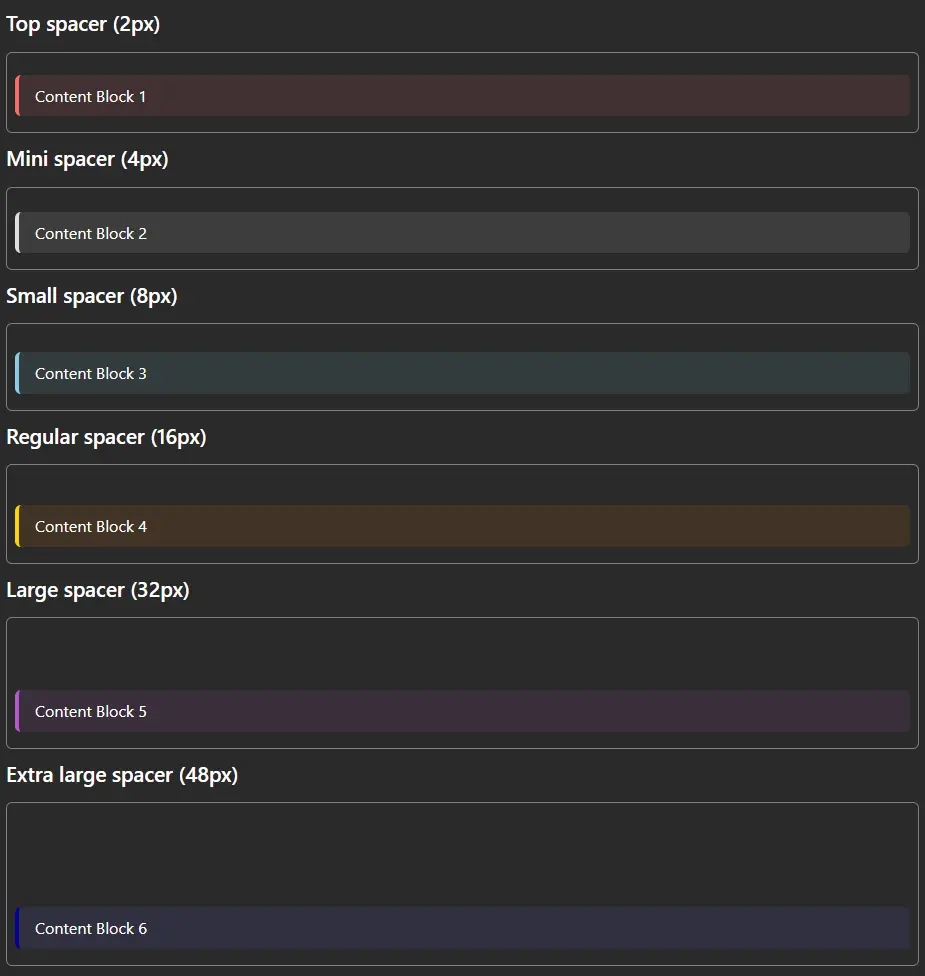
Size Reference:
af-spacer-top→ 2pxaf-spacer-mini→ 4pxaf-spacer-small→ 8pxaf-spacer→ 16px (default)af-spacer-large→ 32pxaf-spacer-xl→ 48px
📐 Column Layouts
Create two-column layouts using the predefined column classes.
<details> <summary><b>Two-Column Layout Example</b></summary>Code:
<div class="row">
    <div class="af-column-half-left">
        <div class="af-section af-positive">
            <h3>🎨 Style Settings</h3>
            <ul>
                <li>Style: Photorealistic</li>
                <li>Aspect: 16:9</li>
                <li>Quality: Ultra High</li>
            </ul>
        </div>

        <div class="af-spacer"></div>

        <div class="af-section af-info">
            <h3>⚙️ Technical</h3>
            <p>Resolution: <code>1920x1080</code></p>
            <p>Batch: <code>4</code></p>
        </div>
    </div>

    <div class="af-column-half-right">
        <div class="af-section af-negative">
            <h3>🚫 Exclusions</h3>
            <ul>
                <li>No text in image</li>
                <li>Avoid oversaturation</li>
                <li>No watermarks</li>
            </ul>
        </div>

        <div class="af-spacer"></div>

        <div class="af-section af-warning">
            <h3>💡 Tips</h3>
            <p>Use lower CFG for more creative results</p>
        </div>
    </div>
</div>
Rendered Result:
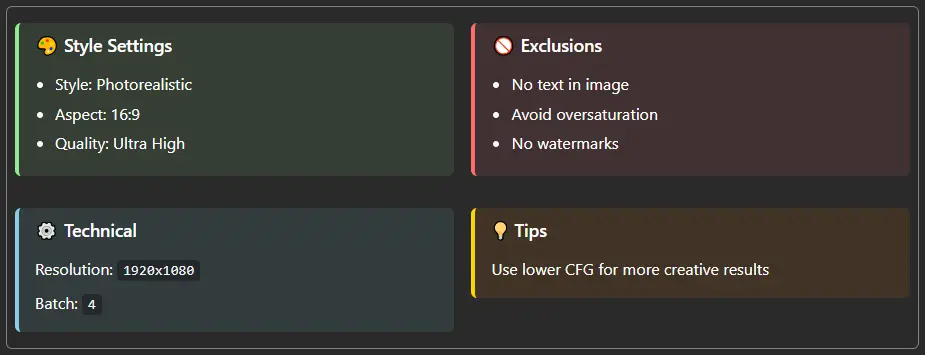
Note: The row class ensures proper column wrapping, and each column is 49% width with 1% margin.
🔗 Clickable Links & Actions
All links require Ctrl+Click to activate for safety and to prevent accidental navigation. JavaScript actions work on links when Ctrl+Click is used.
<details> <summary><b>Link Examples</b></summary>Code:
<div class="af-section af-info">
    <h3>🔗 Interactive Links</h3>

    <!-- External link (opens in new tab with Ctrl+click) -->
    <p><a href="https://github.com/comfyanonymous/ComfyUI">ComfyUI GitHub Repository</a></p>

    <!-- Anchor link (page navigation with Ctrl+click) -->
    <p><a href="#section-name">Jump to section</a></p>

    <!-- Mailto link (opens email client with Ctrl+click) -->
    <p><a href="mailto:[email protected]">Send Email</a></p>

    <!-- Relative URL (opens in new tab with Ctrl+click) -->
    <p><a href="docs/page.html">Documentation</a></p>
</div>
Remember: Hold Ctrl while clicking any link to activate it!
Rendered Result:
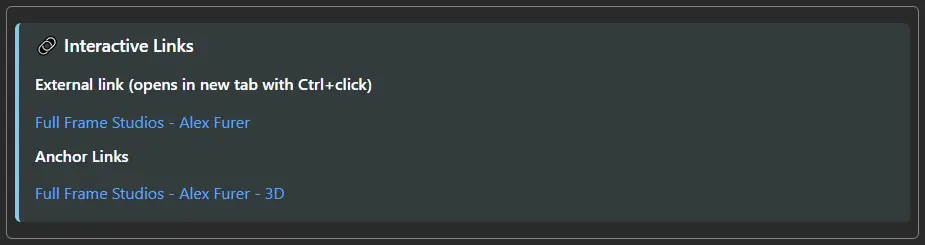
Supported Link Types:
- ✅ External URLs (
https://,http://) - Open in new tab - ✅ Anchor links (
#section) - Page navigation - ✅ Mailto links (
mailto:) - Open email client - ✅ Tel links (
tel:) - Open phone app - ✅ Relative URLs - Open in new tab
Not Supported Link Types:
- ❌ JavaScript links (
javascript:) - Blocked for security - ❌ onclick handlers - Ignored for security
Security Restrictions:
- No JavaScript execution - All JavaScript is blocked for security
- No
<script>tags - Script tags are not executed - No external scripts - Cannot load external JavaScript files
- Ctrl+Click required - All link interactions require Control key
- Safe HTML only - Only styling and navigation features are supported
- No DOM manipulation - JavaScript cannot modify the HTML content
- No browser storage -
localStorageandsessionStorageare blocked
💻 Custom HTML & Inline Styles
The node supports standard HTML with inline CSS styling. You can write custom HTML just like you would for a webpage.
✅ Supported Features
- All standard HTML tags:
<div>,<span>,<p>,<h1>-<h6>,<ul>,<ol>,<li>,<table>, etc. - Inline CSS styles: Use the
styleattribute on any element - Text formatting:
<strong>,<em>,<u>,<small>,<code>,<pre> - Lists: Ordered and unordered lists
- Tables: Full table support with styling
- Horizontal rules:
<hr>for dividers - Code blocks:
<code>and<pre>tags
🎨 Custom Styling Examples
<details> <summary><b>Custom Spacers with Inline Styles</b></summary>Code:
<div class="af-section af-positive">First Section</div>

<!-- Custom 12px spacer -->
<div style="height: 12px;"></div>

<div class="af-section af-negative">Second Section</div>

<!-- Custom 24px spacer -->
<div style="height: 24px;"></div>

<div class="af-section af-info">Third Section</div>

<!-- Custom 50px spacer -->
<div style="height: 50px;"></div>

<div class="af-section af-warning">Fourth Section</div>
Rendered Result:
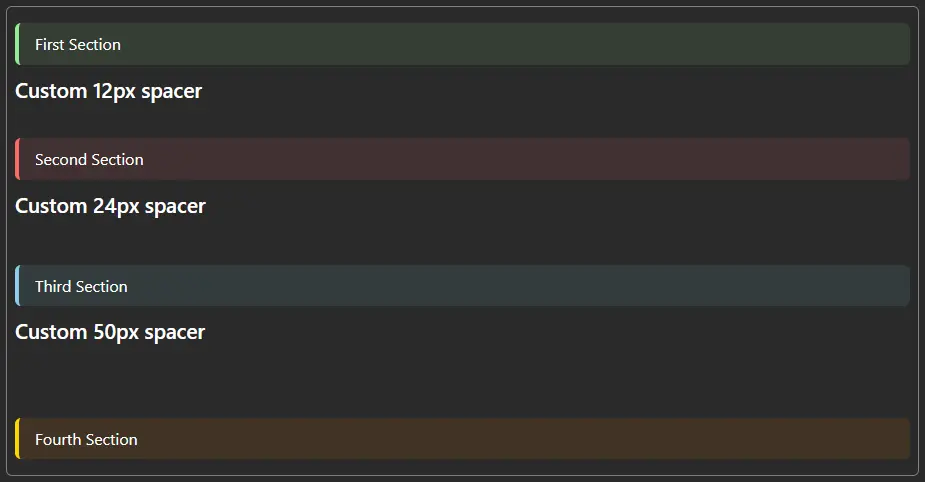
Code:
<!-- Custom pink section -->
<div style="background: rgba(255, 100, 150, 0.1); border-left: 4px solid #ff6496; padding: 12px; border-radius: 6px; margin: 8px 0;">
    <h3 style="color: #ff6496; margin-top: 0;">Custom Pink Section</h3>
    <p>Your content here with custom colors...</p>
</div>

<!-- Custom teal section -->
<div style="background: rgba(64, 224, 208, 0.1); border-left: 4px solid #40E0D0; padding: 12px; border-radius: 6px; margin: 8px 0;">
    <h3 style="color: #40E0D0; margin-top: 0;">Custom Teal Section</h3>
    <p>Different color scheme for variety...</p>
</div>

<!-- Custom orange section -->
<div style="background: rgba(255, 165, 0, 0.1); border-left: 4px solid #FFA500; padding: 12px; border-radius: 6px; margin: 8px 0;">
    <h3 style="color: #FFA500; margin-top: 0;">Custom Orange Section</h3>
    <p>Create any color combination you need...</p>
</div>
Rendered Result:
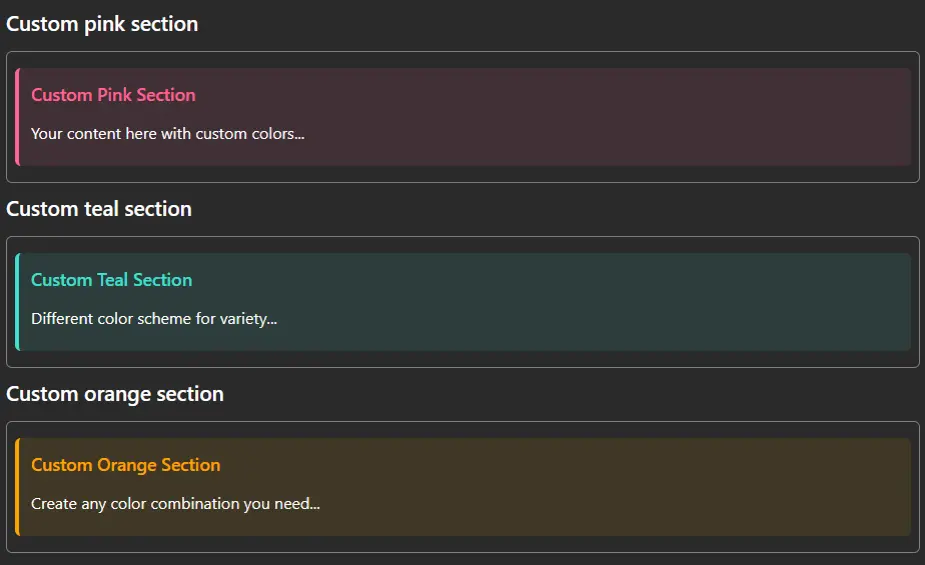
Code:
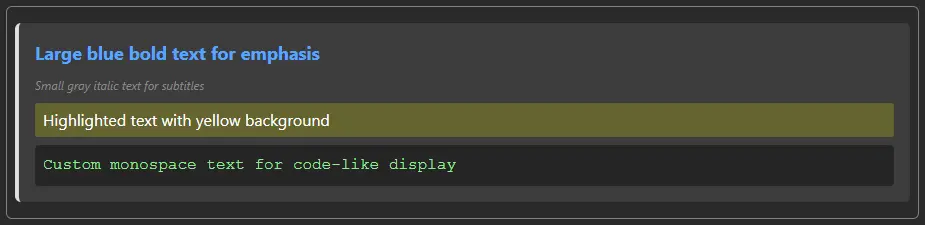
<div class="af-section af-neutral">
    <!-- Large blue bold text -->
    <p style="font-size: 18px; color: #58a6ff; font-weight: bold;">
        Large blue bold text for emphasis
    </p>

    <!-- Small gray italic text -->
    <p style="font-size: 12px; color: #888; font-style: italic;">
        Small gray italic text for subtitles
    </p>

    <!-- Highlighted text -->
    <p style="background: rgba(255, 255, 0, 0.2); padding: 4px 8px; border-radius: 3px;">
        Highlighted text with yellow background
    </p>

    <!-- Custom monospace -->
    <p style="font-family: 'Courier New', monospace; color: #90EE90; background: rgba(0,0,0,0.4); padding: 8px; border-radius: 4px;">
        Custom monospace text for code-like display
    </p>
</div>
Rendered Result:
Code:
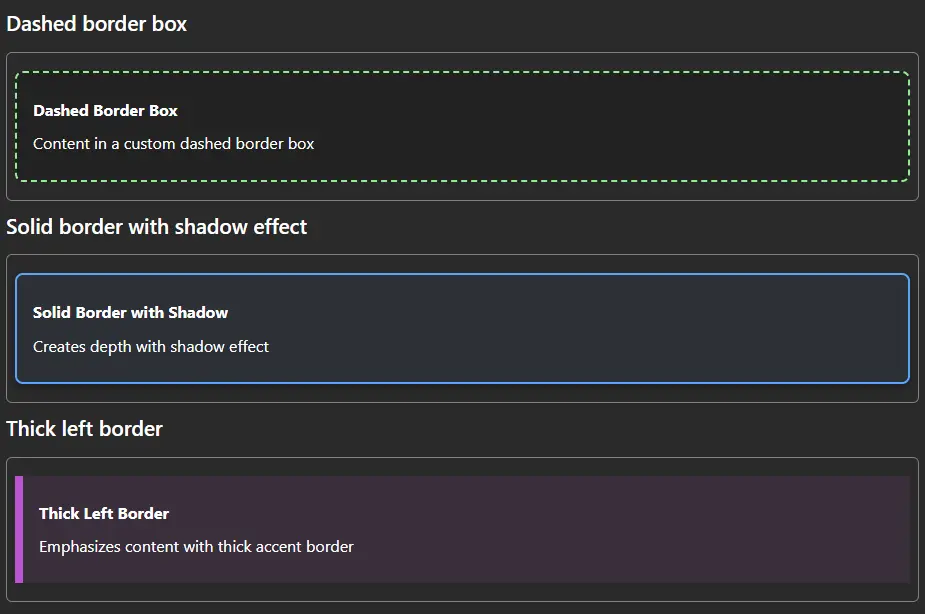
<!-- Dashed border box -->
<div style="border: 2px dashed #90EE90; padding: 16px; margin: 10px 0; background: rgba(0, 0, 0, 0.2); border-radius: 8px;">
    <p><strong>Dashed Border Box</strong></p>
    <p>Content in a custom dashed border box</p>
</div>

<!-- Solid border with shadow effect -->
<div style="border: 2px solid #58a6ff; padding: 16px; margin: 10px 0; background: rgba(88, 166, 255, 0.05); box-shadow: 0 4px 8px rgba(0,0,0,0.3); border-radius: 8px;">
    <p><strong>Solid Border with Shadow</strong></p>
    <p>Creates depth with shadow effect</p>
</div>

<!-- Thick left border -->
<div style="border-left: 8px solid #BA55D3; padding: 16px; margin: 10px 0; background: rgba(186, 85, 211, 0.1);">
    <p><strong>Thick Left Border</strong></p>
    <p>Emphasizes content with thick accent border</p>
</div>
Rendered Result:
Code:
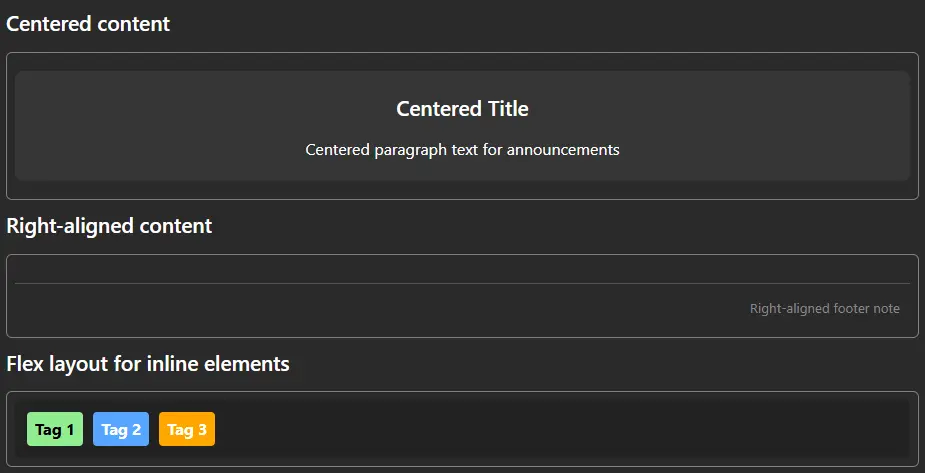
<!-- Centered content -->
<div style="text-align: center; padding: 20px; background: rgba(255,255,255,0.05); border-radius: 8px; margin: 10px 0;">
    <h2 style="margin: 0 0 12px 0;">Centered Title</h2>
    <p style="margin: 0;">Centered paragraph text for announcements</p>
</div>

<!-- Right-aligned content -->
<div style="text-align: right; padding: 10px; border-top: 1px solid #555; margin-top: 20px;">
    <small style="color: #888;">Right-aligned footer note</small>
</div>

<!-- Flex layout for inline elements -->
<div style="display: flex; gap: 10px; align-items: center; padding: 12px; background: rgba(0,0,0,0.2); border-radius: 6px;">
    <span style="background: #90EE90; color: #000; padding: 4px 8px; border-radius: 4px; font-weight: bold;">Tag 1</span>
    <span style="background: #58a6ff; color: #fff; padding: 4px 8px; border-radius: 4px; font-weight: bold;">Tag 2</span>
    <span style="background: #FFA500; color: #fff; padding: 4px 8px; border-radius: 4px; font-weight: bold;">Tag 3</span>
</div>
Rendered Result:
Code:
<div style="display: flex; gap: 10px; flex-wrap: wrap;">
    <div style="flex: 1; min-width: 150px; background: rgba(144, 238, 144, 0.1); border: 1px solid #90EE90; padding: 12px; border-radius: 6px; text-align: center;">
        <strong style="color: #90EE90; display: block; margin-bottom: 4px;">Steps</strong>
        <p style="margin: 0; font-size: 24px; color: #fff; font-weight: bold;">25</p>
    </div>

    <div style="flex: 1; min-width: 150px; background: rgba(135, 206, 235, 0.1); border: 1px solid #87CEEB; padding: 12px; border-radius: 6px; text-align: center;">
        <strong style="color: #87CEEB; display: block; margin-bottom: 4px;">CFG Scale</strong>
        <p style="margin: 0; font-size: 24px; color: #fff; font-weight: bold;">7.5</p>
    </div>

    <div style="flex: 1; min-width: 150px; background: rgba(186, 85, 211, 0.1); border: 1px solid #BA55D3; padding: 12px; border-radius: 6px; text-align: center;">
        <strong style="color: #BA55D3; display: block; margin-bottom: 4px;">Batch Size</strong>
        <p style="margin: 0; font-size: 24px; color: #fff; font-weight: bold;">4</p>
    </div>
</div>
Rendered Result:

📋 Complete Workflow Example
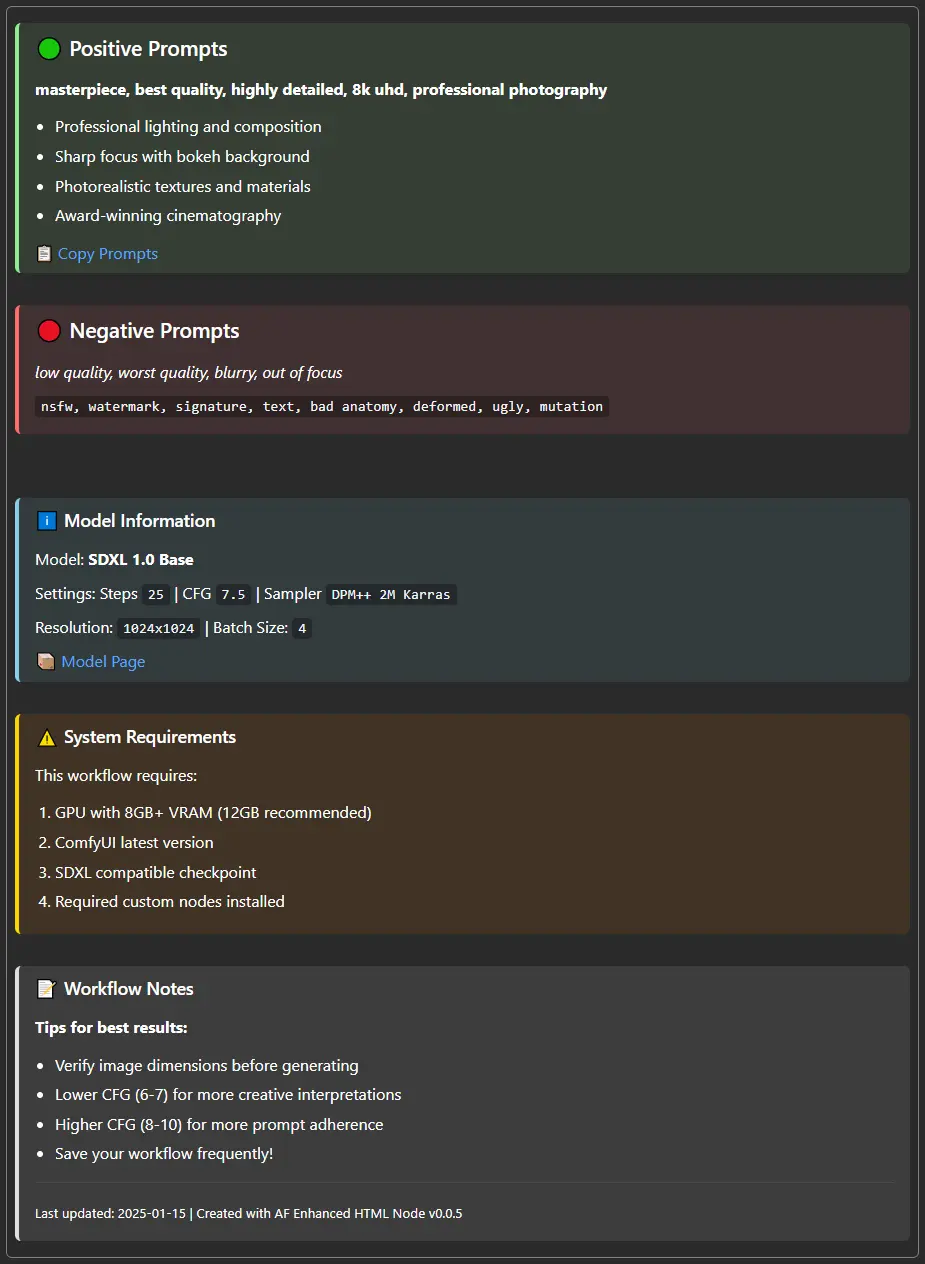
<details> <summary><b>Full Workflow Documentation Template</b></summary>Code:
<div class="af-section af-positive">
    <h2>🟢 Positive Prompts</h2>
    <p><strong>masterpiece, best quality, highly detailed, 8k uhd, professional photography</strong></p>
    <ul>
        <li>Professional lighting and composition</li>
        <li>Sharp focus with bokeh background</li>
        <li>Photorealistic textures and materials</li>
        <li>Award-winning cinematography</li>
    </ul>
    <a href="https://example.com/prompts">📋 View Prompt Guide</a>
</div>

<div class="af-spacer"></div>

<div class="af-section af-negative">
    <h2>🔴 Negative Prompts</h2>
    <p><em>low quality, worst quality, blurry, out of focus</em></p>
    <p><code>nsfw, watermark, signature, text, bad anatomy, deformed, ugly, mutation</code></p>
</div>

<div class="af-spacer-large"></div>

<div class="af-section af-info">
    <h3>ℹ️ Model Information</h3>
    <p>Model: <strong>SDXL 1.0 Base</strong></p>
    <p>Settings: Steps <code>25</code> | CFG <code>7.5</code> | Sampler <code>DPM++ 2M Karras</code></p>
    <p>Resolution: <code>1024x1024</code> | Batch Size: <code>4</code></p>
    <a href="https://huggingface.co/stabilityai/stable-diffusion-xl-base-1.0">📦 Model Page</a>
</div>

<div class="af-spacer"></div>

<div class="af-section af-warning">
    <h3>⚠️ System Requirements</h3>
    <p>This workflow requires:</p>
    <ol>
        <li>GPU with 8GB+ VRAM (12GB recommended)</li>
        <li>ComfyUI latest version</li>
        <li>SDXL compatible checkpoint</li>
        <li>Required custom nodes installed</li>
    </ol>
</div>

<div class="af-spacer"></div>

<div class="af-section af-neutral">
    <h3>📝 Workflow Notes</h3>
    <p><strong>Tips for best results:</strong></p>
    <ul>
        <li>Verify image dimensions before generating</li>
        <li>Lower CFG (6-7) for more creative interpretations</li>
        <li>Higher CFG (8-10) for more prompt adherence</li>
        <li>Save your workflow frequently!</li>
    </ul>
    <hr>
    <p><small>Last updated: 2025-01-15 | Created with AF Enhanced HTML Node v0.0.5</small></p>
</div>
Rendered Result:
🐛 Troubleshooting
<details> <summary><b>Common Issues and Solutions</b></summary>Node won't select/move?
Solution: Click on the node's title bar or edges, not the HTML content area
Links not working?
Solution: Remember to hold the Control key while clicking links
JavaScript not working?
Solution: JavaScript execution is disabled for security. Only standard navigation links work.
Can't edit content?
Solution: Double-click directly on the HTML content (not the node borders)
Scrollbar appears unnecessarily?
Solution: The node has minimal padding; resize if you need more space
Styling not applying?
Solution:
- Use inline styles with the
styleattribute - Check for CSS syntax errors in your inline styles
- Predefined classes must be spelled exactly as documented
Content not saving?
Solution:
- Press Escape or click outside to exit edit mode
- Ensure you're not just closing the browser/tab
- Save your ComfyUI workflow after making changes
📚 Quick Reference
Predefined Color Classes
| Class | Color | Use Case |
|-------|-------|----------|
| af-positive | Green | Positive prompts, success messages |
| af-negative | Red | Negative prompts, errors, warnings |
| af-neutral | Gray | General notes, neutral information |
| af-info | Light Blue | Information, technical details |
| af-warning | Yellow | Warnings, cautions |
| af-yellow | Yellow | Alternative yellow styling |
| af-blue | Deep Blue | Technical information |
| af-custom | Purple | Custom content, special cases |
Predefined Spacer Classes
| Class | Height | Use Case |
|-------|--------|----------|
| af-spacer-top | 2px | Minimal spacing |
| af-spacer-mini | 4px | Tiny spacing |
| af-spacer-small | 8px | Small spacing |
| af-spacer | 16px | Default spacing |
| af-spacer-large | 32px | Large spacing |
| af-spacer-xl | 48px | Extra large spacing |
Column Layout Classes
| Class | Width | Use Case |
|-------|-------|----------|
| af-column-half-left | 49% | Left column in two-column layout |
| af-column-half-right | 49% | Right column in two-column layout |
| row | Container | Wrap around columns for proper layout |
Keyboard Shortcuts
| Shortcut | Action | |----------|--------| | Double-click | Enter edit mode | | Escape | Exit edit mode and save | | Ctrl+Click | Activate links (JavaScript disabled) |
⚠️ Disclaimer
This ComfyUI custom node is developed through AI-assisted coding. While carefully tested, it is provided "as is" without warranty.
By using this node:
- You install and run at your own risk
- The creator is not liable for damages or data loss
- Compatibility with your setup is not guaranteed
- Test in a safe environment before production use
Report issues on GitHub - we appreciate your feedback!
📚 Additional Resources
- Changelog - Version history and updates
- GitHub Issues - Report bugs & request features
- License - MIT License details
Made with ❤️ by Alex Furer & Qwen3, Claude AI, DeepSeek