ComfyUI Extension: ComfyUI_Viewer

Authored by WASasquatch

Created

Updated

4 stars

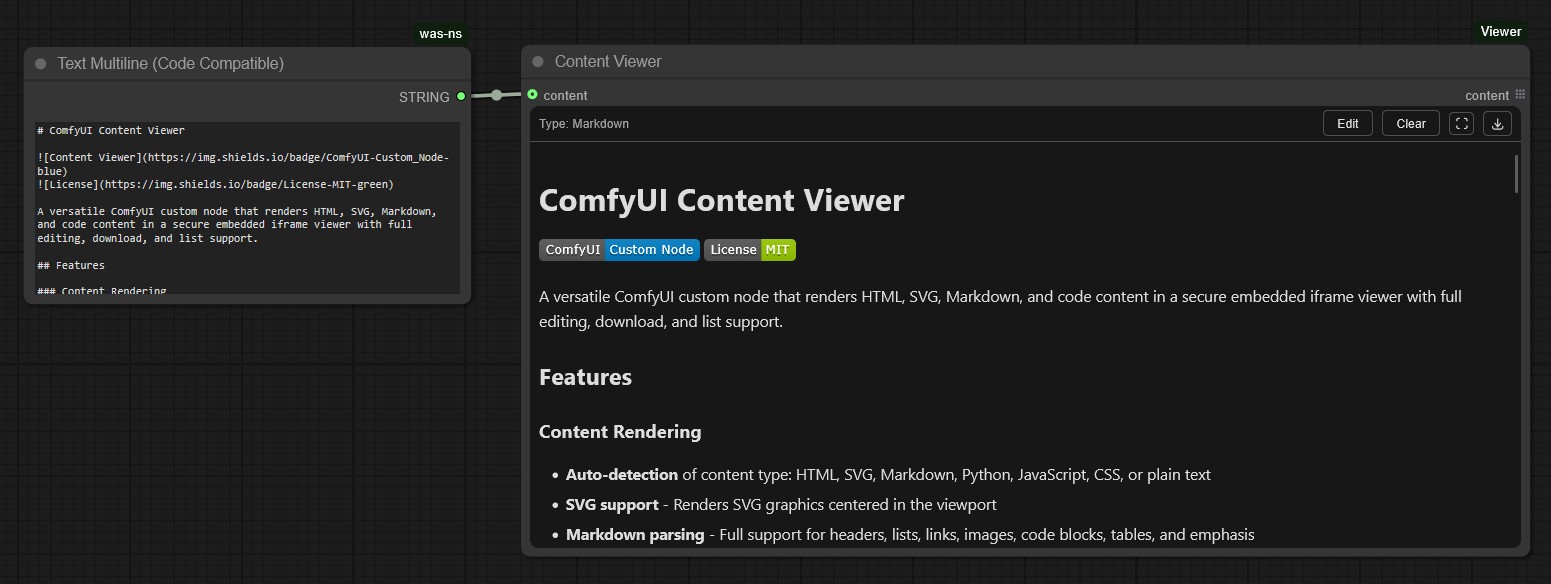
Extensible content viewer for ComfyUI: HTML, Markdown (LaTeX, Mermaid, etc), Code, Images, and more

Custom Nodes (0)

    README

    ComfyUI Content Viewer

    Content Viewer License

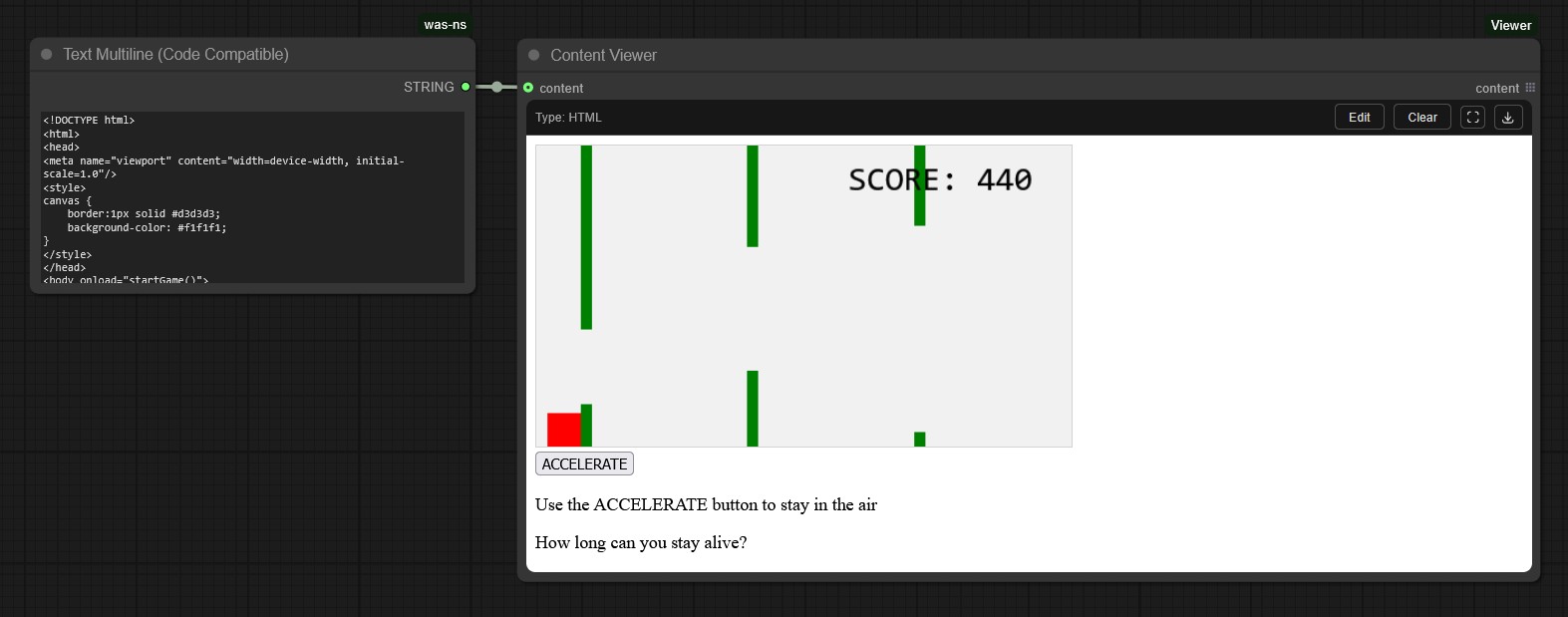
    A powerful, extensible ComfyUI custom node with a modular Views Extension System that renders content in a secure embedded iframe viewer. Views are dynamically loaded and can be added, removed, or modified without touching core code.
    Screenshot 9

    <details> <summary><strong>Screenshots</strong></summary>
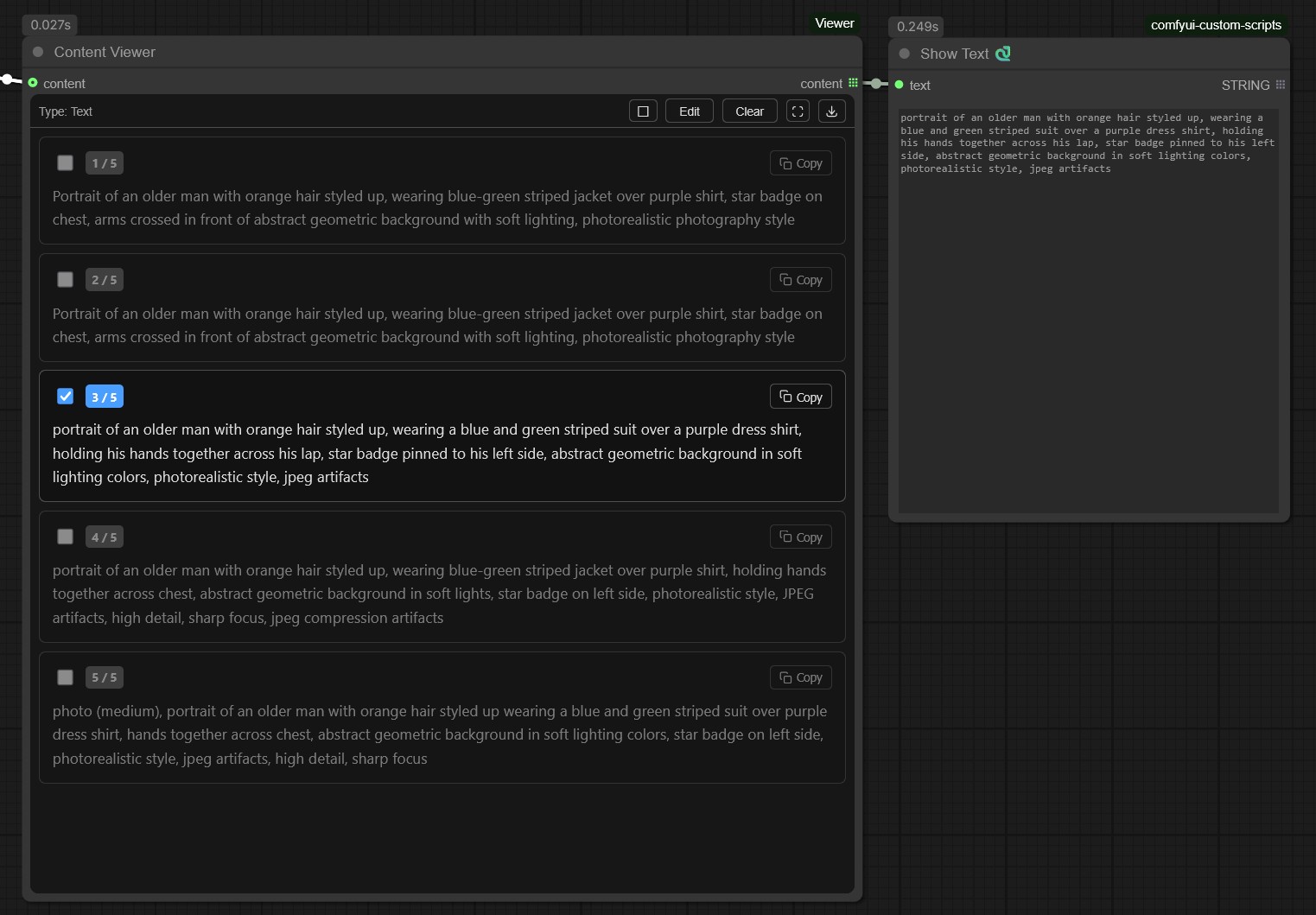
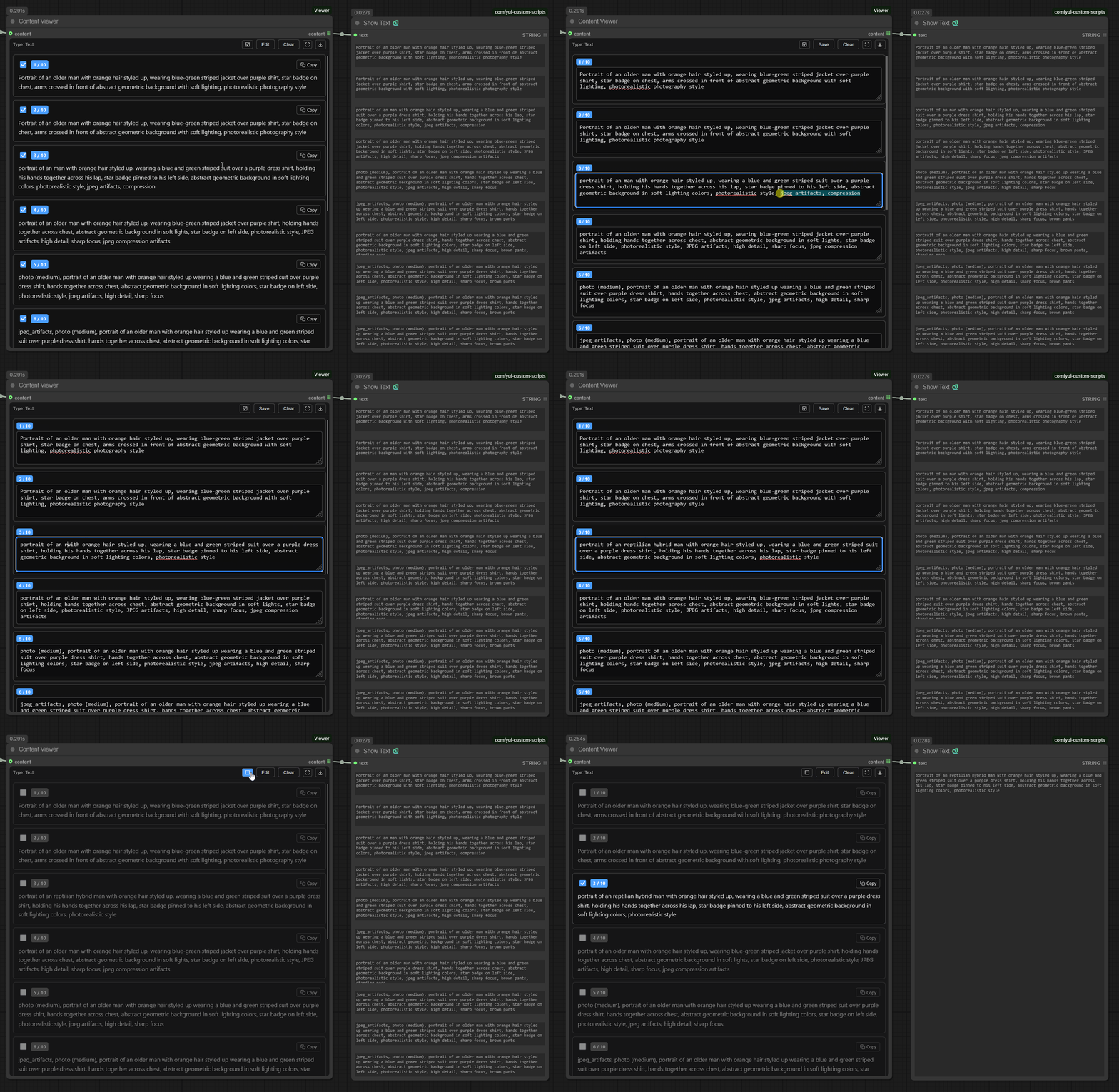
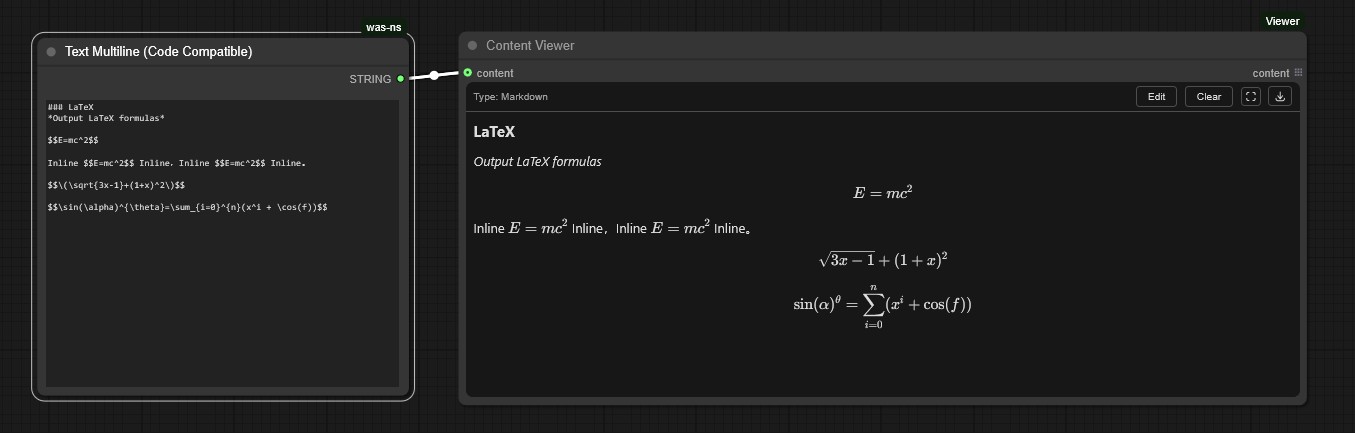
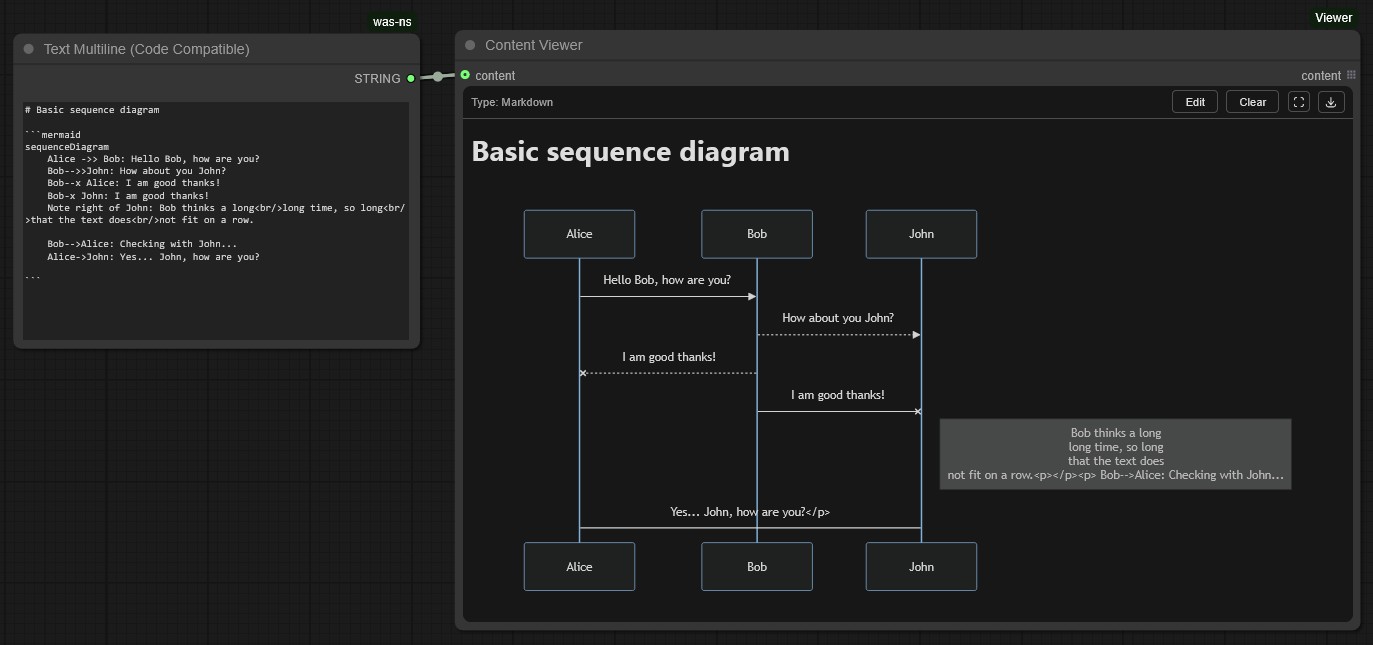
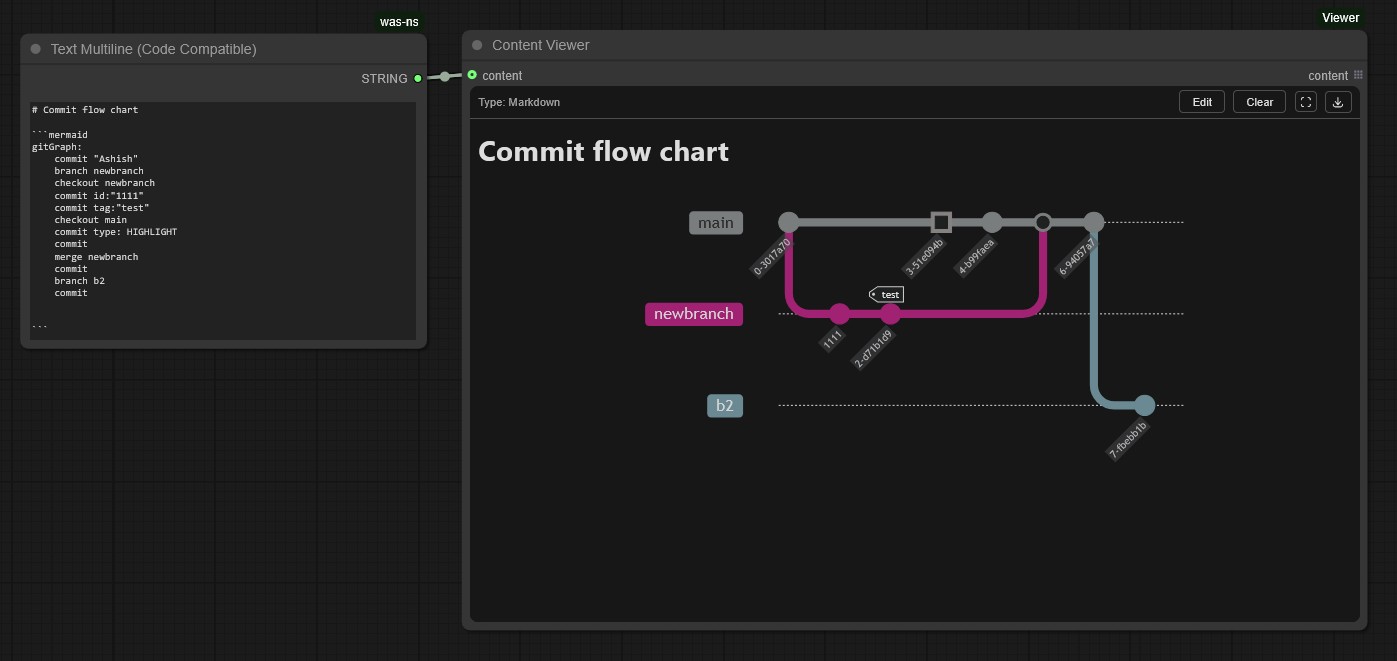
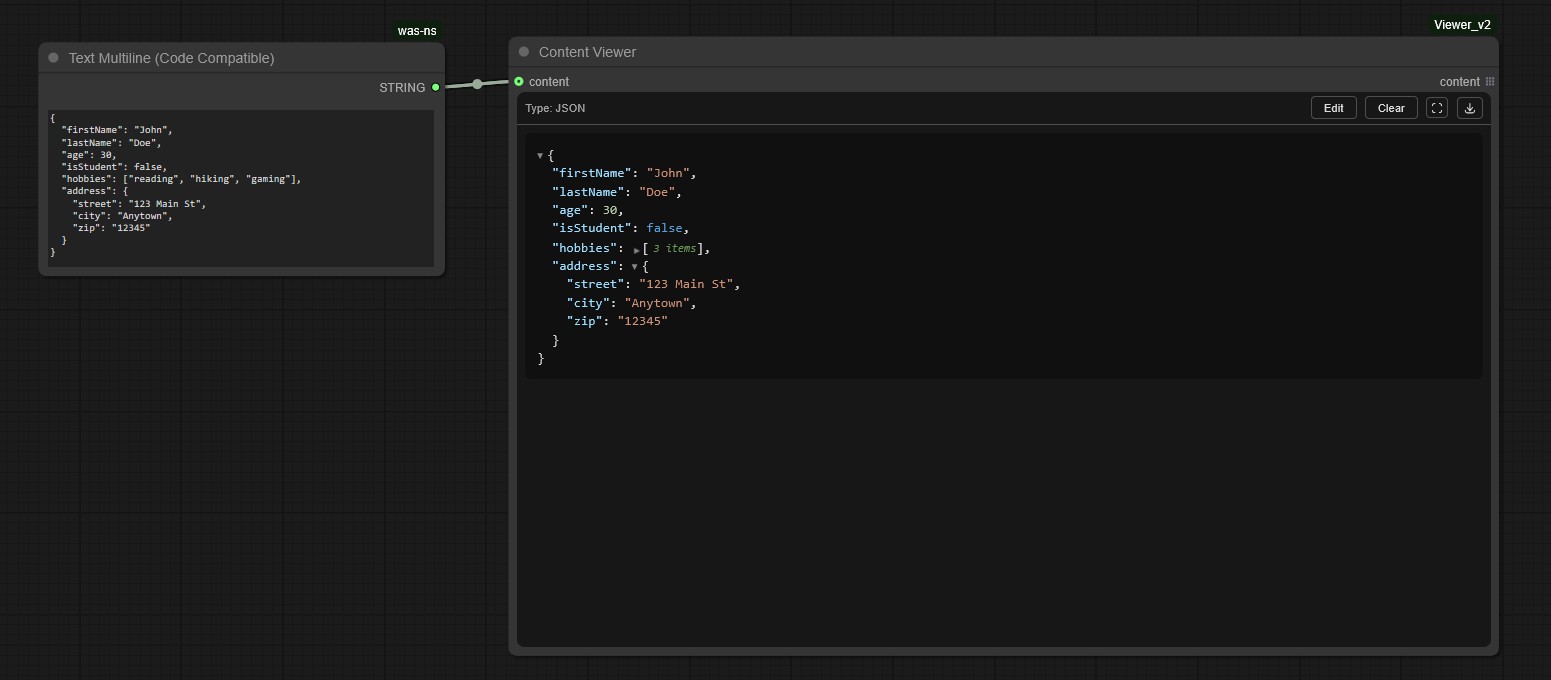
    Screenshot 1 Screenshot 2 Screenshot 3 Screenshot 4 Screenshot 5 Screenshot 6 Screenshot 7 Screenshot 8 Screenshot 9 Screenshot 6 Screenshot 7 Screenshot 8 Screenshot 9 Screenshot 9

    </details>

    Features

    Views Extension System

    • Modular architecture - Each content type is handled by its own view extension
    • Dynamic loading - Views are auto-discovered from web/views/view_manifest.js
    • Priority-based detection - Higher priority views are checked first for content matching
    • Extensible - Add custom views without modifying core viewer code
    • Theme integration - All views receive ComfyUI theme tokens for consistent styling

    Multi-View Support

    • Automatic detection - When multiple views can handle the same content, a view selector appears
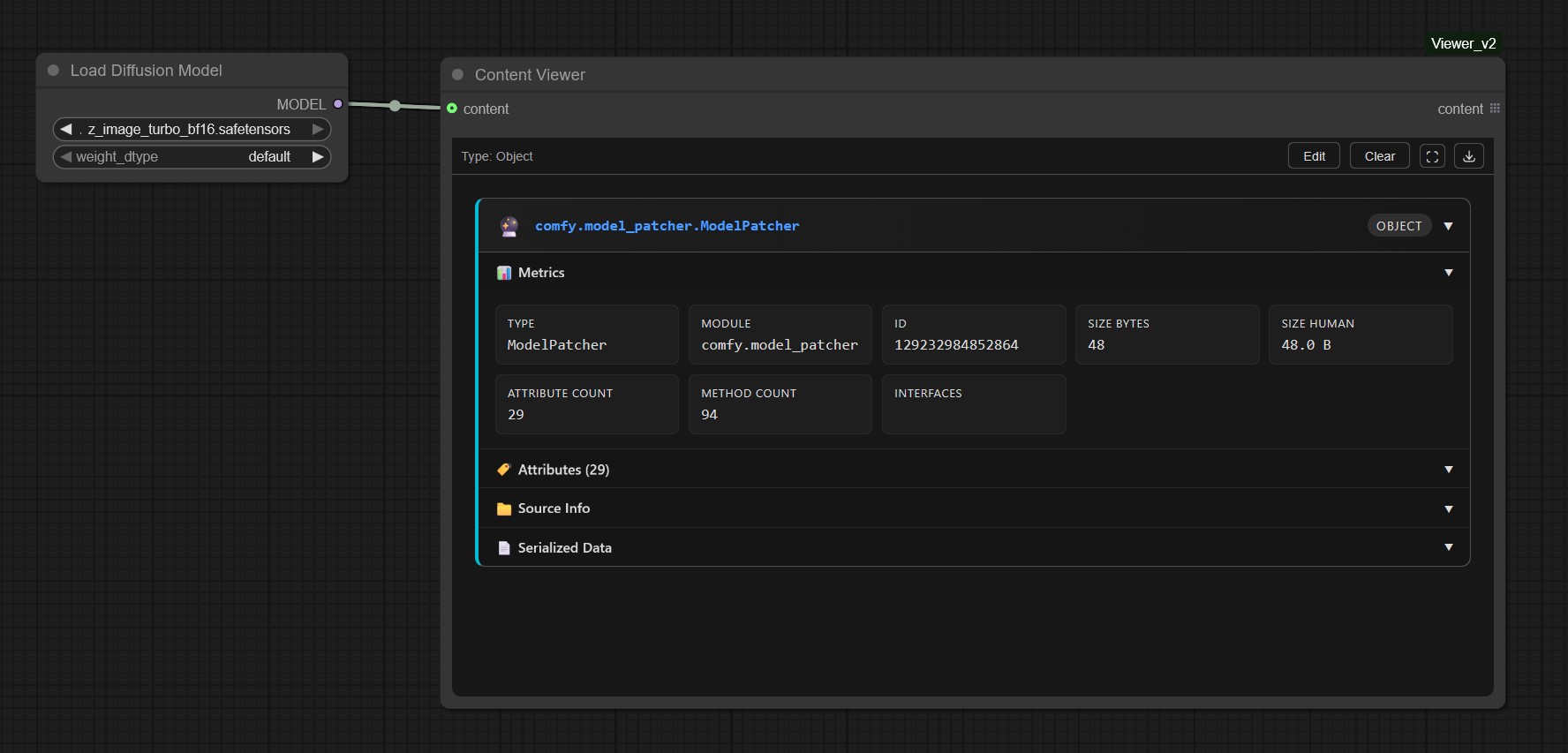
    • View switching - Toggle between different visualizations of the same data (e.g., tensor as Canvas vs Object inspector)
    • Priority-based default - The highest priority matching view is shown by default
    • Common use case - IMAGE tensors are detected by both Canvas (for compositing) and Object (for metrics/inspection) views

    Controls

    • Edit - Modify content directly in the node (supports both single and list content)
    • Clear - Reset all content
    • Fullscreen - Expand viewer to full screen (press Escape to exit)
    • Download - Save content with auto-detected file extension
      • Single content → Downloads with appropriate extension (.html, .svg, .md, .py, etc.)
      • List content → Downloads as .zip containing individually named files

    String List Support

    • Multiple items - Displays list inputs as individual indexed containers
    • Per-item checkboxes - Filter which items to include in output
    • Per-item copy buttons - Copy individual list items to clipboard
    • Per-item editing - Edit each list item in its own textarea

    Data Flow

    • Flexible input - Accepts any type via content input (STRING, lists, objects, IMAGE tensors)
    • Content priority - User edits > Backend execution > Connected content
    • Workflow persistence - Manual edits saved with the workflow

    Security

    • Sandboxed iframe - Content runs in isolated sandbox without access to parent page
    • No same-origin - Iframe cannot access ComfyUI's JavaScript context or localStorage

    Built-in Views

    The Content Viewer includes 12 built-in views, listed by detection priority:

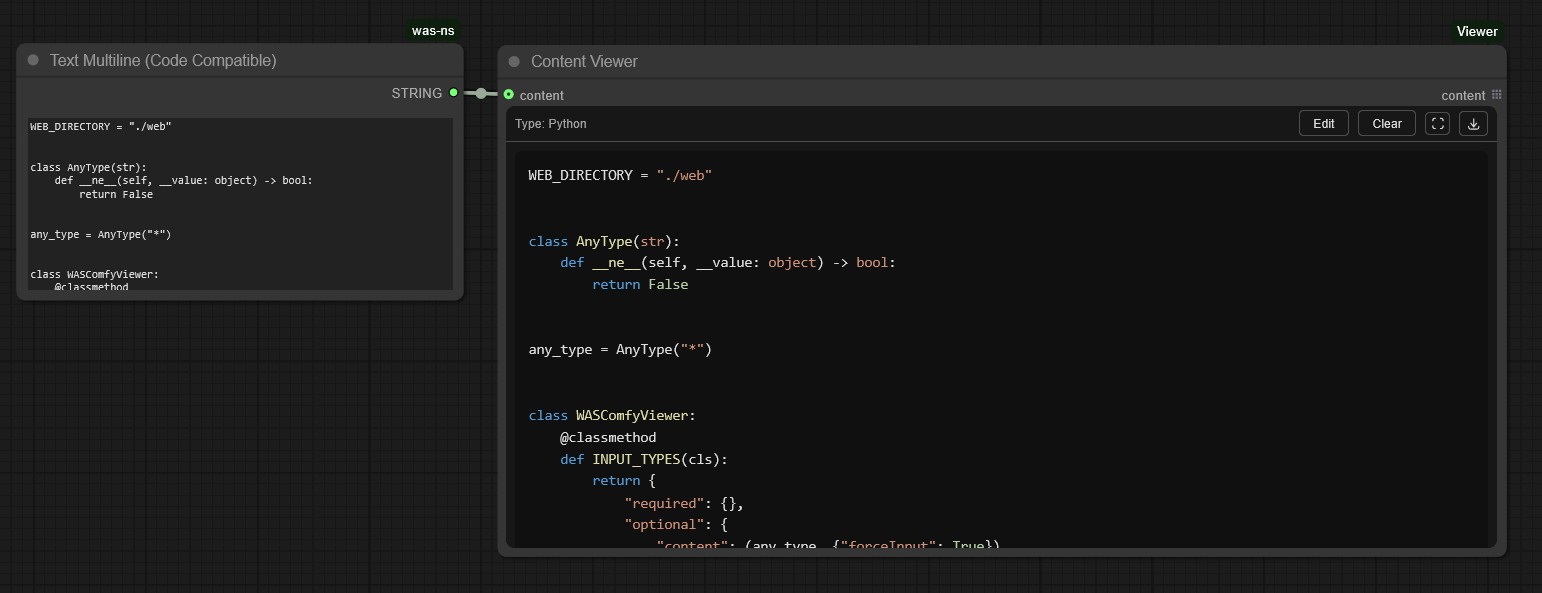
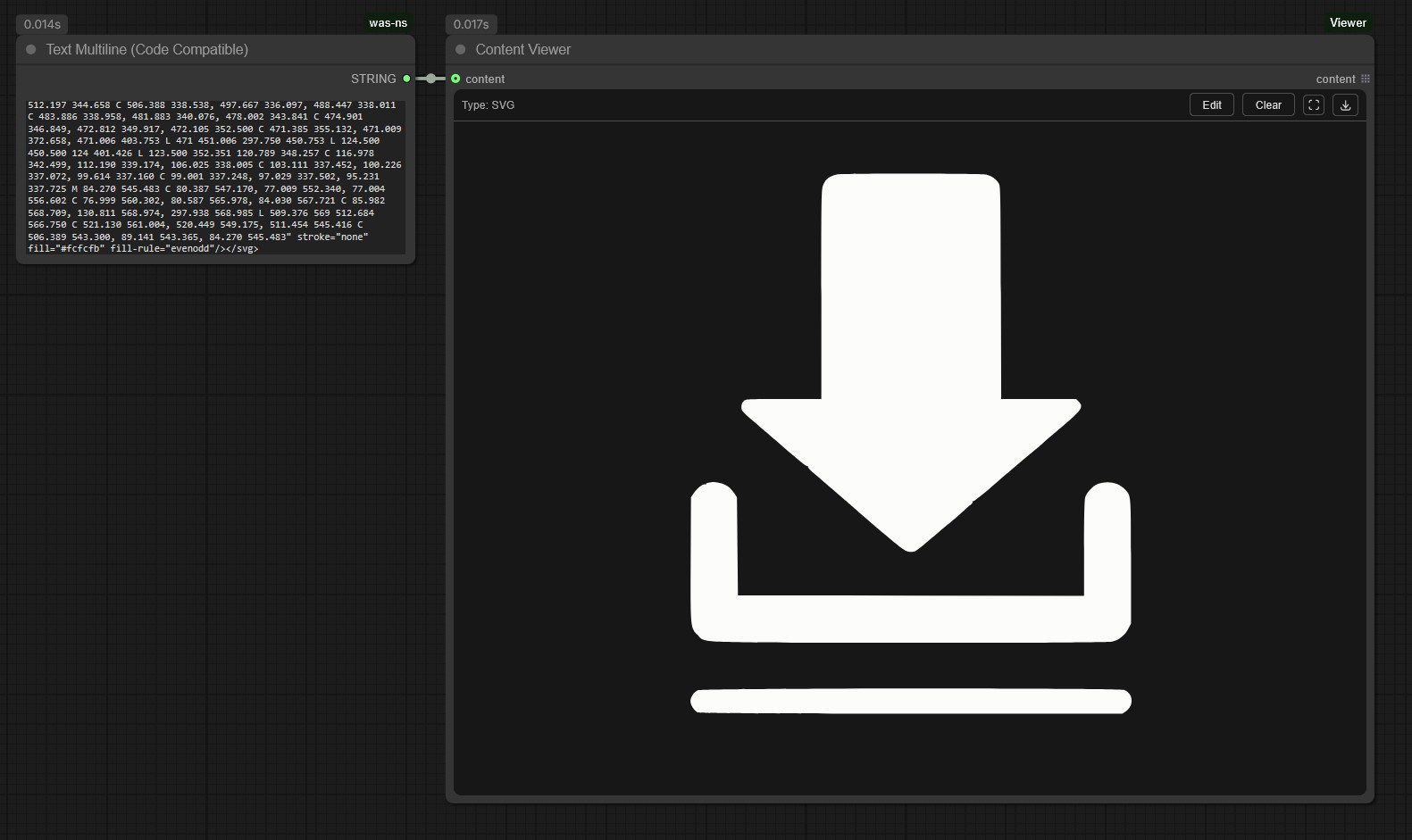
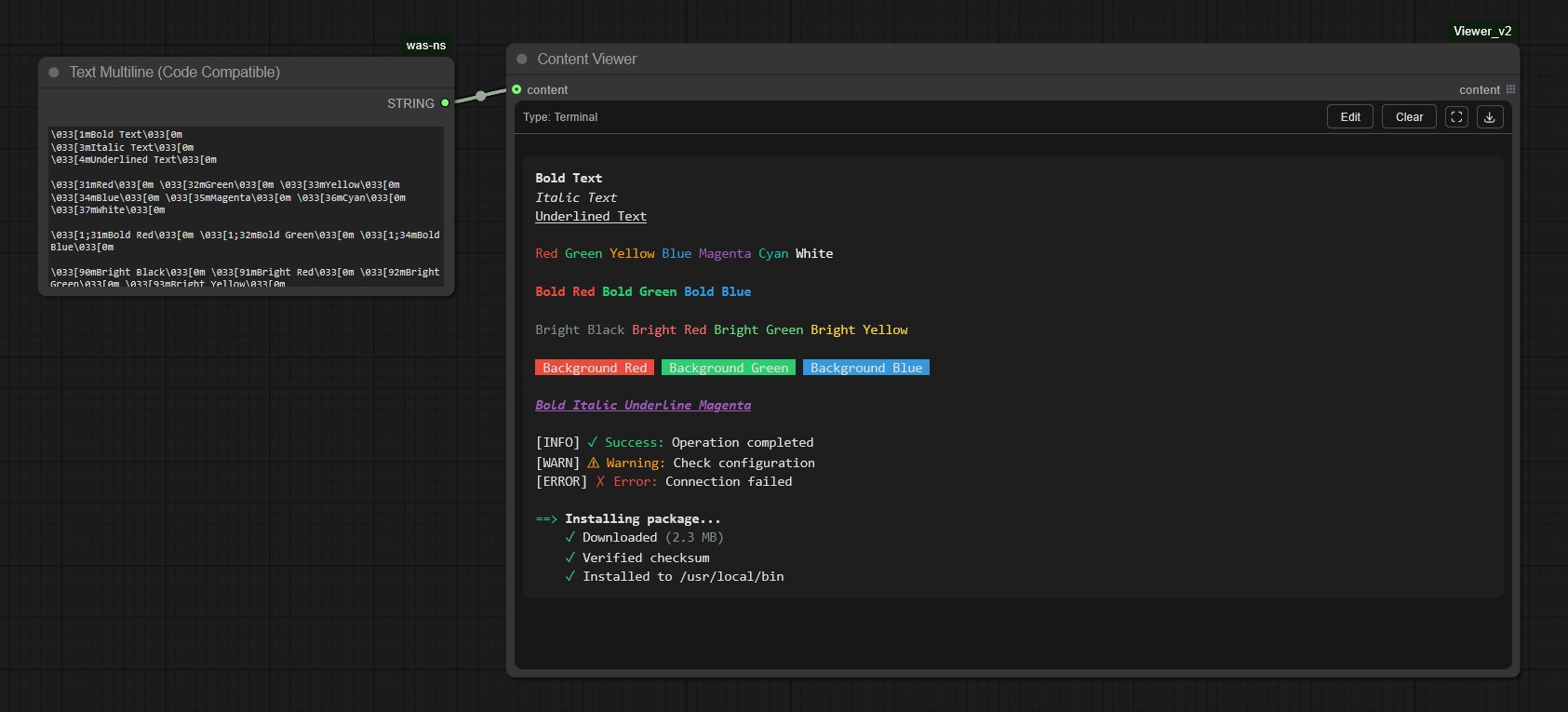
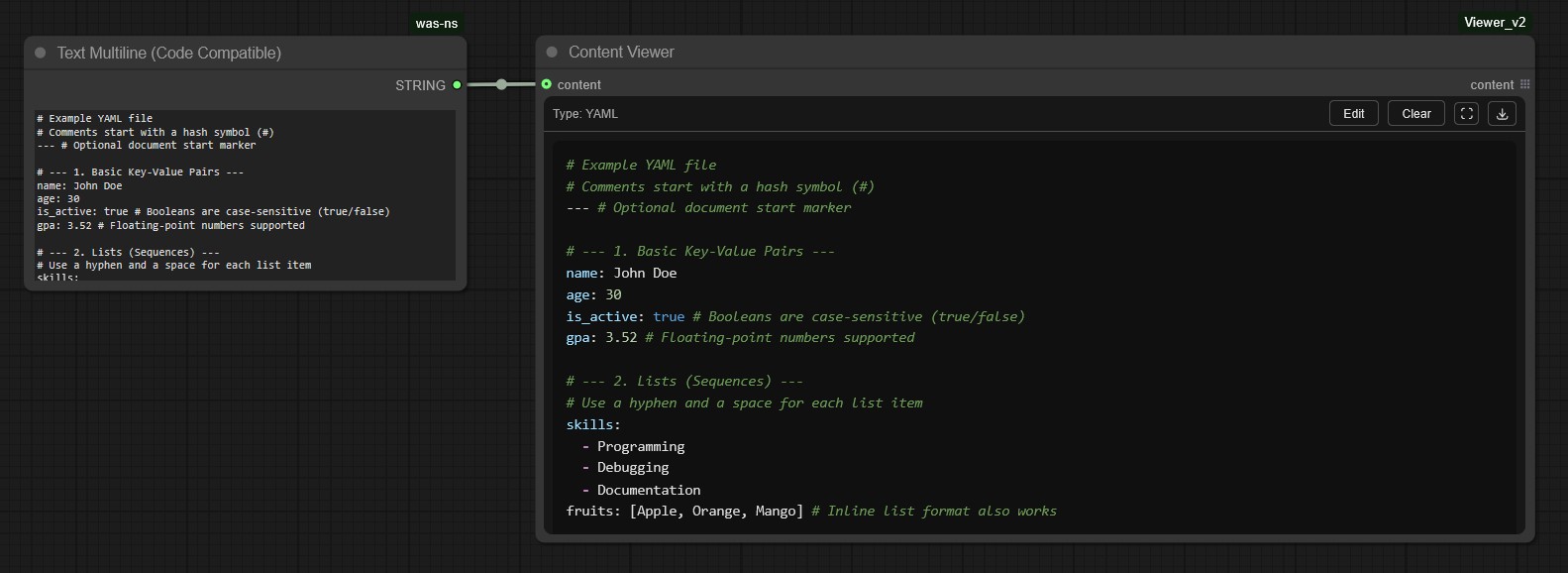
    | View | Priority | Detection | Description | |------|----------|-----------|-------------| | SVG | 110 | <svg tag with xmlns | Renders SVG graphics centered in viewport | | HTML | 100 | <!DOCTYPE, <html, common HTML tags | Full HTML rendering with scripts | | Canvas (alpha wip) | 95 | JSON with type: "canvas_composer" | Beta implementation of a infinite canvas image compositor with layers | | JSON | 90 | Valid JSON starting with { or [ | Collapsible tree view with syntax highlighting | | Terminal | 80 | ANSI escape codes (\x1b[, \033[) | Colored terminal output parser | | Markdown | 70 | Headers, lists, links, code blocks | Full MD with Mermaid diagrams & KaTeX math | | Python | 60 | import, def, class, self. | Prism.js syntax highlighting | | JavaScript | 55 | function, const, let, arrow functions | Prism.js syntax highlighting | | CSV | 50 | Comma-separated values across lines | Styled table rendering | | CSS | 45 | Selectors with {}, properties | Prism.js syntax highlighting | | YAML | 40 | Key-value pairs, --- markers | Syntax highlighted display | | Text | 0 | Default fallback | Monospace plain text |

    View Details

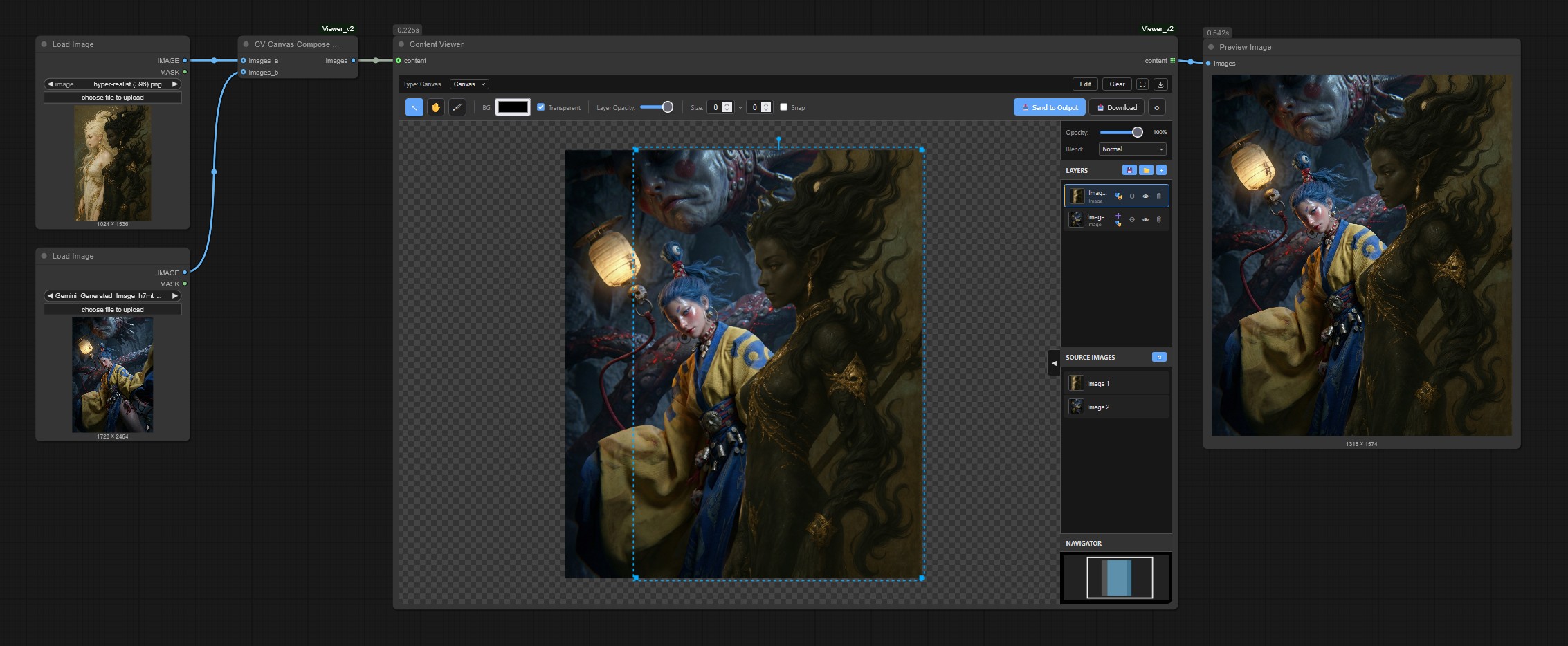
    <details> <summary><strong>Canvas View</strong> - Infinite canvas image compositor</summary>

    The Canvas view provides a full-featured image compositing workspace:

    • Layer management - Add, reorder, hide/show, delete layers
    • Transform tools - Move, scale, rotate layers with handles
    • Brush tools - Paint, erase, clone stamp with adjustable size/hardness/opacity
    • Layer effects - Opacity, blend modes (16 modes), stroke, shadow
    • Layer masks - Non-destructive masking with brush tools
    • Export - Download PNG or send composite to node output as IMAGE tensor
    • Navigator - Mini-map for large canvas navigation
    • Keyboard shortcuts - V (select), H (pan), B (brush), Delete, Ctrl+Z/Y

    The Canvas view outputs IMAGE and MASK tensors that can be connected to other ComfyUI nodes.

    </details> <details> <summary><strong>Markdown View</strong> - Rich text with diagrams and math</summary>

    Supports full Markdown syntax plus:

    • Mermaid diagrams - Flowcharts, sequence diagrams, etc. in ```mermaid blocks
    • KaTeX math - LaTeX formulas via $$...$$ (block) or $...$ (inline)
    • Tables - Styled with zebra striping
    • Code blocks - Syntax highlighted with Prism.js
    • Task lists - Checkbox items - [x] and - [ ]
    </details> <details> <summary><strong>JSON View</strong> - Interactive tree viewer</summary>
    • Collapsible nodes - Click to expand/collapse objects and arrays
    • Syntax highlighting - Keys, strings, numbers, booleans, null
    • Copy on click - Click any value to copy it
    • Nested formatting - Proper indentation for deep structures
    </details> <details> <summary><strong>Terminal View</strong> - ANSI escape code parser</summary>

    Renders terminal output with full ANSI support:

    • 16 colors - Standard terminal colors
    • 256 colors - Extended color palette
    • 24-bit colors - True color RGB
    • Styles - Bold, italic, underline, strikethrough
    • Reset codes - Proper handling of reset sequences
    </details>

    Installation

    Option A (git clone)

    cd ComfyUI/custom_nodes
    git clone https://github.com/WASasquatch/ComfyUI_Viewer.git
    

    Option B (ComfyUI Manager)

    • Open Manager and search for ComfyUI_Viewer

    Option C (zip)

    • Download and extract to ComfyUI/custom_nodes/ComfyUI_Viewer

    Usage

    Basic Usage

    1. Add the Content Viewer node (found in WAS/View category)
    2. Connect any STRING output to the content input
    3. Content type is auto-detected and rendered with the appropriate view

    As a Notes/Documentation Node

    1. Add the Content Viewer node
    2. Click Edit in the controls bar
    3. Enter your HTML, Markdown, or text content
    4. Click Save to render

    Using the Canvas Compositor

    1. Connect IMAGE outputs to the Canvas Composer node
    2. Images appear in the source panel - drag them onto the canvas
    3. Use transform handles to position and scale
    4. Use brush tools to paint or mask
    5. Click Send to Output to pass the composite downstream

    How to Add Extensions

    The Content Viewer has a dual extension system: frontend views for rendering content in the browser, and backend parsers for processing Python objects into displayable data.

    Extension Architecture Overview

    ┌─────────────────────────────────────────────────────────────┐
    │                        ComfyUI                              │
    │  ┌─────────────┐     ┌──────────────┐     ┌─────────────┐  │
    │  │ Input Data  │────▶│Backend Parser│────▶│  Frontend   │  │
    │  │ (tensors,   │     │ (Python)     │     │  View (JS)  │  │
    │  │  objects)   │     │              │     │             │  │
    │  └─────────────┘     └──────────────┘     └─────────────┘  │
    │                             │                    │          │
    │                             ▼                    ▼          │
    │                      display_content ──────▶ render()       │
    └─────────────────────────────────────────────────────────────┘
    
    • Backend Parsers (modules/parsers/*_parser.py) - Process Python objects (tensors, images, custom types) into JSON/strings for the frontend
    • Frontend Views (web/views/*.js) - Detect content patterns and render HTML in the sandboxed iframe

    Adding a Frontend View

    Frontend views handle content rendering in the browser. They detect content patterns and produce HTML.

    Quick Start

    1. Create your view file in web/views/:
    // web/views/myview.js
    import { BaseView, escapeHtml } from "./base_view.js";
    
    class MyView extends BaseView {
      static id = "myview";           // Unique identifier
      static displayName = "My View"; // Shown in UI
      static priority = 50;           // Higher = checked first
    
      // Return score > 0 if this view should handle the content
      static detect(content) {
        if (content.includes("MY_SPECIAL_MARKER")) {
          return 100; // High confidence
        }
        return 0; // Cannot handle
      }
    
      // Render content to HTML for the iframe
      static render(content, theme) {
        return `<div style="color: ${theme.fg}; background: ${theme.bg};">
          <h1>My Custom View</h1>
          <pre>${escapeHtml(content)}</pre>
        </div>`;
      }
    
      // Optional: Add custom CSS
      static getStyles(theme) {
        return `
          body { padding: 16px; }
          h1 { color: ${theme.accent}; }
        `;
      }
    }
    
    export default MyView;
    
    1. Register in the manifest - Add your file to web/views/view_manifest.js:
    export const VIEW_FILES = [
      "canvas.js",
      "html.js",
      // ... existing views ...
      "myview.js",  // Add your view here
    ];
    
    1. Restart ComfyUI - Your view will be automatically loaded

    BaseView Interface

    All views extend BaseView and can override these methods:

    | Method | Required | Description | |--------|----------|-------------| | static id | ✓ | Unique string identifier | | static displayName | ✓ | Human-readable name for UI | | static priority | ✓ | Detection priority (higher = checked first) | | static detect(content) | ✓ | Return score (0-100+) for content matching | | static render(content, theme) | ✓ | Return HTML string for iframe body | | static getStyles(theme) | | Return CSS string for iframe | | static getScripts() | | Return <script> tags for iframe | | static loadScripts(basePath) | | Async load external scripts | | static isReady() | | Return false if scripts still loading | | static getContentMarker() | | Return marker prefix (e.g., $MY_VIEW$) | | static getMessageTypes() | | Return array of postMessage types to handle | | static handleMessage(type, data, node, app, source) | | Handle iframe messages | | static getStateFromWidget(node) | | Extract saved state from node | | static injectState(content, state) | | Inject state into content before render | | static usesBaseStyles() | | Return false to skip base iframe CSS |

    Theme Tokens

    The theme object passed to render() and getStyles() contains:

    {
      bg: "#1a1a1a",        // Background color
      fg: "#cccccc",        // Foreground text color
      border: "#333333",    // Border color
      accent: "#4a9eff",    // Accent/link color
      // ... additional tokens
    }
    

    Adding a Backend Parser

    Backend parsers process Python objects (tensors, custom types) into content the frontend can display. They are required when:

    • Input data is not a string (e.g., IMAGE tensors, model objects)
    • You need to convert Python objects to JSON/strings for the frontend view
    • Your view needs to output data back to the workflow (e.g., Canvas outputs IMAGE tensors)

    Parser Discovery

    Parsers are auto-discovered from *_parser.py files in modules/parsers/. Simply create a file ending in _parser.py and define a class extending BaseParser.

    Minimal Example: Dictionary Parser

    This example shows a simple parser that handles Python dictionaries:

    # modules/parsers/dict_parser.py
    """Minimal parser example - handles Python dictionaries."""
    
    import json
    import hashlib
    from .base_parser import BaseParser
    
    
    class DictParser(BaseParser):
        """Parser for dictionary input."""
        
        PARSER_NAME = "dict"
        PARSER_PRIORITY = 50
        OUTPUT_MARKER = "$WAS_DICT$"
        
        @classmethod
        def detect_input(cls, content) -> bool:
            """Return True if content is a dictionary."""
            return isinstance(content, dict)
        
        @classmethod
        def handle_input(cls, content, logger=None) -> dict:
            """Convert dictionary to JSON for frontend display."""
            json_str = json.dumps(content, indent=2, default=str)
            content_hash = hashlib.md5(json_str.encode()).hexdigest()[:8]
            
            return {
                "display_content": cls.OUTPUT_MARKER + json_str,
                "output_values": [content],
                "content_hash": f"dict_{content_hash}",
            }
        
        @classmethod
        def detect_output(cls, content: str) -> bool:
            """Check if content has our marker."""
            return isinstance(content, str) and content.startswith(cls.OUTPUT_MARKER)
        
        @classmethod
        def parse_output(cls, content: str, logger=None) -> dict:
            """Parse JSON back to dictionary."""
            json_str = content[len(cls.OUTPUT_MARKER):]
            data = json.loads(json_str)
            
            return {
                "output_values": [data],
                "display_text": f"Dict with {len(data)} keys",
                "content_hash": f"dict_out_{hash(json_str[:50]) & 0xFFFFFFFF}",
            }
    

    BaseParser Interface Reference

    | Method | Required | Description | |--------|----------|-------------| | PARSER_NAME | ✓ | Unique string identifier (should match frontend view id) | | PARSER_PRIORITY | ✓ | Detection priority (higher = checked first) | | OUTPUT_MARKER | | String prefix for output content detection | | detect_input(content) | | Return True if parser handles this input type | | handle_input(content, logger) | | Process input, return {display_content, output_values, content_hash} | | detect_output(content) | | Return True if content has this parser's output marker | | parse_output(content, logger) | | Convert frontend output to backend types | | detect_state(state_data) | | Return True if parser handles this state data | | parse_state(state_data, logger) | | Parse view state from frontend | | detect_display_content(content) | | Return True if parser should prepare display content | | prepare_display(content, logger) | | Prepare content for display | | get_default_outputs(content, output_types, logger) | | Return default output values |

    Parser + View Integration

    For a complete extension, you need both a backend parser and frontend view:

    1. Parser (modules/parsers/myext_parser.py):

      • detect_input() → Returns True for your data type
      • handle_input() → Converts Python objects to JSON with marker prefix
      • parse_output() → Converts frontend data back to Python types (if needed)
    2. View (web/views/myext.js):

      • detect() → Checks for marker prefix or content pattern
      • render() → Generates HTML from the JSON data
      • handleMessage() → Sends data back to backend (if needed)

    Marker Convention: Use $WAS_VIEWNAME$ prefix (e.g., $WAS_AUDIO$) so the frontend view can reliably detect content meant for it.

    Multi-View Detection

    When multiple parsers return True from detect_input() for the same content, the system creates a multi-view payload:

    # Example: IMAGE tensor detected by both CanvasParser and ObjectParser
    # Result: User sees a view switcher to toggle between Canvas and Object views
    

    This allows users to choose how they want to visualize the data:

    • Canvas view for compositing and editing
    • Object view for inspecting tensor metrics and statistics

    Troubleshooting

    Content not updating

    • Ensure the connected node is executing (queue the workflow)
    • Try disconnecting and reconnecting the input

    View not detecting content

    • Check the browser console (F12) for [WAS Viewer] messages
    • Verify your view's detect() returns a score > 0 for your content
    • Check priority - higher priority views are tested first

    Canvas images not loading

    • Ensure images are in ComfyUI's input directory.
      • Search for a folder that looks like was_viewer_032bb95c where the last part is a unique hash for that nodes canvas content.
    • Check for CORS errors in browser console

    Custom view not appearing

    • Verify the file is listed in view_manifest.js
    • Check for JavaScript errors in browser console
    • Ensure export default YourViewClass is present

    Third-Party Licenses

    This project includes the following third-party libraries:

    | Library | License | Description | Location | |---------|---------|-------------|----------| | Prism.js | MIT | Syntax highlighting for code blocks | web/views/code_scripts/ | | KaTeX | MIT | LaTeX math rendering | web/views/markdown_scripts/ | | Mermaid | MIT | Diagram and flowchart rendering | web/views/markdown_scripts/ | | KaTeX Fonts | SIL OFL 1.1 | Math fonts for KaTeX | fonts/ |

    Full license texts are included with each library in their respective directories.


    License

    MIT License - See LICENSE for details