
ComfyUI-Niutonian-Themes
A theme pack for ComfyUI that transforms the nodes into the best 2000's aesthetics styles while preserving full functionality.
ComfyUI-Niutonian-Themes
A professional theme pack for ComfyUI that transforms your node editor with beautiful, modern styling while preserving full functionality. Now with full Nodes 2.0 support!
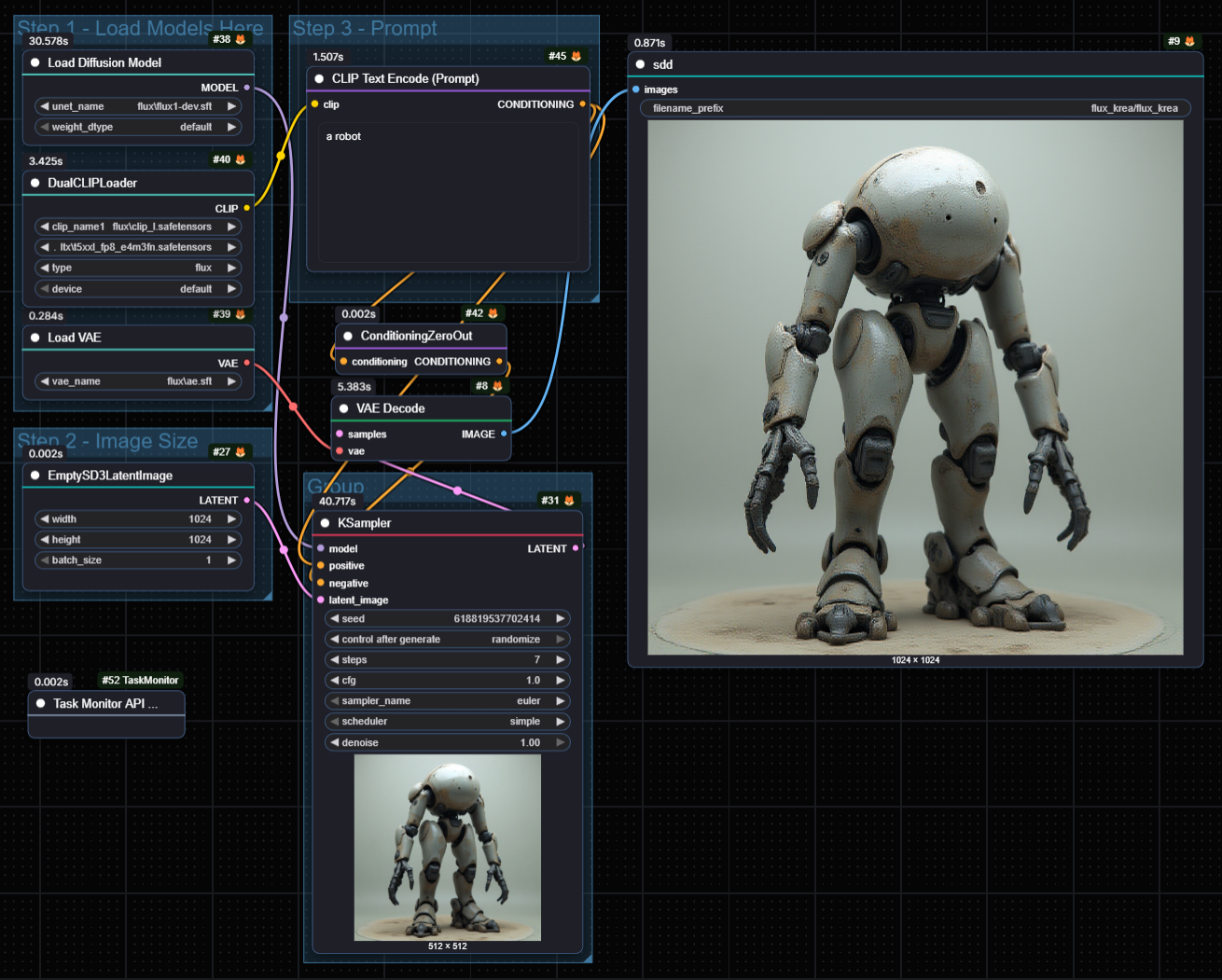
Features
- 10 Unique Themes - From minimal to cyberpunk, find your perfect style
- Nodes 2.0 Compatible - Works seamlessly with both Classic canvas rendering and modern Nodes 2.0 (Vue-based DOM rendering)
- Per-Node Themes - Apply different themes to individual nodes for visual organization
- Disable Theme Option - Instantly revert to original ComfyUI styling with one click or Alt+` shortcut
- Non-invasive - Works with all existing nodes and extensions
- Manual Color Support - Right-click any node to set custom colors - manual colors override theme styling
- Node State Colors - Distinct colors for bypassed and error nodes with full customization
- Theme Customizer - Visual editor to create and modify themes with real-time preview
- Export/Import System - Share your custom themes with others (supports rgba colors and named colors)
- Execution Glow - Currently running nodes glow with theme-matched colors
- Progress Bar - Themed progress indicator for nodes like KSampler
- Keyboard Shortcuts - Quick theme switching with Alt+1 through Alt+0
- Persistent Selection - Your theme choices are saved automatically
- Automatic Mode Detection - Automatically applies the right theming method based on your rendering mode
Nodes 2.0 Support
This theme pack fully supports ComfyUI's Nodes 2.0 (Modern Node Design), the new Vue-based DOM rendering system:
- ✅ Automatic Detection - Themes automatically adapt when you enable/disable Nodes 2.0
- ✅ All Features Work - Glass effects, glows, shadows, scanlines, and all visual effects
- ✅ Per-Node Themes - Individual node theming works in both modes
- ✅ Seamless Switching - Switch between Classic and Nodes 2.0 without losing your theme
- ✅ CSS-Based Rendering - Uses modern CSS custom properties for Nodes 2.0
- ✅ Canvas Rendering - Maintains original canvas-based theming for Classic mode
To enable Nodes 2.0:
- Go to Settings (⚙️)
- Find "Modern Node Design (Nodes 2.0)" under Experimental
- Toggle it ON
- Your themes will automatically work in the new mode!
Available Themes
Modern Dark (Alt+1)
Glassmorphism (Alt+2)
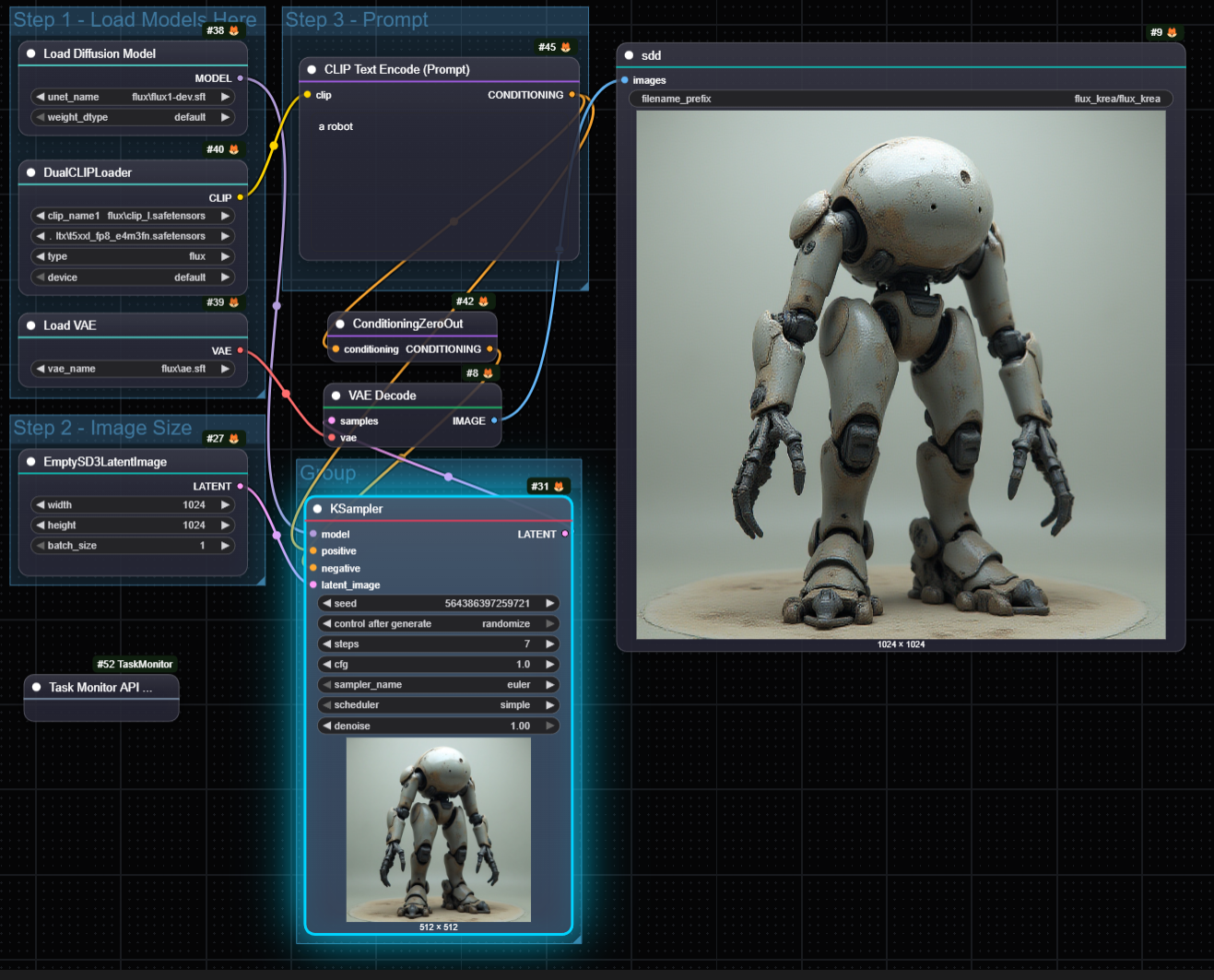
Neon Glow (Alt+3)
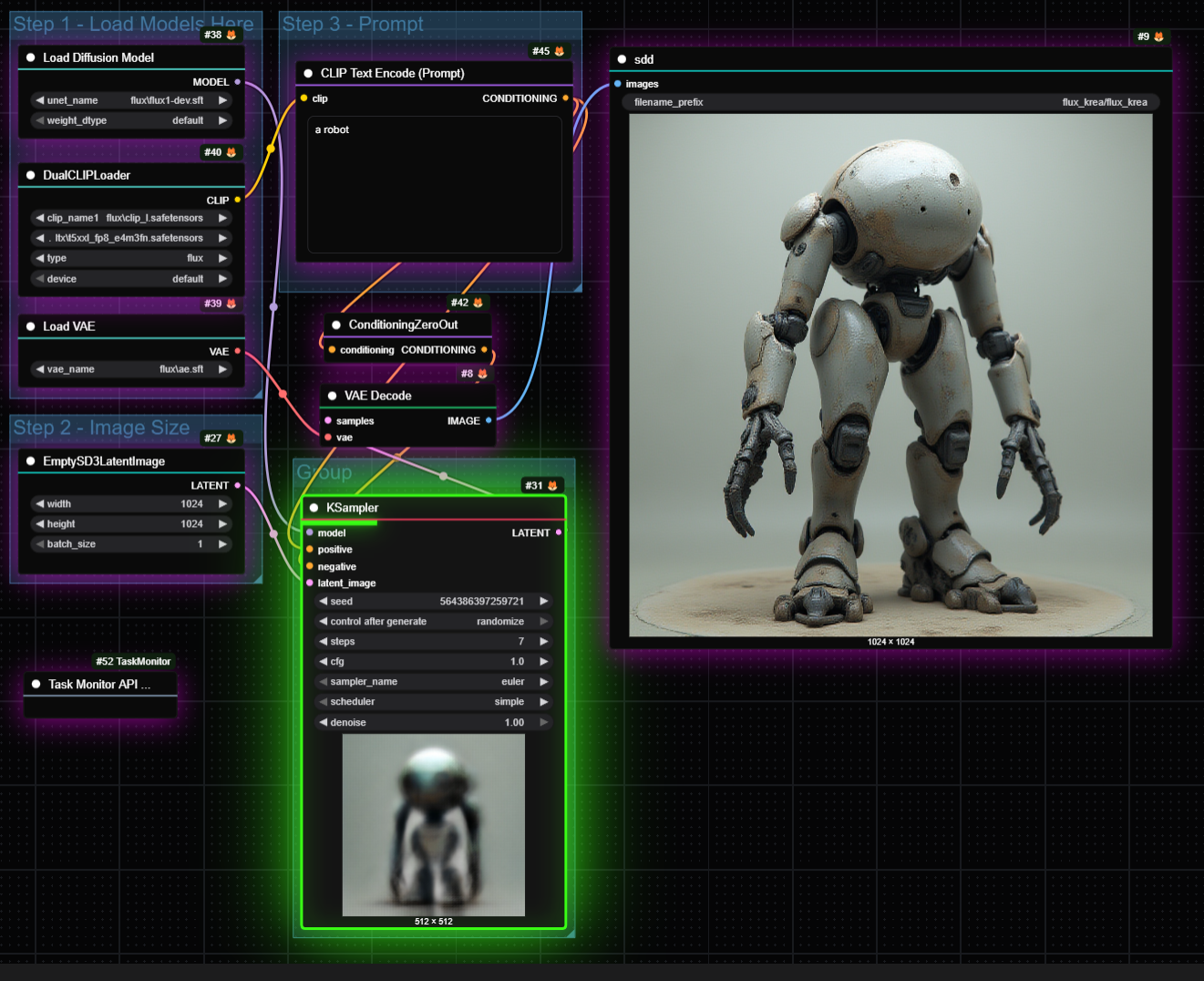
Minimal Clean (Alt+4)
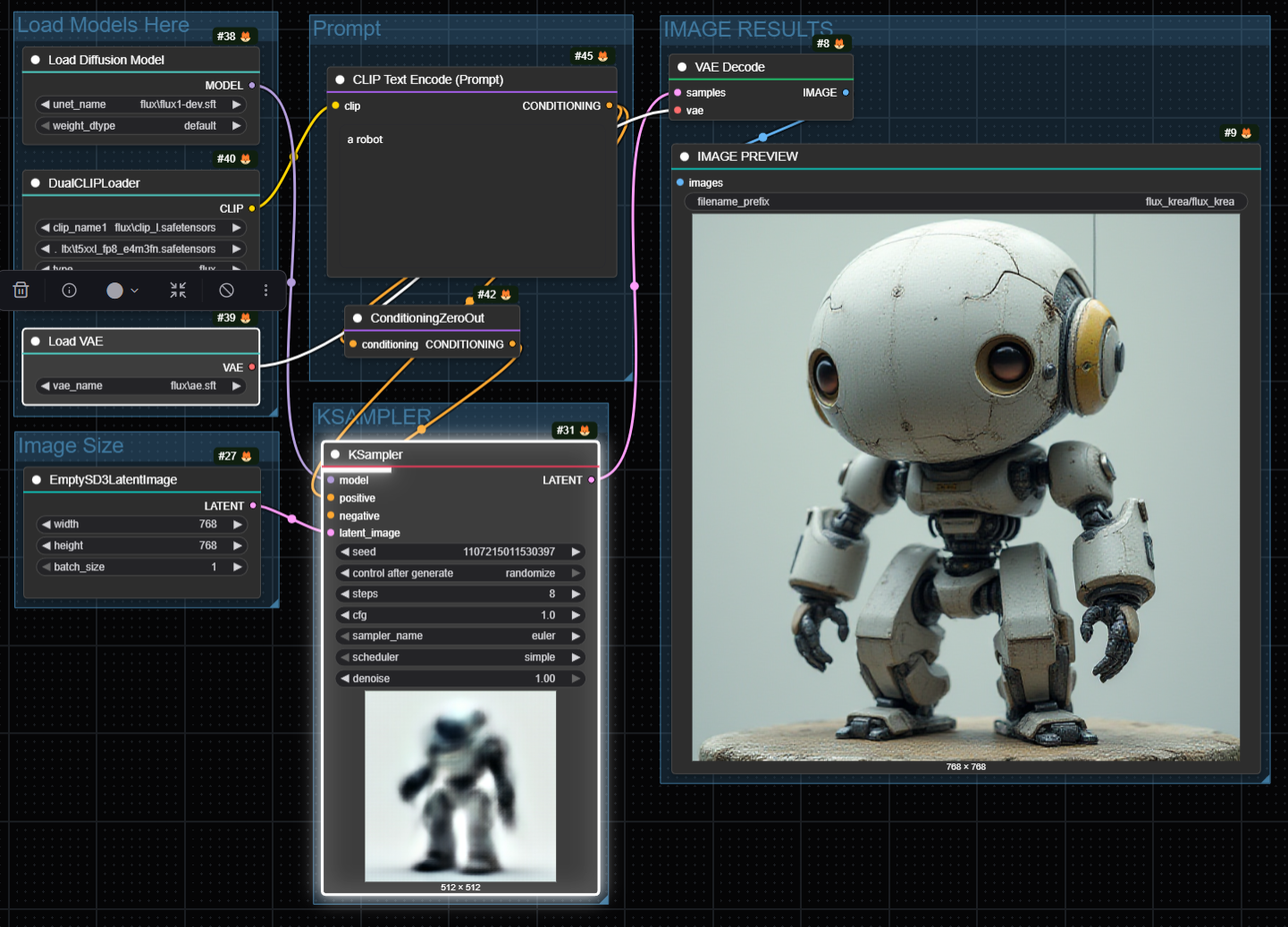
Ocean Deep (Alt+5)
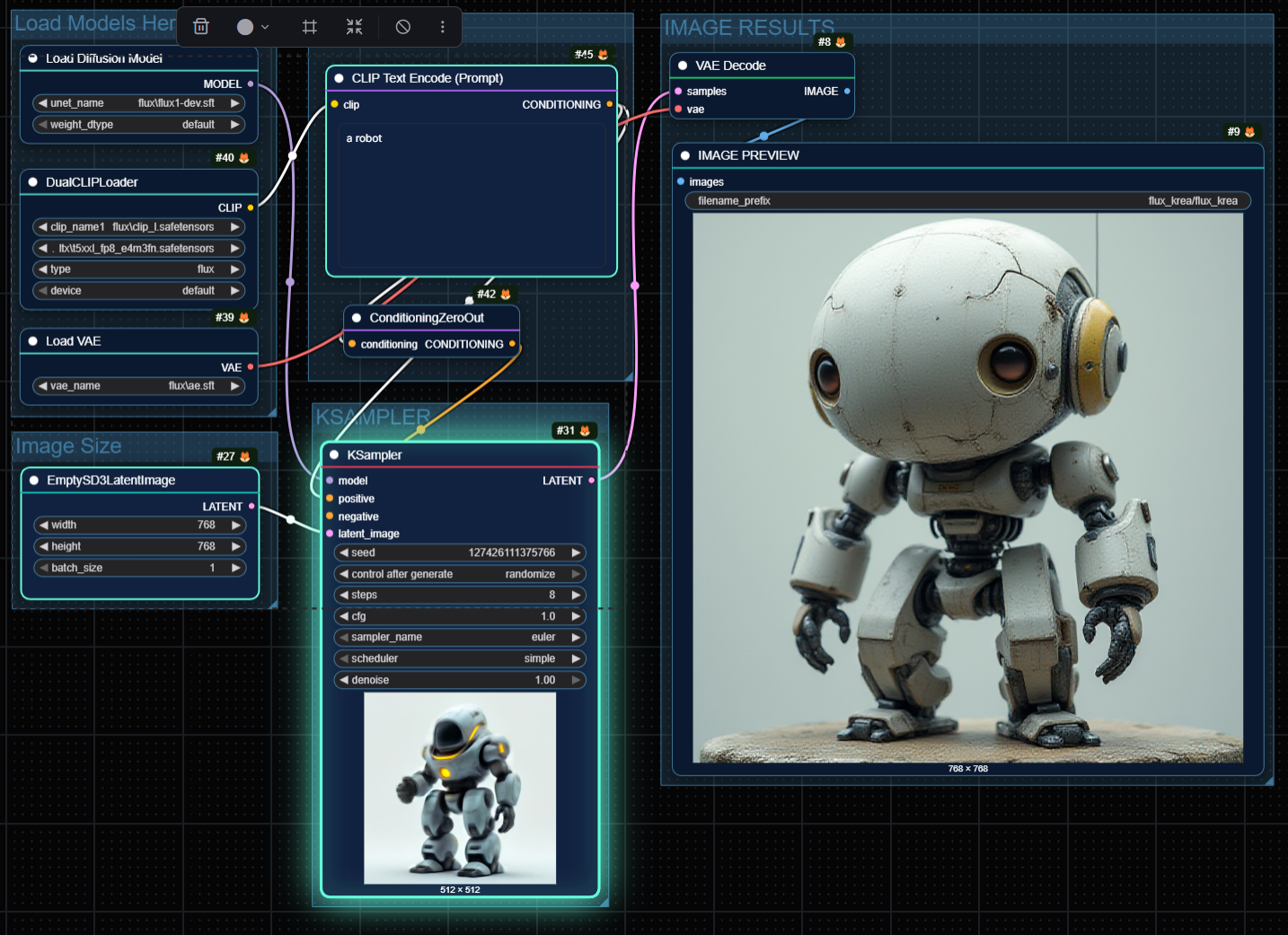
Sunset Warm (Alt+6)
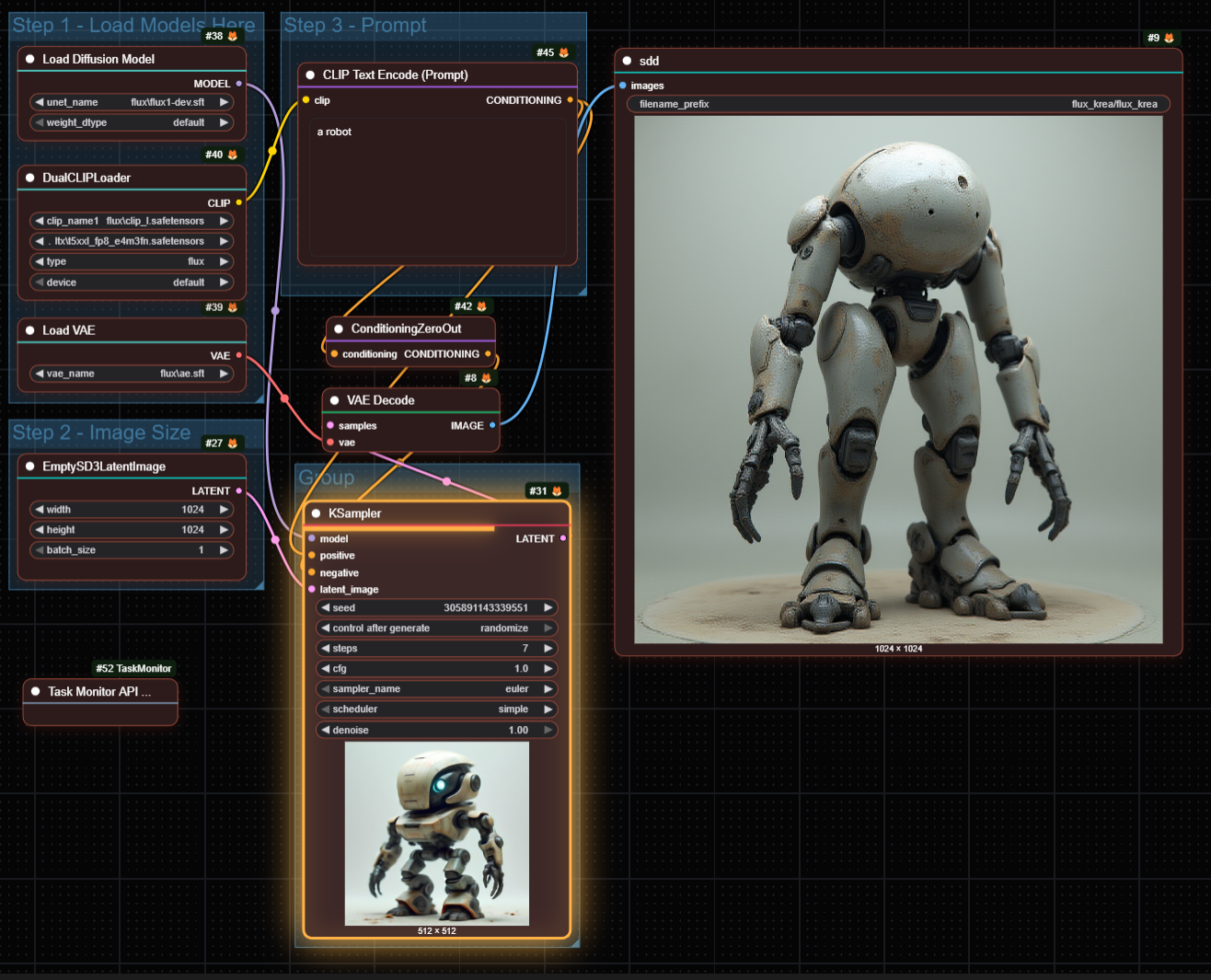
Cyberpunk (Alt+7)
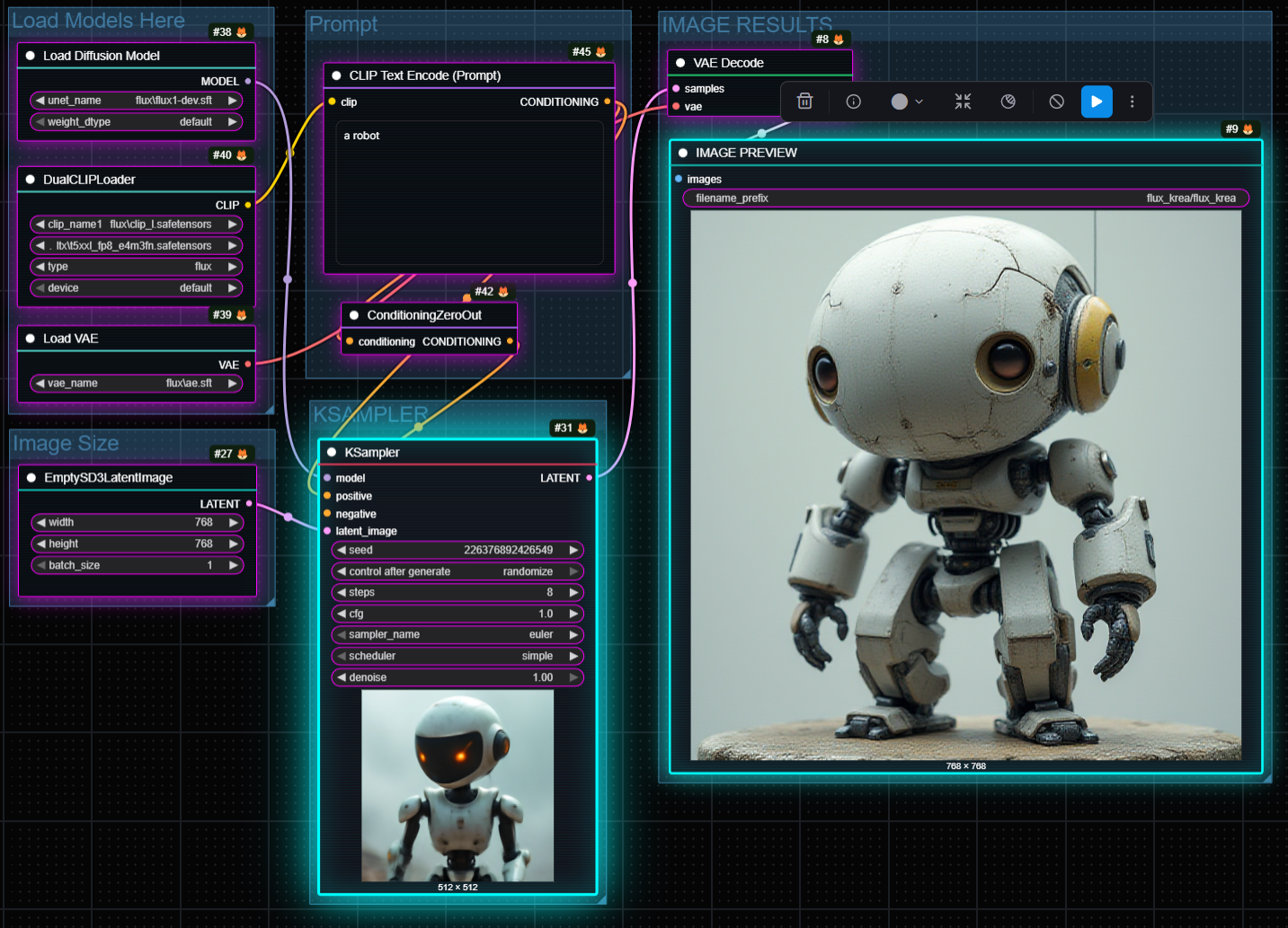
Forest Night (Alt+8)
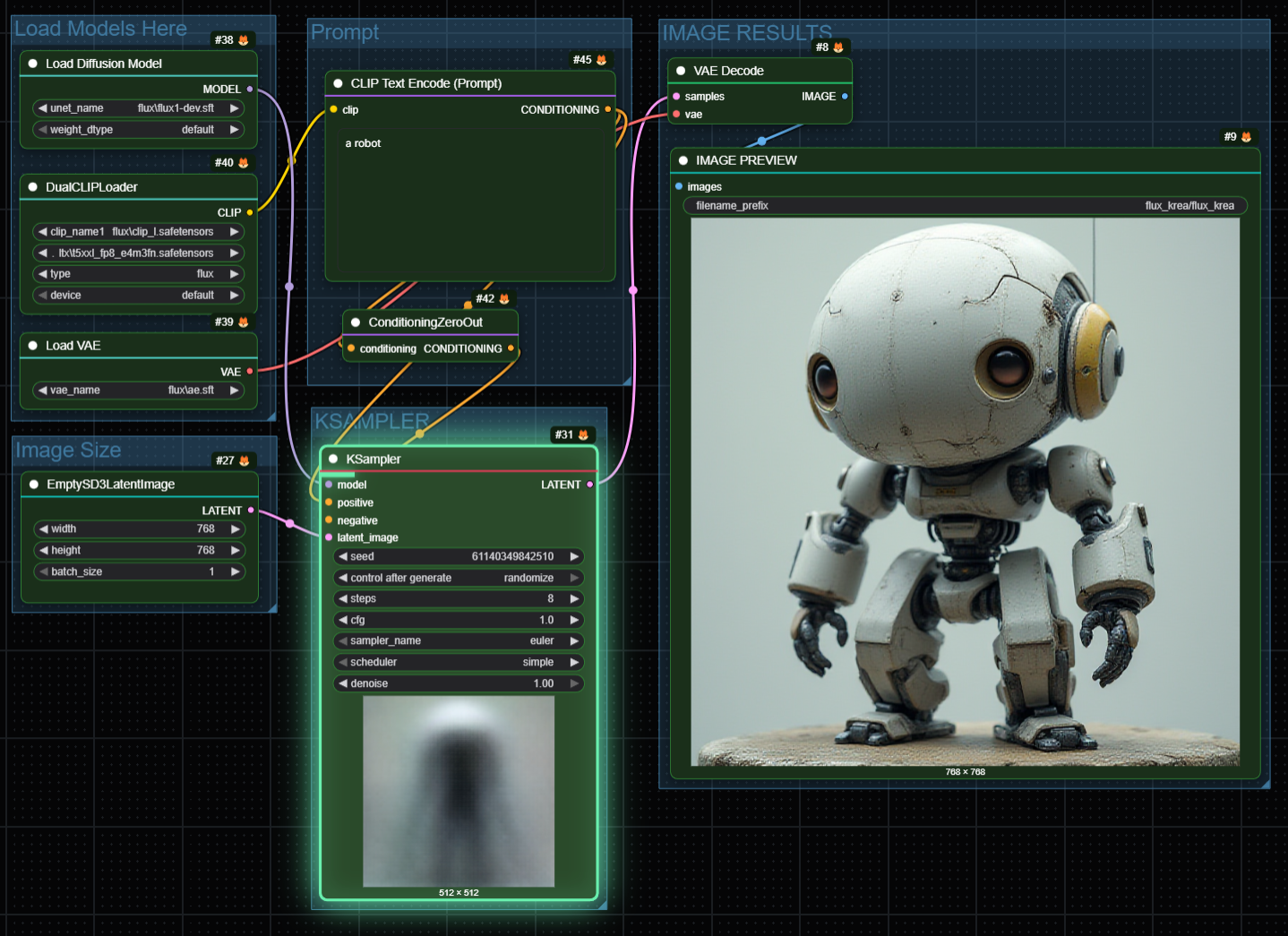
Midnight Purple (Alt+9)
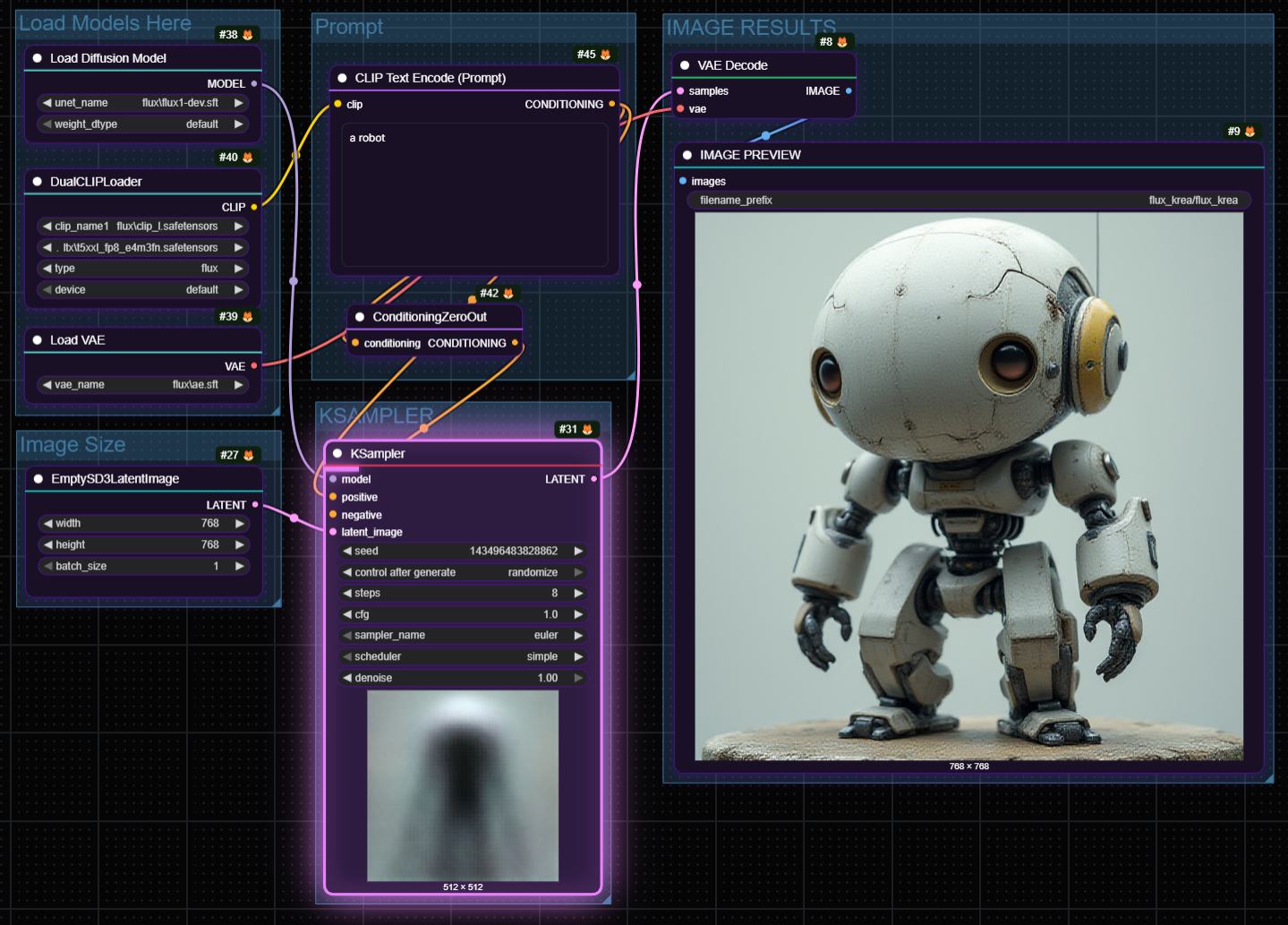
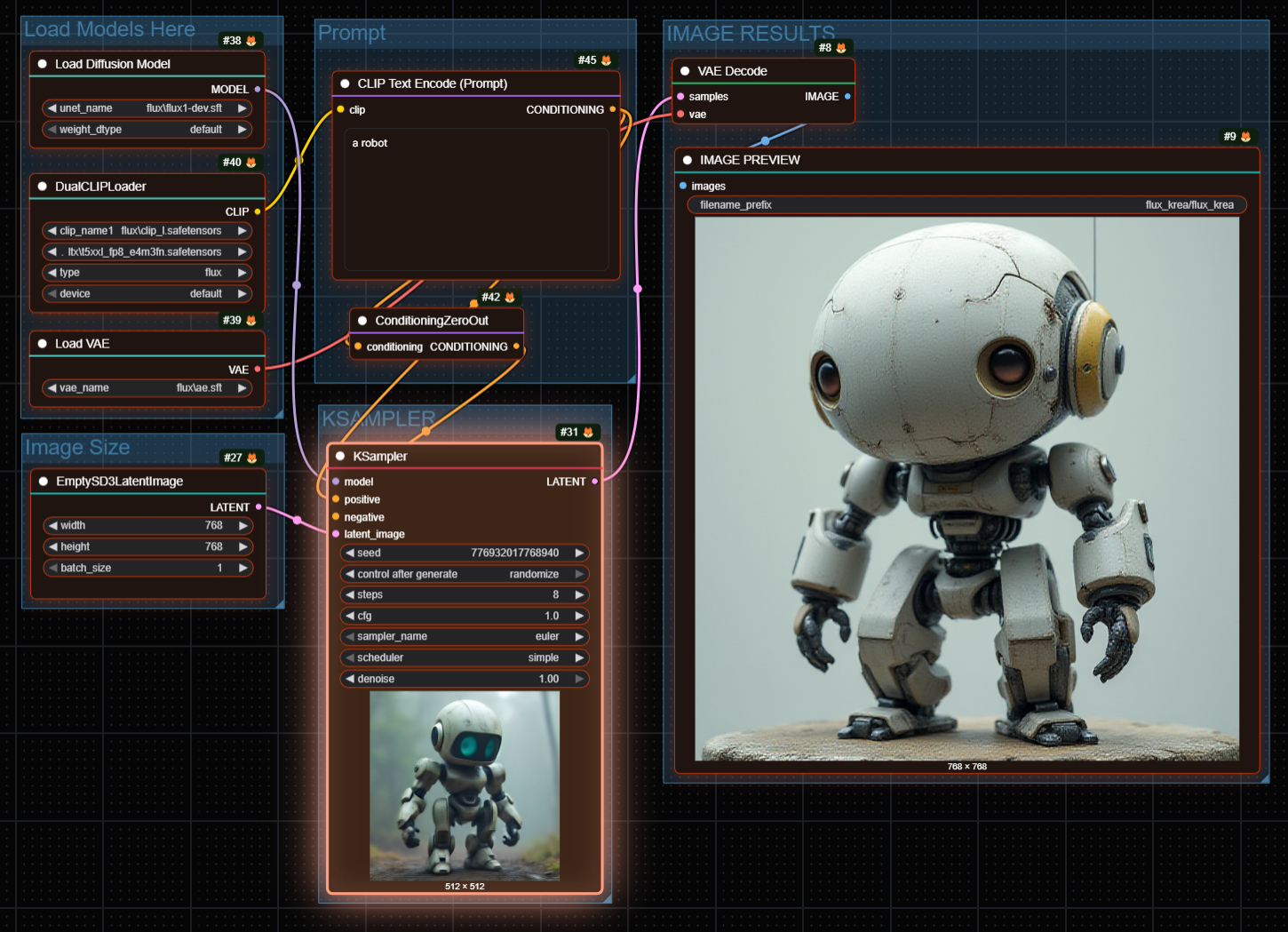
Ember Glow (Alt+0)
Installation
Method 1: ComfyUI Manager (Recommended)
- Open ComfyUI Manager
- Search for "Niutonian Themes"
- Click Install
Method 2: Manual Installation
- Navigate to your ComfyUI custom nodes folder:
ComfyUI/custom_nodes/ - Clone this repository:
git clone https://github.com/Niutonian/ComfyUI-Niutonian-Themes.git - Restart ComfyUI
Method 3: Download ZIP
- Download the ZIP file from the releases page
- Extract to
ComfyUI/custom_nodes/ComfyUI-Niutonian-Themes - Restart ComfyUI
Usage
Per-Node Themes (NEW!)
Apply different themes to individual nodes for better visual organization:
Setting a Node Theme:
- Right-click on any node
- Select "🎨 Node Theme" from the context menu
- Choose a theme to apply to just that node
- The node will use its own theme while other nodes use the global theme
Reverting to Global Theme:
- Right-click on the node
- Select "🎨 Node Theme" → "🌐 Use Global Theme"
- The node will return to using the global theme
Features:
- Each node can have its own independent theme
- Per-node themes are saved with your workflow - they persist when you save and reload
- Mix and match themes to visually organize your workflow (e.g., use Ocean Deep for input nodes, Ember Glow for processing nodes)
- The menu shows which theme is currently applied with a ✓ checkmark
- Per-node themes work alongside the global theme system
Use Cases:
- Visual Organization: Use different themes for different stages of your workflow (input, processing, output)
- Highlight Important Nodes: Make critical nodes stand out with a distinct theme
- Color Coding: Group related nodes with the same theme for easier navigation
- Workflow Clarity: Use contrasting themes to separate different processing chains
Disabling the Theme
Want to revert to the original ComfyUI appearance? You have multiple options:
Method 1: Menu (Easiest)
- Right-click on the canvas
- Select Niutonian Theme → "⏸️ Disable Theme"
- The theme will be completely disabled, showing original ComfyUI styling
Method 2: Keyboard Shortcut (Fastest)
- Press Alt + ` (backtick) to instantly disable the theme
- The backtick key is usually above Tab, left of the number 1
When disabled, all custom rendering is bypassed and ComfyUI displays with its original default appearance. Your choice is automatically saved and persists across sessions.
Switching Themes
- Right-click on the canvas to open the context menu
- Select Niutonian Theme
- Choose your preferred theme from the submenu
Or use keyboard shortcuts:
- Alt + ` (backtick): Disable theme (original ComfyUI)
- Alt+1 through Alt+9: Select themes 1-9
- Alt+0: Select theme 10 (Ember Glow)
Manual Node Coloring
You can override theme colors for individual nodes:
- Right-click on any node
- Select a color from the color palette
- The node will use your custom color instead of the theme color
- To remove manual coloring, select the default color or clear the color setting
Note: Manually colored nodes will not display theme effects (glass, glow, scanlines) but will still show execution glow when running.
Difference between Manual Colors and Per-Node Themes:
- Manual Colors: Simple color override, no theme effects, set via the Colors menu
- Per-Node Themes: Full theme with all effects (glass, glow, shadows, etc.), set via the Node Theme menu
Node State Colors
The theme system automatically applies different colors based on node states:
Styling Priority (highest to lowest):
- Manual Colors - Colors set via right-click → Colors menu (overrides everything)
- Executing Nodes - Bright glow with execution color when running
- Error Nodes - Red/orange tones when nodes have errors (
has_errors: true) - Bypassed Nodes - Muted gray tones when nodes are bypassed
- Per-Node Theme - Custom theme set via right-click → Node Theme menu
- Global Theme - The theme selected from the canvas menu
Bypassed Nodes:
- Nodes set to bypass mode (right-click → Bypass) display in muted colors
- Each theme has a custom bypass color that maintains visual hierarchy
- Bypassed nodes are easily identifiable while preserving the theme aesthetic
Error Nodes:
- Nodes with validation errors or runtime issues display in error colors
- Each theme includes appropriate red/orange error colors
- Error state takes priority over bypass state for immediate problem identification
Per-Node Themes:
- Apply different themes to individual nodes via right-click → Node Theme
- Per-node themes are saved with your workflow
- Great for visual organization and workflow clarity
Theme Customizer
Create and modify themes with the built-in visual editor:
Opening the Customizer
- Right-click on canvas → Niutonian Theme → "🎨 Customize Theme..."
- Or create new: "➕ Create New Theme..."
Customizer Features
Color Controls:
- Node Background - Main node color
- Selected Background - Color when node is selected
- Title Background - Node header color
- Title Text - Text color in the header
- Border Color - Normal border color
- Selected Border - Border color when selected
- Executing Color - Color when node is running
- Glow Color - Color for glow effects
- Bypass Color - Color for bypassed nodes
- Error Color - Color for nodes with errors
- Shadow Color - Drop shadow color
Effect Sliders:
- Shadow Size (0-50px) - Controls drop shadow blur
- Corner Radius (0-20px) - Controls node roundness
- Glow Intensity (5-50px) - Controls glow effect size
- Glass Opacity (1-20%) - Controls frosted glass overlay intensity
- Node Opacity (10-100%) - Controls node background transparency
Visual Effects:
- Glass Effect - Adds frosted glass overlay
- Glow Effect - Adds glow around selected nodes
- Scanlines - Adds cyberpunk-style scanline effect
Customizer Buttons
- Preview - See changes for 3 seconds before reverting
- Save Theme - Save changes to current theme (or create new if name changed)
- Save As Custom - Create a new theme with a different name
- Export - Download theme as JSON file for sharing
- Import - Load theme from JSON file into customizer
- Delete - Remove custom theme (only for custom themes)
Export/Import System
Share your custom themes with others or backup your collection:
Exporting Themes
Export Single Theme:
- Open theme customizer
- Click "Export" button
- Theme downloads as
ThemeName_theme.json
Export All Custom Themes:
- Right-click canvas → Niutonian Theme → "📤 Export All Custom Themes"
- Downloads all your custom themes as
niutonian_custom_themes_X_themes.json
Importing Themes
Import from Menu (Recommended):
- Right-click canvas → Niutonian Theme → "📥 Import Themes..."
- Select theme file (single theme or collection)
- Themes are automatically added to your menu
- Works with both single themes and theme collections
Import to Customizer (For Editing):
- Open theme customizer
- Click "Import" button
- Select theme file
- Theme loads into customizer for preview/editing
- Use "Save Theme" or "Save As Custom" to save permanently
File Formats
Single Theme File:
{
  "version": "1.0",
  "type": "niutonian_theme",
  "theme": { /* theme data */ },
  "exported_at": "2026-01-03T...",
  "exported_by": "Niutonian Theme Customizer"
}
Theme Collection File:
{
  "version": "1.0",
  "type": "niutonian_theme_collection",
  "themes": {
    "theme_1": { /* theme data */ },
    "theme_2": { /* theme data */ }
  },
  "theme_count": 2,
  "exported_at": "2026-01-03T...",
  "exported_by": "Niutonian Theme Customizer"
}
Theme Customization
Each theme includes:
- Node background colors
- Title bar styling with accent gradients
- Border colors (normal and selected states)
- Shadow effects
- Execution glow colors
- Corner radius settings
- Special effects (glass, glow, scanlines)
Customization
Using the Theme Customizer (Recommended)
The easiest way to create custom themes is using the built-in visual editor:
- Right-click canvas → Niutonian Theme → "🎨 Customize Theme..."
- Adjust colors and effects using the visual controls
- Preview changes with the Preview button
- Save your theme with a custom name
Manual Code Customization
For advanced users, you can also edit js/node_styles.js directly:
Add Custom Style Packs
const STYLE_PACKS = {
  myCustomPack: {
    name: "My Custom Pack",
    node_bg: "#1a1a2e",
    node_selected: "#252545",
    node_title_bg: "#16213e",
    node_title_color: "#ffffff",
    border_color: "#0f3460",
    border_selected: "#e94560",
    shadow_color: "rgba(0,0,0,0.5)",
    shadow_size: 12,
    corner_radius: 8,
    executing_color: "#e94560",
    bypass_color: "#666666",
    error_color: "#ff0000",
    glass: false,
    glow: false,
    scanlines: false,
  },
  // ... existing themes
};
Customize Node Type Colors
const NODE_ACCENTS = {
  "Load": "#4ecdc4",
  "MyCustomNode": "#ff00ff",
  "Checkpoint": "#f7b731",
  // ... add your custom node types
  "default": "#778ca3",
};
Available Theme Properties
node_bg: Main node background colornode_selected: Selected node background colornode_title_bg: Title bar background colornode_title_color: Title text colorborder_color: Normal border colorborder_selected: Selected border colorbypass_color: Color for bypassed nodeserror_color: Color for nodes with errorsshadow_color: Drop shadow colorshadow_size: Shadow blur radiuscorner_radius: Border radius for rounded cornersexecuting_color: Color when node is runningglass: Enable glass effect (boolean)glow: Enable glow effect for selected nodes (boolean)glow_intensity: Glow effect blur radius (5-50px)glass_opacity: Glass effect transparency (0.01-0.20)node_opacity: Node background transparency (0.10-1.0)
Contributing
Contributions are welcome! Feel free to:
- Submit bug reports
- Propose new themes
- Improve existing themes
- Add new features
License
MIT License - Feel free to use, modify, and distribute.
Credits
Created by Niutonian