
ComfyUI-Dynamic-Lora-Scheduler
Dynamically balance weights of multiple LoRAs over generation steps for ComfyUI.
Adaptive LoRA Scheduler for ComfyUI
Smart LoRA Blending for Wan 2.2 I2V
I TRIED TO DO SOMETHING BENEFICIAL AND NEW, BUT IT TURNED OUT AS A FAILURE, MAYBE I DIDN'T TEST IT ENOUGH AND SOMEONE ELSE WILL FIND IT USEFUL
in the workflow provided the Speed Loras will be set at strength 1.0, and only LoRA's connected to Adaptive LoRA Scheduler will be blended Dynamically
This node allows you to dynamically schedule and blend multiple LoRAs (High/Low) over the generation steps. It includes an Adaptive Mode that automatically adjusts the blend curve based on the complexity of your input image.
✨ Features
- Dynamic Scheduling: Choose from
Linear,Ease-In,Ease-Out,Sigmoid, or custom curves. - Adaptive Mode: Automatically analyzes your input (image or video) to adjust blending strength.
- High Complexity (Detail/Texture) → Keeps LoRA strong longer (Convex curve).
- Low Complexity (Flat/Smooth) → Fades LoRA faster (Concave curve).
- Visual Preview: See the exact blending curve in real-time on the node.
🖼️ Node Screenshot
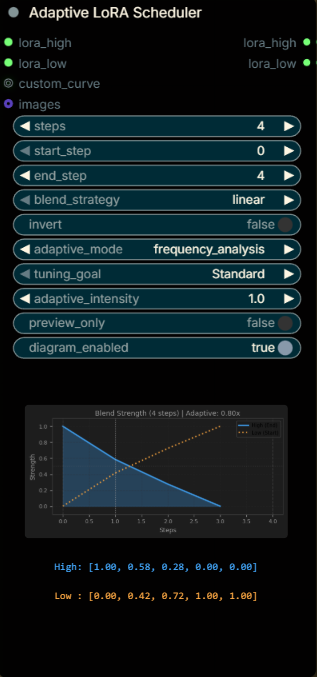
Adjust the number of the start-end step based on how many steps you have on Ksampler
🚀 Quick Start Guide
1. Installation
Method A: Git Clone
- Open command line in
ComfyUI/custom_nodes/ - Run:
git clone https://github.com/LeonQ8/ComfyUI-Dynamic-Lora-Scheduler.git cd ComfyUI-Dynamic-Lora-Scheduler pip install -r requirements.txt ( it will install numpy>=1.20.0 and matplotlib>=3.3.0 make sure it doesn't conflict with your environment) - Restart ComfyUI.
Method B: Manual (Zip)
- Download the ZIP file from this repo.
- Extract it into
ComfyUI/custom_nodes/. - Ensure the folder name is
ComfyUI-Dynamic-Lora-Scheduler. - Run
pip install -r requirements.txt. - Restart ComfyUI.
2. How to Use
- Add Node: Search for
Adaptive LoRA Scheduler. - Connect LoRAs:
lora_high: Connect your "End/Target" LoRA.lora_low: Connect your "Start/Base" LoRA.
- Connect Output:
- Connect the
lora_highoutput to theWanVideoSetLoRAsnode for your High Model Chain. - Connect the
lora_lowoutput to theWanVideoSetLoRAsnode for your Low Model Chain. - Using Multiple LoRAs (e.g., Speed LoRA)?:
- ComfyUI handles patches sequentially. Chain your nodes!
Model Loader→WanVideoSetLoRAs(Speed LoRA) →WanVideoSetLoRAs(Adaptive Node) →KSampler.- You need a new
WanVideoSetLoRAsnode just for the Adaptive Scheduler. Connect the previous model output to this new node's input.
- Connect the
- Connect Image:
- Connect your source image (for I2V) or video frames to the
imageinput to enable Adaptive Mode.
- Connect your source image (for I2V) or video frames to the
3. Parameters Explained
🎛️ Blending Strategy
Controls the base shape of the transition.
- Linear: Constant speed. Best for general use.
- Ease-In: Starts slow, speeds up at the end.
- Ease-Out: Starts fast, slows down at the end.
- Sigmoid: Slow start → Fast middle → Slow end. Best for distinct phase separation.
🧠 Adaptive Mode (Requires image input)
Modulates the Blend Strategy based on image content using Frequency Analysis (FFT).
-
Adaptive Mode: Set to
frequency_analysis(Recommended). This accurately detects if your image is textured (High Freq) or smooth (Low Freq). -
Tuning Goal: Tells the node how to react to the analysis.
Standard: Balanced approach.Encourage Motion: Best for static/smooth inputs. Forces the model to add movement/structure even if the image is simple.Preserve Details: Best for complex/textured inputs. Protects fine details by effectively reducing the High-Frequency LoRA strength for cluttered areas.
-
Adaptive Intensity: Controls the strength of the reaction.
0.0: Off.1.0: Standard.2.0+: Strong reaction (e.g., heavily suppressed High LoRA for detailed images).
check exmaple_workflows
4. Visual Feedback
The node provides detailed stats in the UI:
- Graph: Shows the exact blend curve with axis labels and a crossing point marker (where High/Low swap dominance).
- Values: Displays exact blend weights at 0%, 25%, 50%, 75%, and 100% of the steps.
- Adaptive Info: Shows the calculated
Complexity Scoreand the resultingCurve Modifier(e.g.,1.52x).
"No Diagram Visible"
- Ensure
diagram_enabledis set toTrue. - Ensure
matplotlibis installed (pip install matplotlib).