
ComfyUI-Resolution-Divider
Utility node for ComfyUI that calculates downscaled resolutions while maintaining original aspect ratio, ideal for image-to-video workflows to prevent OOM errors. (Description by CC)
ComfyUI-Resolution-Divider
A simple and smart utility node for ComfyUI designed to calculate downscaled resolutions while strictly maintaining the original aspect ratio.
This node is essential for Image-to-Video (I2V) workflows (like Wan 2.2), where using high-resolution input images often leads to OOM (Out of Memory) errors. It helps you find the "sweet spot" (e.g., 480p or 720p) instantly without manual calculations.
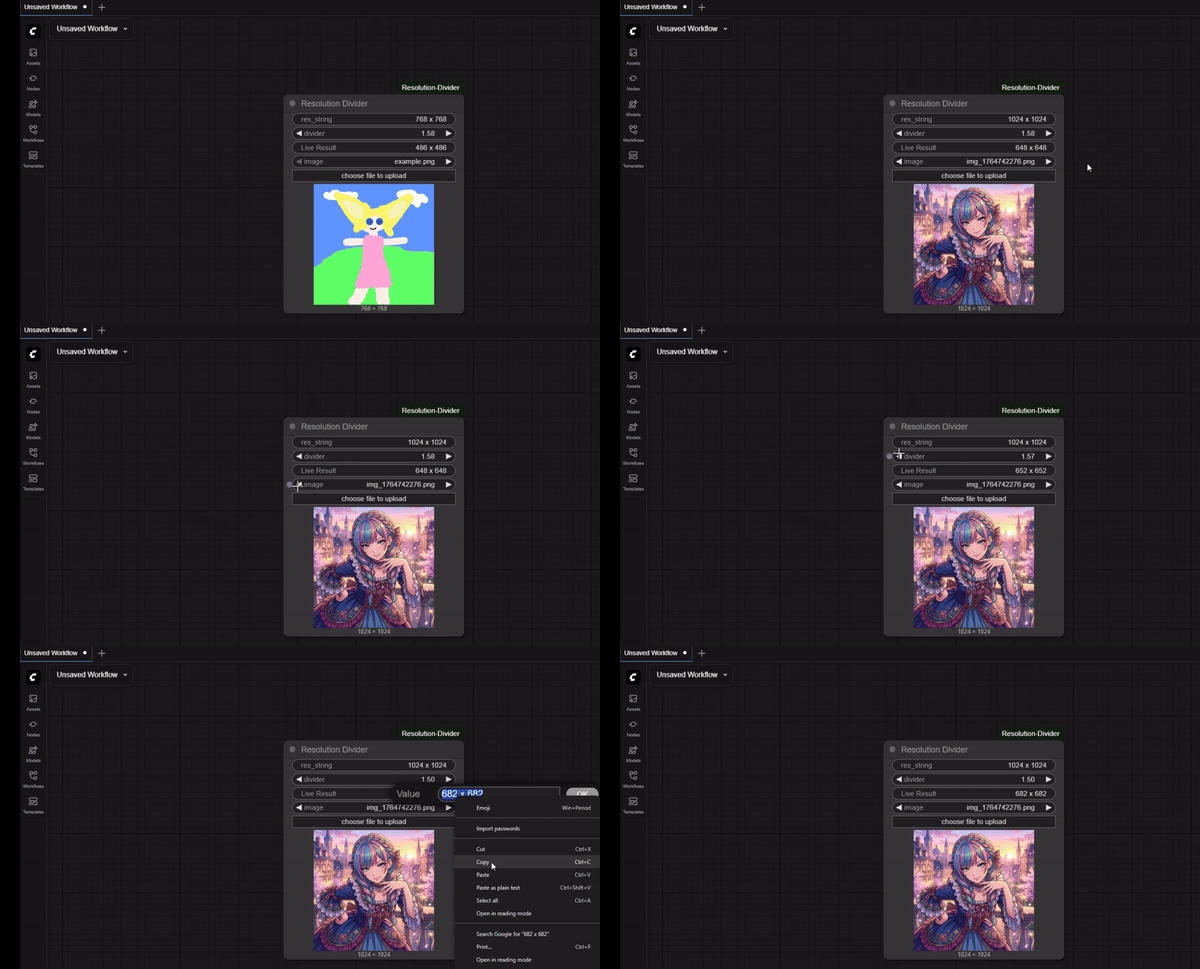
🚀 Key Features
- Smart Parsing: Accepts various format inputs like
1920 x 1080,1920x1080,1920 1080, or1920, 1080. - Auto-Detect Resolution: Select an image from your input folder or upload one directly on the node. It automatically reads the dimensions.
- Real-Time Calculation: The "Live Result" updates instantly via JavaScript as you adjust the slider—no need to queue the prompt to see the numbers.
- VRAM Saver: Perfect for downscaling 4K/HD images to manageable sizes for heavy models (Wan 2.1, Wan 2.2, etc.) without making the image "squashed" or "stretched".
Tested Versions
- ComfyUI version: 0.3.76
- ComfyUI frontend version: 1.33.10
📦 Installation
Method 1: Manual Clone
- Navigate to your ComfyUI
custom_nodesdirectory. - Open a terminal/command prompt.
- Run the following command:
git clone https://github.com/CraftBlack/ComfyUI-Resolution-Divider.git - Restart ComfyUI.
🛠️ Usage
- Add the Node:
- Right-click canvas ->
Resolution Divider.
- Right-click canvas ->
- Input:
- Option A: Type the resolution manually in
res_string(e.g.,1024x1024). - Option B: Click "Upload" or select an image from the dropdown. The node will auto-fill the resolution.
- Option A: Type the resolution manually in
- Set Divider:
- Adjust the
dividerfloat value. 1.0= Original Size.1.5= 1.5x smaller (Recommended).2.0= Half size.
- Adjust the
💡 Why "Divider"?
Unlike "Scale" nodes which usually multiply (upscale), this node divides (downscales).
$$ \text{New Size} = \frac{\text{Original Size}}{\text{Divider}} $$
Example:
- Input:
1280 x 720 - Divider:
1.5 - Result:
853 x 480(Perfect 480p safe zone for heavy AI models)
🤝 Contributing
Feel free to submit issues or pull requests if you have ideas for improvements!
📄 License
MIT License. Free to use for everyone.